ACROBAT | 6-MINUTE READ
How to fill out a PDF form.
Learn how to fill out a PDF form on different devices step by step.
ACROBAT | 6-MINUTE READ
Learn how to fill out a PDF form on different devices step by step.
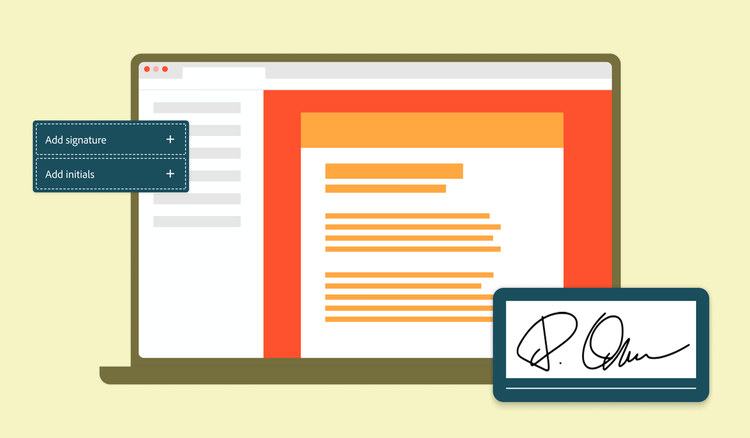
Almost daily, important documents are shared over text and email and downloaded to our devices. No one can escape the document deluge — from job applications to tax documents, healthcare questionnaires to school permission slips.
PDFs remain the gold standard for sharing information consistently between devices, but many people are still unsure how to fill out a PDF form quickly and correctly. Here is everything you need to know about filling out PDF forms, including tools, specific instructions for your favorite devices, and solutions for navigating different forms.
Filling out a PDF form doesn’t have to be intimidating. With the right tools, you can learn how to fill out a PDF form step by step in no time. One of the simplest ways to fill and sign PDF forms is using the Acrobat Fill & Sign tool. This tool is available online and free to use.
To sign PDF, upload your PDF to the Fill & Sign tool by clicking the Select a File button or dragging and dropping the form into the upload box.
Your file will upload and open automatically in Acrobat online. Use the toolbar to complete the PDF form:
Click any form field to fill it out. If the PDF document was initially saved as an interactive PDF with embedded, pre-built fields, the Fill & Sign tool will recognize the fields automatically and flag them for your response. But if not, you can still easily add your responses manually by clicking the area of the document where you want them to appear.
Signing your form is often the final step before your task is complete. To sign a form in the Fill & Sign tool:
Read over your form one more time to make sure you have filled out all the necessary sections. Then, click Next. You can download your completed form or share it with yourself or others by email or with a link.
When reviewing a PDF form, you may want to add notes or comments before you are ready to sign. Acrobat also offers an online PDF editor to make giving feedback simple:
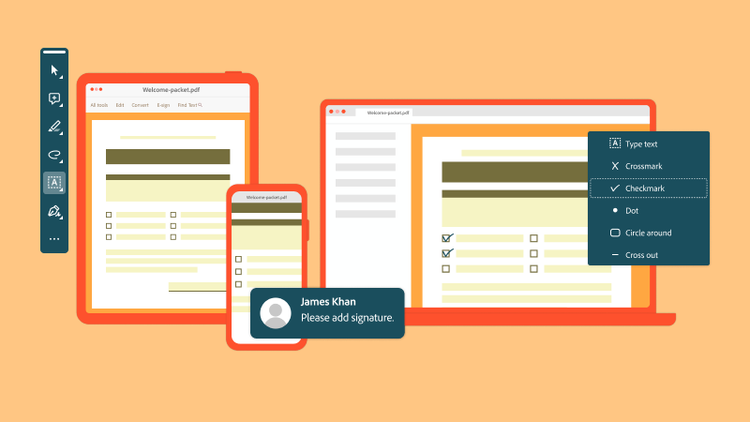
If you want to learn how to fill out a PDF form on a Mac, you can use an online tool in the Safari browser or download Acrobat Reader to your computer for offline functionality. Mac’s default PDF viewer, Preview, does allow basic form filling, but it doesn’t offer the signature and annotation tools available in Acrobat.
To fill out a PDF form in Acrobat Reader:
1 Open the PDF document.
2 Select Tools > Fill & Sign.
3 Add the information to the form including text, checkmarks, and your signature.
4 Save the form to your computer.
If you are wondering how to fill out a PDF form on an iPhone, you can still access online tools in the Safari browser. Or you can download the Acrobat Reader mobile app for free from the App Store:
1 Open the app, and choose the PDF file.
2 Tap the pencil icon and select Fill & Sign.
3 Add the information to the form including text, checkmarks, and your signature.
4 Save the form to your computer.
Like Mac, both Windows and Android devices can access Acrobat online tools or download an offline solution:
PDF forms come in two main types. Understanding which kind of form you are working with can speed up the time it takes to complete and clarify your next steps.
Interactive forms are often referred to as fillable forms because they come with built-in fields. These forms are created using Acrobat or other professional form-building tools. You can recognize interactive forms because they allow you to click directly into text boxes, use drop-down menus and buttons, and quickly tab between fields. These forms are the simplest to fill out. Simply open your preferred filling and signing tool and type into the form fields. Then, save or share.
Flat forms are also known as non-fillable PDFs. They are usually scanned documents or static files without embedded fields. Visually, they look like any other PDF form but don’t allow you to type directly into the fields without the proper tools.
If you are creating a form to share with others, you can learn how to make PDF fillable or create one with a PDF maker in the first place to avoid the pitfalls of a flat form. But if a flat form is handed to you, you can use Fill & Sign to place text boxes in the required fields. You can also manually add checkmarks and your signature. Remember that you can adjust the font size in each text box to keep a flat form organized and readable.