How to share PDFs
Whether you're a student working on a group project, a part of a team coordinating across time zones, or a business owner gathering feedback on a contract, sharing documents effectively is essential to getting work done.
The challenge lies in finding methods that work seamlessly across different devices, operating systems, and locations—without losing formatting or compromising security.
How to share a PDF as a link
Converting a PDF to link format is the easiest and most convenient way to share documents. Recipients don't need special software installed—they simply click the link to view your file instantly in their browser.
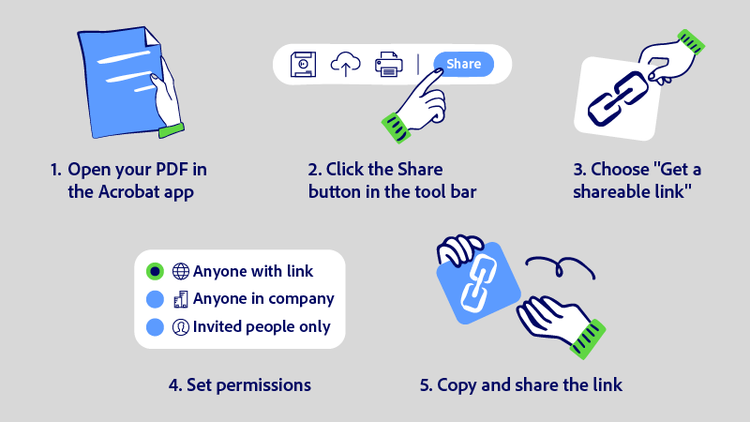
1. Open your PDF in the Acrobat desktop or web application.
2. Select the Share option from the toolbar.
3. Choose "Get a shareable link" from the available options.
4. Set permissions to control whether recipients can view only, add comments, or edit the document.
5. Copy the link and send it via email, chat, or any messaging platform.
Permission controls let you restrict access to specific people, set expiration dates for time-sensitive documents, or require passwords for confidential files. You can also track who views the document and when, giving you visibility into engagement.
For those working on a Windows computer, the desktop application provides quick access to easily share a PDF on a PC directly from the toolbar. There are also mobile options to share PDFs while on the go. iPhone users can upload and share directly from their device, while Android users have similar capabilities through the mobile app.
Acrobat AI Assistant can help summarize document contents before sharing, allowing you to provide recipients with a quick overview of what they're about to review.
How to share a PDF using cloud storage
Cloud storage is ideal when you need ongoing access to documents, want to maintain version control, or are looking to collaborate with multiple team members over time. Storing PDFs in the cloud ensures everyone works from the latest version while maintaining access across devices.
Adobe Acrobat integrates seamlessly with your workflow, allowing you to share files online from any location. Upload your PDFs once, and access them from your desktop, tablet, or phone without manual transfers.
Key benefits of cloud-based sharing include:
- Keeping documents organized based on type of content
- Generating shareable links directly from cloud folders
- Setting folder-level permissions for entire teams
- Syncing changes in real time across all devices
- Maintaining a single source of truth for document versions
How to share a large PDF via email
Email attachments typically have size limits ranging from 10 to 25 MB, which can prevent you from sending larger documents directly. Several practical approaches help you work around these limitations.
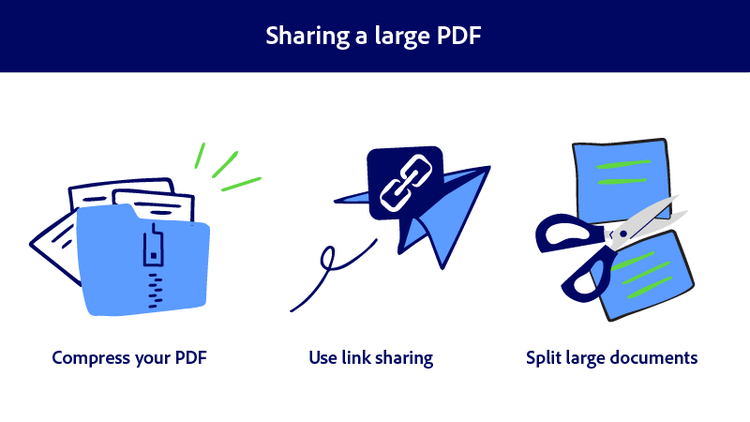
Compress your PDF before attaching it. Built-in compression tools reduce file size while maintaining readability, often making documents small enough to send as traditional attachments.
Use link sharing instead of attachments. Rather than attaching the file directly, upload it and share a link. This bypasses size restrictions entirely and gives you control over access permissions.
Split large documents into smaller sections when compression isn't sufficient and link sharing isn't appropriate. This approach works well for lengthy reports or presentations that can be logically divided.
For multi-file sharing, PDF Spaces offers a dedicated AI workspace where you can organize and share multiple large documents with teams. This feature creates a centralized hub for ongoing collaboration, making it simple to manage access and keep everyone working from the same files—particularly useful when dealing with document collections that exceed email limits.
When emailing shared links, include a brief description of the document and any actions you need recipients to take. Clear communication helps ensure your collaborators understand what's expected and can respond efficiently.
Frequently asked questions
How do I make a PDF file shareable?
How do I share a PDF on a website?
Can multiple people edit a shared PDF at the same time?
What's the best way to share confidential PDFs securely?
You may also like