Introduction
In this tutorial we are going to discuss the Asset Warp Tool.
This is a new tool and it's a fantastic tool to deform your bitmap graphics and your vector graphics.
The one thing that you aren't allowed to do is deform symbols.
Preparing artwork for the asset warp tool
So in this case the right arm of the robot was turned into a symbol, a graphic symbol.
I don't want it to be a symbol anymore, so I go to Modify and Break Apart to make sure that it's a bitmap again.
And of course it does the same thing when you are working with your vector graphics.
Just don't use symbols.
So now what I can do is select the Asset Warp Tool,
Deforming artwork with the asset warp tool
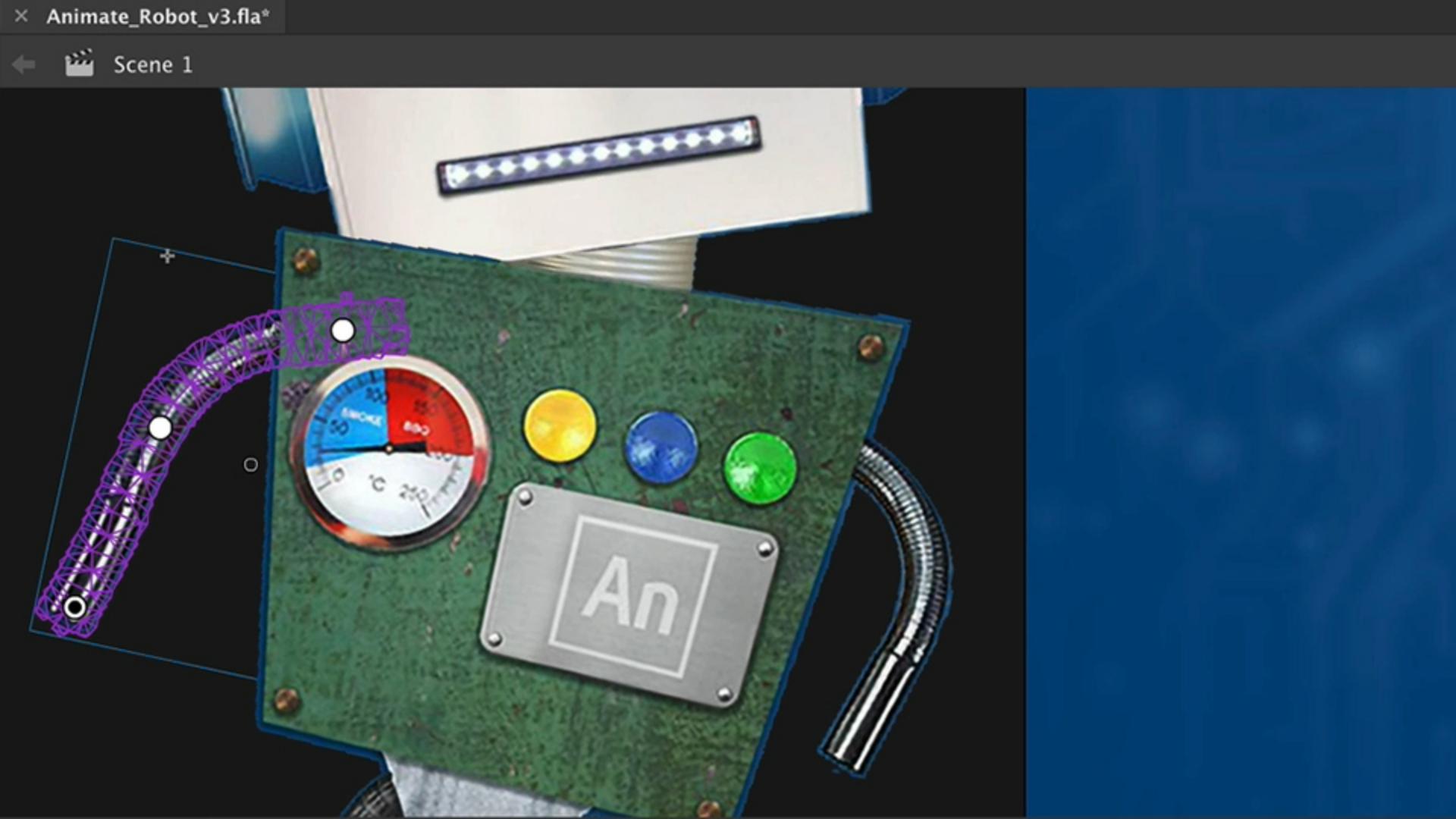
select the area where the hand should be of a robot.
It immediately shows you the mesh of the arm.
I can select the elbow area and the shoulder part and now when I'm selecting the hand it allows me to deform the arm.
But I don't want to see the mesh, just disable Show mesh.
And now it shows me what it looks like without the mesh.
And when I'm going to start this animation, it needs to be somewhere over here, I think, to make it a bit more dynamic.
Now when I want to let it come to a stop the head needs to swing behind his back a bit more, so I will need to create a keyframe.
So this trick doesn't work with a Motion Tween.
Animating deformations with keyframes and classic tweens
We will need to make keyframes by hand and use the Classic Tween instead.
So let's right click on the location where we want to stop - Insert Keyframe.
Let's swing this one behind this back.
This one as well.
Of course there's no animation in there.
It's more of a stop motion right now.
But when I add the Classic Tween with a right click in the middle of those two keyframes Create Classic Tween, it will do the trick.
There we go.
And probably it's starting a bit too soon with moving behind this back.
So maybe it's better to make sure that this hand is a bit more off.
Let's right click, Insert Keyframe and let it sit there a bit more.
There we go.
Another keyframe.
Right click, Insert Keyframe.
Make sure that there is another Classic Tween in the middle.
Let's move it back again.
Applying asset warp to additional parts and wrap-up
Of course we can do the same thing with the other arm as well.
Let's speed things up in the recording.
And that's how you can work with the Asset Warp Tool.
Pretty cool and like I said it also works on vector graphics.
So artwork made in Illustrator or Animate itself will work perfectly with the Asset Warp Tool.
Our video is almost done.
Let's get ready to export out our video in the next tutorial.