For this tutorial I'm using the Explore_Bezier_Keyframes.prproj file.
You can find that project file with the media associated with this tutorial.
Just double click on the project file to open it in Premiere Pro CC.
I am in the Effects workspace and you can choose that workspace by going to the Window menu and choosing Workspaces and also you can reset the workspace by choosing Reset to Saved Layout.
You can access the same option in the Panel menu in the workspaces panel.
I have a sequence set up here that already has some animation applied.
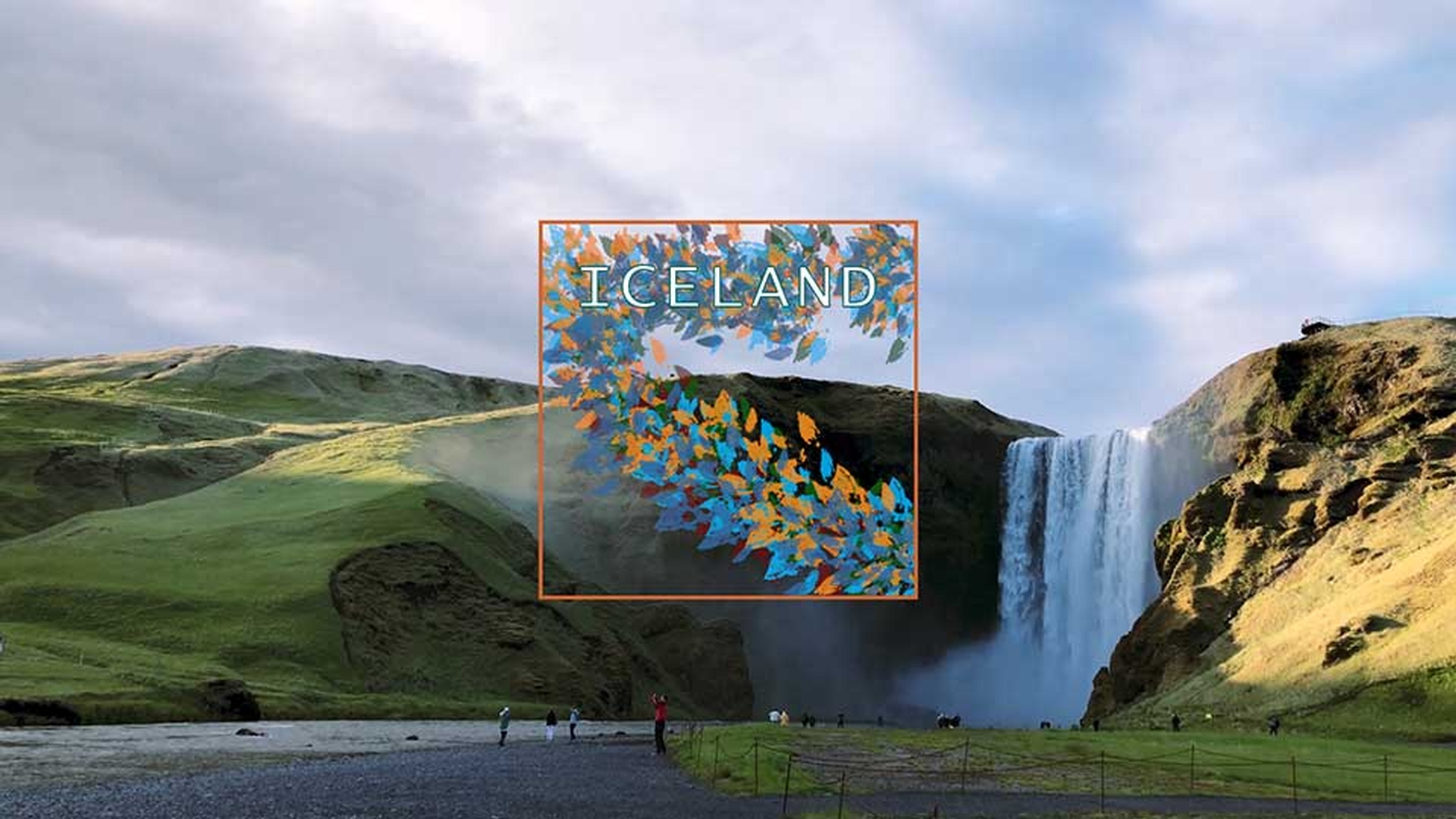
I have this graphic that slides on screen at 90 degrees and then rotates on one corner and lands flat in the middle of the screen.
This is an interesting way for the graphic to come on screen, but the movement doesn't look very natural.
I’ll just click back a little, so you can see, and I'll play the motion.
It's just a steady linear rotation on one corner.
Definitely better than a static image that fades up but not particularly exciting.
So, let's use Bezier Keyframes to give the movement some momentum.
So, first of all, I need to have the graphic selected, so I can see its settings in the Effect Controls panel.
Right now, I've got two keyframes for Position.
I've got a start position off screen.
I'll just click back to the previous keyframe to see it and we've got one with our final position just a few seconds in.
At the same moment we've got our starting keyframe for Rotation which is set to -90.0 ° and the second keyframe for Rotation sets us back to 0.0 ° and that's what gives us this movement.
I want the graphic to look like it's falling when it comes to a stop as if somehow the momentum of it sliding across the screen caused it to fall straight.
I'm going to just expand the height of the Rotation settings here a little, so we can see the keyframes more clearly.
And I can tell right away by looking at these icons that these are the default Linear keyframes.
A Linear keyframe means that changes occur with consistent progress and we want the rotation to accelerate and then come to a hard stop as if the graphic is falling pulled by gravity.
So, I'm going to right click on the second rotation keyframe and from the list of available options I'm going to choose Bezier.
This changes the icon, but it also importantly gives me a Bezier handle.
I'm going to use the navigator at the bottom of the Effect Controls panel to zoom in a little here, so you can see that handle more clearly.
If I play the result before I make any manual changes you can see it's kind of an even smoother finish, it slows down towards the end, so I'm going to get a hold of this very small Bezier handle.
In fact, let me just navigate left a little bit here and I'm going to resize this, so you can see more clearly.
This line represents the adjustment over time just as a volume rubber-band does or for that matter an opacity rubber-band, but of course we're focusing on rotation.
So, I'm going to get this handle and I'm going to start to make an adjustment.
Now if I adjust too far so I get this curve, well, take a look at what happens.
If I scrub through here, you can see that we're actually going beyond the final keyframe setting.
We're going as far as 28.7 ° beyond our 0 point and then coming back and that's no good at all.
It's certainly an interesting movement if I play through here, but it's not what we're looking for.
I can also use this Bezier handle to pull down and again I am going to pull down, so you get quite a sharp finish, but I don't want to pull down so far that this line dips below the original setting.
And let's take a look at that.
Well it's pretty good.
I like the acceleration, but that Bezier curve is giving us a slight backwards motion at the first keyframe.
It kind of works in this example but we could remove it by using an automated Bezier keyframe setting, the Ease Out.
So, I'm going to right click on the first keyframe and I'm going to choose Ease Out, and this will smooth out the movement.
The Ease Out and Ease In keyframes are Bezier keyframes that are already set up to give a smooth transition at the point of a keyframe, either leading up to the keyframe or playing from it.
I'll just click back and play again and let's take a look.
Excellent!
Though we're still getting that backwards momentum.
So, let's take the handle of that first Ease Out keyframe and just stretch it out a little bit longer.
This is going to smooth out the movement although you can see if I just resize a little more we're still getting a little bit of a backwards curve.
So, let's level that out and take another look.
Great!
Well, it's not exactly a natural curve because we've got this downward handle so steep now that it's forcing the acceleration into reverse.
So, I'm going to just shorten that handle to create more of an upward curve and as you can see the longer you make the handles, you just click and drag them, the longer the straight stretch of that rubber-band.
Let's click back and take another look.
Excellent!
Much more interesting.
As you can see, adjusting keyframes using Bezier handles is both an art and a craft and it inevitably takes a little bit of experimentation and practice and just trying things out to see that you get the result you want.




