Introduction
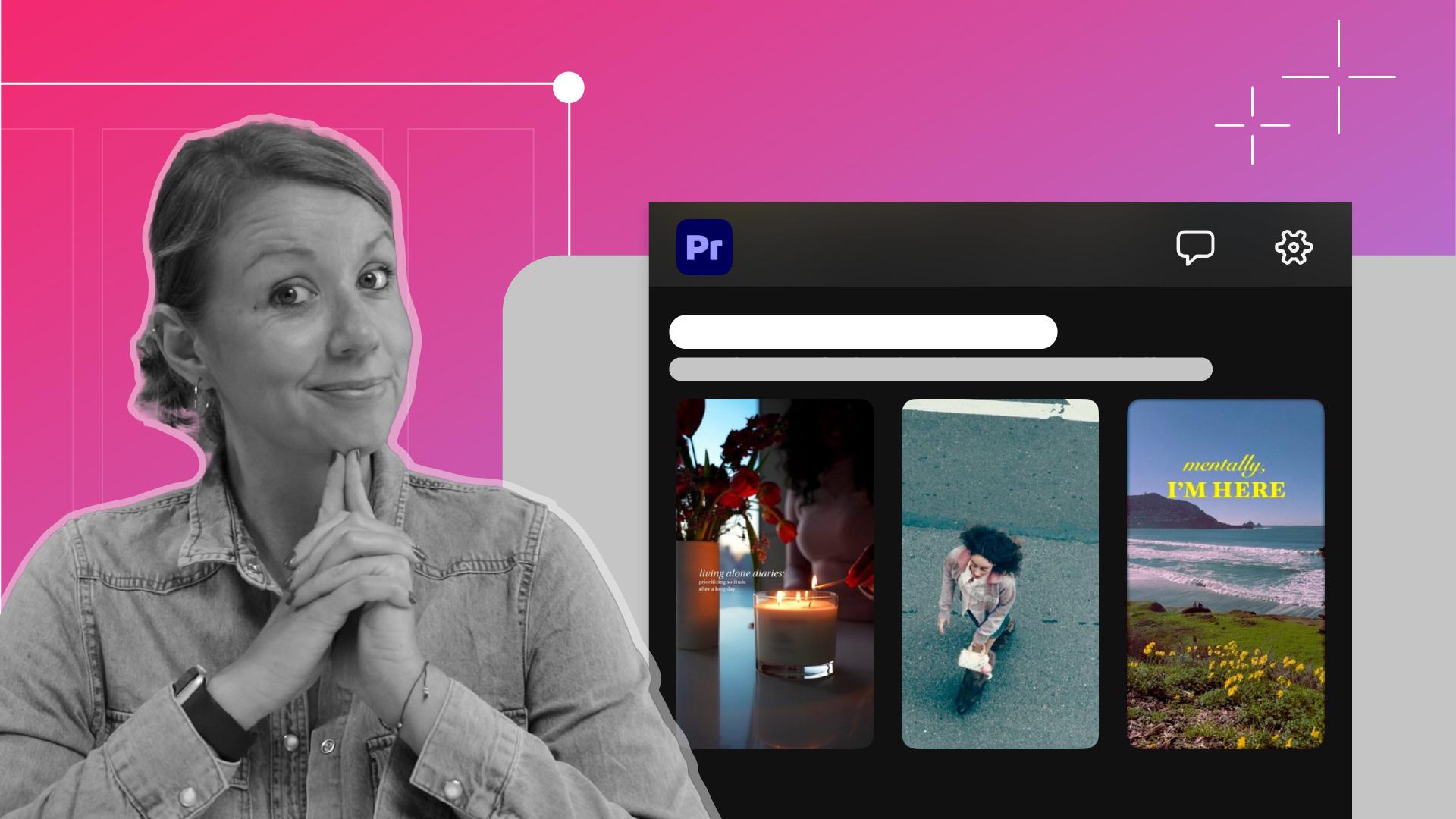
[Kelsey Brannan]: Premiere and YouTube have teamed up to provide unique templates with effects and transitions that help you edit YouTube Shorts faster.
I'm Kelsey Brannan, and you may know me as Premiere Gal on YouTube.
And in today's video, I'm going to show you how to customize YouTube templates inside of Premiere mobile.
Let's go ahead and open up the Premiere mobile app.
Browse and preview templates
From the Premiere mobile home page, you can scroll down to this section called Make it yours for YouTube.
And here you can scroll through to preview the different templates that you might want to use, and you can tap on one to preview what it looks like with visuals and music. [music] In my case, I'm looking for a template that'll let me edit together step-by-step visuals of how I made brownie pinecones for a bake-off. [music] I think this template will work well, so I'm going to select Use this template and then it will begin to download.
Add your media and adjust the timing
[music] Here we're going to select what media we're going to use inside of the template.
You can see at the top how many placeholders are available.
Here there are 14.
And at the bottom, you can see it'll indicate the duration of each placeholder.
Now we can select the media we want to use.
So for the first placeholder here, I'm going to scroll down and select this media.
Now I'm going to quickly go through and select the media I want to use for each placeholder.
You can see that I've selected all the media for the placeholders.
And if you ever want to go back and replace any one of these, you can just simply tap on the placeholder you want to replace and then select the media that you want to select.
And once that's done, tap Next.
Now it will download and prepare the media to be used in Premiere mobile, and it will show you a preview of what the media looks like in the template.
But before you hit Export, what you can do is you can select any one of these placeholders and then select Trim.
That way, you can drag it to the moment you want to use.
And here's a tip: you want to trim to the moment that has the best action for your story.
So in this case, I want to trim to the moment where I open up the oven to reveal the almonds inside.
Then you can press Play to preview what it looks like. [music] From here, you can tap Export and you're done.
But in my case, I want to customize the text,
Use the full editor
so I will tap Full editor.
And then a new window pops up, and it says that if you continue, your project will be converted for use in a full multi-track editor.
You won't be able to open this project in the template editor again.
And that's okay.
Let's press Continue.
Here we are inside of the full editor.
And what I'm going to do is pinch to zoom in.
And here I can see that there are two text layers that we can edit.
Let's tap the first one, and then tap Edit text.
And here I will type in Brownie.
Hit Check.
Now let's select the bottom text and tap Edit text and type in Pinecones.
And Check.
To make the pinecones text easier to read, let's tap Style.
In here, you can choose one of these templates that has a background.
Let's try this one.
See how that looks.
You can also tap on any one of these to see which one is easier to read.
I like this one.
Export directly to Youtube Shorts
Now let's go ahead and export.
Let's tap on this little Share icon in the upper right, and from here, we can choose our Resolution.
I'm going to keep mine at 1080p.
You can also choose your Frame rate.
In this case, I'll choose 24.
And of course, you can choose Quality: Low, which will have a lower file size, Medium, a bit higher, and High, just another megabyte higher.
I'm going to stick with High and let's tap Export video.
And in a couple of seconds, it's done.
From here, you can tap Share on YouTube Shorts, which will take you to log in to your YouTube account, to share it with your YouTube community.
And below that, you can choose to Allow template reuse so other people will be able to customize your template further.
If you don't want that, just toggle that off.
So that's all there is to customizing YouTube Short templates on Premiere mobile.
I hope you found this useful, and I'll see you next time.
Bye.