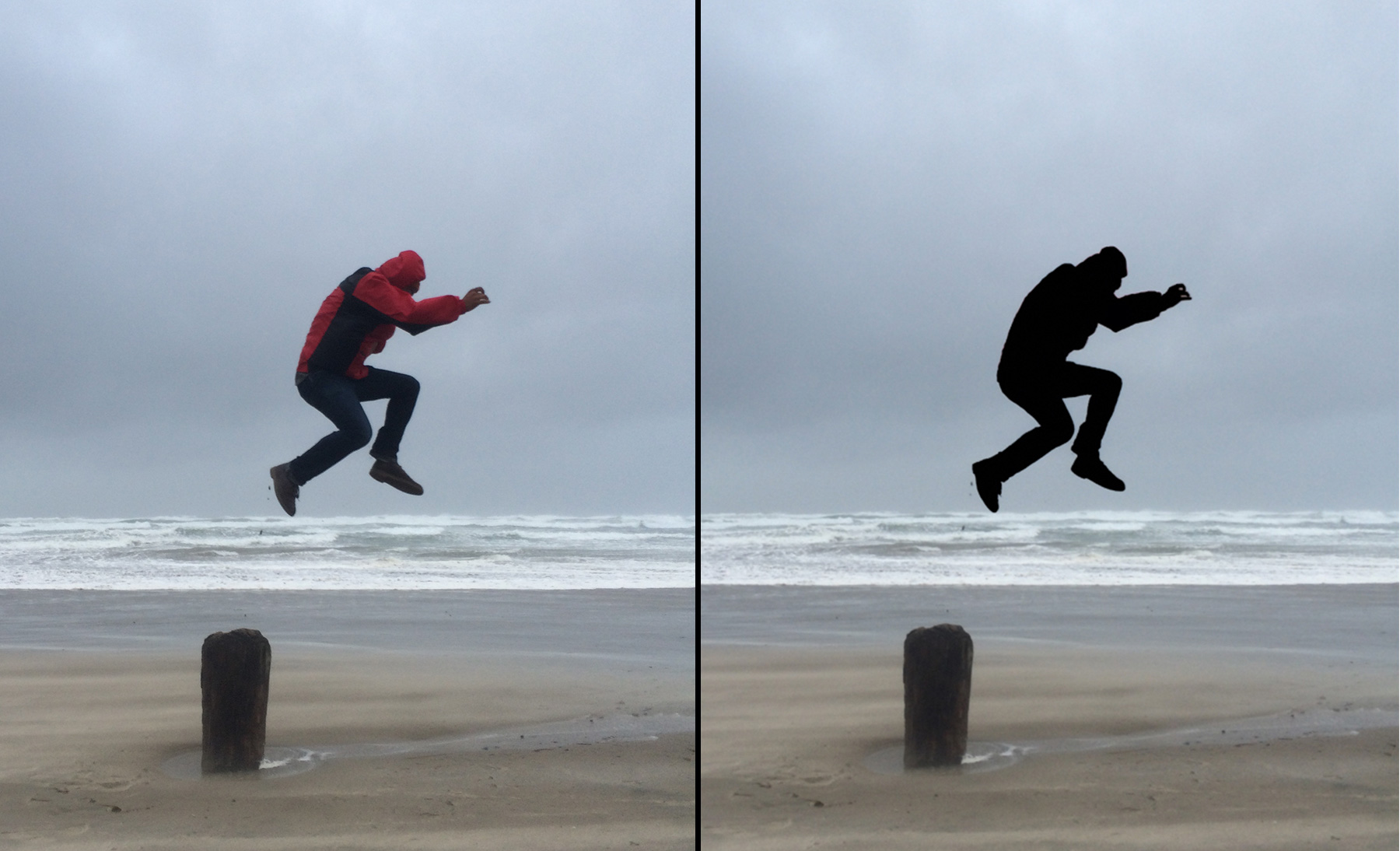
Scherenschnitte geben Fotos einen künstlerischen bzw. dramatischeren Touch. Die Erstellung eines Scherenschnittes ist aber auch eine praktische und kreative Lösung, um Belichtungsfehler zu verschleiern. In diesem Tutorial lernst du, wie du eine Person auf einem Foto mithilfe des Pinsel-Werkzeugs in Adobe Photoshop Lightroom in eine schwarze Silhouette umwandeln kannst. Experimentiere mit dem Beispielfoto zu diesem Tutorial, oder verwende ein eigenes Foto.
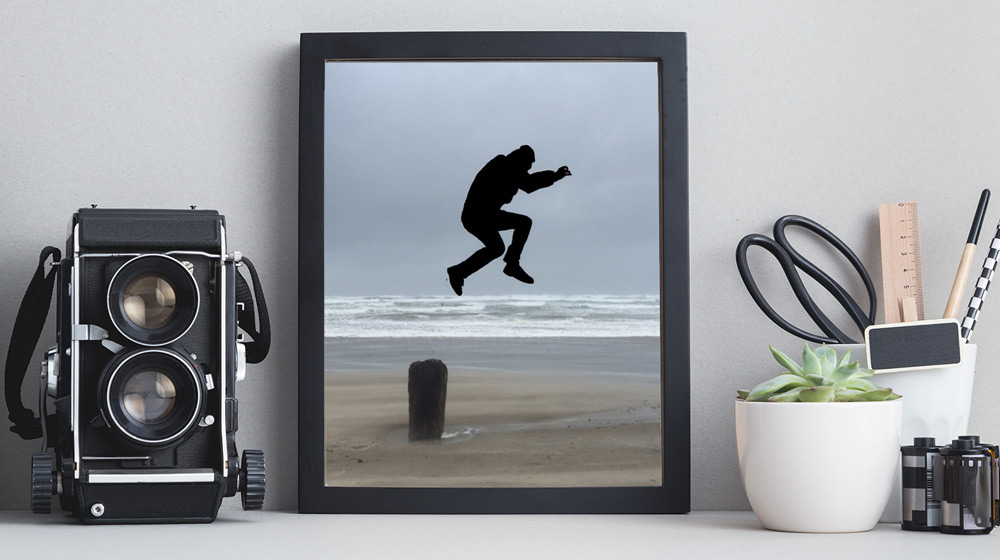
Male mit dem Pinsel-Werkzeug über die Person auf dem Foto. Achte darauf, dass „Automatisch maskieren“ aktiviert ist. Die Funktion „Automatisch maskieren“ erkennt die Kanten eines Objekts auf einem Bild, indem sie sich an den Farben und Farbtönen der Stelle orientiert, an der du mit dem Malen angefangen hast. So werden beim Übermalen der Person nicht versehentlich ungewollte Stellen markiert.
Wähle das Pinsel-Werkzeug aus, und passe die Größe des Pinsels mit dem entsprechenden Regler im Bedienfeld „Pinsel“ an. Alternativ kannst du die Tastaturbefehle verwenden. Mit der Kommataste reduzierst die Größe der Pinselspitze, mit der Punkttaste vergrößerst du sie. Klicke im Bedienfeld „Pinsel“ auf das kleine Dreieck rechts über dem Größenregler, um weitere Pinseleinstellungen anzuzeigen. Aktiviere „Automatisch maskieren“, und drücke die O-Taste mehrmals, bis die rote Maskenüberlagerung erscheint. Sie zeigt genau, über welche Bereiche du gemalt hast. Stelle den Wert für „Weiche Kante“ auf „0“ ein, um schärfere Konturen beim Malen zu erhalten. Erhöhe den Wert bei „Fluss“, um den Effekt schneller anzuwenden. Erhöhe die Dichte, um die Transparenz des Effekts einzuschränken. Male dann mit dem Pinsel über die Person.
Tipp:
Mit gedrückter Leertaste und deiner Maus kannst du in einem vergrößerten Bild zu verschiedenen Bereichen schwenken.
Die Form einfärben.
Lege mit den Schiebereglern eine dunklere Farbe für das Motiv fest, um den Effekt eines Scherenschnitts zu erzielen.
Drücke die O-Taste, um die rote Maskenüberlagerung auszublenden, damit du die Auswirkung der Anpassungen sehen kannst. Reduziere die Werte für „Belichtung“, „Lichter“, „Tiefen“ und „Schwarz“.
Beispielwerte:
Belichtung: -4,00; Lichter: -100; Tiefen: -100 und Schwarz: -100
Der letzte Schliff.
Manche Stellen musst du eventuell nachbessern, falls sie nicht automatisch maskiert wurden. Klicke den blauen Pin an, der die Stelle anzeigt, an der du mit der Bearbeitung begonnen hast. Entferne das Häkchen neben „Automatisch maskieren“ im Bedienfeld „Pinsel“, und male über die Bereiche, die ebenfalls maskiert werden müssen.
Tipp: Positioniere den Cursor auf dem Bild, und drücke die O-Taste, um den blauen Pin anzuzeigen.
Wenn falsche Bereiche automatisch maskiert wurden, kannst du dies ganz leicht korrigieren. Wähle das Radiergummi-Werkzeug, und male bei aktivierter Funktion „Automatisch maskieren“ über die entsprechenden Bereiche.
Um eine vorherige Anpassung zu bearbeiten, klicke auf den blauen Pin für die betreffende Anpassung, und justiere die Regler entsprechend nach. Klicke auf den Schalter „Original anzeigen/ausblenden“ am unteren Bildschirmrand.
Tipp: Weitere Informationen zum Pinsel-Werkzeug oder zu anderen Werkzeugen für selektive Korrekturen findest du im TutorialSelektive Korrekturen vornehmen .
You can control how Adobe websites use cookies and similar technologies by making choices below. But note that if you disable cookies and similar technologies entirely, Adobe websites may not function properly.
Cookies are small text files stored by your web browser when you use websites. There are also other technologies that can be used for similar purposes like HTML5 Local Storage and local shared objects, web beacons, and embedded scripts. These technologies help us do things like remembering you and your preferences when you return to our sites, measure how you use the website, conduct market research, and gather information about the ads you see and interact with.
You can make choices in the menu below about what cookies and other technologies you want us to use on Adobe sites when you visit them from this browser. You can always change those choices later by clicking on the Cookie Preferences link at the bottom of the page.
If enabled:
We can improve your experience by tailoring the site and the content to things we think might be of interest
We can better keep track of your preferences — like what language you prefer to use
We will better understand your likely interests so we can provide you more relevant Adobe ads and content on non-Adobe websites and in non-Adobe apps
It will help us improve the performance of our website and those of our partners who use the Adobe Experience Cloud
If disabled:
We won’t be able to remember you from session to session so the experience may not be tailored to your interests
You’ll still have access to the content of the site but certain features that depend on cookies may not function
You’ll still see ads, they just may not be as relevant to you
General information
You can control how Adobe websites use cookies and similar technologies by making choices below. But note that if you disable cookies and similar technologies entirely, Adobe websites may not function properly.
Cookies are small text files stored by your web browser when you use websites. There are also other technologies that can be used for similar purposes like HTML5 Local Storage, web beacons, and embedded scripts. These technologies help us do things like remembering you and your preferences when you return to our sites, measure how you use the website, conduct market research, and gather information about the ads you see and interact with.
You can make choices in the menu below about what cookies and other technologies you want us to use on Adobe sites when you visit them from this browser. You can always change those choices later by clicking on the Cookie Preferences link at the bottom of the page.
If enabled:
We can improve your experience by tailoring the site and the content to things we think might be of interest
We can better keep track of your preferences — like what language you prefer to use
We will better understand your likely interests so we can provide you more relevant Adobe ads and content on non-Adobe websites and in non-Adobe apps
It will help us improve the performance of our website and those of our partners who use the Adobe Experience Cloud
If disabled:
We won’t be able to remember you from session to session so the experience may not be tailored to your interests
We’ll still count your use of our site and services
You’ll still have access to the content of the site but certain features that depend on cookies may not function
You’ll still see ads, they just may not be as relevant to you
Operate the site and core servicesOperate site and measure engagement
Always active
These cookies are required, and they are used to enable the site and related services core functionality. Without them the site could not operate, so they cannot be disabled.
These cookies enable the site and related services’ core functionality and collect statistics about user engagement, such as counting active use to help us understand trends. These cookies cannot be disabled.
Measure performance
These cookies are used to analyze site usage to measure and improve performance. Without them Adobe cannot know what content is most valued and how often unique visitors return to the site, making it hard to improve information we offer to you.
These cookies are used to analyze site usage to measure and improve performance. Without them Adobe cannot know what content is most valued, making it hard to improve information we offer to you.
Extend functionality
These cookies are used to enhance the functionality of Adobe sites such as remembering your settings and preferences to deliver a personalized experience; for example, your username, your repeated visits, preferred language, your country, or any other saved preference.
Personalize advertising
These cookies are used to enable Adobe and our partners to serve ads more relevant to your interests. Without them you will still see ads, but they might not be as relevant to you.
Personalize advertising
These cookies are used to enable Adobe and our partners to serve ads more relevant to your interests. Without them you will still see ads, but they might not be as relevant to you.