Acrobat
How to read PDF files on your iPad.
It doesn’t have to be difficult to read PDFs on an iPad. Learn how you can quickly and easily read any PDF files on your iPad.
Acrobat
It doesn’t have to be difficult to read PDFs on an iPad. Learn how you can quickly and easily read any PDF files on your iPad.

Many people study and work remotely on their iPads. They are small, light and we often prefer them for reading because we read them like a book – when reclining on a sofa for example, or when catching up with some late-night reading in bed. Often, this reading includes PDF documents. However, iPads have limited support for PDF files, and you may find yourself wondering what’s the best way to view PDFs on your iPad. Read on to find out how to access and
Luckily, there’s a simple solution if you want to read PDFs on your iPad. Here’s how to do so with Adobe Acrobat Reader. In this guide, you’ll discover:
iPads and iPhones are automatically configured to open and store PDFs in the Files folder. But for full functionality, ensure you have the Adobe Acrobat Reader installed on your iPad. From there, follow these simple steps:
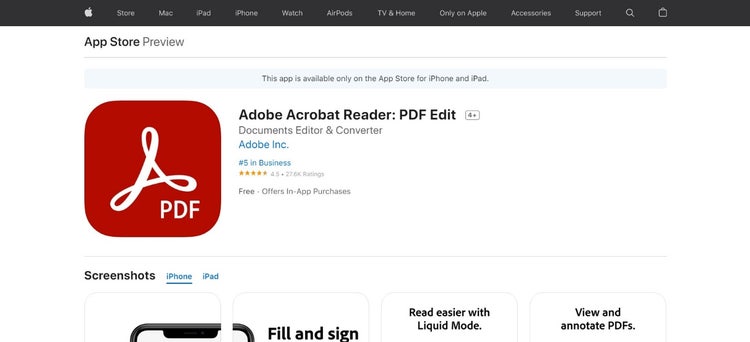
It gets even easier to read your PDFs as you use the app. Once it knows how to locate your files, you can open them directly from the home screen.
Reading on an iPad is often cheaper and more convenient than reading on paper. For one thing, say goodbye to printing out reams of paper and making sure they are in the right order, or using scraps of paper as bookmarks.
iPads are used by many people as their primary source of reading, for pleasure as well as business. Using Acrobat Reader means you can add notes and edit PDFs as you are going along too.
It’s not just Acrobat Reader where you can amend the PDFs that you’re reading either. We have a collection of online tools to help you create professional documents.
Easily edit PDFs, compress PDFs or convert them to different file formats today.
There are several reasons why your PDF may not be displaying on your iPad. First, check to see if other PDF documents can be opened. If they can, there may be a problem with one of your PDFs.
The document may have been corrupted, which means that the file can’t be opened. If this is the case, make sure you verify that your document has been downloaded from a secure source, then try re-downloading the file.
Please also ensure that you have the most up-to-date version of Acrobat Reader installed, and that your device has the latest updates installed.