Acrobat
How to Insert a PDF into PowerPoint Document.
Present your PDFs seamlessly on PowerPoint. Learn how to insert a PDF into a PowerPoint deck with Adobe Acrobat.


Acrobat
Present your PDFs seamlessly on PowerPoint. Learn how to insert a PDF into a PowerPoint deck with Adobe Acrobat.

Published by Adobe Acrobat Australia on 17 June 2025
When you’re giving a presentation, whether it’s virtual or in person, you’ll want to make sure that it goes as smoothly as possible. Presenting can be stressful enough without adding extra steps to it.
If you need to display and talk through a PDF document during your presentation, trying to find the file while pausing your slideshow can be challenging, distracting and waste precious time. Luckily, there’s a way around this – you can insert a PDF directly into your Microsoft PowerPoint presentation with Adobe’s useful tools.
Make your presentation appear fluid and professional and find out how to insert a PDF into PowerPoint with our helpful guide.
There are many ways you can insert a PDF into a PowerPoint to enhance your presentation and showcase some eye-catching data:
First and foremost, before you embed a PDF into a PowerPoint, your document needs to be ready to present. This is because you can’t go back and edit your PDF within PowerPoint, so be sure to finalise and proofread your document before you add it to your deck.
Adobe Acrobat online services offer you a range of professional PDF editing tools to re-arrange, sign and share your files securely. Access your PDFs from anywhere on any device on your Adobe cloud.
One way to import a PDF to PowerPoint is by inserting it as an object. This creates a shortcut within the presentation, quickly and seamlessly opening the file with your PDF reader so you don’t have to find it manually while you present.
Here’s how to do it:
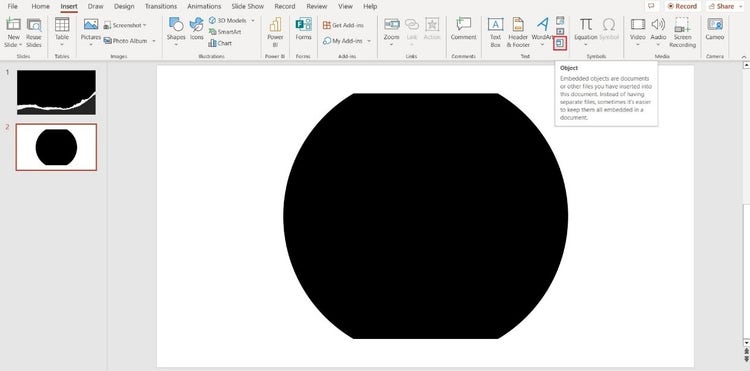
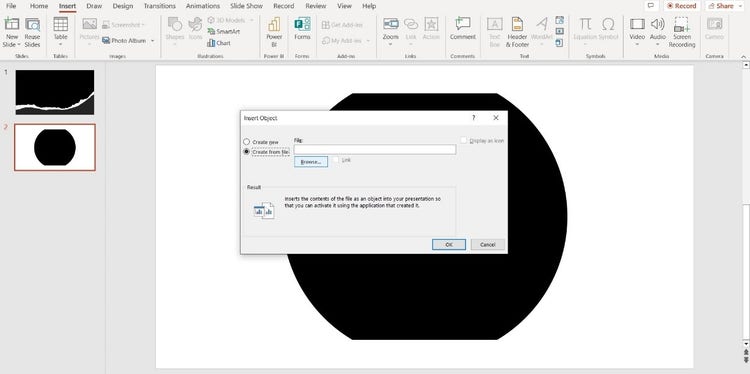
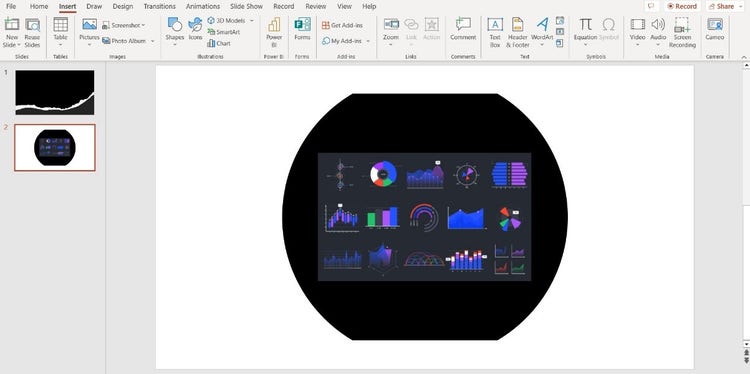
So, your PDF is looking great in your presentation, but how does it work during the slide show? To open the document as a high-quality file with your PDF reader, you’ll need to assign an action to it.
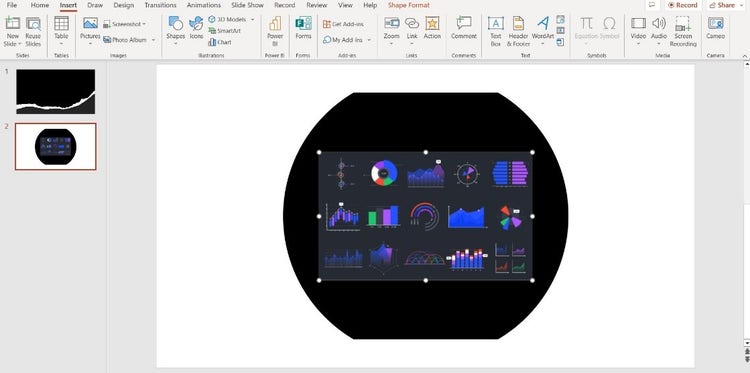
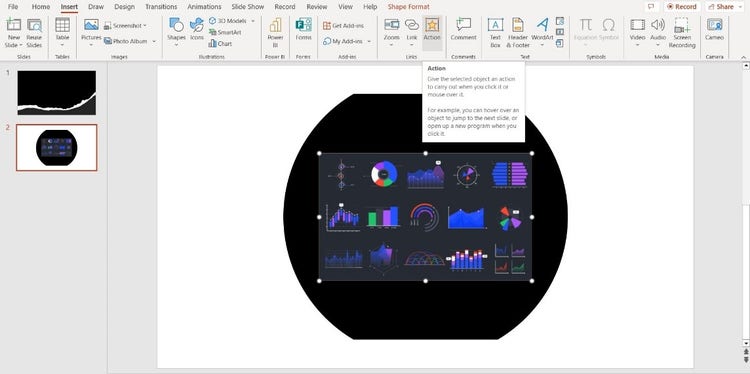
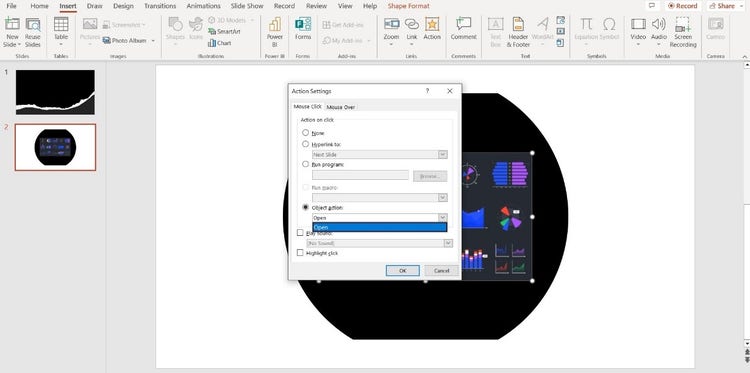
Now, when you click your PDF image in Slide Show mode, it will automatically open your document with your PDF reader.
If you don’t need to view your document in a PDF reader during your presentation, you can also insert a PDF into PowerPoint as an image.
To do this, simply complete the steps to insert the PDF as an object, but don’t assign an action to it.
Alternatively, you can also insert a single page of your PDF as a screenshot image. Just follow these instructions for similar results:
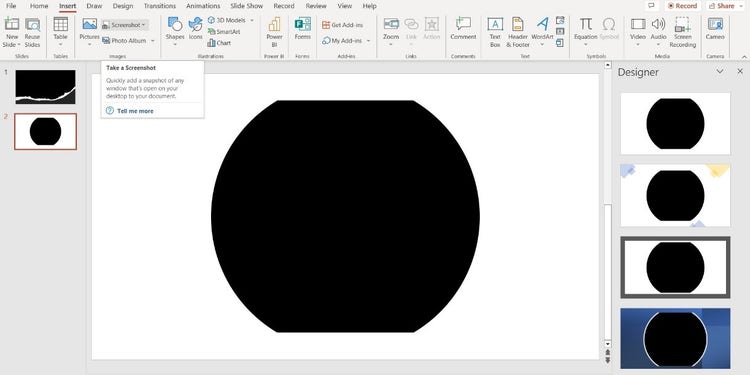
Finally, if you’d prefer to integrate your PDF document into your PowerPoint in the form of presentation slides, there is another way to achieve this. You can embed a PDF into PowerPoint by converting it into a PPT (PowerPoint) file.
You can quickly convert any PDF file to PPT using Acrobat online:
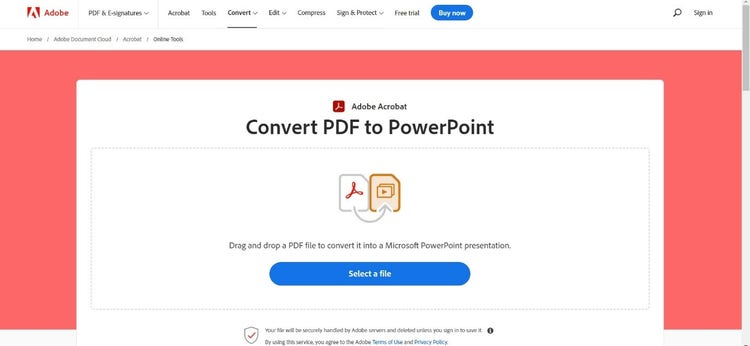
To embed the slides into an existing PowerPoint presentation, open your PowerPoint deck and select Home > New Slide > Reuse Slides. You can locate your new PDF to PPT file by selecting Browse > Choose Content.
As a side note, it’s also possible to convert your PPT to PDF quickly and easily using Adobe’s online tool. This makes it easier to share with others after the presentation.
If you have multiple PDFs to display in your PowerPoint presentation, there’s a simple solution. Just repeat the process above with each PDF file to achieve your desired results.
You can also assign an action to multiple objects in a single presentation, so you can open each one in your PDF reader while you present your deck.
Alternatively, you can insert your PDF files as images, or convert them to PPT files, and arrange them in your presentation however you like.
Presenting data has never been so easy!

