Introduction
The review process is a vital part of any video production timeline.
[Sarah]: I'm Sarah, and if you're anything like me, you're used to exporting files with _v1, _v12, _v30, and so on attached to the name, sending them out for feedback, then creating new versions as many times as it takes.
The good news is, with Frame.io's integration into Premiere, this process has gotten a whole lot faster.
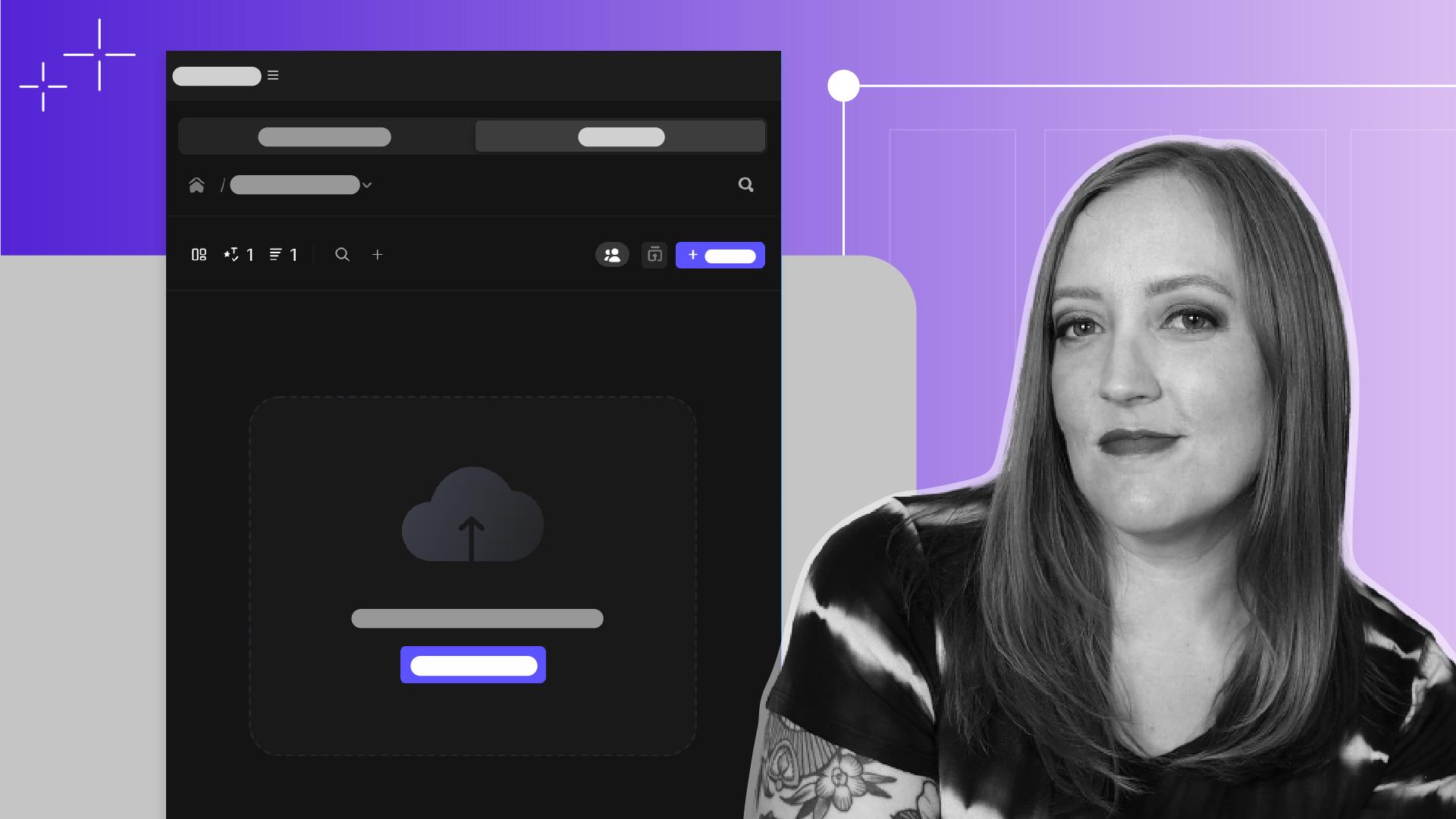
Now we can directly upload sequences to Frame.io, send them for review, and receive and incorporate feedback, all without leaving Premiere.
The simplest way to access the Frame.io panel
Upload sequences for review
is to open the Review Workspace.
We can load that by clicking on Window, Workspace, Review.
By default, the Frame.io panel will be here on the side.
When we're ready to upload our edited sequence, we'll click here to create a new project.
After naming the folder, the active sequence will automatically be set to upload.
When we select Export, we'll see a menu where we can make a few different changes to our export settings.
Something especially useful we can use is the Upload Markers as Comments option.
Add contents with markers and comments
If we have a question for the reviewer about a specific spot in the video, we can add a marker to the Timeline using the M key and include the question in the marker details.
When this is uploaded to Frame.io, it will show as a comment for them to interact with when they view the video.
Now we'll choose Export.
Clicking View Progress will take us to the Sequences tab and show us how much time is left.
Share videos and collect feedback
We are now ready to send the video out for review.
We can do this by right-clicking the video in the All Sequence Assets list, and then going to Add to Share Links, New Share Link.
We can set privacy options here, and we can grab the share link to drop in a chat message, or enter email addresses to send the link that way.
When reviewers watch the video using Frame.io, they can add comments that will appear at the relevant timecode in the video.
When we view the video again in the Timeline, that comment will be uploaded as a marker for us to zip right over to and address.
If we do end up implementing any feedback and need to send the updated version out for review, we can go back to the Sequences tab and choose Export New Version.
The most current version of the sequence will overwrite the old one, and a handy little version number will be added to the UI to let everyone know something has been changed.
And the best part is, we don't even need to create a new share link.
The original one we already sent out will now link to the updated version.
Frame.io's Premiere integration makes life easier for everyone at every step of the review phase.
I hope this streamlined process helps you out and that you've exported the very last _final_v3_real final_v2_final actual video of your career.