https://main--cc--adobecom.aem.page/cc-shared/fragments/merch/products/photoshop/sticky-banner/default

Blend images seamlessly with Photoshop AI-powered tools.

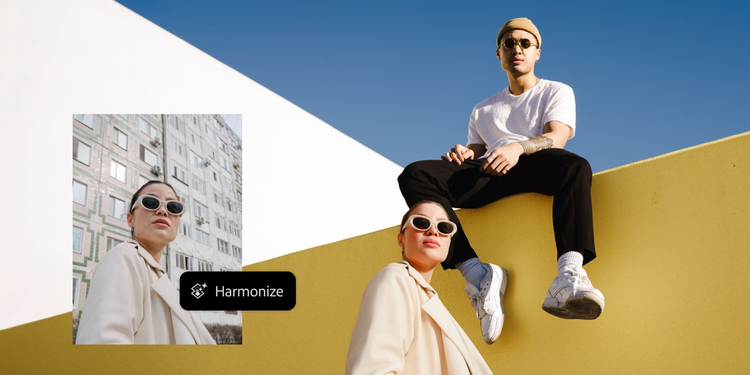
The Photoshop AI image blender, Harmonise, uses AI to intelligently match lighting, shadows, colour and tone between your subject and background, so you can achieve natural-looking results, whether you're placing a product into a lifestyle scene or blending a person into a new environment.

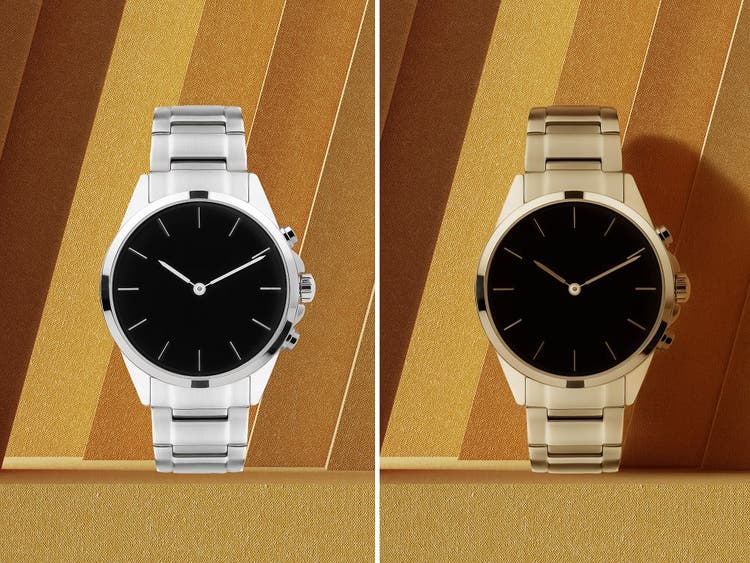
Side by side photos of a watch showing how Harmonise uses generative AI to create seamless composite images versus cut and paste.

No more harsh edges or mismatched lighting.

Instead of cut-and-paste composites, use Harmonise, powered by generative AI, to soften harsh edges and correct lighting mismatches, so your blended images appear as if they were taken together. It’s perfect for marketing visuals, social content or creative storytelling. Enhance your AI image editing.
Create consistent visuals across projects.

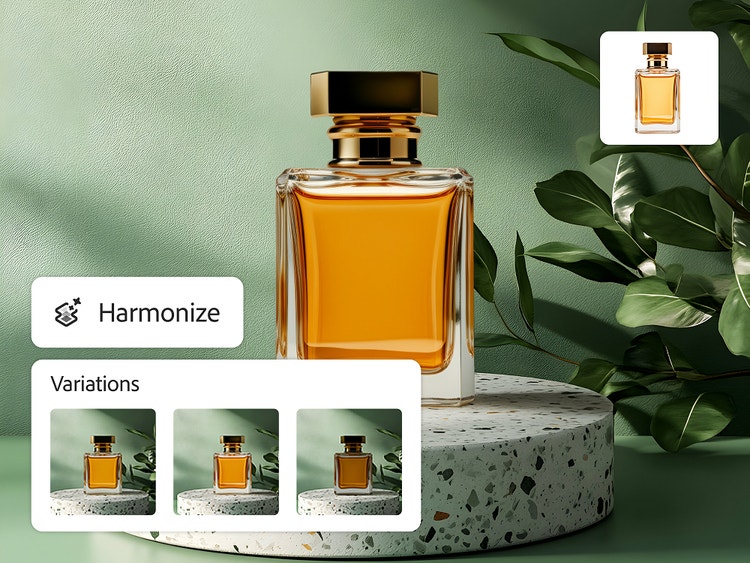
Combining multiple images while maintaining consistent shadows, lighting and tone can be challenging. Harmonise makes it easy to create cohesive composites and AI-blended images for product catalogues, digital collages or social media campaigns.

A composite product photo of a perfume bottle against a green background and several variations with different lighting generated using Harmonise in Photoshop.
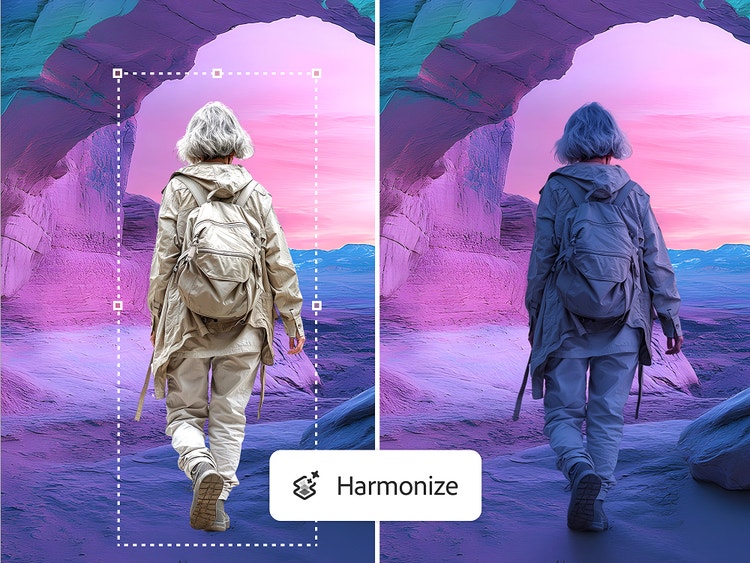
Side by side photos of a woman walking in a desert landscape that show how Harmonise can match lighting and blend new elements into a background with generative AI.

Generative composition with Harmonise.

Complex compositing can take hours to perfect. With AI-powered Harmonise, you can blend an image into a new background in seconds without time-consuming masking or manual colour grading. Simply import and blend to speed up your creative workflow.

How to blend an image with Harmonise.

With Harmonise in Photoshop, it’s easy to match lighting, colour and tone between layers so your composite images look natural and cohesive. Whether you’re combining elements from different photos or blending a subject into a new background, Harmonise helps you to create polished, professional results without complex manual adjustments.

  • Open Photoshop.
    Open or download the latest version of the Photoshop app to access the most current generative AI features. Harmonise is available in Photoshop on desktop, web and mobile.
  • Upload your background and subject images.
    Import the background scene onto your canvas. Then, add each object or element you want to blend onto a separate layer and remove its background, so only the subject is visible.
  • Select Harmonise.
    Select the pixel layer of the element. In the Contextual Task Bar or the Options Bar > Layer, click Harmonise. If using Photoshop on the web, Harmonise is accessible through the Generative Actions menu.
  • Review the results.
    Select your preferred option from the three results or generate again to create more variations.
  • Preview the composite.
    Toggle between the before and after views to see your image seamlessly blended together.
  • Download or export your final image.
    When you’re happy with the AI image blender result, download or export your image for feedback, sharing or further editing in Adobe Photoshop.

https://main--cc--adobecom.aem.page/cc-shared/fragments/products/photoshop/do-more-with-adobe-photoshop-online

FAQs about Harmonise and AI image blending.

What is an AI image blender?
An AI image blender seamlessly integrates elements into a new background by adjusting shadows,  lighting, colour and contextual details to create a natural-looking composite.
How does the Harmonise feature in Photoshop work?
Harmonise analyses your background scene and the elements you want to blend, then creates a composite with generative AI. Your added element will be recreated with intelligently masked colour tones and lighting and the background will also cast shadow or reflections to make a realistic composite scene.
Can I blend images without using masks or manual adjustments?
Photoshop will intelligently mask and apply adjustments automatically to the element, creating a realistic composite with the background.
What types of images work best with the AI image blender?
Photographs or realistic images work the best. Elements on a white or empty background with clearly defined edges also help produce seamless results, so the subject can be cleanly isolated to remove the background first and then Harmonised into the scene.
Is the AI image blender available on mobile?
Yes, the Harmonise feature is available on the Photoshop for iPhone app.
What’s the difference between Harmonise and other Photoshop compositing tools?

Harmonise does more than match the colour tones of the scene. It also intelligently alters the area around the composited element to cast shadows into the scene, helping blend the assets together realistically.

Harmonise also produces three variations to choose from, or you can keep generating to get even more options.

Harmonise uses one standard generative credit per generation.

https://main--cc--adobecom.aem.page/cc-shared/fragments/products/photoshop/caas/default