{{photoshop-features}}
How to outline text in {{adobe-photoshop}}.
Learn how to make your words more legible by adding an outline to your text.
Get free app | Get free app Photoshop View plans and pricing | View plans and pricing Photoshop

What does it mean to outline text in {{photoshop}}?

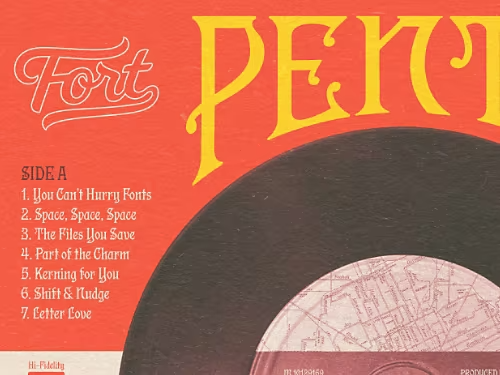
Make your text stand out.
Want to be sure your words make an impact? Add a colourful outline so they catch the reader’s eye.
Add a sense of style.
The right outline can help your text blend with the creative style you’re using for the rest of your image.
How to outline text in {{photoshop}}.
There are multiple methods to apply a text outline to your image.
- Select it:
Select the layer you want to add text to or create a new layer. Then select the Type tool from the toolbar on the right side of the screen. - Write it:
Click anywhere on the screen and type in the text you want to write. - Layer it:
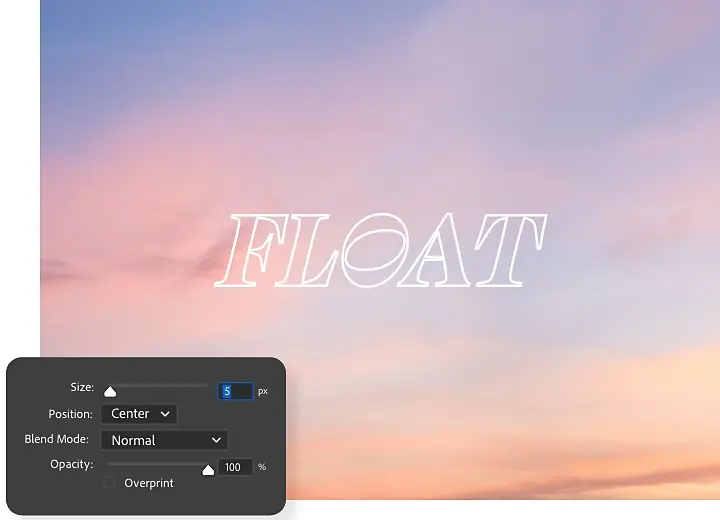
Open the Layer Style menu by clicking the FX icon or double-clicking the side of your layer. Then click the tickbox next to the Stroke option. - Adjust it:
From the Stroke menu you can adjust sliders to control the dimensions of your stroke layer. The Size option controls the outline’s thickness, while Position determines where the outline is in relation to the text. - Colour it:
You can use the Colour Picker to alter the colour of your outline and choose from different options on the Blend Mode drop-down menu to control how the outline colours mix and fade with the rest of the image. - Fill it:
If you want to fill your outline with something other than a solid colour, access the Fill Type drop-down menu and choose between Gradient (which creates a gradual transition between two colours) and Pattern (which offers a variety of repeated textures and graphics). - Apply it:
Click OK to apply your changes.
How to outline text as a vector.
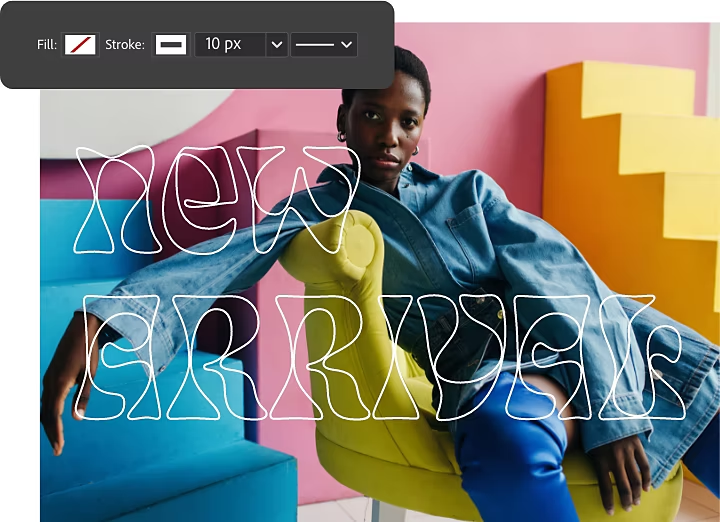
You can also create an outline for your text by converting the text into a vector shape. This will give you more options to customise the shape of your outline, but will make it more difficult to edit the text later.
- Convert it:
Once you’re sure your text is finalised, use the Text tool to create a text layer, then right-click it and select Convert to Shape. - Vector it:
From the toolbar on the right, select any of the vector tools to enable vector points on the text. - Modify it:
On the top menu, choose from options like Fill Colour and Stroke Options to alter the appearance of your text’s outline. - Apply it:
Click OK to apply your changes.
How to outline text without fill.
If you want your outlined text to have a lighter look, reduce the fill to scale down the opacity of the letters themselves while preserving the outline. From the Layer Styles menu, just select Stroke › Blending Options and then drag the Fill Opacity slider to the left to reduce the letters’ opacity.
To achieve the same effect with a vector outline, access the Layer Style window and click the tickbox next to Stroke. Then click the Fill icon from the top menu and select the No Fill icon — a white box with a slanted red line through it.
Explore additional Photoshop features.
Now that you’ve customised your text, read up on tutorials to see what else Photoshop can do.
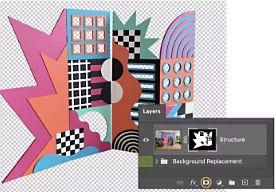
Replace a product background
Learn how to separate an object from its original backdrop and add a new one.
Replace your background image | Replace your background image
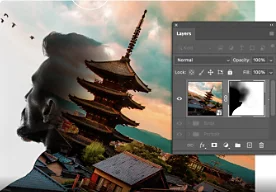
Create a composite.
Use masking tools in Photoshop to combine elements from multiple images.
{{frequently-asked-questions}}.
Is there a shortcut key to outline text in Photoshop?
There’s no shortcut key for outlining text in Photoshop, but the actual process is easy. Simply select your text and turn it into an adjustable layer by clicking the FX icon or double-clicking the side of the layer. You can then use the Stroke menu to adjust the sliders that control dimensions. Pick colours with the Colour Picker or fill it with the Fill Type drop-down.
You can also outline text by converting it into a vector shape. This gives more customisation options but, at the same time, makes it a bit harder to edit the text later. After finalising your text, use the Text tool to create a layer and right-click it to Convert to Shape.
Can I add multiple strokes to outline text in Photoshop?
You can — after adding your text and turning it into an outline via the instructions above, you can add a stroke layer effect. Once that’s done, click the plus sign ( + ) next to the Stroke effect on the left side of the Layer Style box. A second stroke appears above the first one. You may add up to 10 strokes.
After adding your strokes, you’ll want to change the position, the opacity or the colour.
Can I outline text for any font in Photoshop?
How do I outline text in Photoshop on an iPad?
Is the process for outlining shapes the same process as outlining text in Photoshop?