Position 2D layers in 3D space
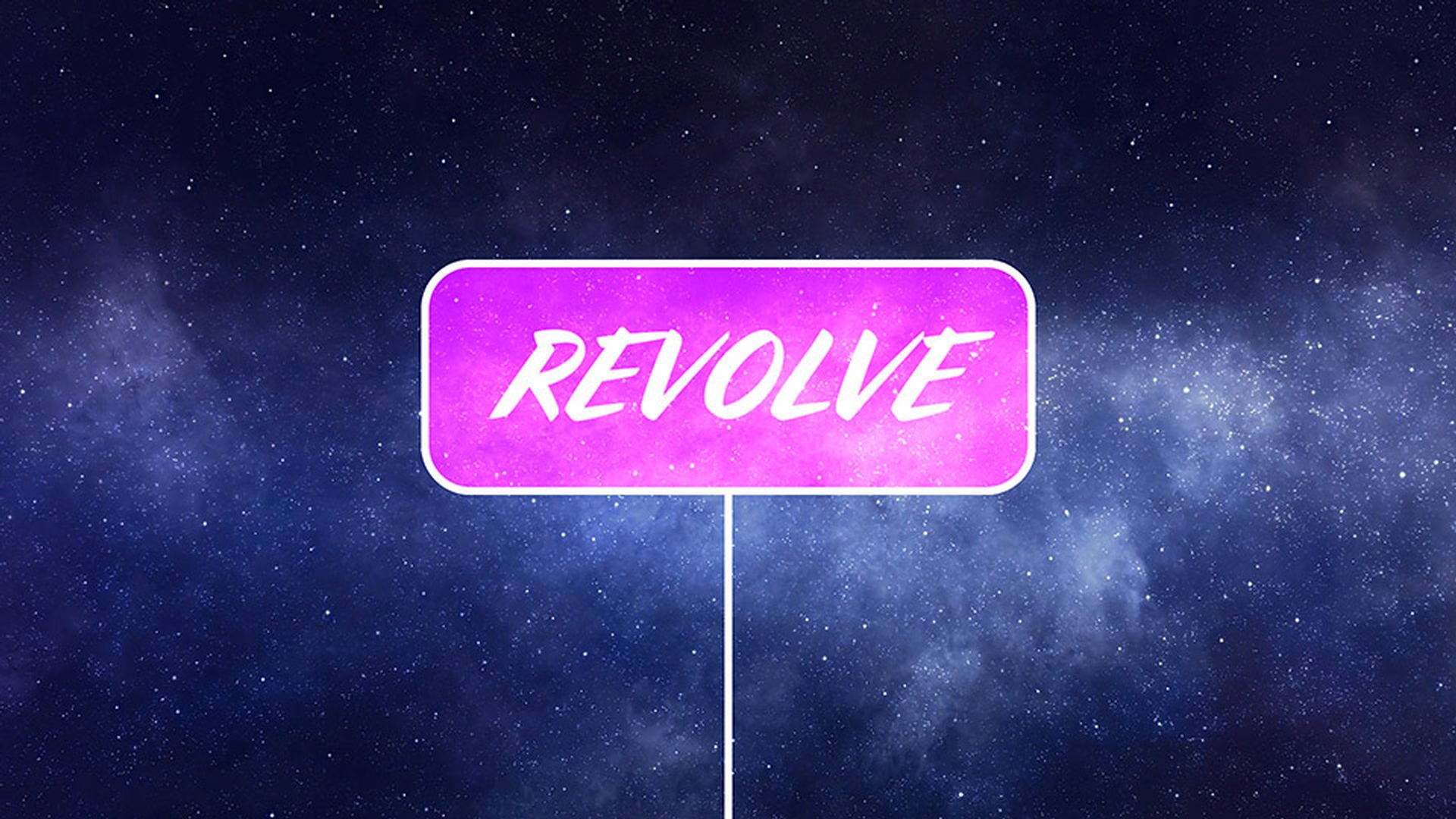
This sample file is an Adobe Stock asset you can use to practice what you learn in this tutorial. If you want to use the sample file beyond this tutorial, you can purchase a license on Adobe Stock . Check out the ReadMe file in the folder for the terms that apply to your use of this sample file.
What you learned: How to enable 3D, adjust 3D layers, and maintain perspective of layers in 3D space
Enable 3D on a layer to open three-dimensional controls for that layer
Select Layer 1, and press P on your keyboard to open the position data.
Click the Enable 3D switch on Layer 1 to reveal Z position data and 3D rotation parameters.
Visual tips in the interface signal that 3D is enabled for a layer
Any selected layer will have 3D control axis handles in the Composition panel.
The 3D renderer is listed in the upper right corner of the Composition panel.
The anchor point of a layer determines the axis point for that layer
Select the Pan Behind tool in the toolbar.
Drag the Y axis handle for the selected layer and reposition the anchor point to the bottom of the sign, just off the bottom of the Composition panel.
Press V on your keyboard to grab the Selection tool from the toolbar.
Scrubbing layer parameters in the timeline is a great way to know exactly how you are moving a layer in 3D space
Scrub the Y position for the Resolve Precomp layer until the bottom of the sign disappears off the bottom of the Composition panel.
Scrub the X Rotation to see how the layer rotates in 3D space.
Creating animation with 3D layers is the same process as with 2D layers
Set the X Rotation to a value of -90 and click its stopwatch to set a keyframe.
Move the current-time indicator to 1 second in the timeline and set the X Rotation to 0.
Move the current-time indicator to 2 seconds and click the Add Keyframe button to set another keyframe with the same value.
Move the current-time indicator to 3 seconds and set the X Rotation to 90.
Use multiple views in the Composition panel to more clearly view how layers in exist 3D space
Change the Select View Layout menu to 2 Views – Horizontal.
Click the left side of the Composition panel to select it, and change the 3D View menu to Custom View 1.
Scrub the current-time indicator in the timeline to see how the layer rotates in 3D space within both views.
Tip: You can use up to four views to view a scene from multiple angles and to gain a better idea of where layers are positioned in 3D space.
Adobe Stock Contributor
Presenter

