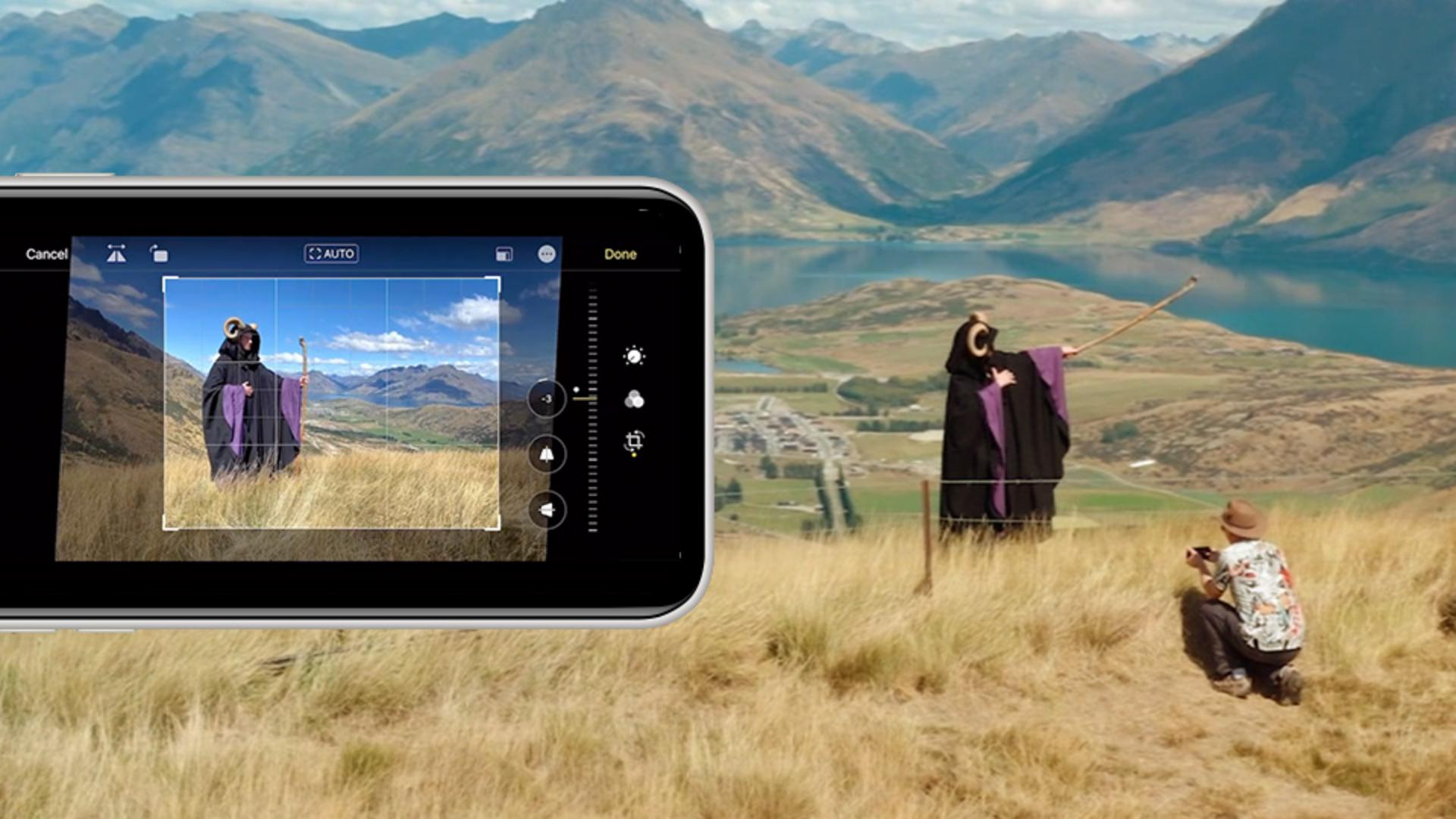
We're here at the remarkable, overlooking Queenstown in New Zealand.
And I want to show you a tip and technique here on my iPhone 11 or iPhone 11 Pro for capturing outside the frame.
This is a great feature that you don't know about and you need to know this.
There just happens to be a wizard here ready for a photograph.
But I've noticed a few problems.
I've got this barbed wire fence in front of me and I've got this cliff behind me here.
I really want to be a little bit farther away and have a better view, more pixels.
We can do that here.
Here on my phone, I'm going to go into my Settings, and then down to Camera.
You have to do this first before you take the photograph.
In Settings, you can see I have Photos Capture Outside the Frame.
It's turned on.
You must turn that on.
We'll go back out of my Settings and we can now go right to my camera.
I'll bring up the iPhone camera, and I'm going to shoot in the 1x mode right now.
And I'm now going to preview it.
While it's in the preview mode, just outside the camera, I select Edit, right there.
Okay, there's more.
Now here, down below, I'm going to crop it.
Then in the upper right-hand corner, we're going to select the three dots.
And there it is: Use Content Outside the Frame.
What?
I didn't know that was there.
Tap on it.
Select...
Wow.
I have now more information outside the frame.
Who knew that that was there waiting for us?
It's really spectacular.
So, the moral of the story is Content aware outside the frame lets you recompose the image after you've taken the image.
Not only a wider photograph, but wait for it, you can also adjust the horizon in case you've got it a little crooked.
Remember, however, this takes up more memory on your phone, but in 30 days it will magically disappear.
So be sure and make these edits within 30 days.
There you have it, another great tip and technique that you might not have known here on the Russell Brown show.