With the Generative Fill, you can generate multiple variations to experiment with multiple ideas to find the best solutions for the issues you're trying to solve.
But each variation increases the file size.
Let me show you how to keep your file size small by only keeping the variations you could potentially use.
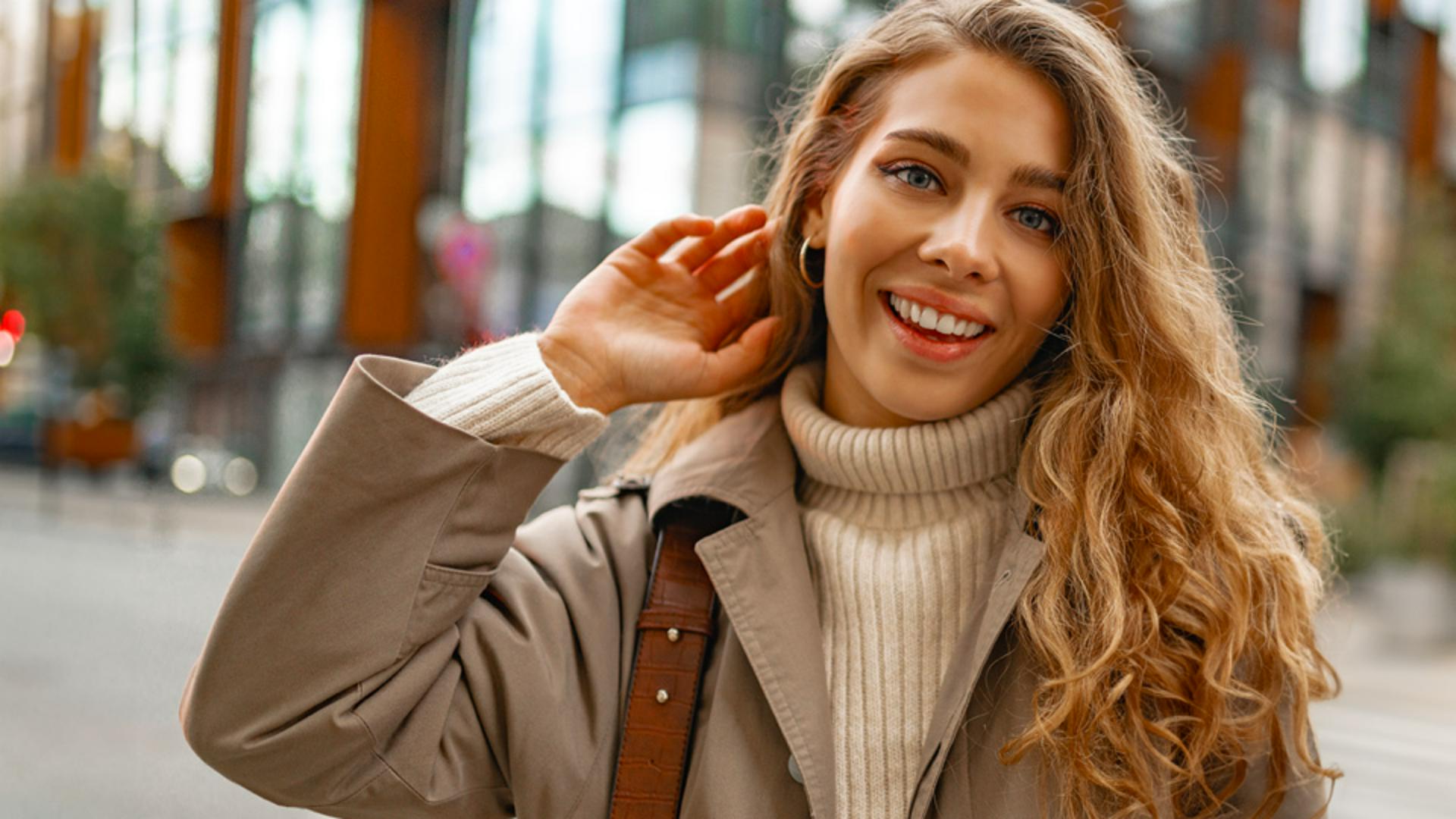
In this image I find the handhold and the phone is distracting, but otherwise it's a great photo.
So with the Rectangular Marquee Tool I'll create a selection and use the Generative Fill to experiment with multiple ideas like generating with a blank prompt to remove the hand altogether.
In the same layer, I also try adding other objects like a cup of coffee and the camera to see if those objects would work better.
After some experimentation, I generated many variations, and while it's a good idea to save as much work as possible, it's also a good idea to delete variations you're sure you won't use because Generative Fill variations increase the size of the file and clutter up your Properties panel.
For example, in this case, this variation will never work, so I can delete it by going into the Properties panel and clicking on this variations Trash icon in the bottom right.
Now repeat this process on all variations that don't work and only keep the ones you could potentially use.
So remember keep your Photoshop files light and delete the variations that don't work.
My name is Jesús Ramirez.
Thank you so much for watching.