[Arabela Espinoza]: Às vezes, a edição perfeita não muda o que há dentro da foto, ela cria mais espaço à volta dela.
A Expansão generativa no Lightroom oferece flexibilidade criativa para reenquadrar as fotos sem sair do aplicativo.
Olá, sou Arabela Espinoza, fotógrafa criativa e usuária frequente do Adobe Live.
Nesta dica, mostrarei como usar a Expansão generativa para estender imagens de maneira integrada, refinar composições e adaptar fotos para diferentes necessidades criativas.
Amplie o espaço ao redor da cena original
Vamos começar com este retrato de noiva.
Adorei a imagem, mas o enquadramento está apertado.
Gostaria de ver mais da parte inferior do vestido e dar mais espaço à imagem no lado direito.
Para isso, vou selecionar a ferramenta Cortar e, no topo do painel, ativar a opção Habilitar expansão.
Vou destravar a proporção para ajustar cada lado separadamente.
Para ter mais espaço para trabalhar, vou diminuir o zoom usando CMD ou CTRL, mais a tecla de menos.
Primeiro, vou estender a parte inferior do corte para revelar mais do vestido.
Para essa área, vou usar o Firefly Preencher e Expandir.
Para áreas menos complexas, Sensível a conteúdo pode ser uma ótima escolha.
Vou clicar em Gerar.
Gere o conteúdo por seções para preservar a nitidez dos detalhes adicionados
O Lightroom gera três variações para escolher.
Se nenhuma delas funcionar, posso selecionar Gerar mais para criar três novas opções.
Gostei desta, então vou selecionar Manter.
Agora vou ajustar o lado direito separadamente.
Fazer isso em seções menores ajuda a maximizar a resolução de cada geração.
Vou estender o corte até que a borda do espelho não fique mais cortada, e selecionar Gerar mais uma vez.
Pronto!
Isso dá à imagem o espaço extra necessário.
Converta uma foto horizontal em uma imagem vertical
Agora vamos tentar algo completamente diferente.
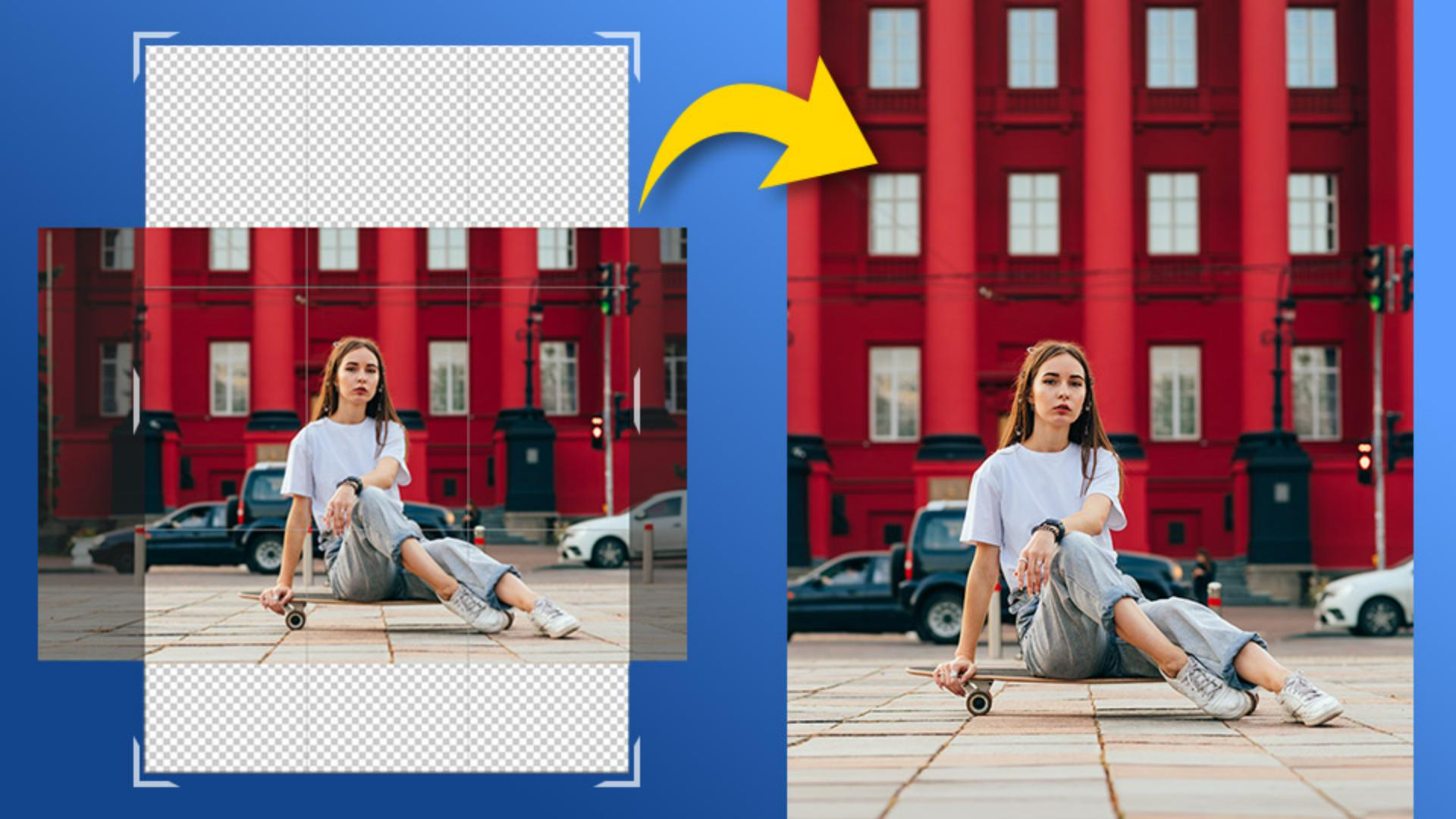
Este retrato foi capturado na horizontal, mas quero uma imagem vertical para redes sociais.
Vou selecionar a ferramenta Cortar, ativar Habilitar expansão, selecionar uma nova proporção, e pressionar a tecla X para alternar a orientação do corte da horizontal para a vertical.
Vou diminuir o zoom com CMD ou CTRL mais a tecla de menos, depois estender o corte para adicionar mais espaço acima do assunto.
Compare diferentes variações para identificar a que melhor se ajusta à sua imagem
Vou selecionar Gerar, e o Lightroom me dá algumas opções.
Todas funcionam muito bem, mas esta é minha favorita.
Ela funciona bem porque o fundo já está suave e fora de foco, então não há detalhes complexos para o Firefly recriar.
A Expansão generativa é uma ferramenta que pode mudar como você pensa sobre enquadramento e composições.
Experimente em uma de suas imagens e veja como um espaço extra pode abrir possibilidades criativas totalmente novas.
Sou Arabela Espinoza, obrigada por assistir e boas edições.
Aviso: os ativos do Stock fornecidos são apenas para fins de prática. Veja os termos.
O que você aprenderá
Adicionar um novo espaço ao redor da cena original
Com o recurso Ativar expansão habilitado no painel Cortar, é possível expandir uma foto com enquadramento fechado além dos limites da imagem original para restaurar detalhes importantes, como a parte de baixo de um vestido ou a borda de um elemento do fundo.
Gerar em seções para manter nítidos os detalhes adicionados
Desbloqueie a proporção para estender a caixa de corte apenas no lado necessário. Expandir a imagem e gerar um lado do corte por vez aumenta a resolução de cada geração e melhora a qualidade da área gerada.O método Preencher e expandir do Firefly é ideal para a maioria dos usos da Expansão generativa, enquanto o Preenchimento sensível a conteúdo pode funcionar bem em áreas com detalhes simples e descomplicados.
Transformar uma foto horizontal em uma imagem vertical
Uma foto horizontal não funciona automaticamente para uma publicação ou story vertical em redes sociais. Habilite o recurso Ativar expansão, escolha a proporção desejada e pressione X
no teclado para alterar a orientação do corte para vertical. Estenda a parte superior e inferior da caixa de corte para adicionar um novo espaço acima e abaixo da área original da imagem.
Comparar variações para encontrar a melhor combinação para a foto
Cada geração retorna três opções em vez de um único resultado. Na seção Variações, clique nas setas para revisar cada uma das três gerações e escolha a que funcionar melhor. Se você não gostar dos resultados iniciais, selecione Gerar mais para criar mais três variações.
You can control how Adobe websites use cookies and similar technologies by making choices below. But note that if you disable cookies and similar technologies entirely, Adobe websites may not function properly.
Cookies are small text files stored by your web browser when you use websites. There are also other technologies that can be used for similar purposes like HTML5 Local Storage and local shared objects, web beacons, and embedded scripts. These technologies help us do things like remembering you and your preferences when you return to our sites, measure how you use the website, conduct market research, and gather information about the ads you see and interact with.
You can make choices in the menu below about what cookies and other technologies you want us to use on Adobe sites when you visit them from this browser. You can always change those choices later by clicking on the Cookie Preferences link at the bottom of the page.
If enabled:
We can improve your experience by tailoring the site and the content to things we think might be of interest
We can better keep track of your preferences — like what language you prefer to use
We will better understand your likely interests so we can provide you more relevant Adobe ads and content on non-Adobe websites and in non-Adobe apps
It will help us improve the performance of our website and those of our partners who use the Adobe Experience Cloud
If disabled:
We won’t be able to remember you from session to session so the experience may not be tailored to your interests
You’ll still have access to the content of the site but certain features that depend on cookies may not function
You’ll still see ads, they just may not be as relevant to you
General information
You can control how Adobe websites use cookies and similar technologies by making choices below. But note that if you disable cookies and similar technologies entirely, Adobe websites may not function properly.
Cookies are small text files stored by your web browser when you use websites. There are also other technologies that can be used for similar purposes like HTML5 Local Storage, web beacons, and embedded scripts. These technologies help us do things like remembering you and your preferences when you return to our sites, measure how you use the website, conduct market research, and gather information about the ads you see and interact with.
You can make choices in the menu below about what cookies and other technologies you want us to use on Adobe sites when you visit them from this browser. You can always change those choices later by clicking on the Cookie Preferences link at the bottom of the page.
If enabled:
We can improve your experience by tailoring the site and the content to things we think might be of interest
We can better keep track of your preferences — like what language you prefer to use
We will better understand your likely interests so we can provide you more relevant Adobe ads and content on non-Adobe websites and in non-Adobe apps
It will help us improve the performance of our website and those of our partners who use the Adobe Experience Cloud
If disabled:
We won’t be able to remember you from session to session so the experience may not be tailored to your interests
We’ll still count your use of our site and services
You’ll still have access to the content of the site but certain features that depend on cookies may not function
You’ll still see ads, they just may not be as relevant to you
Operate the site and core servicesOperate site and measure engagement
Always active
These cookies are required, and they are used to enable the site and related services core functionality. Without them the site could not operate, so they cannot be disabled.
These cookies enable the site and related services’ core functionality and collect statistics about user engagement, such as counting active use to help us understand trends. These cookies cannot be disabled.
Measure performance
These cookies are used to analyze site usage to measure and improve performance. Without them Adobe cannot know what content is most valued and how often unique visitors return to the site, making it hard to improve information we offer to you.
These cookies are used to analyze site usage to measure and improve performance. Without them Adobe cannot know what content is most valued, making it hard to improve information we offer to you.
Extend functionality
These cookies are used to enhance the functionality of Adobe sites such as remembering your settings and preferences to deliver a personalized experience; for example, your username, your repeated visits, preferred language, your country, or any other saved preference.
Personalize advertising
These cookies are used to enable Adobe and our partners to serve ads more relevant to your interests. Without them you will still see ads, but they might not be as relevant to you.
Personalize advertising
These cookies are used to enable Adobe and our partners to serve ads more relevant to your interests. Without them you will still see ads, but they might not be as relevant to you.