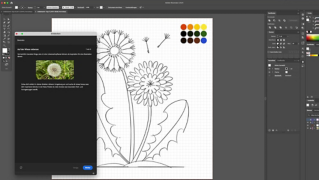



In dieser Tutorial-Reihe lernen Sie die grundlegenden Werkzeuge und Techniken von Adobe Illustrator kennen. Machen Sie sich mit dem Arbeitsbereich vertraut. Lernen Sie, wie Sie Grafiken erstellen und speichern.
Die Menüleiste (ganz oben) enthält u. a. die Menüs „Datei“ und „Bearbeiten“, über die Sie verschiedene Befehle, Anpassungen, Einstellungen und Bedienfelder aufrufen können.
Die Werkzeugleiste (auf der linken Seite) enthält Werkzeuge zur Erstellung und Bearbeitung von Elementen. Ähnliche Werkzeuge sind in Gruppen zusammengefasst. Sie können darauf zugreifen, indem Sie auf der Werkzeugleiste ein Werkzeug länger anklicken.
Auf der rechten Seite befinden sich die Bedienfelder „Eigenschaften“, „Ebenen“ usw., die zahlreiche Steuerungen für die Arbeit mit Elementen enthalten. Eine vollständige Liste der Bedienfelder finden Sie im Menü „Fenster“.
Das Dokumentfenster (in der Mitte) zeigt die Datei an, an der Sie gerade arbeiten. Wenn mehrere Dokumente geöffnet sind, werden sie im Dokumentfenster als Registerkarten angezeigt.
2
Zoomen und schwenken.
So zoomen und schwenken Sie in einem Illustrator-Dokument.
Zoomen und schwenken – Zusammenfassung.
Mit dem Zoom-Werkzeug auf der Werkzeugleiste können Sie die Ansicht eines Objekts in Ihrem Dokument vergrößern. Um von „Einzoomen“ auf „Auszoomen“ umzuschalten, drücken Sie die Alt-Taste (Windows) bzw. die Wahltaste (macOS).
Mit dem Hand-Werkzeug können Sie über das Dokument schwenken. Sie aktivieren es, indem Sie auf der Werkzeugleiste das Zoom-Werkzeug länger geklickt halten.
3
Ein neues Dokument erstellen.
So erstellen Sie ein neues Illustrator-Dokument.
Ein neues Dokument erstellen – Zusammenfassung.
Wenn in Illustrator noch keine Dokumente geöffnet sind, erscheint der Startbildschirm. Hier sind die zuletzt verwendeten Dateien sowie Tutorials und Vorgaben aufgelistet. Sie können von hier aus auch auf verschiedene Lernressourcen zugreifen und Adobe Stock durchsuchen.
Wählen Sie „Datei > Neu“. Wählen Sie im Dialogfeld „Neues Dokument“ eine Vorgabe aus. Die Vorgabe „Druck“ beispielsweise stellt verschiedene Papierformate und andere Optionen für Ihr neues Dokument zur Auswahl. Über das Dialogfeld „Neues Dokument“ können Sie auf kostenlose und kostenpflichtige Adobe Stock-Vorlagen zugreifen, die eine ideale Ausgangsbasis für neue Designs sind.
4
Die Datei speichern.
So speichern Sie ein Illustrator-Projekt.
Eine Illustrator-Datei in der Cloud oder auf dem Computer speichern – Zusammenfassung.
Wählen Sie „Datei > Speichern“ oder „Datei > Speichern unter“. Klicken Sie im Dialogfeld „Auf dem Computer oder in Cloud-Dokumenten speichern“ auf „In Cloud-Dokumenten speichern“, um das Dokument in der Cloud zu speichern, oder auf „Auf Ihrem Computer speichern“, um es lokal abzulegen.
Cloud-Dokumente können auf jedem Gerät geöffnet werden, auf dem Illustrator installiert ist. Das gilt auch für Illustrator auf dem iPad. Cloud-Dokumente werden automatisch gespeichert, während Sie daran arbeiten. Das Speichern in der Cloud geht schneller als das Speichern von Dokumenten auf Ihrem Computer. Zudem können Sie im Bedienfeld „Versionsverlauf“ Versionen eines Cloud-Dokuments markieren, damit sie nicht gelöscht werden.
Hinweis:
Beim Speichern im Illustrator-Format (mit der Dateierweiterung AI) oder als Cloud-Dokument (mit der Dateierweiterung AIC) bleiben Ebenen, Schriften und andere bearbeitbare Illustrator-Eigenschaften erhalten. Solange Sie an einem Dokument arbeiten, sollten Sie es in jedem Fall auf dem Computer oder in der Cloud im Illustrator-Format speichern.
Klicken Sie auf „Auf Ihrem Computer speichern“, wenn Sie dem Tutorial folgen.
Geben Sie im Dialogfeld „Speichern unter“ einen Namen für die Datei ein. Wählen Sie einen Speicherort, und vergewissern Sie sich, dass als Format (macOS) bzw. als Dateityp (Windows) „Adobe Illustrator“ ausgewählt ist. Klicken Sie auf Speichern. Wenn Sie zum ersten Mal Datei > Speichern oder Datei > Speichern unter wählen, wird das Dialogfeld Illustrator-Optionen angezeigt. In diesem Dialogfeld können Sie weitere Speicheroptionen für Ihr Illustrator-Dokument auswählen.

You can control how Adobe websites use cookies and similar technologies by making choices below. But note that if you disable cookies and similar technologies entirely, Adobe websites may not function properly.
Cookies are small text files stored by your web browser when you use websites. There are also other technologies that can be used for similar purposes like HTML5 Local Storage and local shared objects, web beacons, and embedded scripts. These technologies help us do things like remembering you and your preferences when you return to our sites, measure how you use the website, conduct market research, and gather information about the ads you see and interact with.
You can make choices in the menu below about what cookies and other technologies you want us to use on Adobe sites when you visit them from this browser. You can always change those choices later by clicking on the Cookie Preferences link at the bottom of the page.
If enabled:
We can improve your experience by tailoring the site and the content to things we think might be of interest
We can better keep track of your preferences — like what language you prefer to use
We will better understand your likely interests so we can provide you more relevant Adobe ads and content on non-Adobe websites and in non-Adobe apps
It will help us improve the performance of our website and those of our partners who use the Adobe Experience Cloud
If disabled:
We won’t be able to remember you from session to session so the experience may not be tailored to your interests
You’ll still have access to the content of the site but certain features that depend on cookies may not function
You’ll still see ads, they just may not be as relevant to you
General information
You can control how Adobe websites use cookies and similar technologies by making choices below. But note that if you disable cookies and similar technologies entirely, Adobe websites may not function properly.
Cookies are small text files stored by your web browser when you use websites. There are also other technologies that can be used for similar purposes like HTML5 Local Storage, web beacons, and embedded scripts. These technologies help us do things like remembering you and your preferences when you return to our sites, measure how you use the website, conduct market research, and gather information about the ads you see and interact with.
You can make choices in the menu below about what cookies and other technologies you want us to use on Adobe sites when you visit them from this browser. You can always change those choices later by clicking on the Cookie Preferences link at the bottom of the page.
If enabled:
We can improve your experience by tailoring the site and the content to things we think might be of interest
We can better keep track of your preferences — like what language you prefer to use
We will better understand your likely interests so we can provide you more relevant Adobe ads and content on non-Adobe websites and in non-Adobe apps
It will help us improve the performance of our website and those of our partners who use the Adobe Experience Cloud
If disabled:
We won’t be able to remember you from session to session so the experience may not be tailored to your interests
We’ll still count your use of our site and services
You’ll still have access to the content of the site but certain features that depend on cookies may not function
You’ll still see ads, they just may not be as relevant to you
Operate the site and core servicesOperate site and measure engagement
Always active
These cookies are required, and they are used to enable the site and related services core functionality. Without them the site could not operate, so they cannot be disabled.
These cookies enable the site and related services’ core functionality and collect statistics about user engagement, such as counting active use to help us understand trends. These cookies cannot be disabled.
Measure performance
These cookies are used to analyze site usage to measure and improve performance. Without them Adobe cannot know what content is most valued and how often unique visitors return to the site, making it hard to improve information we offer to you.
These cookies are used to analyze site usage to measure and improve performance. Without them Adobe cannot know what content is most valued, making it hard to improve information we offer to you.
Extend functionality
These cookies are used to enhance the functionality of Adobe sites such as remembering your settings and preferences to deliver a personalized experience; for example, your username, your repeated visits, preferred language, your country, or any other saved preference.
Personalize advertising
These cookies are used to enable Adobe and our partners to serve ads more relevant to your interests. Without them you will still see ads, but they might not be as relevant to you.
Personalize advertising
These cookies are used to enable Adobe and our partners to serve ads more relevant to your interests. Without them you will still see ads, but they might not be as relevant to you.