[Seán Duggan]: Machst du gerne Landschaftsfotos und bearbeitest sie auf dem Smartphone oder Tablet?
Mit den KI-gestützten Schnellaktionen für Szenenverbesserung in der Mobile App von Lightroom kannst du ausgewählte Bildbereiche auf einem Foto schnell anpassen.
Hallo, ich bin Seán Duggan von Adobe Learn.
Sehen wir uns die Funktion „Szenenverbesserung“ (Scene Enhance) an.
Damit erhöhst oder reduzierst du den Fokus auf Bereiche in Landschaftsszenen, etwa auf den Himmel, die Berge oder das Wasser.
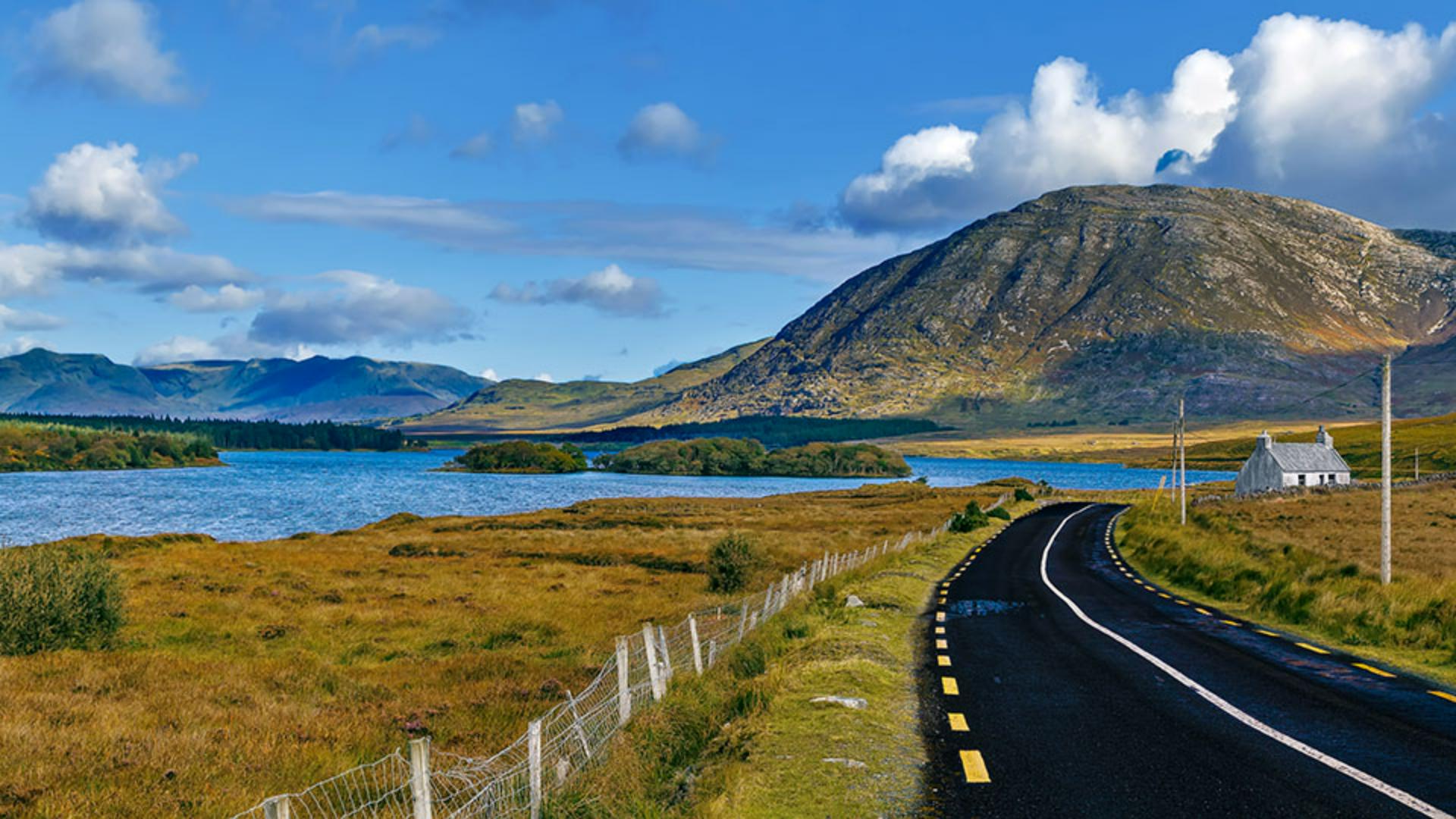
Wir fangen mit dieser idyllischen irischen Landschaft an.
Im Bedienfeld „Bearbeiten“ (Edit) tippe ich auf das Zauberstab-Icon, um Schnellaktionen zu öffnen.
Lightroom analysiert das Bild und schlägt konkrete Schnellaktionen vor.
Hätte die Szene eine Person enthalten, so hätten die Schnellaktionen zusätzliche Optionen vorgeschlagen, die relevant für solche Fotos sind.
Jetzt tippe ich auf „Szene“ (Scene).
Lightroom analysiert die Szene und schlägt mehrere Presets vor, die ich ausprobieren kann.
Ich kann eines der Presets wählen und mit dem Regler „Stärke“ (Amount) den Effekt abschwächen oder verstärken.
Hier schnell ein Tipp: Tippe auf das Bild, sodass nur das Foto sichtbar ist.
Dann tippe erneut, um die Steuerungen wieder anzuzeigen.
Durch Tippen auf die Miniaturansicht „Keine“ (None) kehre ich zum Originalbild zurück.
Ich wische den unteren Teil der Ansicht nach oben.
Zusätzlich zu den Reglern „Motiv“ (Subject) und „Hintergrund“ (Background) hat Lightroom weitere Bereiche in der Szene identifiziert.
Für dieses Bild sind das „Himmel“ (Sky), „Berge“ (Mountains), „Vegetation“ (Vegetation), „Wasser“ (Water), „Künstlicher Boden“ (Artificial Ground) und „Natürlicher Boden“ (Natural Ground).
Lightroom erkennt sogar das Haus und bietet einen Regler für „Architektur“ (Architecture).
Mit diesen Steuerungen kannst du entweder den Fokus erhöhen oder reduzieren.
Ich kann für den Himmel Kontrast und Farbsättigung steigern oder verringern.
Ich lasse den Himmel so, wie er war.
Ich tippe zweimal auf das kreisförmige Reglersymbol, um ihn wiederherzustellen.
Dieser Kurzbefehl funktioniert bei allen Reglern in Lightroom für Smartphone und Tablet.
Beim Berg wird durch Ziehen nach links der Kontrast reduziert.
Er wirkt flach und ausdruckslos.
Schiebe ich den Regler in die andere Richtung, werden Kontrast und Klarheit erhöht – er wirkt dominanter und beherrscht die Szene.
Abhängig von der Art der Szene werden unterschiedliche Anpassungen vorgenommen.
Jetzt betone ich das Wasser, indem ich den Regler nach rechts ziehe, um das Blau zu intensivieren.
Ich möchte auch einige Änderungen an der Straße vornehmen, die Lightroom als „künstlichen Boden“ identifiziert hat.
Ich ziehe den Regler nach rechts, um den Kontrast zu verstärken und die Oberflächenstruktur der Straße hervorzuheben.
Das hier sieht gut aus.
Ich drücke länger auf das Bild.
Du siehst jetzt die Vorher-Ansicht.
Lasse ich los, siehst du die Nachher-Version mit allen Änderungen am Berg sowie am Wasser und an der Straße.
Das Tolle an den Schnellaktionen und der Funktion „Szenenverbesserung“ ist, dass du Änderungen an ausgewählten Bildteilen vornehmen kannst, ohne sie vorher auswählen oder manuell eine Maske erstellen zu müssen.
Denn Lightroom generiert die Masken für dich.
Ich zeige dir, was ich meine.
Ich tippe auf das Häkchen rechts unten, um die Änderungen an der Szene anzuwenden.
Auf der unteren Symbolleiste siehst du einen Punkt unterhalb des Masken-Icons.
Das heißt, dass Lightroom jetzt Masken für dieses Bild erstellt hat.
Ich tippe darauf und öffne die Maskensteuerungen.
Rechts befinden sich die Miniaturansichten der drei Masken, die generiert wurden, als ich „Szenenverbesserung“ auf Berg, Wasser und Straße angewandt habe.
Ich ziehe diesen Griff und klappe das Masken-Bedienfeld auf.
Jetzt lassen sich die Namen lesen.
Da Lightroom Masken für diese Bereiche generiert hat, kann ich sie auch für andere Korrekturen nutzen.
Wenn die Straße z.
B. viel dunkler wirken soll, tippe ich auf die Miniaturansicht dieser Maske.
Dann nehme ich im Bedienfeld „Licht“ (Light) einige Korrekturen mit den Reglern „Belichtung“ (Exposure) und „Kontrast“ (Contrast) vor.
Außerdem verstärke ich die „Lichter“ (Highlights), um die Linien auf der Straße aufzuhellen.
Und fertig.
Das sieht super aus.
Genau das, was ich mir vorgestellt habe.
Ich tippe auf das Häkchen und übernehme die Änderungen.
Ich drücke länger auf das Bild, um die Vorher-Ansicht zu sehen.
Lasse ich los, wird die Nachher-Version mit allen Änderungen angezeigt.
Definitiv eine Verbesserung.
Ich finde es toll, dass alle diese fantastischen Optionen für Bildbearbeitung direkt hier auf meinem Smartphone sind.
Schnellaktionen und die Funktion „Szenenverbesserung“ in der Mobile App von Lightroom haben die Art und Weise, wie ich Fotos unterwegs bearbeite, revolutioniert.
Sie sind nicht nur sehr bequem, sondern auch wirklich gut.
Ausgehend von einem Originalbild kann ich in kürzester Zeit eine optimierte Version teilen.
Jetzt bist du an der Reihe.
Probiere diese tollen Features an deinen eigenen Fotos aus.