Ciao Blau! Farbkorrektur-Tutorial von Sandra Junker
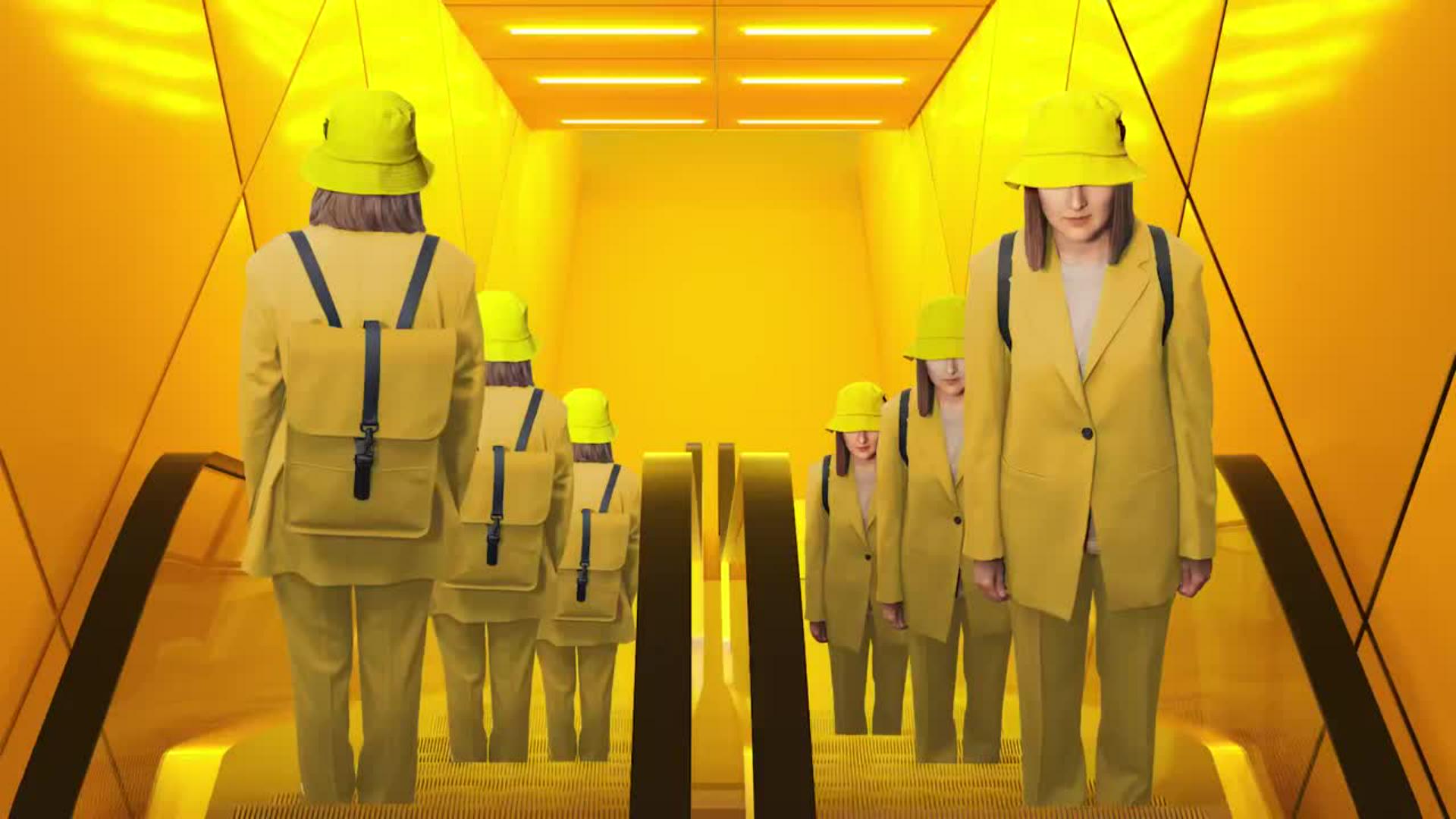
Heute heißt es: Färben statt Shoppen! Im interaktiven Photoshop-Tutorial zeigt Fotoartist Sandra Junker, wie du im ganzen Bild die Anzugfarbe von Blau zu Gelb änderst – ganz ohne dabei Schatten oder Stofftexturen zu verlieren. Es braucht nur fünf Schritte, um mit Einstellungsebenen, Ebenenmasken und exakten Einstellungen für Farbton und Sättigung ein realistisches Ergebnis zu erzielen. So kannst du in Photoshop Farben ändern, Looks anpassen oder ganze Serienbilder farblich angleichen – ein echter Gamechanger für jede Bildbearbeitung!
Benötigte Materialien
In der Anwendung üben
Sandra Junker zeigt dir wie es geht
Anhand ihres Selbstporträts zeigt Sandra, wie du die Intensität der Farbe gezielt steuerst. Statt stundenlang zu maskieren, nutzt du nicht-destruktive Ebenen, die jederzeit anpassbar sind. So bleibt dein Workflow flexibel:
Eine saubere Auswahl mit dem Schnellauswahl-Werkzeug erstellen.
Den Stoff mithilfe einer Einstellungsebene färben, ohne dessen Struktur zu verlieren.
Feinarbeiten auf der Ebenenmaske vornehmen.
Die bearbeiteten Ebenen wieder harmonisch in den Hintergrund einfügen.
Schritt für Schritt: Realistische Farbanpassungen mit der „Färben“-Funktion in Photoshop
1. Motiv auswählen
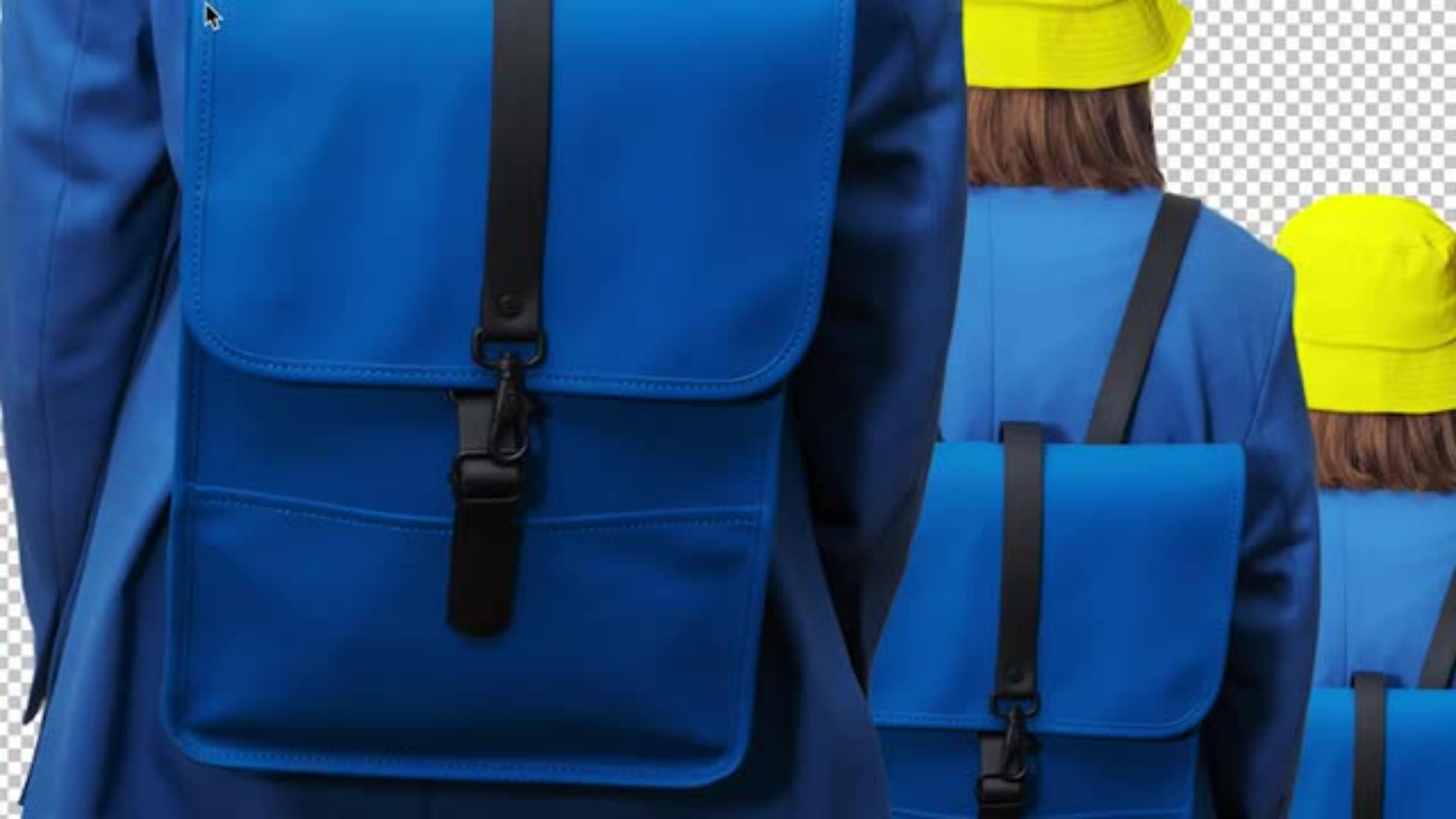
Gefärbt werden soll nur der Anzug und die blauen Teile des Rucksacks – deshalb müssen bei der Auswahl Bereiche wie das T-Shirt, der Hut, die Haare und Gurte ausgespart werden.
Das geht so:
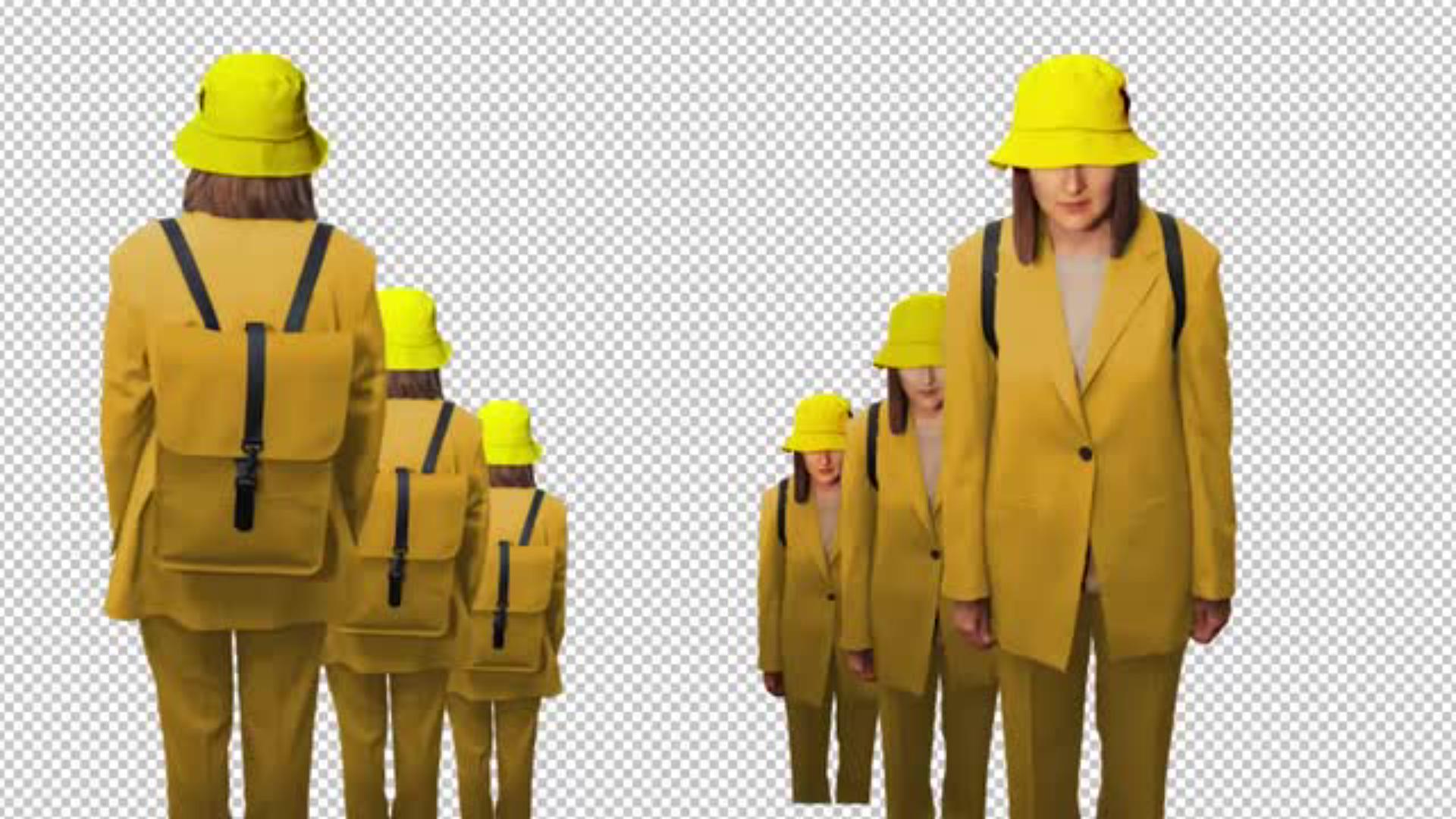
Blende die Hintergrund-Ebene im Ebenen-Panel aus, indem du auf das Auge links neben der Ebenen-Miniatur klickst.
Wähle nun die Ebene "Me, my team and I" aus. Ausgewählte Ebenen erkennst du an einer hellen Hinterlegung und einem weißen Rahmen um die Ebenenminiatur.
Wähle das Schnellauswahl-Werkzeug (Shortcut: W) und markiere damit die Gurte des Rucksacks, den Hut, die Haare und das T-Shirt.
Sandras Tipp: Wenn du versehentlich falsche Flächen markiert hast, kannst du mit gedrückter Alt- bzw. Option-Taste diese Bereiche wieder aus der Auswahl entfernen.
Gehe im Menü auf „Auswahl > Auswahl umkehren“ oder verwende den Shortcut Shift + Cmd + I (Mac) bzw. Shift + Ctrl + I (Windows). Die Auswahl kehrst du deshalb um, damit die ausgewählten Bereiche im nächsten Schritt nicht eingefärbt werden.
2. Anzug umfärben
Mithilfe einer Einstellungsebene für Farbton und Sättigung kannst du nun den Anzug einfärben. Der Farbton bestimmt die Grundfarbe, die Sättigung regelt die Intensität, und die Helligkeit hellt die gewählte Farbe etwas auf oder dunkelt sie ab. Los geht’s:
Gehe im Menü auf „Ebene > Neue Einstellungsebene > Farbton/Sättigung...“, um eine neue Einstellungsebene zu erstellen.
Für die aktive Auswahl mit Anzug und Rucksack wird dadurch automatisch eine Ebenenmaske erstellt. Tipp: Einstellungsebenen sind deshalb sinnvoll, weil sie nicht destruktiv sind – du kannst jederzeit zurückgehen und Werte anpassen.
Aktiviere in den Eigenschaften der Farbton/Sättigungsebene die Checkbox „Färben“. Mit dieser Funktion überschreibt Photoshop alle Farbtöne mit einer einheitlichen Farbe (basierend auf Helligkeit und Struktur). So werden Rucksack und Anzug in exakt denselben Ton eingefärbt. Gib folgende Werte ein: Farbton: 43 Sättigung: 73 Helligkeit: +16
3. Feinarbeiten auf der Ebenenmaske
Bessere nun kleine Fehler aus, damit sich die Färbung wirklich nur auf Anzug und Rucksack beschränkt.
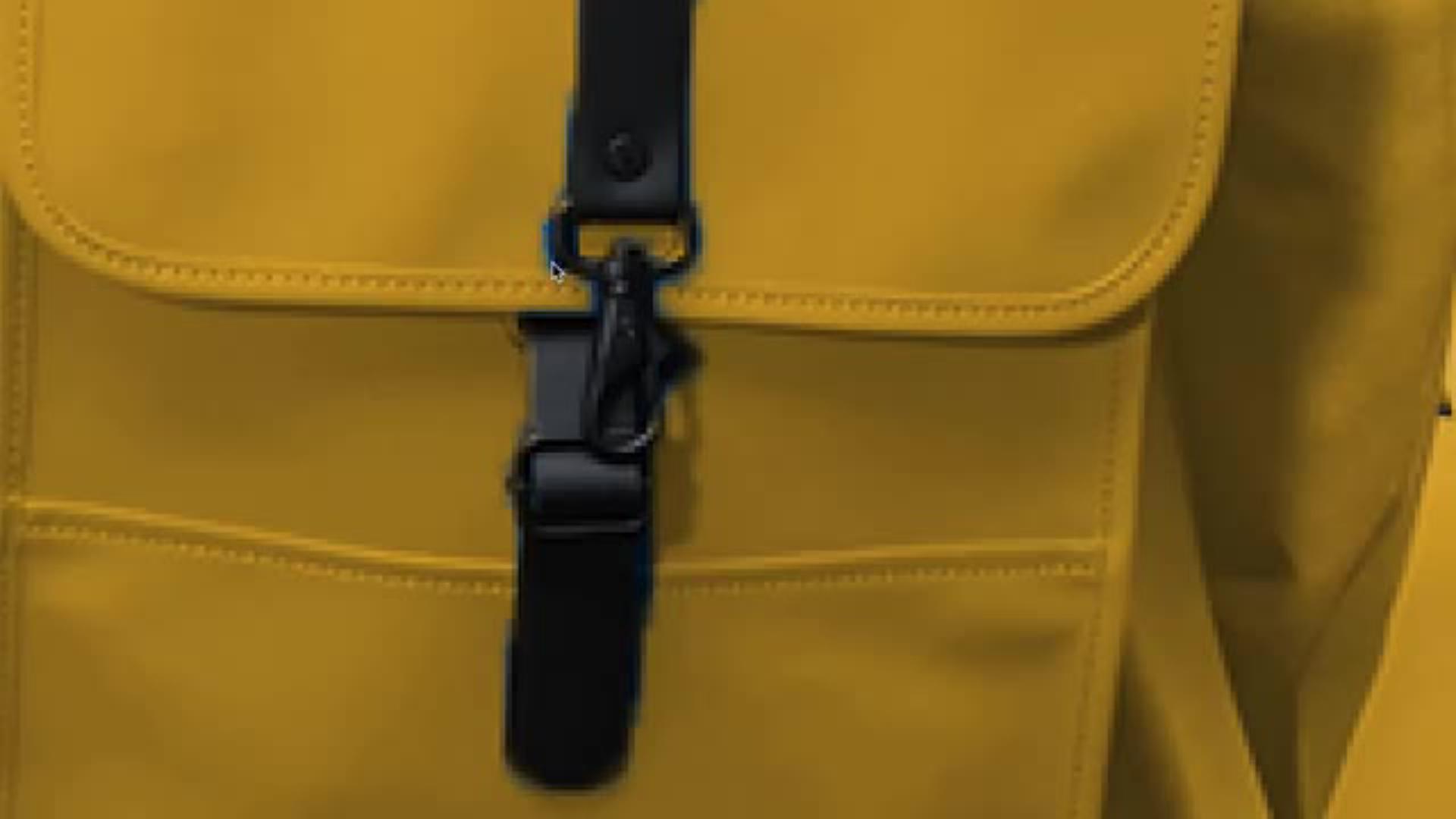
Wähle im Ebenen-Panel die Masken-Miniatur neben der Farbton/Sättigung-Ebene an. Tipp: Rechts neben der Farbton/Sättigung-Ebene siehst du ein schwarz-weißes Kästchen – das ist die Maske. Sobald ein Rahmen darum erscheint, bearbeitest du nur die Maske und nicht das Bild selbst.
Wähle den Pinsel (Shortcut: B). Oben in der Optionsleiste kannst du Größe, Härte, Deckkraft und Fluss des Pinsels einstellen.
Wähle für den Pinsel entweder Weiß oder Schwarz als Vordergrundfarbe, um Bereiche der Ebenenmaske sichtbar zu machen oder zu verbergen.
4. Bild zusammenfügen
Interiere zum Schluss die gelb gekleidete Sandra Junker wieder in den Original-Hintergrund, indem du im Ebenen-Bedienfeld auf das Augen-Symbol neben der Hintergrundebene klickst, um sie wieder sichtbar zu machen.
Über die Künstlerin
Sandra Junker ist Art Directorin und Visual Creatorin mit Sitz in Deutschland. Ihre Arbeiten verbinden Fotografie, 3D und KI zu einer konzeptionellen Bildsprache, die Geschichten, Marken und Emotionen visuell erlebbar macht.

Bekannt für ihren klaren Stil und ihr Gespür für Farbe, spielt sie in ihren Projekten mit der Grenze zwischen Realität und digitaler Transformation. Sandra teilt ihr Wissen regelmäßig in Workshops und Vorträgen rund um KI, Fotografie und Photoshop
– mit Fokus auf kreative und kritische Auseinandersetzungen mit neuen Bildwelten. In ihren interaktiven Photoshop Tutorials zeigt sie dir Schritt für Schritt ihre kreativen Bearbeitungstechniken und erklärt, wie ihre Lieblingstools funktionieren.
You can control how Adobe websites use cookies and similar technologies by making choices below. But note that if you disable cookies and similar technologies entirely, Adobe websites may not function properly.
Cookies are small text files stored by your web browser when you use websites. There are also other technologies that can be used for similar purposes like HTML5 Local Storage and local shared objects, web beacons, and embedded scripts. These technologies help us do things like remembering you and your preferences when you return to our sites, measure how you use the website, conduct market research, and gather information about the ads you see and interact with.
You can make choices in the menu below about what cookies and other technologies you want us to use on Adobe sites when you visit them from this browser. You can always change those choices later by clicking on the Cookie Preferences link at the bottom of the page.
If enabled:
We can improve your experience by tailoring the site and the content to things we think might be of interest
We can better keep track of your preferences — like what language you prefer to use
We will better understand your likely interests so we can provide you more relevant Adobe ads and content on non-Adobe websites and in non-Adobe apps
It will help us improve the performance of our website and those of our partners who use the Adobe Experience Cloud
If disabled:
We won’t be able to remember you from session to session so the experience may not be tailored to your interests
You’ll still have access to the content of the site but certain features that depend on cookies may not function
You’ll still see ads, they just may not be as relevant to you
General information
You can control how Adobe websites use cookies and similar technologies by making choices below. But note that if you disable cookies and similar technologies entirely, Adobe websites may not function properly.
Cookies are small text files stored by your web browser when you use websites. There are also other technologies that can be used for similar purposes like HTML5 Local Storage, web beacons, and embedded scripts. These technologies help us do things like remembering you and your preferences when you return to our sites, measure how you use the website, conduct market research, and gather information about the ads you see and interact with.
You can make choices in the menu below about what cookies and other technologies you want us to use on Adobe sites when you visit them from this browser. You can always change those choices later by clicking on the Cookie Preferences link at the bottom of the page.
If enabled:
We can improve your experience by tailoring the site and the content to things we think might be of interest
We can better keep track of your preferences — like what language you prefer to use
We will better understand your likely interests so we can provide you more relevant Adobe ads and content on non-Adobe websites and in non-Adobe apps
It will help us improve the performance of our website and those of our partners who use the Adobe Experience Cloud
If disabled:
We won’t be able to remember you from session to session so the experience may not be tailored to your interests
We’ll still count your use of our site and services
You’ll still have access to the content of the site but certain features that depend on cookies may not function
You’ll still see ads, they just may not be as relevant to you
Operate the site and core servicesOperate site and measure engagement
Always active
These cookies are required, and they are used to enable the site and related services core functionality. Without them the site could not operate, so they cannot be disabled.
These cookies enable the site and related services’ core functionality and collect statistics about user engagement, such as counting active use to help us understand trends. These cookies cannot be disabled.
Measure performance
These cookies are used to analyze site usage to measure and improve performance. Without them Adobe cannot know what content is most valued and how often unique visitors return to the site, making it hard to improve information we offer to you.
These cookies are used to analyze site usage to measure and improve performance. Without them Adobe cannot know what content is most valued, making it hard to improve information we offer to you.
Extend functionality
These cookies are used to enhance the functionality of Adobe sites such as remembering your settings and preferences to deliver a personalized experience; for example, your username, your repeated visits, preferred language, your country, or any other saved preference.
Personalize advertising
These cookies are used to enable Adobe and our partners to serve ads more relevant to your interests. Without them you will still see ads, but they might not be as relevant to you.
Personalize advertising
These cookies are used to enable Adobe and our partners to serve ads more relevant to your interests. Without them you will still see ads, but they might not be as relevant to you.