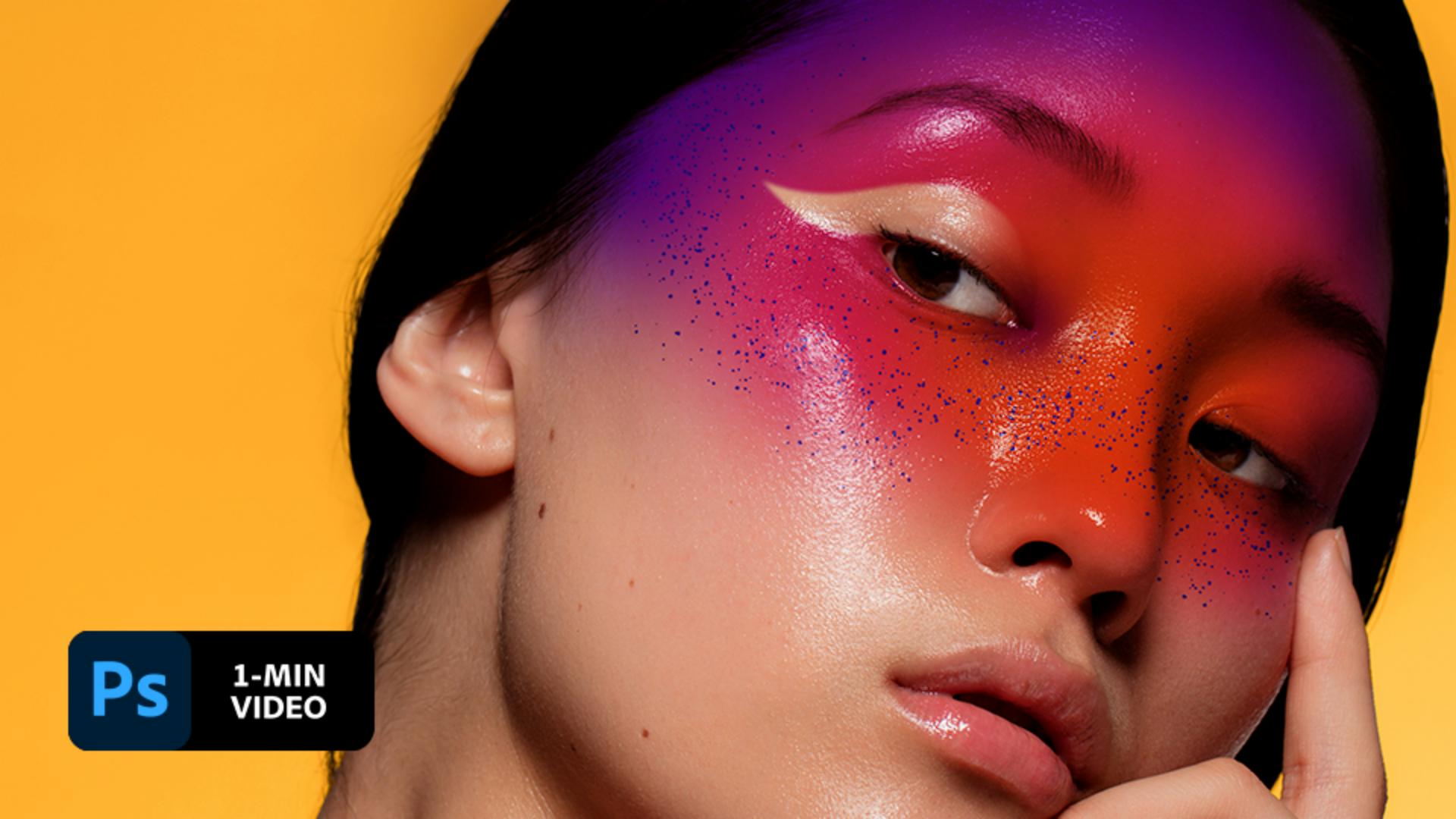
Erica Larson gestaltet spektakuläres digitales Make-up. Sie nutzt dabei Pinsel, Masken und das Rundungszeichenstift-Werkzeug von Adobe Photoshop, um Gesichter farbenfroh zu schminken und zu bemalen.
Die Grafikerin Erica Larson ist Associate Creative Director bei Adobe Studio. Mit ihren Designs, die sie tagtäglich entwickelt, ist sie Inspirationsquelle für viele andere Kreative.
Die Beispieldateien umfassen u. a. Adobe Stock-Bilder, mit denen du die Schritte dieses Tutorials nachvollziehen kannst. Wenn du die Beispieldateien anderweitig verwenden möchtest, kannst du sie beiAdobe Stocklizenzieren. In der ReadMe-Datei in diesem Ordner findest du die Bedingungen für die Verwendung dieser Beispieldateien.
1
Ein Modell wählen.
Erica bearbeitet ein Foto, bei dem der Fokus auf dem Gesicht des Modells liegt. Sie wählt ein Bild mit genau dem Grad an Hautfeuchtigkeit und Details, den sie sich für ihre Komposition vorstellt.
2
Das Design auftragen.
Um ihr Design auf das Gesicht aufzutragen, entscheidet sich Erica für das Pinsel-Werkzeug (B) mit runder weicher Spitze und erhöhter Deckkraft. Als Mischmodus für die Ebene wählt sie „Multiplizieren“, damit die Farbe sich gut mit der Haut mischt. Anschließend trägt sie mit verschiedenen Farben ihr Design auf das Gesicht auf.
3
Einen Glitzereffekt hinzufügen.
Erica hat zusätzliche Pinsel importiert, um Design-Elemente in ihre Werke einfügen zu können. Für diese Komposition nutzt sie einen Spritzerpinsel, um Wangen und Nasenrücken durch einen Glitzereffekt zu betonen. Wenn du diesen benutzerdefinierten Pinsel ausprobieren möchtest, klicke im Dialogfeld für die Pinseleigenschaften auf das Zahnrad-Symbol, wähle „Pinsel importieren“, und durchsuche die Übungsdateien nach der Datei „spatter_brushes.abr“. Sobald du die Pinsel importiert hast, werden sie in der Kategorie spatter_brushes angezeigt.
4
Eine Maske hinzufügen.
Die Farbe hat auch auf Augen, Haar und Finger gespritzt. Um dies zu beheben, wendet Erica eine Maske auf die Foto-Ebene an. Anschließend malt sie auf der Maske mit Schwarz über Augen, Haare und Finger. Dadurch ist an diesen Stellen wieder das Originalbild ohne Spritzer zu sehen. Während der Korrektur nutzte sie die Tasten Ö und #, um die Pinselgröße nach Bedarf zu ändern.
5
Akzente setzen.
Erica entscheidet sich für einen Akzent über einem Auge. Dazu verwendet sie das Rundungszeichenstift-Werkzeug. Als Modus wählt sie „Pfad“ und als Pfadvorgang „Überlappende Formen ausschließen“. Sie klickt auf das Foto, um Punkte für einen gebogenen Pfad zu setzen. Ecken fügt sie per Doppelklick ein. Sie schließt den Pfad, indem sie nochmals auf den Anfangspunkt klickt.
6
Einen Ausschnitt erstellen.
Der Pfad ist definiert. Erica klickt mit der rechten Maustaste bzw. der Ctrl-Taste und wählt „Auswahl erstellen“. Den Radius für weiche Kante setzt sie auf 4 Pixel. Sie überprüft, dass immer noch die Maskenminiatur für die Farb-Ebene ausgewählt ist. Dann malt sie mit Schwarz in den Auswahlbereich. Die rechte Seite lässt sie weich, damit der Übergang gleichmäßiger wird.
7
Den Stil perfektionieren.
Erica möchte dem digitalen Make-up einen realistischen Touch geben. Dazu wählt sie im Bedienfeld „Ebenen“ die Option „Ebenenstil hinzufügen > Fülloptionen“.
8
Den Effekt optimieren.
Erica hält die Alt- (Windows) bzw. Wahltaste (macOS) gedrückt und zieht den Regler „Darunter liegende Ebene“ nach links.
Schminke in deinem eigenen Stil.
Die Pinsel und Farben von Adobe Photoshop eröffnen dir neue Wege beim Schminken mit digitalem Make-up.
Hinweis: Die in diesem Tutorial enthaltenen Projektdateien dürfen nur zu Übungszwecken verwendet werden.

You can control how Adobe websites use cookies and similar technologies by making choices below. But note that if you disable cookies and similar technologies entirely, Adobe websites may not function properly.
Cookies are small text files stored by your web browser when you use websites. There are also other technologies that can be used for similar purposes like HTML5 Local Storage and local shared objects, web beacons, and embedded scripts. These technologies help us do things like remembering you and your preferences when you return to our sites, measure how you use the website, conduct market research, and gather information about the ads you see and interact with.
You can make choices in the menu below about what cookies and other technologies you want us to use on Adobe sites when you visit them from this browser. You can always change those choices later by clicking on the Cookie Preferences link at the bottom of the page.
If enabled:
We can improve your experience by tailoring the site and the content to things we think might be of interest
We can better keep track of your preferences — like what language you prefer to use
We will better understand your likely interests so we can provide you more relevant Adobe ads and content on non-Adobe websites and in non-Adobe apps
It will help us improve the performance of our website and those of our partners who use the Adobe Experience Cloud
If disabled:
We won’t be able to remember you from session to session so the experience may not be tailored to your interests
You’ll still have access to the content of the site but certain features that depend on cookies may not function
You’ll still see ads, they just may not be as relevant to you
General information
You can control how Adobe websites use cookies and similar technologies by making choices below. But note that if you disable cookies and similar technologies entirely, Adobe websites may not function properly.
Cookies are small text files stored by your web browser when you use websites. There are also other technologies that can be used for similar purposes like HTML5 Local Storage, web beacons, and embedded scripts. These technologies help us do things like remembering you and your preferences when you return to our sites, measure how you use the website, conduct market research, and gather information about the ads you see and interact with.
You can make choices in the menu below about what cookies and other technologies you want us to use on Adobe sites when you visit them from this browser. You can always change those choices later by clicking on the Cookie Preferences link at the bottom of the page.
If enabled:
We can improve your experience by tailoring the site and the content to things we think might be of interest
We can better keep track of your preferences — like what language you prefer to use
We will better understand your likely interests so we can provide you more relevant Adobe ads and content on non-Adobe websites and in non-Adobe apps
It will help us improve the performance of our website and those of our partners who use the Adobe Experience Cloud
If disabled:
We won’t be able to remember you from session to session so the experience may not be tailored to your interests
We’ll still count your use of our site and services
You’ll still have access to the content of the site but certain features that depend on cookies may not function
You’ll still see ads, they just may not be as relevant to you
Operate the site and core servicesOperate site and measure engagement
Always active
These cookies are required, and they are used to enable the site and related services core functionality. Without them the site could not operate, so they cannot be disabled.
These cookies enable the site and related services’ core functionality and collect statistics about user engagement, such as counting active use to help us understand trends. These cookies cannot be disabled.
Measure performance
These cookies are used to analyze site usage to measure and improve performance. Without them Adobe cannot know what content is most valued and how often unique visitors return to the site, making it hard to improve information we offer to you.
These cookies are used to analyze site usage to measure and improve performance. Without them Adobe cannot know what content is most valued, making it hard to improve information we offer to you.
Extend functionality
These cookies are used to enhance the functionality of Adobe sites such as remembering your settings and preferences to deliver a personalized experience; for example, your username, your repeated visits, preferred language, your country, or any other saved preference.
Personalize advertising
These cookies are used to enable Adobe and our partners to serve ads more relevant to your interests. Without them you will still see ads, but they might not be as relevant to you.
Personalize advertising
These cookies are used to enable Adobe and our partners to serve ads more relevant to your interests. Without them you will still see ads, but they might not be as relevant to you.