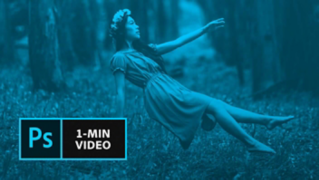
1. Download thepractice images . Open "Coffee Video.mp4" in Photoshop and rename the layer's default name "Layer 1" to "Coffee Video".
2. To remove the video layer from the default group "Video Group 1" drag the “Coffee Video” layer above "Video Group 1". You have reached the correct position when you see two blue lines appearing above the group.
Tip: When you open a video in Photoshop a default group named "Video Group1" and a default video layer named "Layer 1" is created within the group. In addition Photoshop opens the Timeline panel under the video automatically.
3. Now as "Video Group 1" is empty we delete it by dragging it onto the Recycle Bin.
4. By dragging the "Coffee Video" layer to the "New Layer" icon at the bottom of the Layers panel you create a copy of the video layer.
5. Move your cursor between the video and the Timeline panel until it turns into a double arrow, which allows you to enlarge the Timeline panel.
6. Use the Timeline magnification
slider to enlarge the video layers over the available space, then drag the playhead to 2:12.
Create the still part of your cinemagraph
7. Right-click the "Coffee Video copy" layer and select Rasterize Layer from the pop-up menu.
8. From the main menu click on Select then chose Select and Mask.
9. On the Properties panel chose from the ViewMode drop-down menu Overlay.
Tip: This View Mode will overlay all invisible – masked – parts of the layer with red color and allow you perfect visual control of the visible areas we are going to create.
10. Choose the Brush Tool from the tools panel and brush over the area of the video where you want to show movement. Set the Brush size to 50 px.
Tip: If you want to reduce the visible area again simply click on the minus symbol and brush over the parts you don't want to show movement.
11. On the Properties panel click Invert, and set the Ouput Settings to Layer Mask. Then click OK to leave the Select and Mask mode.
Create the moving part of your cinemagraph
12. Adjust the Start and End points in the Timeline to define your cinemagraph loop area. Set the Start point to 00:10 and the End point to 02:09.
13. Click the Play button to preview your cinemagraph. If your video is not looping, click the Settings icon and choose Loop Playback.
Tip: Drag the playhead to help note the timestamp.
14. Save your cinemagraph, by clicking File - Export - Save for Web (Legacy). On the Save for Web dialog choose GIF, 256 Colors, 100% Dither
. Adjust image size, if desired and make sure that under Looping Options "Forever" is selected.
That's it! Now it's your turn to make your photos move with video in Photoshop. Download the assets or use your own and share your image on Facebook, Twitter and Instagram using #MadewithPhotoshop to get feedback and connect with other creative minds.
You can control how Adobe websites use cookies and similar technologies by making choices below. But note that if you disable cookies and similar technologies entirely, Adobe websites may not function properly.
Cookies are small text files stored by your web browser when you use websites. There are also other technologies that can be used for similar purposes like HTML5 Local Storage and local shared objects, web beacons, and embedded scripts. These technologies help us do things like remembering you and your preferences when you return to our sites, measure how you use the website, conduct market research, and gather information about the ads you see and interact with.
You can make choices in the menu below about what cookies and other technologies you want us to use on Adobe sites when you visit them from this browser. You can always change those choices later by clicking on the Cookie Preferences link at the bottom of the page.
If enabled:
We can improve your experience by tailoring the site and the content to things we think might be of interest
We can better keep track of your preferences — like what language you prefer to use
We will better understand your likely interests so we can provide you more relevant Adobe ads and content on non-Adobe websites and in non-Adobe apps
It will help us improve the performance of our website and those of our partners who use the Adobe Experience Cloud
If disabled:
We won’t be able to remember you from session to session so the experience may not be tailored to your interests
You’ll still have access to the content of the site but certain features that depend on cookies may not function
You’ll still see ads, they just may not be as relevant to you
General information
You can control how Adobe websites use cookies and similar technologies by making choices below. But note that if you disable cookies and similar technologies entirely, Adobe websites may not function properly.
Cookies are small text files stored by your web browser when you use websites. There are also other technologies that can be used for similar purposes like HTML5 Local Storage, web beacons, and embedded scripts. These technologies help us do things like remembering you and your preferences when you return to our sites, measure how you use the website, conduct market research, and gather information about the ads you see and interact with.
You can make choices in the menu below about what cookies and other technologies you want us to use on Adobe sites when you visit them from this browser. You can always change those choices later by clicking on the Cookie Preferences link at the bottom of the page.
If enabled:
We can improve your experience by tailoring the site and the content to things we think might be of interest
We can better keep track of your preferences — like what language you prefer to use
We will better understand your likely interests so we can provide you more relevant Adobe ads and content on non-Adobe websites and in non-Adobe apps
It will help us improve the performance of our website and those of our partners who use the Adobe Experience Cloud
If disabled:
We won’t be able to remember you from session to session so the experience may not be tailored to your interests
We’ll still count your use of our site and services
You’ll still have access to the content of the site but certain features that depend on cookies may not function
You’ll still see ads, they just may not be as relevant to you
Operate the site and core servicesOperate site and measure engagement
Always active
These cookies are required, and they are used to enable the site and related services core functionality. Without them the site could not operate, so they cannot be disabled.
These cookies enable the site and related services’ core functionality and collect statistics about user engagement, such as counting active use to help us understand trends. These cookies cannot be disabled.
Measure performance
These cookies are used to analyze site usage to measure and improve performance. Without them Adobe cannot know what content is most valued and how often unique visitors return to the site, making it hard to improve information we offer to you.
These cookies are used to analyze site usage to measure and improve performance. Without them Adobe cannot know what content is most valued, making it hard to improve information we offer to you.
Extend functionality
These cookies are used to enhance the functionality of Adobe sites such as remembering your settings and preferences to deliver a personalized experience; for example, your username, your repeated visits, preferred language, your country, or any other saved preference.
Personalize advertising
These cookies are used to enable Adobe and our partners to serve ads more relevant to your interests. Without them you will still see ads, but they might not be as relevant to you.
Personalize advertising
These cookies are used to enable Adobe and our partners to serve ads more relevant to your interests. Without them you will still see ads, but they might not be as relevant to you.