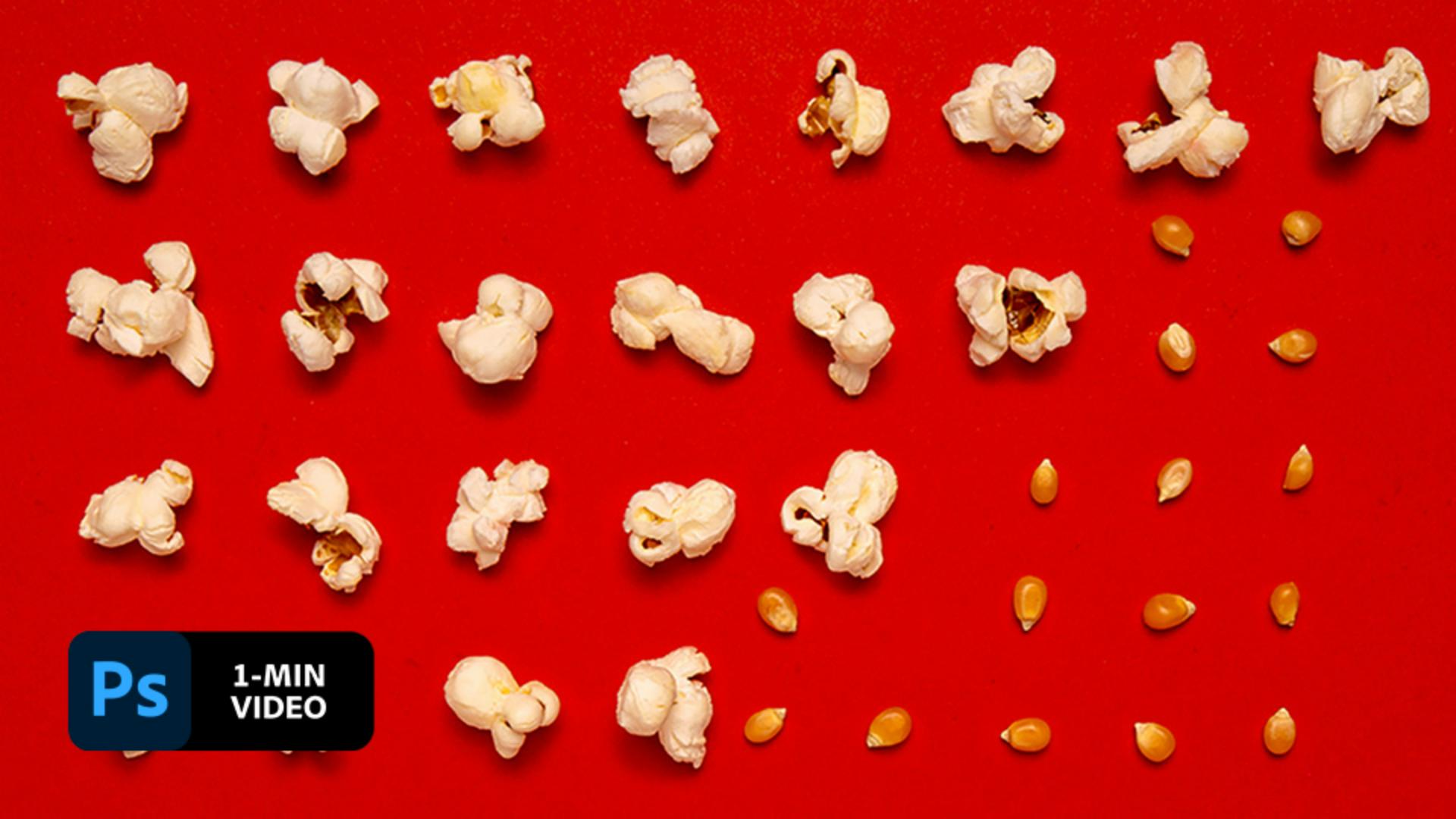
Cómo crear un efecto de stop-motion en Adobe Photoshop
Las fotografías no tienen por qué quedarse quietas. Con solo unos breves pasos, puedes añadir fácilmente movimiento a tus imágenes. En este breve tutorial, descubre cómo Aaron Bernstein anima sus fotografías empleando máscaras y la línea de tiempo en Adobe Photoshop.
View tutorial in Photoshop
Follow along in the app
Aaron Bernstein es un creativo afincado en Nueva York y exresidente creativo de Adobe. Bajo la apariencia digital de “chico hambriento”, Aaron utiliza la comida para reflejar facetas de la cultura contemporánea en proyectos basados en la fotografía.
El archivo de práctica tiene dos capas, la capa de granos y la capa de palomitas por encima. Crea una máscara de capa en la capa Palomitas e inviértela con Control+I (Windows), o Comando+I (macOS).

2
Echa un ojo
Bernstein seleccionó la máscara de capa, escogió la herramienta Pincel y estableció el color en blanco. Después, pintó sobre la máscara para revelar la primera palomita.
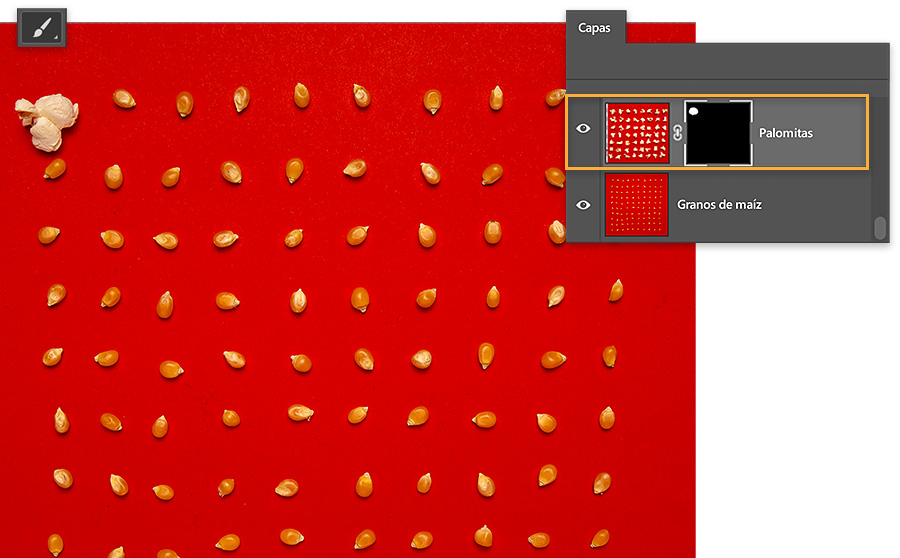
3
Revela por fases
En este paso, Bernstein dedicó gran parte de su tiempo. Duplicó la capa donde se reveló el primer grano de palomita pulsando Control+J (Windows), Comando+J (macOS). Después, pintó con un pincel blanco para revelar más palomitas. Repitió este paso hasta que tuvo muchas capas y todas las palomitas de la capa inferior se podían ver.

4
Crea la línea de tiempo
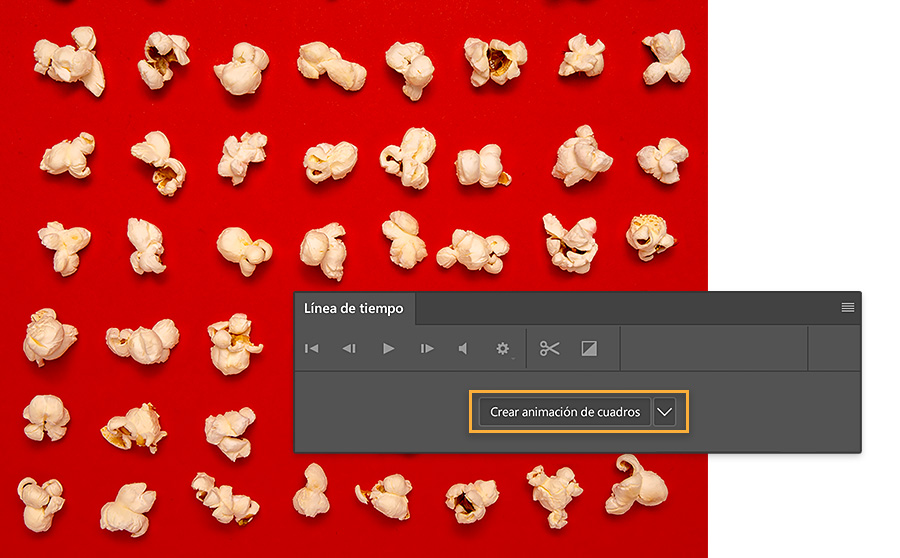
Bernstein hizo clic en Crear animación de cuadros desde la Línea de tiempo (Ventana > Línea de tiempo).
5
Crea cuadros de animación
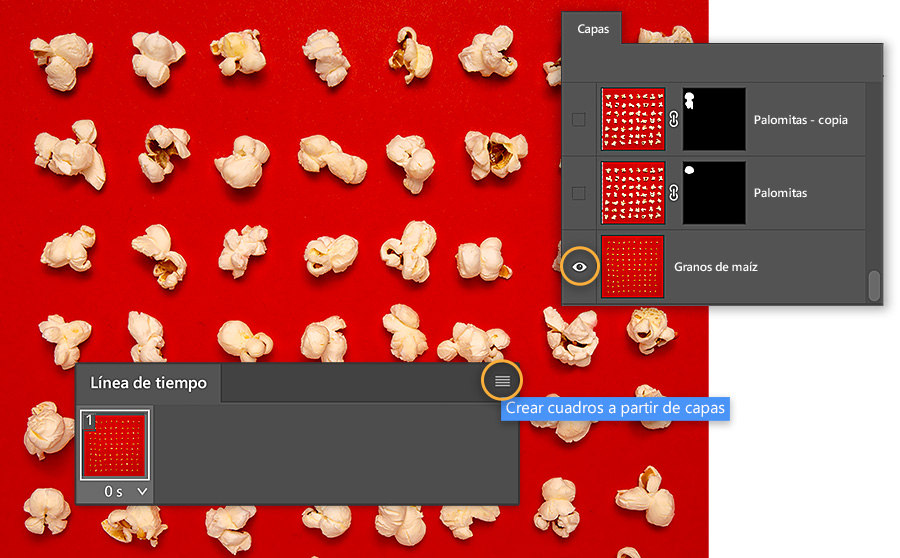
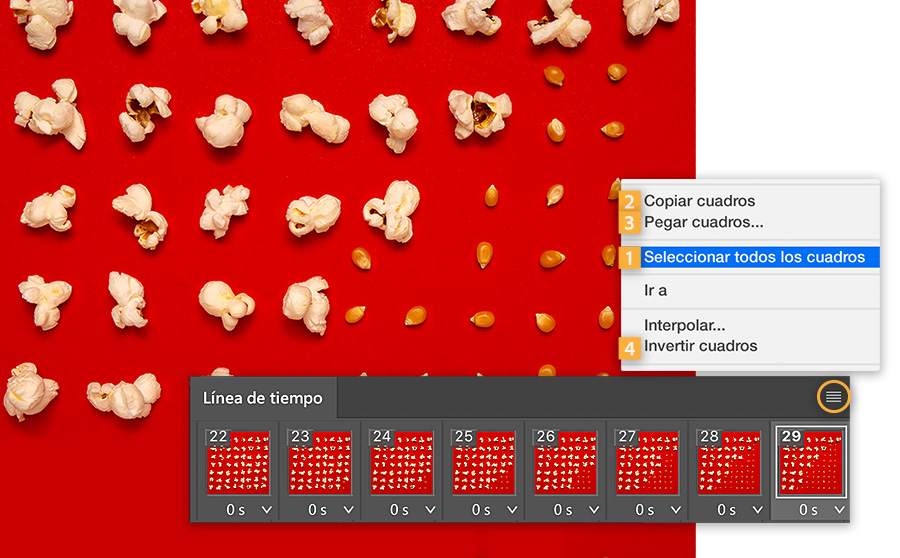
Para crear cada estado de animación, Bernstein seleccionó Crear cuadros a partir de capas de la Línea de tiempo. Después, activó y desactivó la visibilidad de la capa de granos para hacerla visible en todos los cuadros de la animación.
6
Convierte el resultado en un bucle
Bernstein trabajó en la Línea de tiempo para crear la animación en bucle. Primero, eligió Seleccionar todos los cuadros y, después, Copiar cuadros y Pegar cuadros. Por último, seleccionó Invertir cuadros para que las palomitas parecieran explotar y no explotar. Hizo clic en Reproducir en la Línea de tiempo para obtener una vista previa de la animación. Bernstein usó la función Guardar para Web para guardar el GIF animado en bucle.
Añade movimiento
Dales vida a tus imágenes con animaciones breves.
Nota: Los archivos de proyecto incluidos en este tutorial son solo para fines prácticos.

You can control how Adobe websites use cookies and similar technologies by making choices below. But note that if you disable cookies and similar technologies entirely, Adobe websites may not function properly.
Cookies are small text files stored by your web browser when you use websites. There are also other technologies that can be used for similar purposes like HTML5 Local Storage and local shared objects, web beacons, and embedded scripts. These technologies help us do things like remembering you and your preferences when you return to our sites, measure how you use the website, conduct market research, and gather information about the ads you see and interact with.
You can make choices in the menu below about what cookies and other technologies you want us to use on Adobe sites when you visit them from this browser. You can always change those choices later by clicking on the Cookie Preferences link at the bottom of the page.
If enabled:
We can improve your experience by tailoring the site and the content to things we think might be of interest
We can better keep track of your preferences — like what language you prefer to use
We will better understand your likely interests so we can provide you more relevant Adobe ads and content on non-Adobe websites and in non-Adobe apps
It will help us improve the performance of our website and those of our partners who use the Adobe Experience Cloud
If disabled:
We won’t be able to remember you from session to session so the experience may not be tailored to your interests
You’ll still have access to the content of the site but certain features that depend on cookies may not function
You’ll still see ads, they just may not be as relevant to you
General information
You can control how Adobe websites use cookies and similar technologies by making choices below. But note that if you disable cookies and similar technologies entirely, Adobe websites may not function properly.
Cookies are small text files stored by your web browser when you use websites. There are also other technologies that can be used for similar purposes like HTML5 Local Storage, web beacons, and embedded scripts. These technologies help us do things like remembering you and your preferences when you return to our sites, measure how you use the website, conduct market research, and gather information about the ads you see and interact with.
You can make choices in the menu below about what cookies and other technologies you want us to use on Adobe sites when you visit them from this browser. You can always change those choices later by clicking on the Cookie Preferences link at the bottom of the page.
If enabled:
We can improve your experience by tailoring the site and the content to things we think might be of interest
We can better keep track of your preferences — like what language you prefer to use
We will better understand your likely interests so we can provide you more relevant Adobe ads and content on non-Adobe websites and in non-Adobe apps
It will help us improve the performance of our website and those of our partners who use the Adobe Experience Cloud
If disabled:
We won’t be able to remember you from session to session so the experience may not be tailored to your interests
We’ll still count your use of our site and services
You’ll still have access to the content of the site but certain features that depend on cookies may not function
You’ll still see ads, they just may not be as relevant to you
Operate the site and core servicesOperate site and measure engagement
Always active
These cookies are required, and they are used to enable the site and related services core functionality. Without them the site could not operate, so they cannot be disabled.
These cookies enable the site and related services’ core functionality and collect statistics about user engagement, such as counting active use to help us understand trends. These cookies cannot be disabled.
Measure performance
These cookies are used to analyze site usage to measure and improve performance. Without them Adobe cannot know what content is most valued and how often unique visitors return to the site, making it hard to improve information we offer to you.
These cookies are used to analyze site usage to measure and improve performance. Without them Adobe cannot know what content is most valued, making it hard to improve information we offer to you.
Extend functionality
These cookies are used to enhance the functionality of Adobe sites such as remembering your settings and preferences to deliver a personalized experience; for example, your username, your repeated visits, preferred language, your country, or any other saved preference.
Personalize advertising
These cookies are used to enable Adobe and our partners to serve ads more relevant to your interests. Without them you will still see ads, but they might not be as relevant to you.
Personalize advertising
These cookies are used to enable Adobe and our partners to serve ads more relevant to your interests. Without them you will still see ads, but they might not be as relevant to you.