[Sarah John]: Have you ever been working on a video edit and hit a brick wall when trying to find a certain sound effect?
There are so many great options out there in various stock libraries, but sometimes you want something that fits in a specific way.
And even after hours of searching, you still might not be able to track down exactly what you need.
And when you're on a tight deadline, that can be a problem.
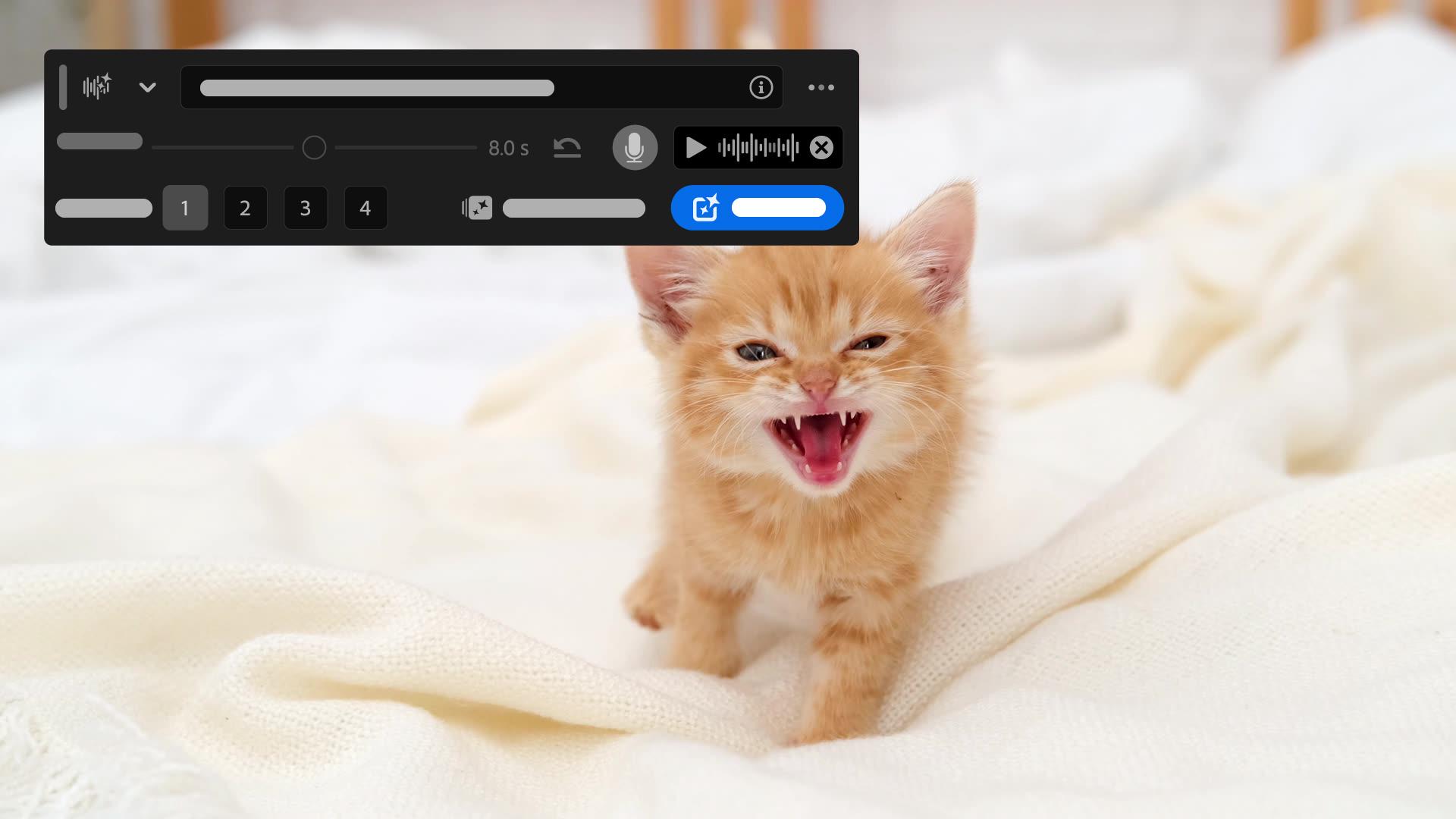
With Premiere's Generative Media Tool, you'll have the option to create sound effects directly in the timeline.
With this and with other features in the Essential Sound panel, you can improve your existing audio and save a lot of time during your edit.
To get started, with your project timeline open,
Create the exact sound effect your footage needs
click on the Generative Media Tool in the toolbar.
Click and drag the tool on the audio side of the timeline underneath the clip the effect is intended for.
When the taskbar pops up, enter the prompt for the effect you are looking for.
In this example, I want to create the sound of a lion roaring that fits exactly to the timing of the kitten meowing in this video.
I'm going to keep it simple and just type, "lion roaring continuously."
Now to make sure it fits the exact timing I'm looking for, I'm going to select Record guide.
This gives me the option to record my own voice for the tool to use as a timing guide for the effect.
Roar!
Alright that should do it.
I'm going to click Generate and see what it gives me.
As noted here, this will cost us 10 credits.
[Lion roars] There we go.
That came out nicely.
We even have some variations to choose from.
[Lion roars] If I want to make any further changes, I can come back to the clip and click the Generative Media Tool button on the clip itself to bring up my specifications again.
Fix noisy or uneven dialogue in one panel
Now I want to make sure the voiceover I recorded for this portion of the video sounds as good as it should.
Let's watch as the fierce hunter battles valiantly with the worthy opponent that has dared invade her territory To do this we're going to open the Essential Sound panel.
Here I have tons of options to tweak my audio clip until it sounds perfect.
I can adjust specific aspects of the clip like the volume and the amount of noise, or I can choose a preset from the dropdown menu.
Here at the top is the Enhance Speech option. which gives me a way to quickly optimize the voiceover clip.
Once applied, I can adjust the mix amount on the effect until it sounds just right.
License music for your edit without leaving the timeline
And if I'm looking for music, I can select the Browse tab to check out the Adobe Stock Library for royalty-free songs I can license right here in Premiere.
I hope you can use these versatile audio features to streamline your editing workflow and save you both time and energy in the process.
Check it out!
Note: Stock assets provided are for practice purposes only. See terms.
What you’ll learn
Create the exact sound effect your footage needs
Stock libraries don't always have the sound a scene calls for, especially on a tight deadline. Type a prompt describing the effect, then record a quick guide track so the tool knows exactly when it should hit. Generate a few variations and pick the one that fits your edit, right from the timeline.
Fix noisy or uneven dialogue in one panel
Recorded dialogue rarely sounds broadcast-ready on its own. The Essential Sound panel lets you adjust volume and noise directly, or apply the Enhanced Speech preset to clean up a voiceover in a single step. From there, dial in the mix amount until the clip sounds right.
License music for your edit without leaving the timeline
Finding the right track often means jumping between browser tabs and licensing pages. The Essential Sound panel's browse tab connects directly to the Adobe Stock library of royalty-free music. License a track and drop it into your project without breaking your workflow.
You can control how Adobe websites use cookies and similar technologies by making choices below. But note that if you disable cookies and similar technologies entirely, Adobe websites may not function properly.
Cookies are small text files stored by your web browser when you use websites. There are also other technologies that can be used for similar purposes like HTML5 Local Storage and local shared objects, web beacons, and embedded scripts. These technologies help us do things like remembering you and your preferences when you return to our sites, measure how you use the website, conduct market research, and gather information about the ads you see and interact with.
You can make choices in the menu below about what cookies and other technologies you want us to use on Adobe sites when you visit them from this browser. You can always change those choices later by clicking on the Cookie Preferences link at the bottom of the page.
If enabled:
We can improve your experience by tailoring the site and the content to things we think might be of interest
We can better keep track of your preferences — like what language you prefer to use
We will better understand your likely interests so we can provide you more relevant Adobe ads and content on non-Adobe websites and in non-Adobe apps
It will help us improve the performance of our website and those of our partners who use the Adobe Experience Cloud
If disabled:
We won’t be able to remember you from session to session so the experience may not be tailored to your interests
You’ll still have access to the content of the site but certain features that depend on cookies may not function
You’ll still see ads, they just may not be as relevant to you
General information
You can control how Adobe websites use cookies and similar technologies by making choices below. But note that if you disable cookies and similar technologies entirely, Adobe websites may not function properly.
Cookies are small text files stored by your web browser when you use websites. There are also other technologies that can be used for similar purposes like HTML5 Local Storage, web beacons, and embedded scripts. These technologies help us do things like remembering you and your preferences when you return to our sites, measure how you use the website, conduct market research, and gather information about the ads you see and interact with.
You can make choices in the menu below about what cookies and other technologies you want us to use on Adobe sites when you visit them from this browser. You can always change those choices later by clicking on the Cookie Preferences link at the bottom of the page.
If enabled:
We can improve your experience by tailoring the site and the content to things we think might be of interest
We can better keep track of your preferences — like what language you prefer to use
We will better understand your likely interests so we can provide you more relevant Adobe ads and content on non-Adobe websites and in non-Adobe apps
It will help us improve the performance of our website and those of our partners who use the Adobe Experience Cloud
If disabled:
We won’t be able to remember you from session to session so the experience may not be tailored to your interests
We’ll still count your use of our site and services
You’ll still have access to the content of the site but certain features that depend on cookies may not function
You’ll still see ads, they just may not be as relevant to you
Operate the site and core servicesOperate site and measure engagement
Always active
These cookies are required, and they are used to enable the site and related services core functionality. Without them the site could not operate, so they cannot be disabled.
These cookies enable the site and related services’ core functionality and collect statistics about user engagement, such as counting active use to help us understand trends. These cookies cannot be disabled.
Measure performance
These cookies are used to analyze site usage to measure and improve performance. Without them Adobe cannot know what content is most valued and how often unique visitors return to the site, making it hard to improve information we offer to you.
These cookies are used to analyze site usage to measure and improve performance. Without them Adobe cannot know what content is most valued, making it hard to improve information we offer to you.
Extend functionality
These cookies are used to enhance the functionality of Adobe sites such as remembering your settings and preferences to deliver a personalized experience; for example, your username, your repeated visits, preferred language, your country, or any other saved preference.
Personalize advertising
These cookies are used to enable Adobe and our partners to serve ads more relevant to your interests. Without them you will still see ads, but they might not be as relevant to you.
Personalize advertising
These cookies are used to enable Adobe and our partners to serve ads more relevant to your interests. Without them you will still see ads, but they might not be as relevant to you.