[Stefan Gruenwedel]: Hallo, ich bin Stefan Gruenwedel, Kursleiter für das Adobe Learn-Team.
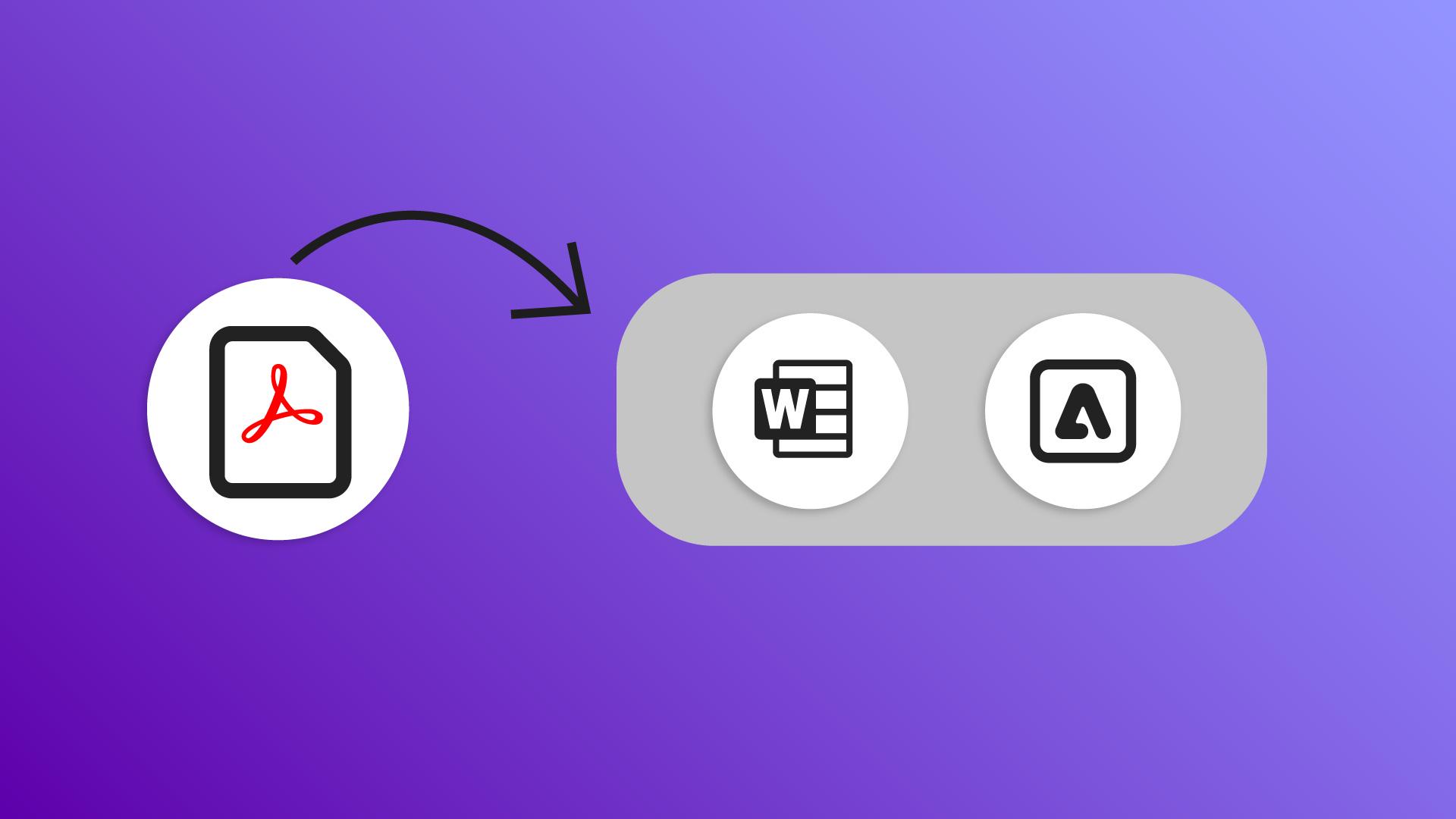
In diesem Video zeige ich dir mehrere Möglichkeiten, eine PDF-Datei in eine vollständig bearbeitbare Version in Microsoft Office zu exportieren.
Ich zeige dir auch ein paar coole Optionen, ein PDF-Dokument in Adobe Express umzugestalten.
PDF-Dateien in Microsoft Word umwandeln
Angenommen, du möchtest deinen Lebenslauf aktualisieren, hast aber nur noch eine PDF-Datei.
Die Originalversion in Microsoft Word ist nicht mehr da.
Du denkst vielleicht, du hast Pech gehabt, aber das ist kein Problem.
Du kannst die PDF-Datei wieder in das ursprüngliche Word-Format konvertieren.
Probiere das selbst mit den Beispieldateien zu diesem Tutorial aus.
Wähle links im Bedienfeld „Alle Tools" „PDF exportieren".
Das geht auch über die Registerkarte „Konvertieren".
Dieses Feld bietet mehrere Optionen, aber hier klicke ich auf „Microsoft Word“ und dann auf „In DOCX konvertieren“.
Ich wähle ein Ziel für die konvertierte Datei und klicke auf „Speichern".
Nachdem Microsoft Word geöffnet und die Datei geladen wurde, kannst du sie wie jedes andere Word-Dokument bearbeiten.
Es gibt noch einen anderen Grund, eine PDF-Datei zu exportieren,
PDF-Dateien in Adobe Express öffnen
den ich ziemlich cool finde.
Kehre zurück zu „Konvertieren“.
Ganz oben siehst du die Option „Adobe Express“.
Klicke darauf und dann auf „Nach Adobe Express exportieren“, um zu sehen, was dort möglich ist.
Stile und Designs in Express anwenden
Sieh dir die Optionen unter „Tastaturbefehle zum Stilisieren von PDFs“ im Fenster oben rechts an.
Wähle „Dokumentstil anwenden“.
Du gelangst auch über die Option „Design“ auf der linken Werkzeugleiste dorthin.
Probiere ein paar Designs aus, um zu sehen, wie sie das Dokument verändern.
Ich mag die Farbfelder im Bedienfeld „Farbe“.
Einige ändern nur den Text, andere auch die Seitenfarbe.
Zurück im Bedienfeld mit den Tastaturbefehlen wähle „Schriftartenempfehlungen erhalten“.
Im Bedienfeld „Text“ links findest du einige Schriften zum Ausprobieren.
Klicke auf „Alle anzeigen“, um weitere zu sehen.
Dieses Bedienfeld ist kontextabhängig.
Es ändert sich, je nachdem, was du auf der Arbeitsfläche anklickst – das kann Text sein oder der Seitenhintergrund.
Über die Werkzeugleiste oben kannst du die Ansicht vergrößern oder verkleinern, Änderungen rückgängig machen, andere Personen einladen und mehr.
Beachte, dass deine ursprüngliche PDF-Datei weiterhin geöffnet und unverändert in Acrobat bestehen bleibt.
Die neue PDF-Datei herunterladen
Wenn du mit den Änderungen in Adobe Express fertig bist, klicke auf „Herunterladen“, um sie in einer neuen PDF-Datei zu speichern.
Hinweis: Die zur Verfügung gestellten Medien aus Adobe Stock dürfen nur zu Übungszwecken verwendet werden. Bedingungen beachten
Zusammenfassung.
PDF-Dateien in Microsoft Word umwandeln.
Klicke im Bedienfeld „Alle Tools“ auf „PDF exportieren“, und wähle „Microsoft Word“. Speichere die Datei und öffne sie in Word, um den Inhalt wie ein Standarddokument zu bearbeiten.
PDF-Dateien in Adobe Express öffnen.
Wähle im Bedienfeld „Konvertieren“ die Option „Adobe Express“, um deine PDF-Datei in Express zu laden. Hier hast du verschiedene Möglichkeiten, dein Dokument neu zu gestalten.
Stile und Designs in Express anwenden.
Über das Bedienfeld „Tastaturbefehle zum Stilisieren von PDFs“ kannst du verschiedene Dokumentstile oder Designs anwenden. Verwende die Schriftartenempfehlungen, um Schrift und Textstile anzupassen.
Die neue PDF-Datei herunterladen.
Wenn du fertig bist, lade die aktualisierte Version als neue PDF-Datei herunter – die Originalversion bleibt erhalten.
You can control how Adobe websites use cookies and similar technologies by making choices below. But note that if you disable cookies and similar technologies entirely, Adobe websites may not function properly.
Cookies are small text files stored by your web browser when you use websites. There are also other technologies that can be used for similar purposes like HTML5 Local Storage and local shared objects, web beacons, and embedded scripts. These technologies help us do things like remembering you and your preferences when you return to our sites, measure how you use the website, conduct market research, and gather information about the ads you see and interact with.
You can make choices in the menu below about what cookies and other technologies you want us to use on Adobe sites when you visit them from this browser. You can always change those choices later by clicking on the Cookie Preferences link at the bottom of the page.
If enabled:
We can improve your experience by tailoring the site and the content to things we think might be of interest
We can better keep track of your preferences — like what language you prefer to use
We will better understand your likely interests so we can provide you more relevant Adobe ads and content on non-Adobe websites and in non-Adobe apps
It will help us improve the performance of our website and those of our partners who use the Adobe Experience Cloud
If disabled:
We won’t be able to remember you from session to session so the experience may not be tailored to your interests
You’ll still have access to the content of the site but certain features that depend on cookies may not function
You’ll still see ads, they just may not be as relevant to you
General information
You can control how Adobe websites use cookies and similar technologies by making choices below. But note that if you disable cookies and similar technologies entirely, Adobe websites may not function properly.
Cookies are small text files stored by your web browser when you use websites. There are also other technologies that can be used for similar purposes like HTML5 Local Storage, web beacons, and embedded scripts. These technologies help us do things like remembering you and your preferences when you return to our sites, measure how you use the website, conduct market research, and gather information about the ads you see and interact with.
You can make choices in the menu below about what cookies and other technologies you want us to use on Adobe sites when you visit them from this browser. You can always change those choices later by clicking on the Cookie Preferences link at the bottom of the page.
If enabled:
We can improve your experience by tailoring the site and the content to things we think might be of interest
We can better keep track of your preferences — like what language you prefer to use
We will better understand your likely interests so we can provide you more relevant Adobe ads and content on non-Adobe websites and in non-Adobe apps
It will help us improve the performance of our website and those of our partners who use the Adobe Experience Cloud
If disabled:
We won’t be able to remember you from session to session so the experience may not be tailored to your interests
We’ll still count your use of our site and services
You’ll still have access to the content of the site but certain features that depend on cookies may not function
You’ll still see ads, they just may not be as relevant to you
Operate the site and core servicesOperate site and measure engagement
Always active
These cookies are required, and they are used to enable the site and related services core functionality. Without them the site could not operate, so they cannot be disabled.
These cookies enable the site and related services’ core functionality and collect statistics about user engagement, such as counting active use to help us understand trends. These cookies cannot be disabled.
Measure performance
These cookies are used to analyze site usage to measure and improve performance. Without them Adobe cannot know what content is most valued and how often unique visitors return to the site, making it hard to improve information we offer to you.
These cookies are used to analyze site usage to measure and improve performance. Without them Adobe cannot know what content is most valued, making it hard to improve information we offer to you.
Extend functionality
These cookies are used to enhance the functionality of Adobe sites such as remembering your settings and preferences to deliver a personalized experience; for example, your username, your repeated visits, preferred language, your country, or any other saved preference.
Personalize advertising
These cookies are used to enable Adobe and our partners to serve ads more relevant to your interests. Without them you will still see ads, but they might not be as relevant to you.
Personalize advertising
These cookies are used to enable Adobe and our partners to serve ads more relevant to your interests. Without them you will still see ads, but they might not be as relevant to you.