Turn your video’s personality all the way up — even when the volume is turned all the way down.
What you’ll need
Practice in the app
Introduction
How to add text to a video.
Adding and positioning text in your video
From the Editor click the Text icon on the left panel.
Click the Add your text button to start typing in the Editor.
Move and size your text to fit in the box.
In the Text properties panel, you can change the Font,
Customizing text styles and properties
Color, Styling, and other features.
Adjusting text timing and duration in the timeline
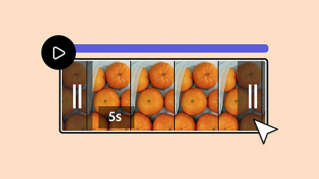
Toggle the Show layer timing option on to adjust when the text appears and how long it stays on the screen.
To shorten the duration, use the handles of the purple bar that represents your text, or drag the bar along the Timeline to change when it appears.
Adobe Express Keep creating.
Add a text layer to your video, then style and arrange it any way you like. You can also control where and when text appears. Whether it’s a title, a slogan, or a shoutout, adding text can earn you more views and more engagement.
Step 1: Locate the Text icon.
From the Video Editor, click the Text icon on the left panel. Click the Add your text button and start typing. Use the text box handles to resize, or move the text box by clicking its outline and dragging.
Step 2: Add text properties.
When your text box is selected, a text properties panel appears with options for fonts, styling, layout, fill, outline, Text Effects, shadow, shape, and animation.
Step 3: Time your text.
One of the best things about adding text to video in Adobe Express is that it’s easy to adjust when it appears and how long it stays on the screen. Toggle on Show layer timing
to easily adjust when the text appears and how long it stays on the screen. To shorten the duration, use the handles of the purple bar that represents your text or drag the bar along the timeline to change when it appears.