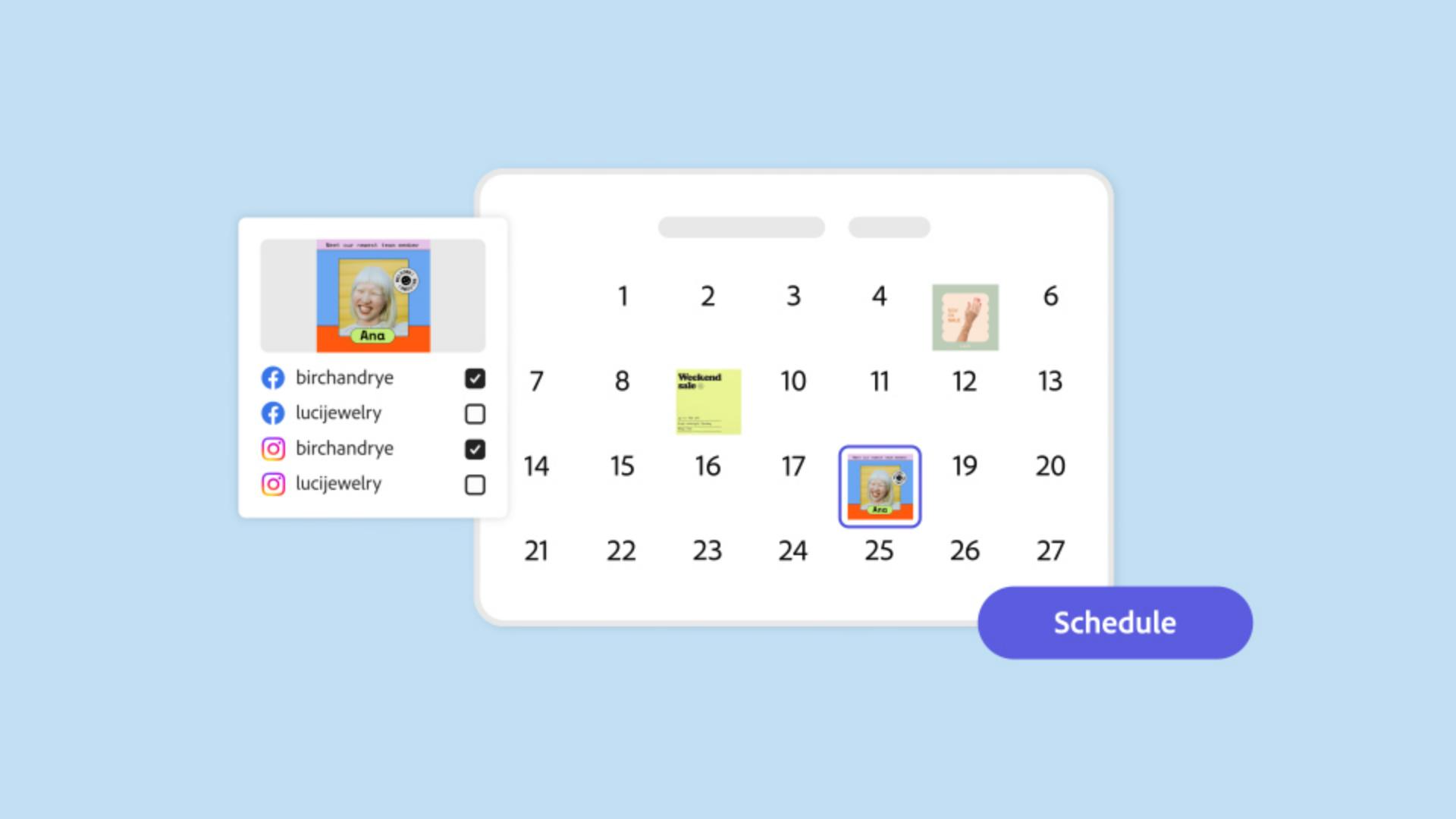
Mehrere Social-Media-Accounts zentral verwalten.
Du verwaltest mehrere Marken oder Auftraggebende?
Diese Tipps helfen dir, effizienter zu arbeiten.
Klicke links auf „Zeitplan“ (Schedule).
Klicke rechts oben auf „Verbindungen verwalten“ (Manage connections).
Pro Social-Media-Kanal kannst du jetzt bis zu 3 Accounts verknüpfen.
Um einen Account zu verknüpfen, klicke auf „Verbinden“ (Connect).
Folge den Anweisungen auf dem Bildschirm.
Mit „Neue hinzufügen“ (Add new) ergänzt du neue Accounts.
Wähle für neue Posts im Kalender ein Datum aus, oder klicke rechts oben auf „Neu“ (New post).
Ziehe das Bild oder Video in den Bereich rechts.
Du kannst Dateien von deinem Gerät wählen oder Projekte aus Adobe Express.
Posts sind von mehreren Accounts aus möglich.
Wähle „Jetzt veröffentlichen“ (Publish now) oder „Terminieren“, um einen anderen Tag für die Veröffentlichung zu bestimmen.
Filtere den Kalender nach „Post-Typen“ (Post types) oder „Kanälen“ (Channels).
Adobe Express.
Bleibe kreativ.