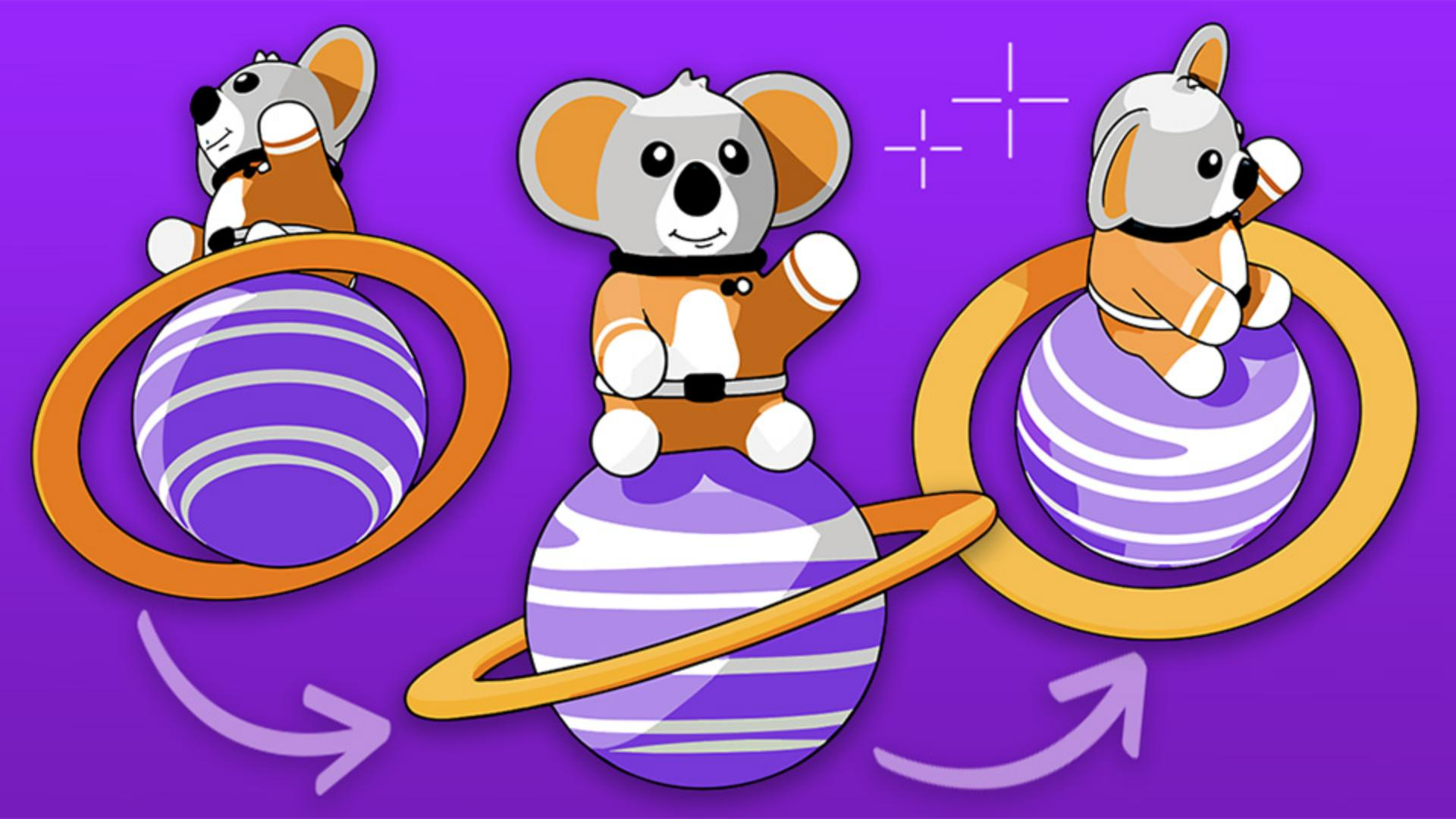
Ansichten aus jedem Winkel ohne Neuzeichnung generieren.
Erspare dir stundenlanges Neuzeichnen. Mit der Drehscheibe in Illustrator kannst du aus einer einzigen Zeichnung eine 360-Grad-Ansicht der Grafik generieren und sie in deine Design-Projekte einbinden.
Einführung und Vorstellung des Autors Kaleb Gonyea
[Kaleb Gonyea]: Hast du schon mal eine Illustration erstellt und dann gemerkt, dass du sie aus einem anderen Winkel brauchst?
Ja, ich auch.
Normalerweise muss man alles neu zeichnen – andere Ausrichtung, andere Perspektive, stundenlange Extraarbeit.
Zum Glück bietet Illustrator dafür jetzt das neue Feature „Drehscheibe“.
Es nimmt deine Grafik und generiert automatisch eine 360-Grad-Rotation.
So musst du nicht alles neu zeichnen.
Dein Mehraufwand sinkt auf wenige Sekunden.
Ich bin Kaleb Gonyea.
Heute zeige ich dir, wie du mit der Drehscheibe neue Ansichten generierst, ohne neu zu zeichnen.
Los geht’s.
Alternative Ansichten einer Illustration generieren
Öffne Adobe Illustrator, und wähle die gewünschte Illustration aus.
Ich nutze die Beta-Version.
Wenn du dieses Tutorial ansiehst, ist die Drehscheibe in der aktuellen Version verfügbar.
Wenn nötig, gruppiere die Elemente deiner Grafik.
Klicke dann in den Eigenschaften auf „Drehscheibe“.
Du kannst auch im Kontextmenü für die Grafik die Option „Drehscheibe“ auswählen.
Sobald du auf „Drehscheibe“ klickst, verarbeitet Illustrator die Grafik und generiert automatisch einen kompletten Satz alternativer Ansichten.
Nach Abschluss erscheint eine neue kontextbezogene Task-Leiste.
Als Erstes fällt der Schieberegler auf.
Damit bewegst du dich durch 74 verschiedene Ansichten deiner Illustration.
Insgesamt eine Drehung um 360 Grad.
Statt also jede Ansicht manuell neu zu zeichnen, generiert Illustrator sofort saubere, konsistente Perspektiven.
Neben dem Regler siehst du Pfeile nach oben und unten.
Sie bewirken eine vertikale Neigung, sodass du die Grafik von leicht oben oder unten sehen kannst.
Das gibt dir viele neue Möglichkeiten für deine Illustration – auch Ansichten, die du sonst vielleicht nicht gezeichnet hättest.
Alle Ansichten platzieren und die beste Perspektive wählen
Wenn ich „Alle Ansichten auf Arbeitsfläche platzieren" wähle, ordnet Illustrator alle generierten Ansichten direkt auf der Zeichenfläche an.
Das ist echt hilfreich, denn so kannst du schnell alle Perspektiven durchgehen und die auswählen, die für dein Projekt am besten passt.
Hier siehst du, welch großen Unterschied es macht, ob du die Grafik spiegelst oder sie mit der Drehscheibe rotierst.
Sehen wir uns ein konkretes Beispiel an.
Ich füge meine Illustration in einen Flyer ein.
Mit der Drehscheibe kann ich verschiedene Perspektiven und Winkel ausprobieren, um die beste Ansicht für meinen Flyer zu finden.
Früher hätte ich zum Erstellen dieser Variationen stundenlang Ansichten zeichnen und anpassen müssen.
Jetzt dauert es nur wenige Sekunden.
Und das Beste: Alle generierten Ansichten lassen sich bearbeiten.
Du kannst sie also mit den gewohnten Illustrator-Tools anpassen.
Mit einem Klick eine animierte GIF-Datei exportieren
Und zuletzt: die Option „Als GIF exportieren".
Mit einem Klick verwandelt Illustrator alle generierten Ansichten in eine Animationsschleife.
Aus einer statischen Illustration wird eine rotierende Animation für Social-Media-Posts, Präsentationen und Marketing-Inhalte.
So einfach erstellst du eine Zeichnung mit Dutzenden verschiedener Perspektiven – direkt im Programm, ohne Rätselraten und ohne manuell neu zu zeichnen.
Beim Drehen von Figuren, Markenmaskottchen, Produktillustrationen und sogar einfachen Motion Graphics spart dir diese neue Funktion viel Zeit.
Danke fürs Zuschauen.
Ich bin Kaleb Gonyea.
Bis zum nächsten Video!
Zusammenfassung.
Alternative Ansichten einer Illustration generieren.
Erstelle aus einer einzigen Zeichnung 74 verschiedene Perspektiven, die einer 360-Grad-Rotation entsprechen. Füge eine vertikale Neigung hinzu, um deine Grafik von leicht oben oder unten zu betrachten – aus Winkeln, die du sonst vielleicht gar nicht gezeichnet hättest.
Alle Ansichten platzieren und die beste Perspektive wählen.
Ordne alle generierten Ansichten auf der Zeichenfläche an. So kannst du sie schnell durchgehen und die Perspektive wählen, die für dein Projekt am besten passt. Alle Ansichten lassen sich bearbeiten.
Mit einem Klick eine animierte GIF-Datei exportieren.
Erstelle aus allen generierten Ansichten eine animierte GIF-Datei, die in Endlosschleife abgespielt wird – ideal für Social-Media-Posts, Präsentationen oder Marketing-Inhalte.
You can control how Adobe websites use cookies and similar technologies by making choices below. But note that if you disable cookies and similar technologies entirely, Adobe websites may not function properly.
Cookies are small text files stored by your web browser when you use websites. There are also other technologies that can be used for similar purposes like HTML5 Local Storage and local shared objects, web beacons, and embedded scripts. These technologies help us do things like remembering you and your preferences when you return to our sites, measure how you use the website, conduct market research, and gather information about the ads you see and interact with.
You can make choices in the menu below about what cookies and other technologies you want us to use on Adobe sites when you visit them from this browser. You can always change those choices later by clicking on the Cookie Preferences link at the bottom of the page.
If enabled:
We can improve your experience by tailoring the site and the content to things we think might be of interest
We can better keep track of your preferences — like what language you prefer to use
We will better understand your likely interests so we can provide you more relevant Adobe ads and content on non-Adobe websites and in non-Adobe apps
It will help us improve the performance of our website and those of our partners who use the Adobe Experience Cloud
If disabled:
We won’t be able to remember you from session to session so the experience may not be tailored to your interests
You’ll still have access to the content of the site but certain features that depend on cookies may not function
You’ll still see ads, they just may not be as relevant to you
General information
You can control how Adobe websites use cookies and similar technologies by making choices below. But note that if you disable cookies and similar technologies entirely, Adobe websites may not function properly.
Cookies are small text files stored by your web browser when you use websites. There are also other technologies that can be used for similar purposes like HTML5 Local Storage, web beacons, and embedded scripts. These technologies help us do things like remembering you and your preferences when you return to our sites, measure how you use the website, conduct market research, and gather information about the ads you see and interact with.
You can make choices in the menu below about what cookies and other technologies you want us to use on Adobe sites when you visit them from this browser. You can always change those choices later by clicking on the Cookie Preferences link at the bottom of the page.
If enabled:
We can improve your experience by tailoring the site and the content to things we think might be of interest
We can better keep track of your preferences — like what language you prefer to use
We will better understand your likely interests so we can provide you more relevant Adobe ads and content on non-Adobe websites and in non-Adobe apps
It will help us improve the performance of our website and those of our partners who use the Adobe Experience Cloud
If disabled:
We won’t be able to remember you from session to session so the experience may not be tailored to your interests
We’ll still count your use of our site and services
You’ll still have access to the content of the site but certain features that depend on cookies may not function
You’ll still see ads, they just may not be as relevant to you
Operate the site and core servicesOperate site and measure engagement
Always active
These cookies are required, and they are used to enable the site and related services core functionality. Without them the site could not operate, so they cannot be disabled.
These cookies enable the site and related services’ core functionality and collect statistics about user engagement, such as counting active use to help us understand trends. These cookies cannot be disabled.
Measure performance
These cookies are used to analyze site usage to measure and improve performance. Without them Adobe cannot know what content is most valued and how often unique visitors return to the site, making it hard to improve information we offer to you.
These cookies are used to analyze site usage to measure and improve performance. Without them Adobe cannot know what content is most valued, making it hard to improve information we offer to you.
Extend functionality
These cookies are used to enhance the functionality of Adobe sites such as remembering your settings and preferences to deliver a personalized experience; for example, your username, your repeated visits, preferred language, your country, or any other saved preference.
Personalize advertising
These cookies are used to enable Adobe and our partners to serve ads more relevant to your interests. Without them you will still see ads, but they might not be as relevant to you.
Personalize advertising
These cookies are used to enable Adobe and our partners to serve ads more relevant to your interests. Without them you will still see ads, but they might not be as relevant to you.