Du hast sicher schon selber erlebt, dass Licht auf jeden Bereich eines Fotos anders wirken kann. Mit dem Radialverlauf-Werkzeug von Adobe Photoshop Lightroom kannst du einzelne Bildbereiche bearbeiten und deinem Foto mehr Ausdruck verleihen. In diesem Tutorial lernst du, wie du Details in schlecht belichteten Bereichen betonst und andere Bereiche abdunkelst. Experimentiere mit dem Beispielfoto zu diesem Tutorial, oder verwende ein eigenes Foto.
Mit den im Video gezeigten Schritten kannst du Bereiche eines Bildes aufhellen (abwedeln) oder abdunkeln (nachbelichten), wobei die Ergebnisse variieren können.
Einen dunklen Bereich aufhellen.
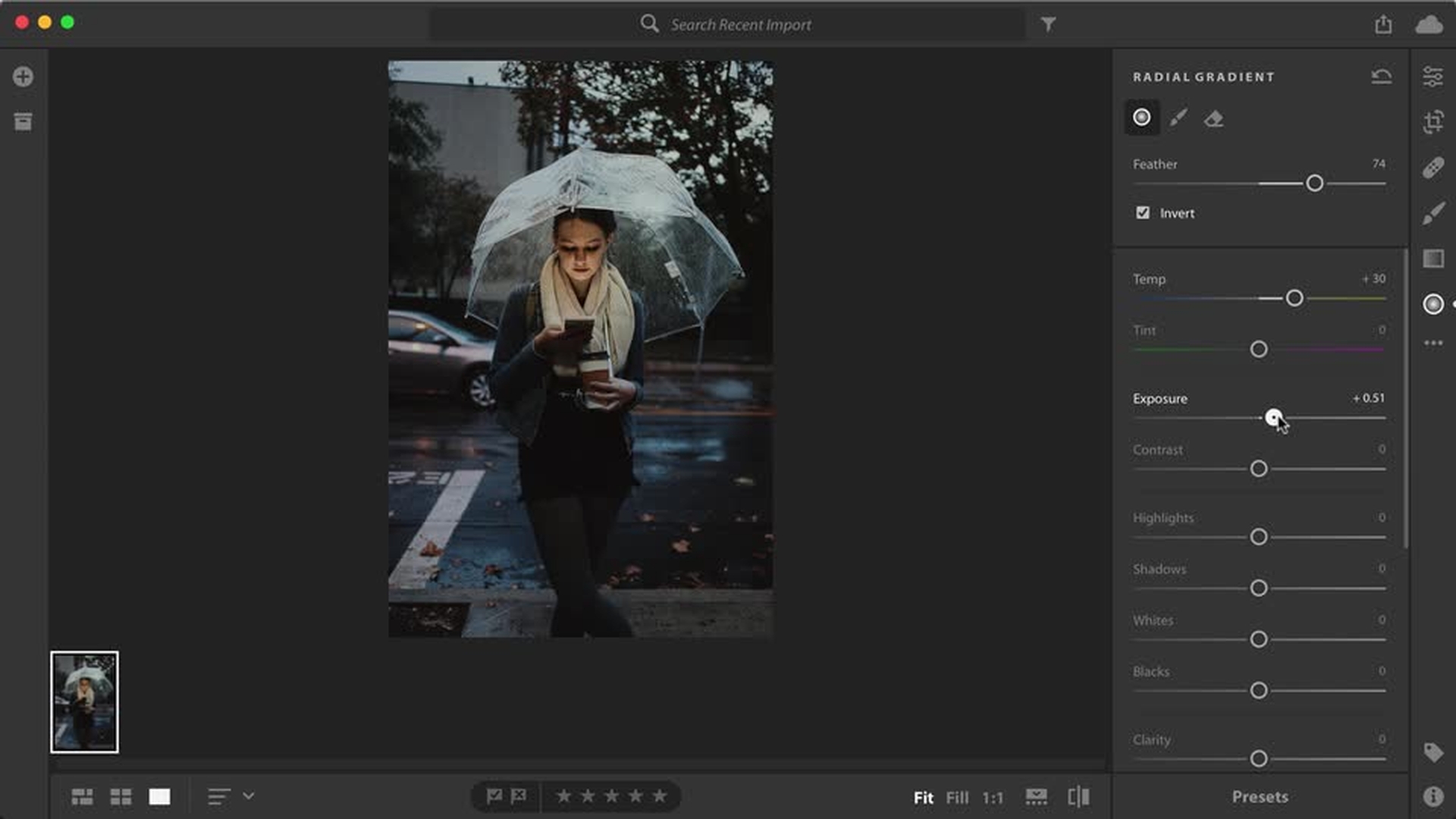
Bearbeite das Bild, sodass es aussieht, als würde das Smartphone-Display das Gesicht des Models und die Innenseite des Regenschirms anstrahlen. Für diesen Effekt hellst du die zu dunklen Bereiche auf. Dieser Vorgang wird auch „Abwedeln“ genannt.
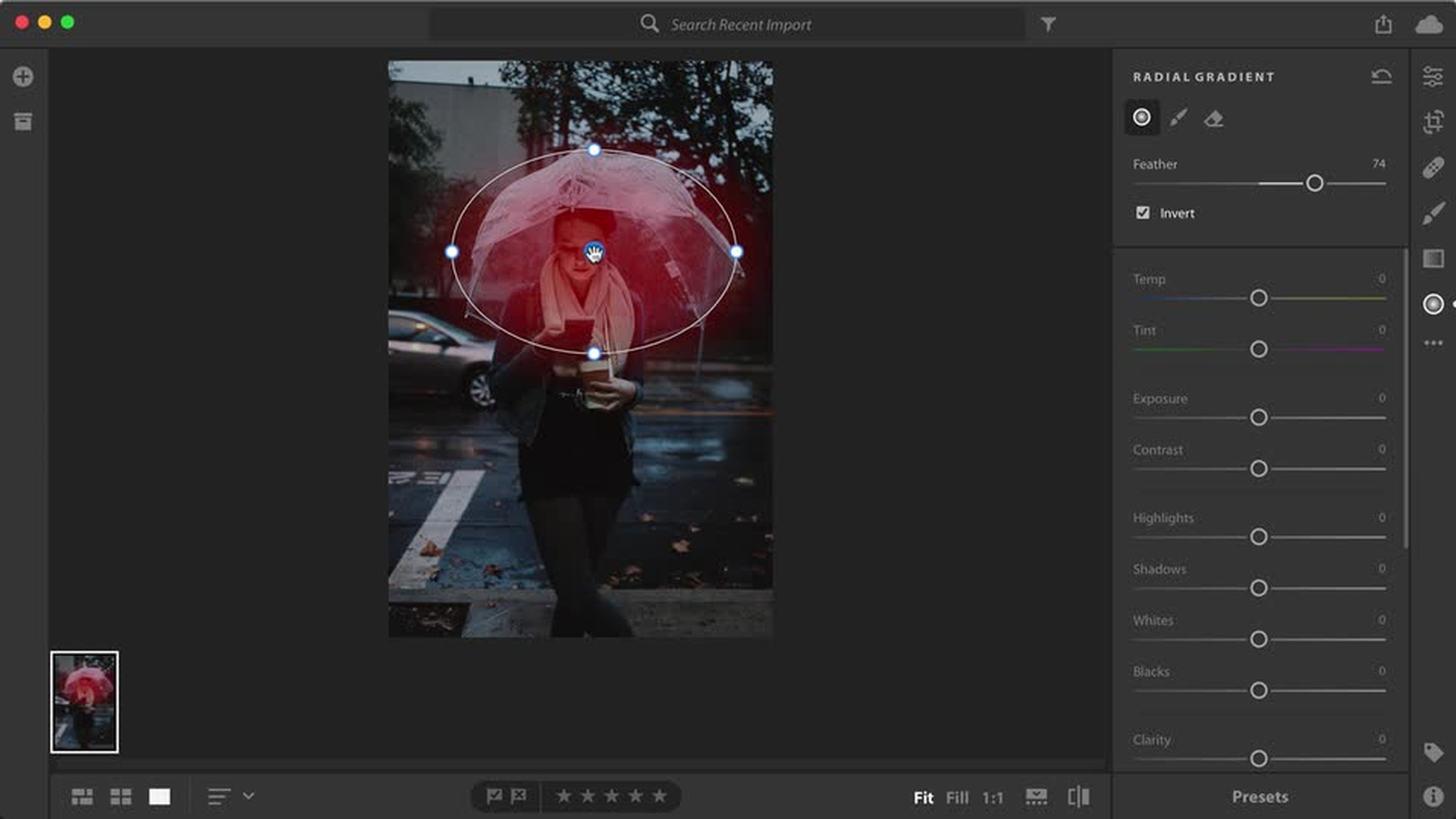
Wähle das Radialverlauf-Werkzeug aus, und ziehe es über das Gesicht des Models. Passe die Position des Effekts mit dem blauen Pin an, und verschiebe die weißen Punkte, um den Bearbeitungsbereich auf die gewünschte Größe zu ziehen. Anpassungen werden standardmäßig auf den Bereich außerhalb der ovalen Auswahl angewendet. Klicke auf „Umkehren“, um die Anpassungen innerhalb der Auswahl anzuwenden. Passe die Einstellungen für „Temperatur“ oder „Belichtung“ an, um den ausgewählten Bereich aufzuhellen und Details hervorzuheben.
Tipp:
Positionieren den Cursor auf dem blauen Pin, um die rote Maskenüberlagerung und damit den bearbeiteten Bereich anzuzeigen.
Transkript nicht verfügbar
Einen weiteren Bereich aufhellen.
Helle einen weiteren Bereich auf, und füge etwas Farbe hinzu.
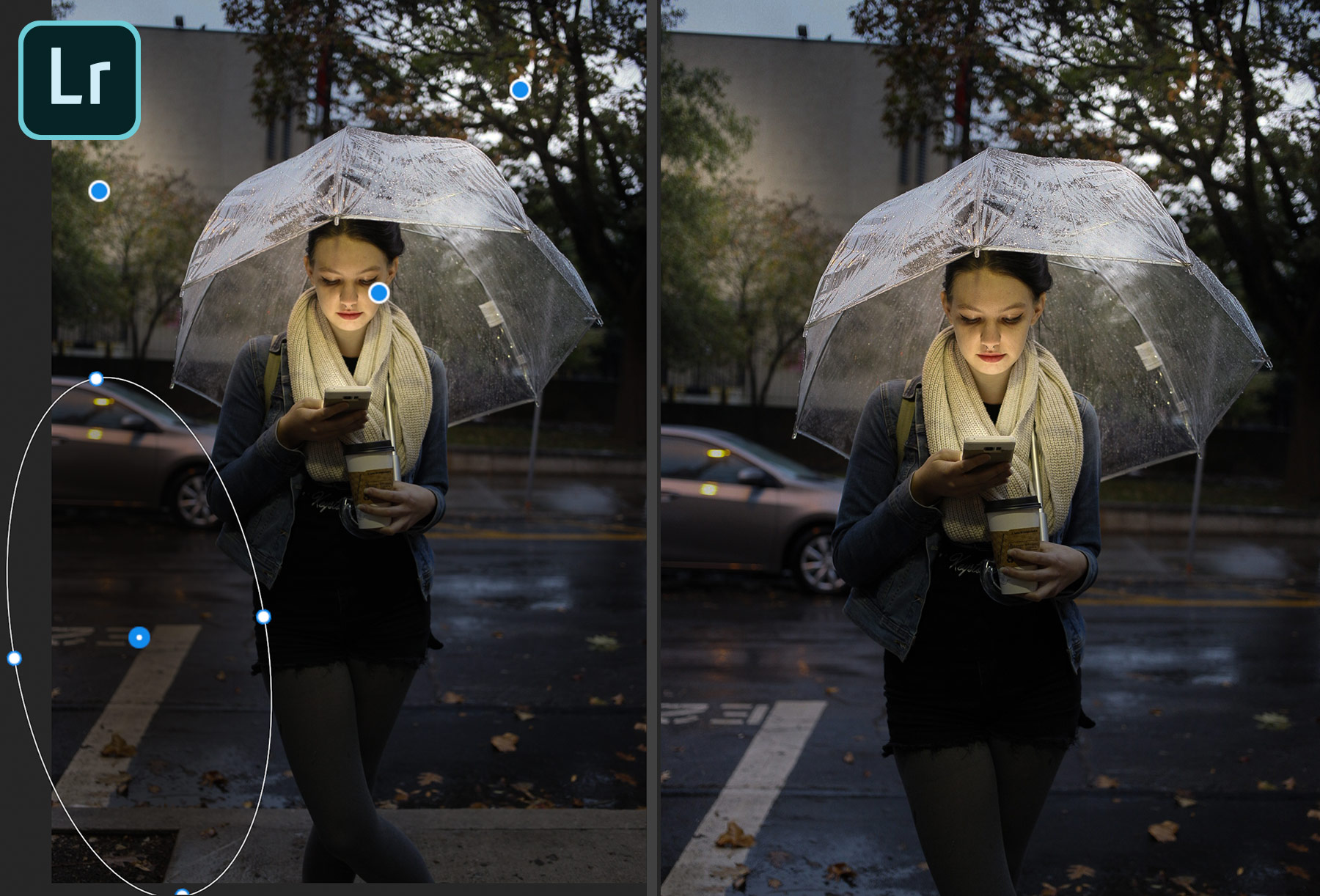
Klicke mit der rechten Maustaste bzw. mit gedrückter Ctrl-Taste auf den eben hinzugefügten Radialverlauf, und wähle „Duplizieren“. Platziere den neuen Verlauf auf dem Baum rechts im Bild, und passe die Größe an. Nimm dieselben Korrekturen vor wie beim Verlauf für das Gesicht und den Regenschirm. Bewege den Cursor aus der Ellipse heraus, bis ein Doppelpfeil angezeigt wird. Drehe die Ellipse. Der Baumbereich ist etwas dunkler als das Gesicht. Du kannst deshalb einen höheren Wert für die Belichtung wählen. Wenn du die Werte für „Tiefen“, „Weiß“ und „Schwarz“ erhöhst, werden mehr Details erkennbar.
Nächste Übung: Dupliziere den Verlauf, und ziehe ihn auf den Baum links im Bild.
Transkript nicht verfügbar
Die hellen Bereiche abdunkeln.
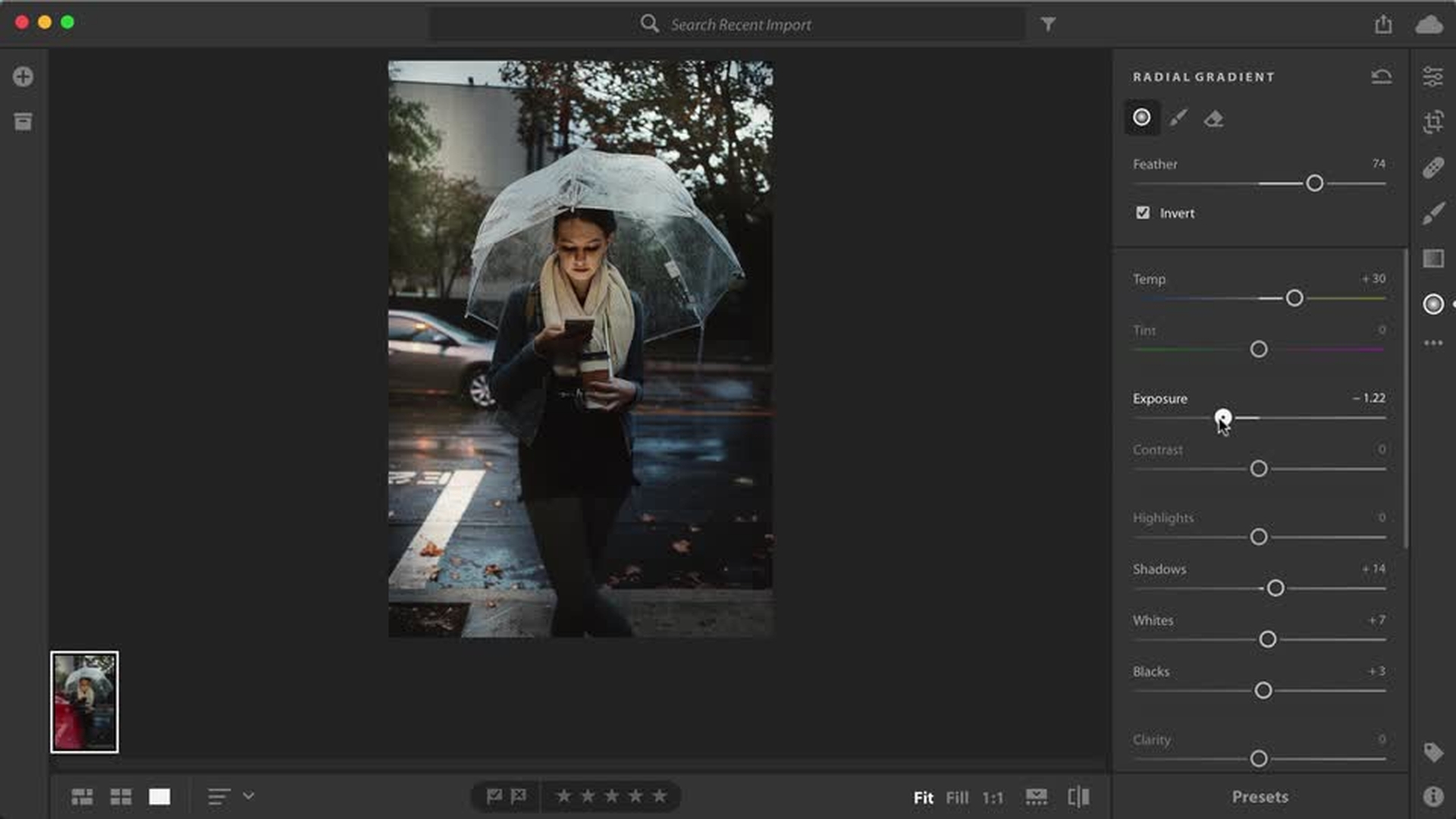
Dunkle das Auto auf der Straße ab, um das Model stärker in den Vordergrund zu rücken.
Füge einen Radialverlauf hinzu, und lege die Größe so fest, dass er das Auto und die Straße links vom Model vollständig einschließt. Reduziere die Belichtung in diesem Bereich.
Transkript nicht verfügbar
Der letzte Schliff.
Füge weitere Radialverläufe hinzu, bis du mit dem Ergebnis zufrieden bist. Wende das Radialverlauf-Werkzeug auf andere Fotos an, und lasse dich von den Ergebnissen inspirieren.
Tipp: Weitere Informationen zum Radialverlauf-Werkzeug oder zu anderen Werkzeugen für selektive Korrekturen findest du im Tutorial Selektive Korrekturen vornehmen.
Cookie Settings
General information
You can control how Adobe websites use cookies and similar technologies by making choices below. But note that if you disable cookies and similar technologies entirely, Adobe websites may not function properly.
Cookies are small text files stored by your web browser when you use websites. There are also other technologies that can be used for similar purposes like HTML5 Local Storage and local shared objects, web beacons, and embedded scripts. These technologies help us do things like remembering you and your preferences when you return to our sites, measure how you use the website, conduct market research, and gather information about the ads you see and interact with.
You can make choices in the menu below about what cookies and other technologies you want us to use on Adobe sites when you visit them from this browser. You can always change those choices later by clicking on the Cookie Preferences link at the bottom of the page.
If enabled:
We can improve your experience by tailoring the site and the content to things we think might be of interest
We can better keep track of your preferences — like what language you prefer to use
We will better understand your likely interests so we can provide you more relevant Adobe ads and content on non-Adobe websites and in non-Adobe apps
It will help us improve the performance of our website and those of our partners who use the Adobe Experience Cloud
If disabled:
We won’t be able to remember you from session to session so the experience may not be tailored to your interests
You’ll still have access to the content of the site but certain features that depend on cookies may not function
You’ll still see ads, they just may not be as relevant to you
General information
You can control how Adobe websites use cookies and similar technologies by making choices below. But note that if you disable cookies and similar technologies entirely, Adobe websites may not function properly.
Cookies are small text files stored by your web browser when you use websites. There are also other technologies that can be used for similar purposes like HTML5 Local Storage, web beacons, and embedded scripts. These technologies help us do things like remembering you and your preferences when you return to our sites, measure how you use the website, conduct market research, and gather information about the ads you see and interact with.
You can make choices in the menu below about what cookies and other technologies you want us to use on Adobe sites when you visit them from this browser. You can always change those choices later by clicking on the Cookie Preferences link at the bottom of the page.
If enabled:
We can improve your experience by tailoring the site and the content to things we think might be of interest
We can better keep track of your preferences — like what language you prefer to use
We will better understand your likely interests so we can provide you more relevant Adobe ads and content on non-Adobe websites and in non-Adobe apps
It will help us improve the performance of our website and those of our partners who use the Adobe Experience Cloud
If disabled:
We won’t be able to remember you from session to session so the experience may not be tailored to your interests
We’ll still count your use of our site and services
You’ll still have access to the content of the site but certain features that depend on cookies may not function
You’ll still see ads, they just may not be as relevant to you
Operate the site and core servicesOperate site and measure engagement
Always active
These cookies are required, and they are used to enable the site and related services core functionality. Without them the site could not operate, so they cannot be disabled.
These cookies enable the site and related services’ core functionality and collect statistics about user engagement, such as counting active use to help us understand trends. These cookies cannot be disabled.
Measure performance
These cookies are used to analyze site usage to measure and improve performance. Without them Adobe cannot know what content is most valued and how often unique visitors return to the site, making it hard to improve information we offer to you.
These cookies are used to analyze site usage to measure and improve performance. Without them Adobe cannot know what content is most valued, making it hard to improve information we offer to you.
Extend functionality
These cookies are used to enhance the functionality of Adobe sites such as remembering your settings and preferences to deliver a personalized experience; for example, your username, your repeated visits, preferred language, your country, or any other saved preference.
Personalize advertising
These cookies are used to enable Adobe and our partners to serve ads more relevant to your interests. Without them you will still see ads, but they might not be as relevant to you.
Personalize advertising
These cookies are used to enable Adobe and our partners to serve ads more relevant to your interests. Without them you will still see ads, but they might not be as relevant to you.