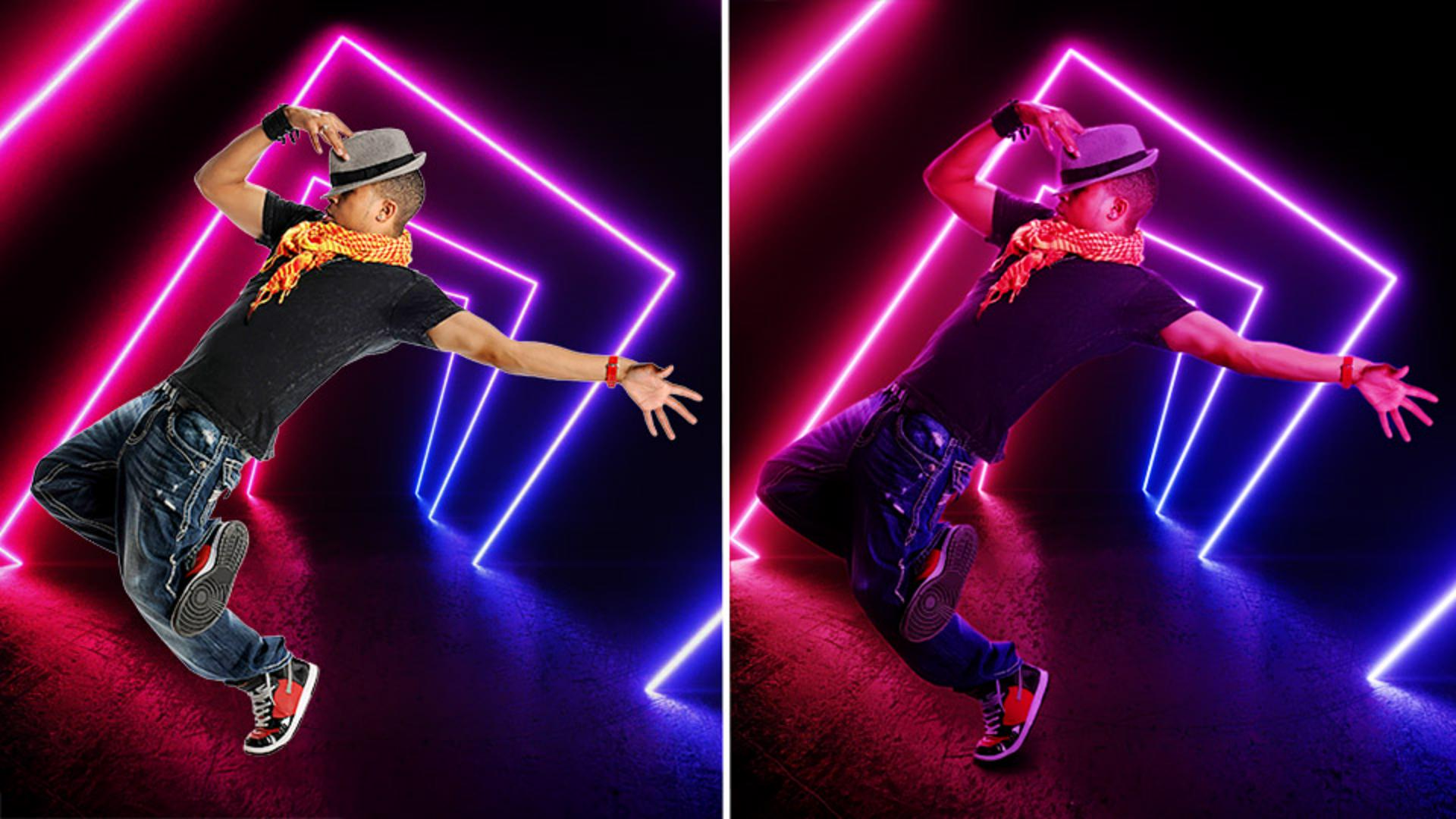
[Lisa Carney]: Wolltest du schon mal zwei Bilder kombinieren, sodass sie ein Ensemble ergeben – mit passender Farb- und Lichtgebung?
„Harmonisieren“ in der Mobile App von Photoshop ermöglicht genau das.
Hallo zusammen.
Ich bin Lisa Carney, Retusche-Profi in Hollywood, Fotografin und Fan von Bildbearbeitung auf dem Smartphone.
In den nächsten Minuten verrate ich dir, wie du in der Mobile App von Photoshop zwei Fotos nahtlos miteinander kombinierst und die Farben und Töne angleichst – alles auf deinem Smartphone.
Schritt eins: Es gibt verschiedene Möglichkeiten, ein Bild in Photoshop zu öffnen.
In diesem Fall tippe ich auf das Plus-Symbol und wähle ein Foto auf meinem Gerät.
Ein neues Motiv in eine Szene einfügen
Jetzt möchte ich eine Person in diese Umgebung einfügen, die nicht zur gleichen Zeit aufgenommen wurde.
Ich tippe auf das Plus-Symbol und füge ein Foto eines Tänzers hinzu.
Im neuen Bild mit dem Motiv den Hintergrund entfernen
Jetzt tippe ich auf „Aktionen“ und auf „Hintergrund entfernen“, sodass der Tänzer maskiert wird.
Das war ziemlich einfach.
Jetzt schiebe ich den Tänzer in die richtige Position und skaliere ihn entsprechend.
Per Tap auf den blauen Rahmen skaliere und/oder drehe ich das Bild.
Sobald ich mit dem Ergebnis zufrieden bin, tippe ich auf das Häkchen.
Der Tänzer passt noch nicht in die Umgebung, in der er sich befindet.
Mit „Harmonisieren“ Farbe und Licht aufeinander abstimmen
Er ist zu hell und viel zu gelbstichig.
Ich tippe auf „Aktionen“ und dann auf „Harmonisieren“.
Photoshop passt automatisch Farbe und Ton an.
Das Tolle an diesem Effekt ist, dass ich zwischen drei verschiedenen Optionen wählen kann.
Profi-Tipp: Verwende zwei Finger, um das Bild nach oben zu ziehen, damit du es vollständig siehst.
Nachdem ich die Version ausgewählt habe, die mir am besten gefällt, tippe ich auf das Häkchen.
Per Tap auf „Mehr“ erhalte ich weitere Versionen.
Oft wirkt eine Figur etwas dunkel, besonders in einer Umgebung wie dieser.
Die Lichtverhältnisse mit einer Einstellungsebene korrigieren
Um den Farbton anzupassen, füge ich eine Einstellungsebene hinzu.
Ich tippe auf „Bereich auswählen“, wähle „Motiv“ und bestätige per Tap auf das Häkchen.
Jetzt navigiere ich über „Einstellen“ zu den Einstellungsebenen und tippe auf die, die ich verwenden möchte, um die Lichtverhältnisse anzupassen.
In diesem Fall wähle ich „Helligkeit/Kontrast“ und passe die Regler an, bis ich zufrieden bin.
Dann bestätige ich per Tap auf das Häkchen.
Du siehst, wie einfach es ist, eine Person in eine Szene zu integrieren.
Das war wirklich schnell und einfach.
Probiere es jetzt mit deinen eigenen Projekten aus.
Mein Name ist Lisa Carney.
Ich freue mich auf das nächste Video.
Danke fürs Zuschauen und viel Spaß beim Bearbeiten.
Hinweis: Die zur Verfügung gestellten Medien aus Adobe Stock dürfen nur zu Übungszwecken verwendet werden. Bedingungen beachten
Zusammenfassung.
Ein neues Motiv in eine Szene einfügen.
Wähle ein Bild für den Hintergrund deiner Szene. Tippe dann auf das Plus-Symbol, um ein Foto eines Motivs hinzuzufügen, das du mit der Hintergrundebene kombinieren willst. Das neue Bild wird als separate Ebene über das Originalbild gelegt.
Im neuen Bild mit dem Motiv den Hintergrund entfernen.
Tippe auf „Aktionen“ und dann auf „Hintergrund entfernen“, um im neuen Bild mit dem Motiv den Hintergrund automatisch zu entfernen. Er wird von einer Ebenenmaske verborgen. Verschiebe das Bild durch Ziehen, oder ziehe an den Ecken des Rahmens, um es zu vergrößern oder zu verkleinern.
Mit „Harmonisieren“ Farbe und Licht aufeinander abstimmen.
Tippe auf „Aktionen“ und dann auf „Harmonisieren“, um das neue Bild automatisch mit dem Hintergrund zu verblenden. Photoshop modifiziert die Ebene, um Farbe und Licht mit der Hintergrundszene abzustimmen, und fügt sogar Schatten hinzu.
Die Lichtverhältnisse mit einer Einstellungsebene korrigieren.
Wenn die Ebene mit dem Motiv weiterer Anpassungen bedarf, wähle „Bereich auswählen“ und „Motiv“. Tippe dann auf „Einstellen“, und füge eine Einstellungsebene hinzu, um weitere Farbtöne und Tonwerte zu korrigieren.
You can control how Adobe websites use cookies and similar technologies by making choices below. But note that if you disable cookies and similar technologies entirely, Adobe websites may not function properly.
Cookies are small text files stored by your web browser when you use websites. There are also other technologies that can be used for similar purposes like HTML5 Local Storage and local shared objects, web beacons, and embedded scripts. These technologies help us do things like remembering you and your preferences when you return to our sites, measure how you use the website, conduct market research, and gather information about the ads you see and interact with.
You can make choices in the menu below about what cookies and other technologies you want us to use on Adobe sites when you visit them from this browser. You can always change those choices later by clicking on the Cookie Preferences link at the bottom of the page.
If enabled:
We can improve your experience by tailoring the site and the content to things we think might be of interest
We can better keep track of your preferences — like what language you prefer to use
We will better understand your likely interests so we can provide you more relevant Adobe ads and content on non-Adobe websites and in non-Adobe apps
It will help us improve the performance of our website and those of our partners who use the Adobe Experience Cloud
If disabled:
We won’t be able to remember you from session to session so the experience may not be tailored to your interests
You’ll still have access to the content of the site but certain features that depend on cookies may not function
You’ll still see ads, they just may not be as relevant to you
General information
You can control how Adobe websites use cookies and similar technologies by making choices below. But note that if you disable cookies and similar technologies entirely, Adobe websites may not function properly.
Cookies are small text files stored by your web browser when you use websites. There are also other technologies that can be used for similar purposes like HTML5 Local Storage, web beacons, and embedded scripts. These technologies help us do things like remembering you and your preferences when you return to our sites, measure how you use the website, conduct market research, and gather information about the ads you see and interact with.
You can make choices in the menu below about what cookies and other technologies you want us to use on Adobe sites when you visit them from this browser. You can always change those choices later by clicking on the Cookie Preferences link at the bottom of the page.
If enabled:
We can improve your experience by tailoring the site and the content to things we think might be of interest
We can better keep track of your preferences — like what language you prefer to use
We will better understand your likely interests so we can provide you more relevant Adobe ads and content on non-Adobe websites and in non-Adobe apps
It will help us improve the performance of our website and those of our partners who use the Adobe Experience Cloud
If disabled:
We won’t be able to remember you from session to session so the experience may not be tailored to your interests
We’ll still count your use of our site and services
You’ll still have access to the content of the site but certain features that depend on cookies may not function
You’ll still see ads, they just may not be as relevant to you
Operate the site and core servicesOperate site and measure engagement
Always active
These cookies are required, and they are used to enable the site and related services core functionality. Without them the site could not operate, so they cannot be disabled.
These cookies enable the site and related services’ core functionality and collect statistics about user engagement, such as counting active use to help us understand trends. These cookies cannot be disabled.
Measure performance
These cookies are used to analyze site usage to measure and improve performance. Without them Adobe cannot know what content is most valued and how often unique visitors return to the site, making it hard to improve information we offer to you.
These cookies are used to analyze site usage to measure and improve performance. Without them Adobe cannot know what content is most valued, making it hard to improve information we offer to you.
Extend functionality
These cookies are used to enhance the functionality of Adobe sites such as remembering your settings and preferences to deliver a personalized experience; for example, your username, your repeated visits, preferred language, your country, or any other saved preference.
Personalize advertising
These cookies are used to enable Adobe and our partners to serve ads more relevant to your interests. Without them you will still see ads, but they might not be as relevant to you.
Personalize advertising
These cookies are used to enable Adobe and our partners to serve ads more relevant to your interests. Without them you will still see ads, but they might not be as relevant to you.