
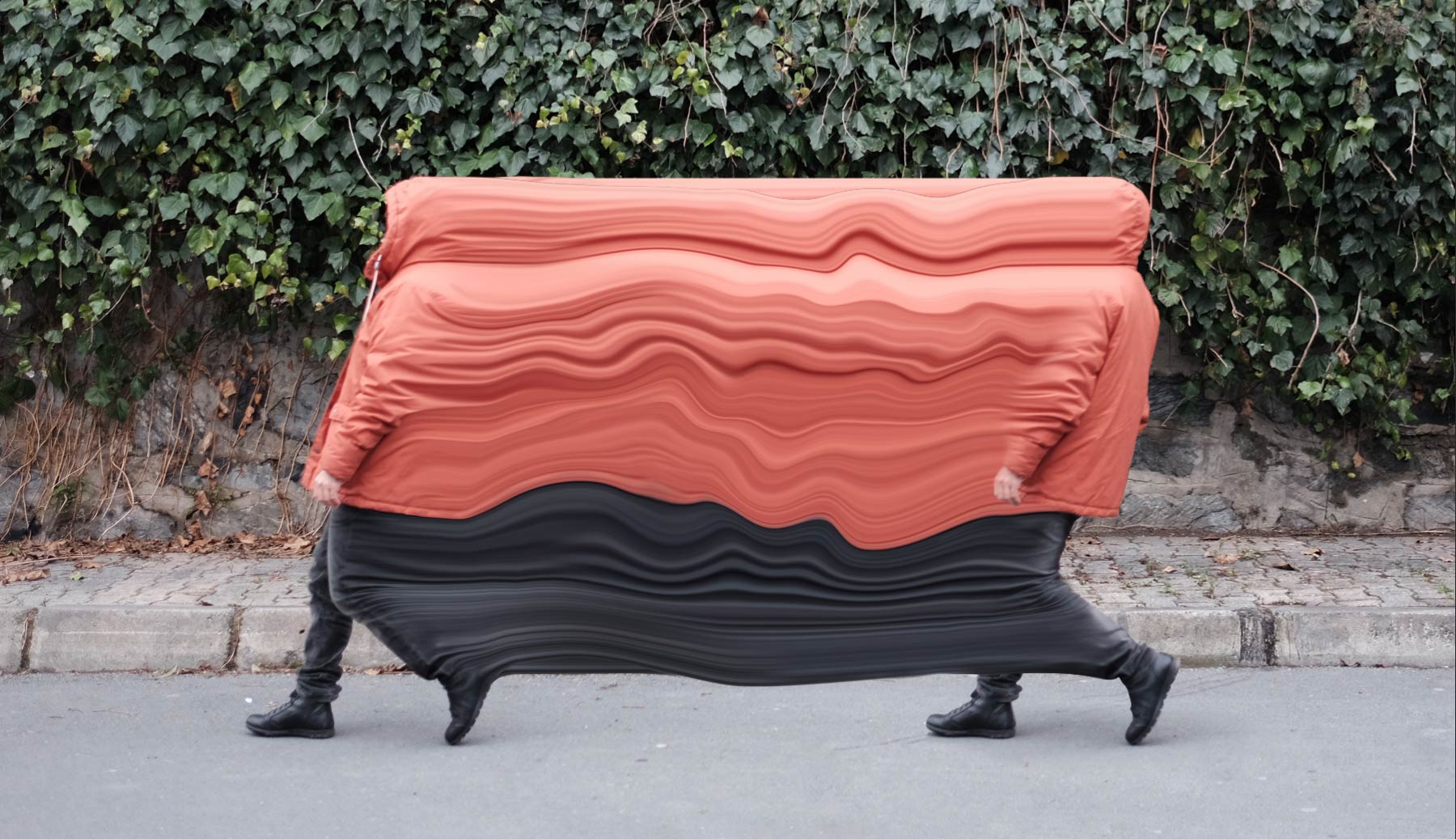
Turkish-based artist Şakir Yildirim blurs the lines between photography and design as he explores surreal takes on everyday life in his “Crawler” series. Here we see how a moment captured in time refuses to stand still, thanks to the Liquify filter and Şakir’s imagination.
1
Duplicate the crawler
Before Şakir can simulate the effect of movement in the static image, he sets the stage by duplicating the person in the original photo. To do this, he uses the Pen tool to trace the person, copies the selection (Edit > Duplicate), and drags the “extra” person directly behind the original, with some space in between.
2
Transform, distort, warp
Şakir then lays the foundation to create the effect of motion. He uses the Marquee tool to draw a narrow rectangle, isolating the back of the jacket. He copies that rectangular selection to a new layer, and then stretches it (Edit > Transform > Scale) to connect to the person in the back.
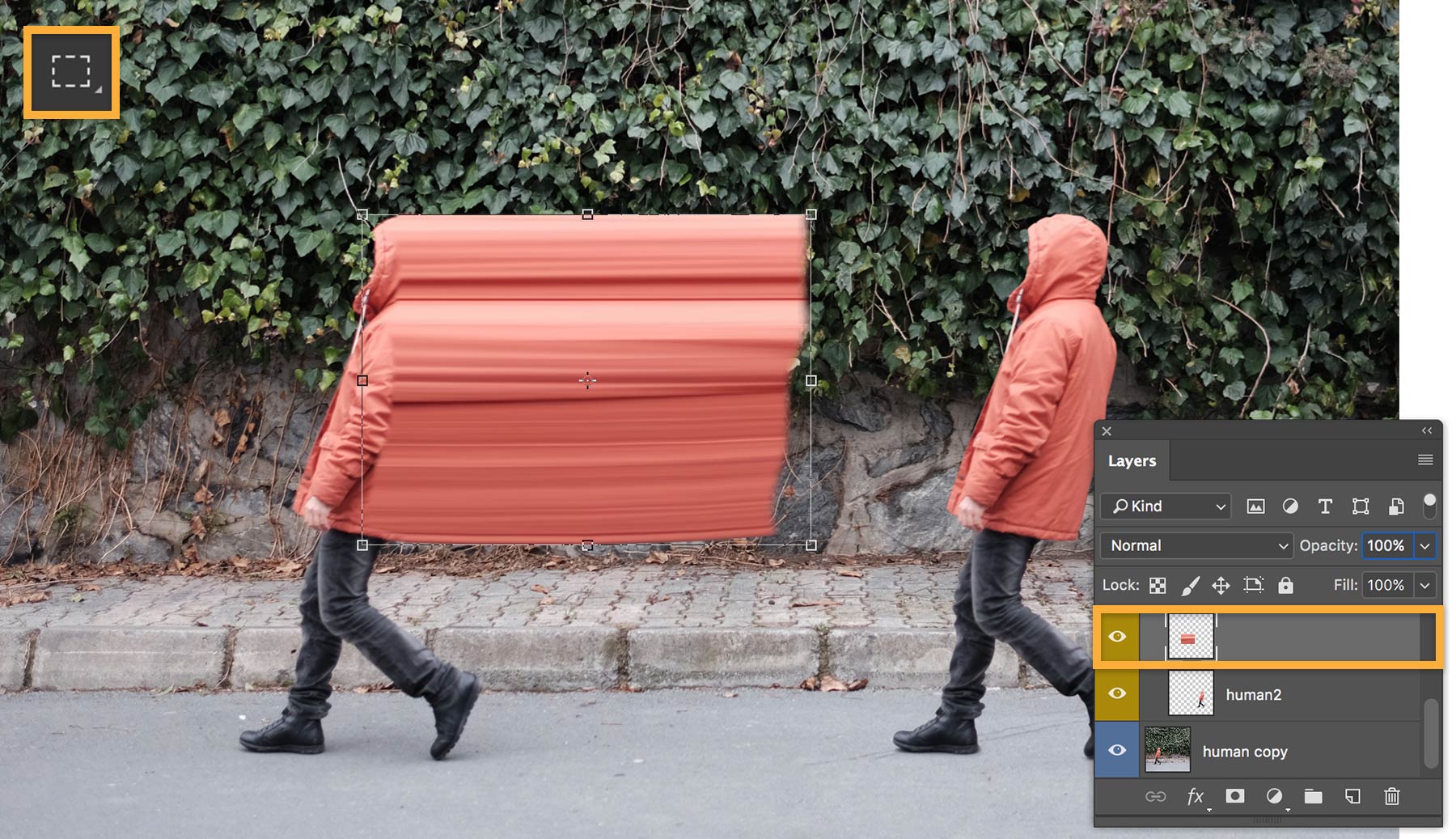
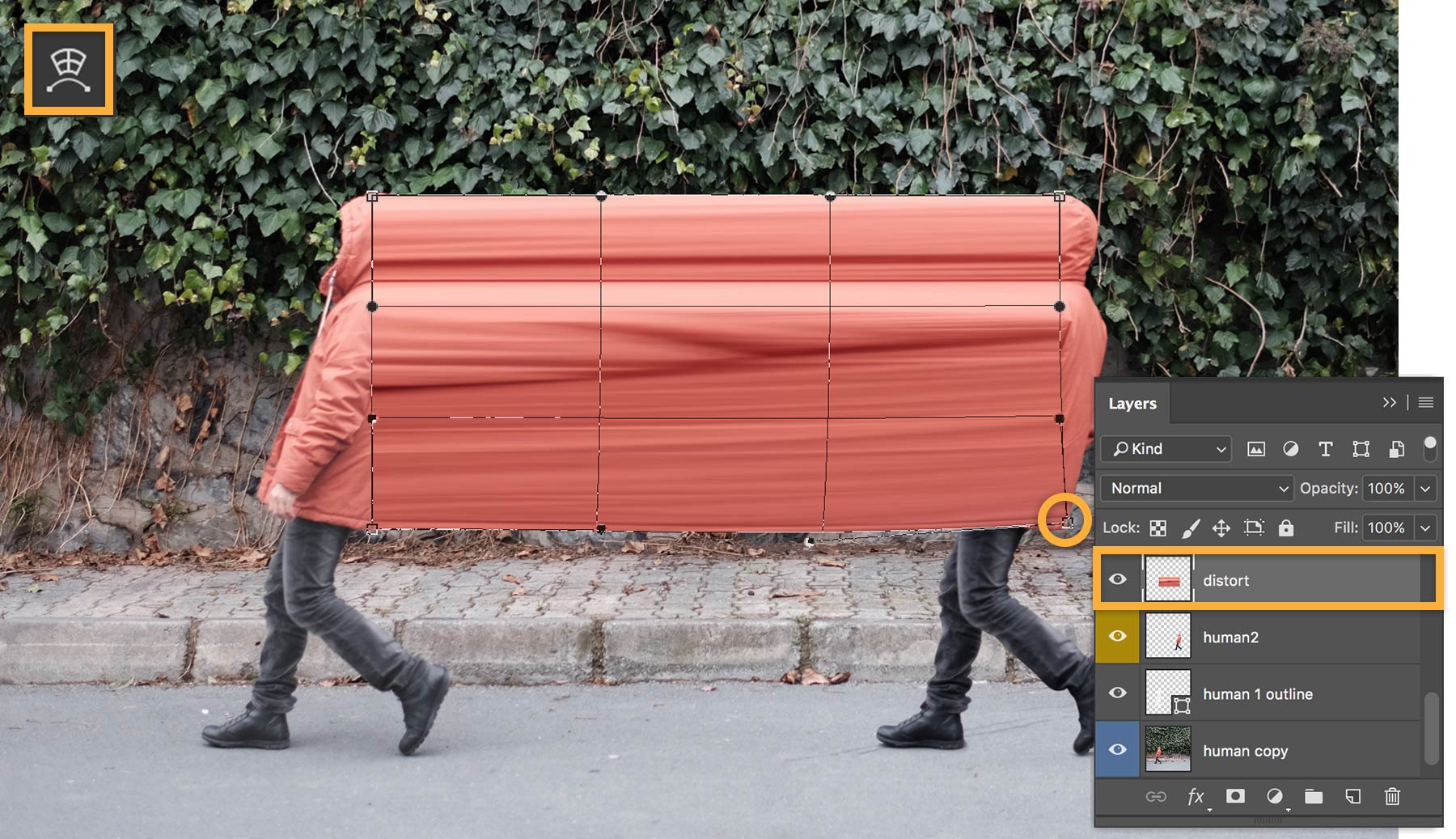
Still working on the distortion layer, Şakir uses the Warp tool (Edit > Transform > Warp) to drag the handles and line up the edges of the distortion with the subject in the photo.
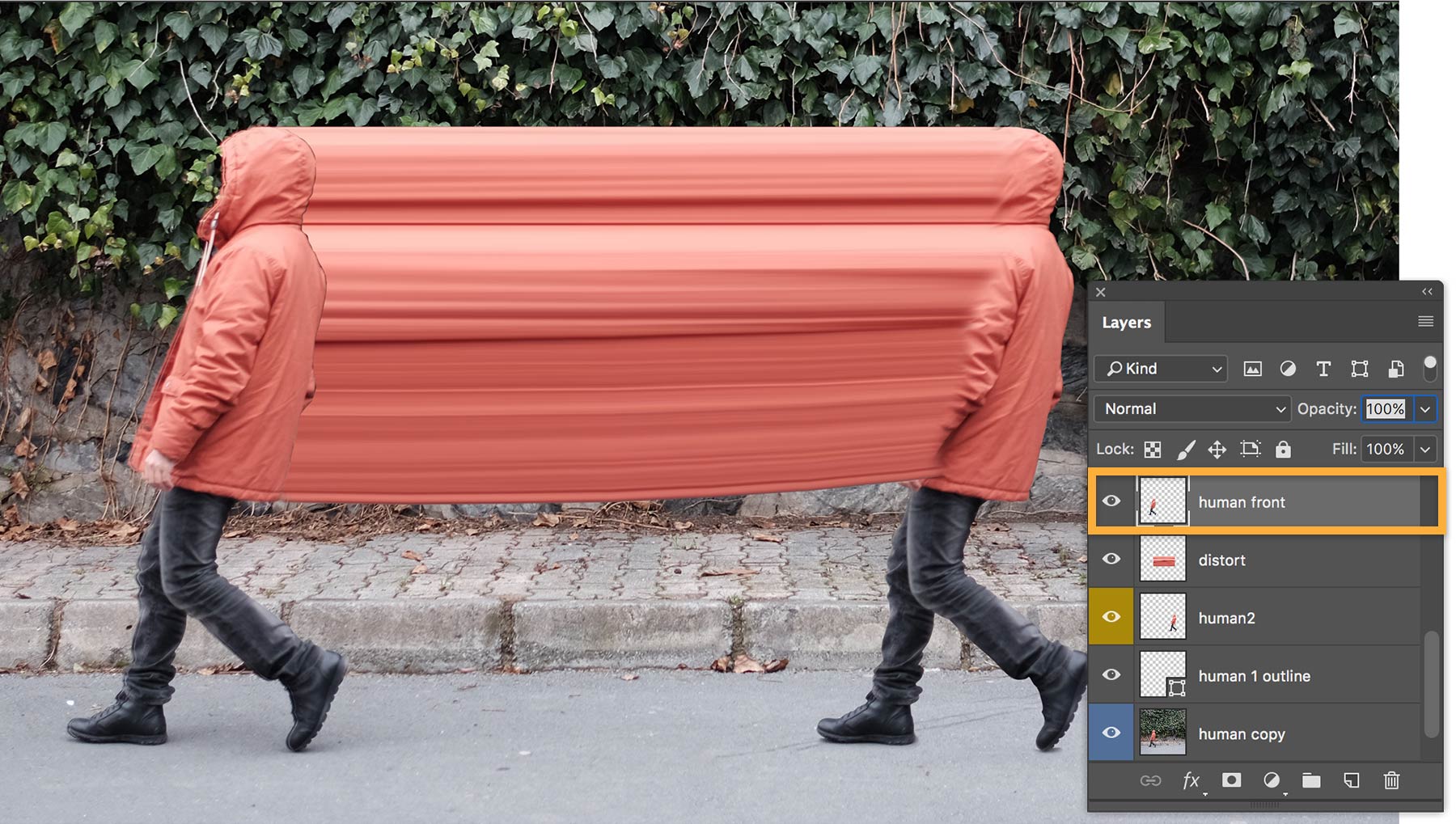
Şakir is careful to place everything on a separate layer in order to apply effects to different parts of the image. At this point in the project, Şakir is ready to liquify the jacket on the person in the front. To do so, he duplicates the front person to a new layer. He then moves the person above the jacket stretch layer.
3
Add the liquified movement
In the most time-consuming part of the project, Şakir creates the effect of liquified movement through repeated actions of creating layers and applying and fine-tuning the liquify effect. He selects part of the image to liquify. Then, he uses the tools in the Liquify filter (Filter > Liquify) to drag and pull from the subject to create the desired effect.
Tip:
Şakir mostly uses the Forward Warp tool to create the liquify effect. When he wants to protect portions of the image from being liquified, he uses the Freeze Mask tool. Throughout this process, Şakir uses the Transform options to resize and shape the selections as necessary.
4
Fine-tune the liquified effect
Şakir uses the Eraser tool to blend the noticeable edges where the liquify effect has been applied to separate parts of the image. To do this, he selects a layer that needs blending, selects the Eraser tool, sets the size, and adjusts the hardness of the eraser edge to create a smoother blend.
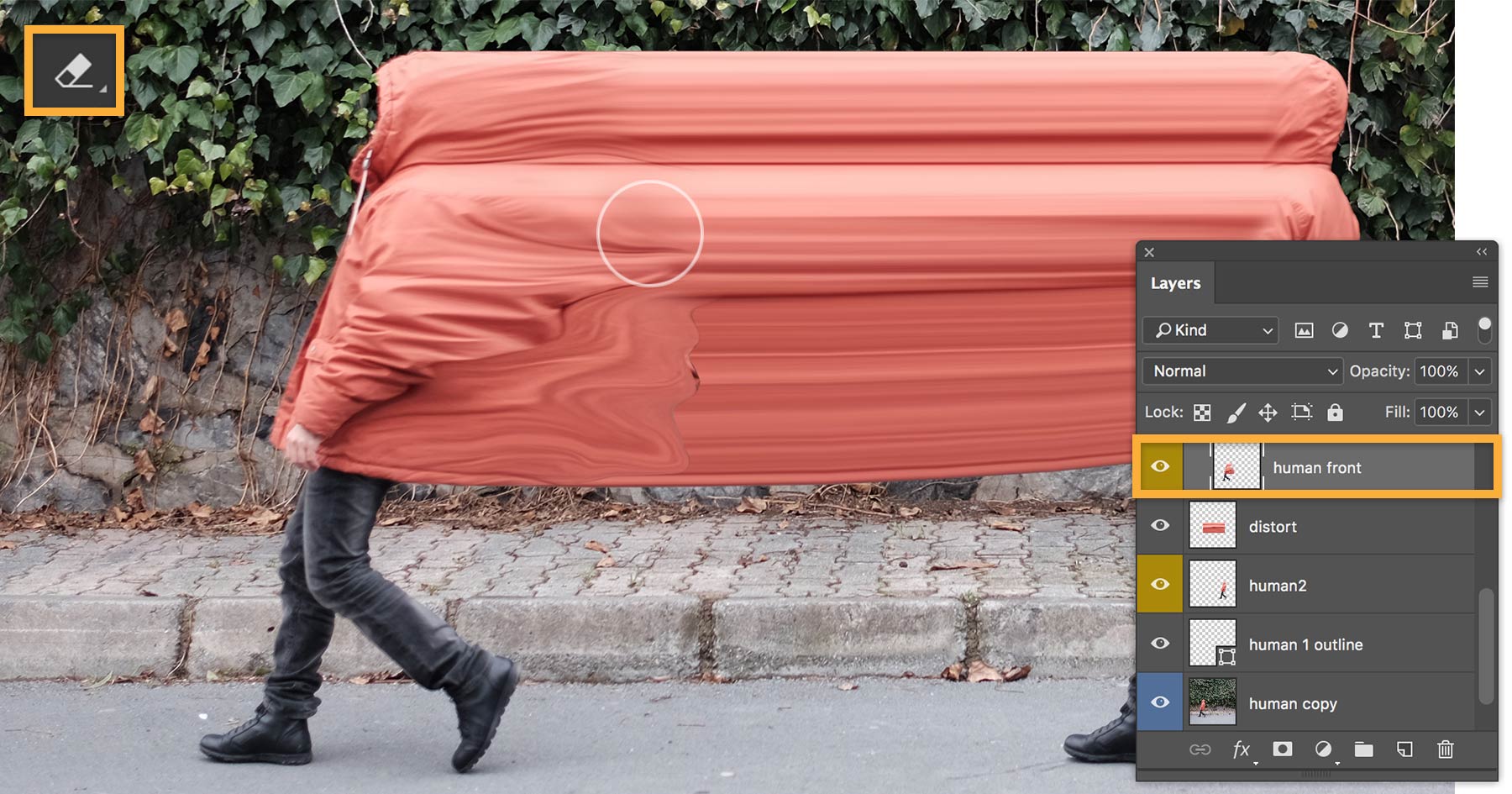
Şakir repeats the process — layer, stretch, liquify — until he achieves the effect he’s happy with.
5
Finishing touches
Şakir uses a variety of tools to create a custom look for the overall composition. He adjusts exposure, clarity, hue, and sharpening with Camera Raw filters and adds a realistic shadow with a Gaussian Blur. To really set the mood, Şakir applies Color Lookup and Selective Color settings before completing the scene with Auto Color, Contrast, Tone, and adjusted Curves.
Şakir Yildirim uses Photoshop in surprising ways to transform the things he sees every day into a world of his own creation. He may work on a manipulation in Photoshop for hours and then purposely close it without saving his work, because experimenting with his art is more important than finishing. On the other hand, he may like what he sees and finalize his creation after just a few changes.
Şakir’s early studies in ceramics taught him the joy of creating. Now he finds inspiration in his travels and lets the chaos and uncertainty around him shape his visual language.
Photoshop presents Şakir with a vast world in which to create art related to photography and design. His flexible approach allows him to work on projects ranging from logo and web design to photo manipulation, collage art, character design, GIF art, and pattern design.

You can control how Adobe websites use cookies and similar technologies by making choices below. But note that if you disable cookies and similar technologies entirely, Adobe websites may not function properly.
Cookies are small text files stored by your web browser when you use websites. There are also other technologies that can be used for similar purposes like HTML5 Local Storage and local shared objects, web beacons, and embedded scripts. These technologies help us do things like remembering you and your preferences when you return to our sites, measure how you use the website, conduct market research, and gather information about the ads you see and interact with.
You can make choices in the menu below about what cookies and other technologies you want us to use on Adobe sites when you visit them from this browser. You can always change those choices later by clicking on the Cookie Preferences link at the bottom of the page.
If enabled:
We can improve your experience by tailoring the site and the content to things we think might be of interest
We can better keep track of your preferences — like what language you prefer to use
We will better understand your likely interests so we can provide you more relevant Adobe ads and content on non-Adobe websites and in non-Adobe apps
It will help us improve the performance of our website and those of our partners who use the Adobe Experience Cloud
If disabled:
We won’t be able to remember you from session to session so the experience may not be tailored to your interests
You’ll still have access to the content of the site but certain features that depend on cookies may not function
You’ll still see ads, they just may not be as relevant to you
General information
You can control how Adobe websites use cookies and similar technologies by making choices below. But note that if you disable cookies and similar technologies entirely, Adobe websites may not function properly.
Cookies are small text files stored by your web browser when you use websites. There are also other technologies that can be used for similar purposes like HTML5 Local Storage, web beacons, and embedded scripts. These technologies help us do things like remembering you and your preferences when you return to our sites, measure how you use the website, conduct market research, and gather information about the ads you see and interact with.
You can make choices in the menu below about what cookies and other technologies you want us to use on Adobe sites when you visit them from this browser. You can always change those choices later by clicking on the Cookie Preferences link at the bottom of the page.
If enabled:
We can improve your experience by tailoring the site and the content to things we think might be of interest
We can better keep track of your preferences — like what language you prefer to use
We will better understand your likely interests so we can provide you more relevant Adobe ads and content on non-Adobe websites and in non-Adobe apps
It will help us improve the performance of our website and those of our partners who use the Adobe Experience Cloud
If disabled:
We won’t be able to remember you from session to session so the experience may not be tailored to your interests
We’ll still count your use of our site and services
You’ll still have access to the content of the site but certain features that depend on cookies may not function
You’ll still see ads, they just may not be as relevant to you
Operate the site and core servicesOperate site and measure engagement
Always active
These cookies are required, and they are used to enable the site and related services core functionality. Without them the site could not operate, so they cannot be disabled.
These cookies enable the site and related services’ core functionality and collect statistics about user engagement, such as counting active use to help us understand trends. These cookies cannot be disabled.
Measure performance
These cookies are used to analyze site usage to measure and improve performance. Without them Adobe cannot know what content is most valued and how often unique visitors return to the site, making it hard to improve information we offer to you.
These cookies are used to analyze site usage to measure and improve performance. Without them Adobe cannot know what content is most valued, making it hard to improve information we offer to you.
Extend functionality
These cookies are used to enhance the functionality of Adobe sites such as remembering your settings and preferences to deliver a personalized experience; for example, your username, your repeated visits, preferred language, your country, or any other saved preference.
Personalize advertising
These cookies are used to enable Adobe and our partners to serve ads more relevant to your interests. Without them you will still see ads, but they might not be as relevant to you.
Personalize advertising
These cookies are used to enable Adobe and our partners to serve ads more relevant to your interests. Without them you will still see ads, but they might not be as relevant to you.