>> There are some effects in After Effects that only act on a portion of a clip.
For example, if we look at Bulge, we can clearly see that it only affects the pixels that are contained inside of this little Bulge widget.
And the pixels outside of that widget are unaffected.
Also, many effects in After Effects, such as Gradient Ramp, contain this Blend with Original property that allows you to take the unaffected clip and blend it selectively with the fully filtered version of the clip for various effects.
Both of these are very useful features and neither of them has been commonly available in every effect.
So Adobe has decided to change all that with some nifty new effect compositing options.
I'll delete these effects from this layer and turn on our top layer here.
This is a Shape layer.
A star with lots of points, and it's been set as an adjustment layer, so it effects the layers beneath it in the layer stack.
The effects applied are a Radial Blur, kind of a low-quality Radial Blur, which gives us this kind of spin effect, and Colorama.
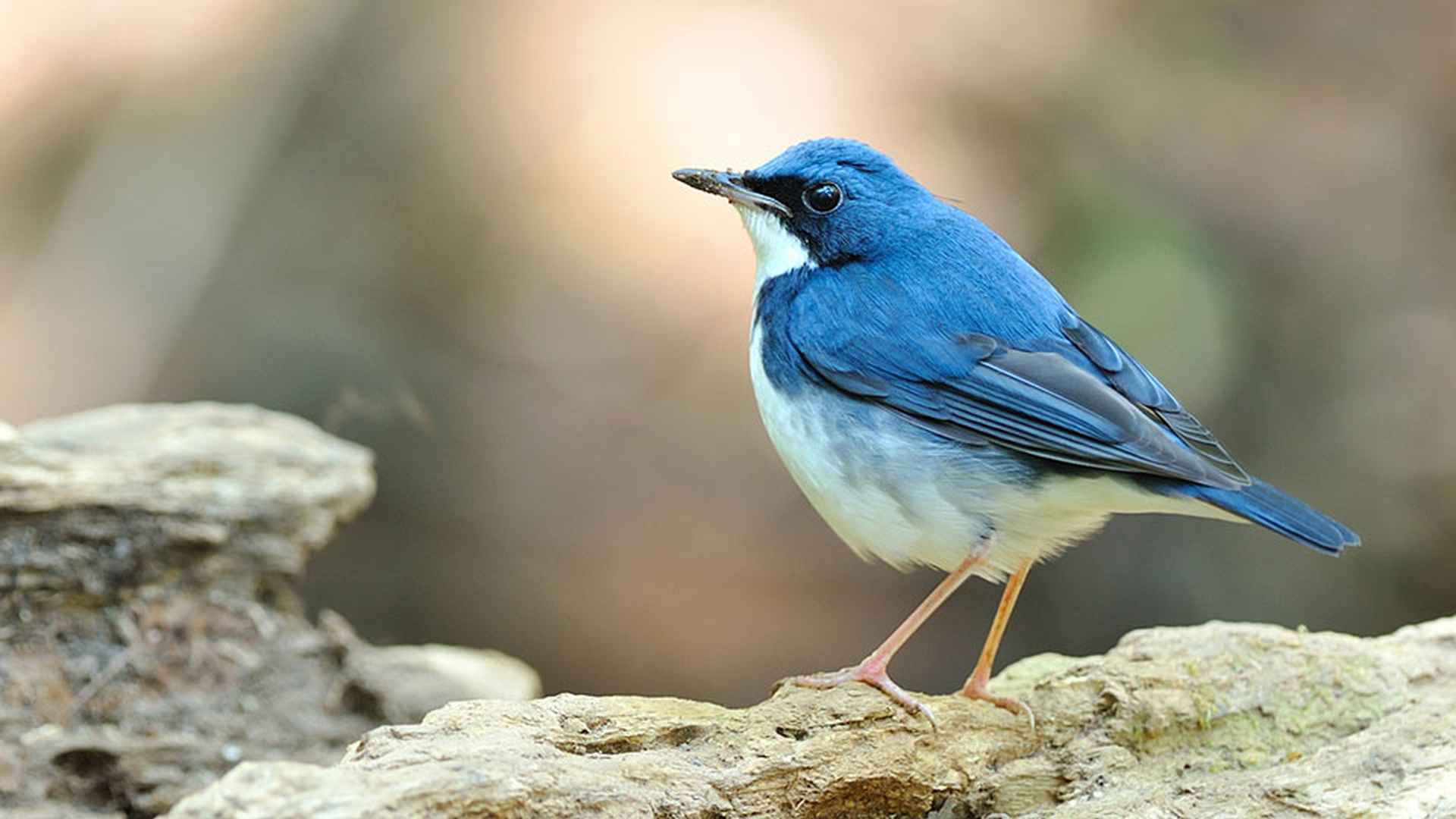
And together, these two create this nice stained glass effect, which is especially nice when we see the bird hopping behind it, gives this grade a translucent distortion effect, looks very real.
And it's cool that we can do this.
But if you've ever used adjustment layers, you know that there are limitations to how they work.
For example, if we move our underlying clip, the adjustment layer doesn't stick to the layer.
We can fix that by parenting, of course.
We parent our Shape layer to our underlying layer so that the adjustment layer travels along.
But even if we do that, we can see that the effect is still not moving with the adjustment layer.
The center of the Radial Blur is still stuck to its original point, which is relative to the composition, not to the clip.
Undo that.
So now there's a better way to achieve this kind of an effect.
If we turn off our adjustment layer and turn on our Mask switch, we can see that the video layer has a mask applied to it, the same shape and position as the adjustment layer.
In fact, to make sure that this is a fair comparison, let's select our Shape layer, copy and paste the same effects from our adjustment layer and paste them to our Hopping Bird video clip.
Well, things look very different so far, but that's because we have to set up a couple more things.
There's no sign of our new compositing options in the Effect Controls panel.
But if you look at the effect properties in the timeline, the shortcut to do this is to select the layer and simply hit E on the keyboard.
You can see, at the bottom of each effect, there's now a category called Compositing Options.
And if you twirl that open, we can see that the only property inside here is Opacity, which is essentially a Blend with Original control.
So we adjust that down, the blur goes away, and all we're left with is the Colorama.
And we fade that back up again.
So we've got Blend with Original effectively built into every effect now.
However, there are a couple of extra icons to the right here, and these allow us to add mask controls for our effects.
It will be useful to see our mask settings too.
So with our layer selected, I'll hold down the Shift key and type the letter M to reveal our mask settings as well.
Let me open up our Timeline window here so we can see things a little bit more clearly.
Now by default, a mask is just a mask.
And it's set to Add, which creates a stencil on our layer.
Now I already had this mask set up to None so that we could see the entire video layer.
And we'll change that back in just a second.
Once we have a mask, we can hit the plus sign in our first effect here to add a new property to our Compositing Options, Mask Reference, which will default to the first available mask.
If you don't have a mask applied, this will just say None.
When set to Mask 1, however, you can see the importance of the mask mode that was previously set to None.
If we now change that to Add, the first effect will only operate on the layer inside the mask, set it to Subtract, and it will only affect the pixels outside of the mask.
The other modes that are inside here relate to how different masks interact with each other.
So for now, we're just gonna leave this set to Add.
We're gonna apply the same mask settings to Colorama, just hitting the plus sign will add a Mask Reference and choose the correct mask.
And you can see that we've now replicated our adjustment layer effect.
But unlike an adjustment layer, the effect now properly travels with the layer and even reflects geometric changes like scale.
In addition, effects respect Mask Feathering.
So let's hit the F key to add feather to our property and show that if we feather our mask, turn off our mask display here so that we can see more clearly, you can see that we now get a smooth gradation instead of our sharp unfeathered edges.
Set that back to zero and see the sharper results.
So there's lots and lots of creative opportunities here.
In fact, if we look at our other composition in this project, you can see that this clip has a nifty little watermark effect.
It's produced with two masks and a fairly impressive stack of effects.
I'm not gonna explain all of these to you, but you can probably figure them all out just by turning them all off and then turn them on one at a time and through a little bit of forensics, I think you can figure out what's going on down here.
Let me scrub, you'll see that the watermark animates on as well, and fades off using our new Blend with Original controls.
And this brings us to another important benefit of this feature.
If we now select our two masks and all of these effects, [Animation] just select them with the Shift key and go up here to our Animation menu [Save Animation Preset] and choose Save Animation Preset, [Watermark] Name it "Watermark" and Save, we can now freely apply this custom animated watermark to any other layer we like.
For example, go out to our Project, drag our Squirrel-short onto a new composition so that we have another view of the same clip.
Let's zoom out so that we can see everything more clearly.
And with our time marker set to frame zero, [Animation, Recent Animation Presets, Watermark] come back up to our Animation menu and choose Recent Animation Presets, Watermark, and you'll see that it has applied to our complex effect, complete with masks, to our clip.
This makes it super easy to create and reuse even complex effect set ups in After Effects.
It might take you a few extra steps to set up on the front-end.
But if your workflow contains any kind of repetitive tasks or elements, this can really save you a lot of time in the long run.





