
• File size larger than 40MB
  • Unable to process the request
  • We are unable to process this file type. Please try again.
  • Only one file can be uploaded at a time.
  • Image exceeds maximum dimensions (8,000 x 8,000 pixels). Please resize and try again.
  • promoid=CMR421K8&mv=other

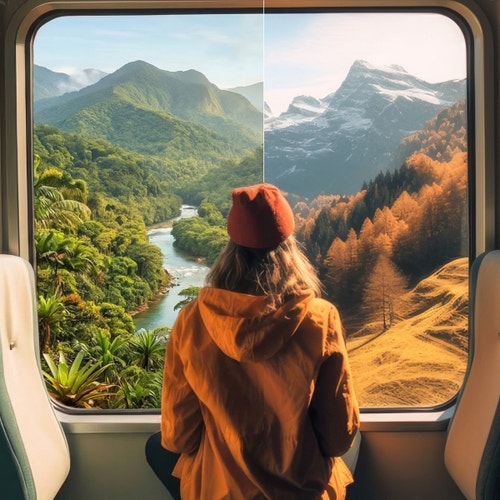
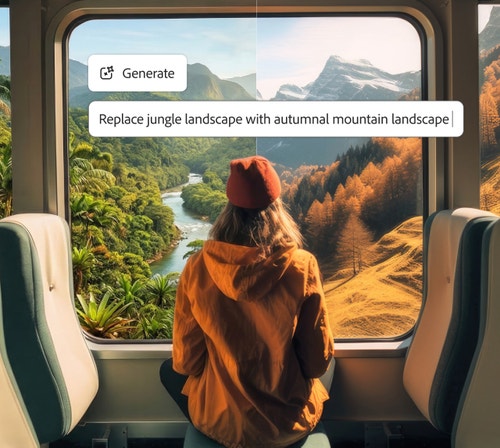
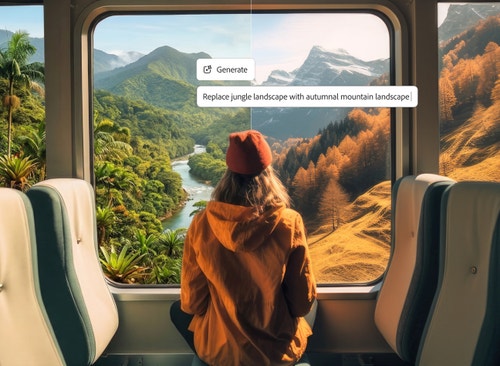
Seamlessly add, remove, and replace photo content.

Features like Generative Expand and Generative Fill allow you to quickly add, remove, and replace elements, and expand your photos beyond their original borders when you edit photos with AI in Photoshop.

New partner AI models in Generative Fill.

Generative Fill now delivers better results with Gemini 2.5 Flash Image (Nano Banana) and FLUX.1 Kontext [pro], plus a new Firefly Fill & Expand model (beta). Make precise edits with simple prompts and nondestructive tools.

Add a new background to your photo in seconds.

By using an AI image editor, you can effortlessly transform photo backgrounds. Select your current background, type in a text prompt, and instantly change the mood of your photo with new scenery.

Experience the even faster and simpler "Generate Background" feature in the Adobe Photoshop app. Just enter a description to exchange your background for a new one that perfectly matches the lighting, shadows, and perspective of your subject.

AI photo editor for generating backgrounds.

Extend the boundaries of your photos with AI Generative Expand.

An AI photo editor allows you to expand your photos to widen cropped or close shots and create stunning panoramic photos without distorting the original image.

Generative Expand increases the canvas size of your photo and uses AI to generate new content that blends naturally into the original image. This creates a wider view, giving your photo a more expansive and immersive feel, perfect for landscape photography. Generative Expand can also help you refine group photos by completing cut-off subjects and filling in missing background elements.

Generative composition with Harmonize.

Instantly blend people and objects into any background. Harmonize adjusts the subject’s lighting, shadows, colors, and reflections to create a seamless scene in seconds. Not just a time saver, it’s a game changer.

How to edit photos with AI in Photoshop.

Use generative AI photo editing features to create incredible images faster than ever.

1. Open or download Photoshop.

If you already have Photoshop, open the app. Make sure it’s updated to the latest version so you get all the latest generative AI features. If you don’t have a Creative Cloud plan that includes Photoshop, start a trial and download the full version of Photoshop to try free for seven days.

2. Import an image.

Go to File > Open to locate and select the file you want to import or choose New file from the Photoshop Home screen to open a new workspace and click Import image in the Contextual Task Bar. You can even use AI upscaling to improve low-resolution images.

Step Three. Add or remove content with AI photo editing.

3. Add and remove content.

Use Text to Image to zip through ideas and create new assets from a descriptive prompt. Select Generate Image from the Contextual Task Bar toolbar, or go to Edit > Generate Image. Type a detailed description into the prompt field and select a content type. Use the Reference Image setting to upload a sample image and get results closer to the style you’re looking for. You can also set style effects to customize results even more.

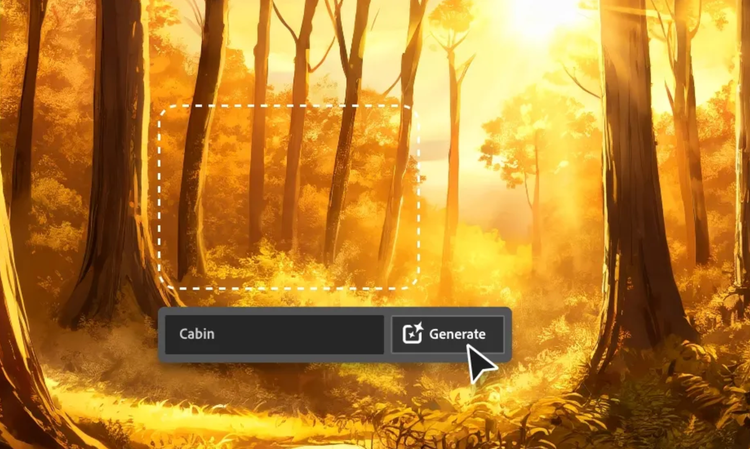
To add or remove content within an image, use any selection tool to select any part of your image, and then click on Generative Fill in the Contextual Task Bar and type in a prompt to replace it with new content. Or leave the field blank to remove content.
Use Generative Fill for AI photo editing.
Step Four. Generative AI photo editor for creating new backgrounds.

4. Create a new background.

Swap your subject’s scenery for a whole new background by selecting the subject, and then reversing the selection in the Contextual Task Bar. Type in a prompt of what you want to replace the old background with and click Generate to see options.

Select Generate Background in the Contextual Task Bar and type in a description (or leave it blank) and click Generate to see options for new backgrounds that match the lighting, shadows, and perspective of the subject.
Generate backgrounds with AI photo editing.

5. Extend an image.

Use Generative Expand to enlarge your image and add new content. Select the Crop tool from the toolbar and click and drag the corner or edge handles to resize your image, and then click Generate in the Contextual Task Bar to fill the blank space with new content that blends in with the existing image. Or enter a prompt before clicking Generate to tailor your results.

Step Five. Extend backgrounds with AI photo editing.

6. Download and share.

Once you’re happy with your image, go to File > Export > Export As and choose a file type and image size. You can also add optional information such as metadata. Once you’ve set your preferences, click Export, select where you’d like to save your image, and click Save. Your image is now ready to share on social and beyond. Need to reformat your image to fit different needs? Use Generative Expand to quickly adjust the size and fill in complementary content where you need it.

AI photo editor FAQs:

https://main--cc--adobecom.hlx.page/cc-shared/fragments/products/photoshop/do-more-with-adobe-photoshop-online

You may also like

Content as a Service v3 - Photoshop Features - Monday, October 13, 2025 at 11:20

style
xl spacing

https://main--cc--adobecom.hlx.page/cc-shared/fragments/merch/products/photoshop/merch-card/segment-blade