



Edit videos fast from any device with text prompts, or use the Firefly video editor on desktop to trim and rearrange clips in a timeline, and add titles, voiceover, and audio.
By uploading your image or video, you agree to the Adobe Terms of Use and Privacy Policy and confirm you are 18 years of age or older.
By uploading your image or video, you agree to the Adobe Terms of Use and Privacy Policy and confirm you are 18 years of age or older.
By uploading your image or video, you agree to the Adobe Terms of Use and Privacy Policy and confirm you are 18 years of age or older.
Firefly offers two ways to edit existing videos. In the Generate Video module, you can quickly upscale a video or edit it with a simple text prompt. In the Firefly AI video editor, you can trim footage, upload clips, and generate new clips that fit your existing footage.
Create a video with generative AI and use plain language to make edits in the Edit tab of the Generate Video module. Add or remove objects or change backgrounds to take your video from almost there to picture perfect.
Open Firefly video editor on desktop to easily cut, trim, and rearrange video and audio clips on a layered timeline. You can even autogenerate an initial edit using Quick Cut. Speed up your workflow with Firefly video editor.
In the AI video editor, you can clarify dialog and balance levels across speech, music, and ambience with Enhance Audio. And there’s no need for a separate color changer. Quickly adjust exposure, contrast, saturation, and temperature using simple sliders, or try one-click looks for quick enhancements.
In the Firefly video editor, any video you’ve generated in Firefly will appear in your Generation History, so it’s easy to add to your timeline. You can also generate new scenes in the video editor and edit them together to create finished stories.
From initial idea to final cut, build the compelling video content you need with the AI video editor. Experiment with partner models, including Kling 3.0, a powerful AI video generator that’s ideal for fast, high-quality video production.
Log in to Adobe Firefly with your Adobe ID or create a free account if you don’t have one. Open the Firefly Video module by clicking Generate Video. Select the Edit tab.
Drag and drop a video clip from your device or from Adobe cloud storage. Clicking Adobe cloud storage will open your Generation History, where you can browse your previous video outputs.
Stay in the Edit tab and choose from the Quick Actions menu on the left to make prompt-based edits or upscale the video. If those are the only changes you want to make, skip to Step 9 and download your file.
To add more clips and continue editing, click Modify in the top left of your video and select Open in the Firefly video editor. Now you can drag more generated clips or uploaded files from the Media panel onto the primary timeline track. To upload a new clip, select Your Media and click Add. Stack additional shots on upper tracks for cutaways, overlays, or titles.
Hover over the edge of a clip to trim it. Use the Split tool to cut a clip where desired. When you move clips around, the main track will help keep your story tight.
Open the Text panel and choose a template. Edit in the canvas and refine in Properties to change font, size, color, and more.
Drag music, voiceover, or effects to an audio track. Select a clip and use Properties → Volume to balance levels. Nudge timing so beats land on cuts.
Open Generate in the right panel. Enter a prompt, set duration and aspect ratio, and generate. Your result will appear in Generation History — drag it straight into the timeline to extend your story.
Click Download and choose your format to save your story locally to your device.


Firefly offers both prompt-based AI video editing and timeline-based tools, allowing you to create, refine, and rearrange content without switching platforms.


Access leading video models in one place, compare outputs, and refine results faster — giving you more creative flexibility than standalone tools.
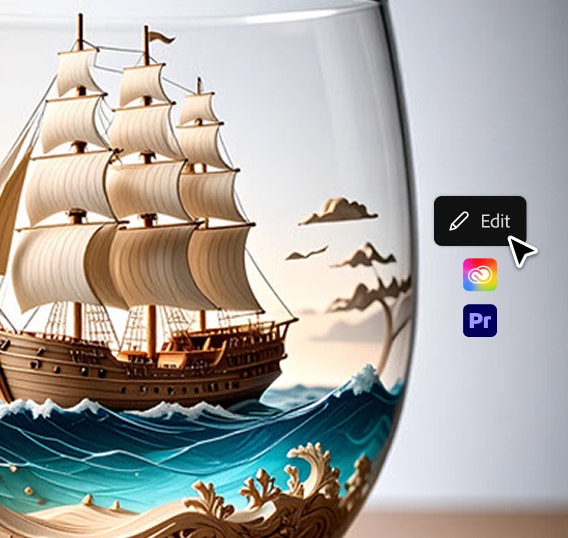

Move seamlessly from AI editing into Premiere and other Creative Cloud tools to assemble, refine, and finalize your videos.

Firefly models are trained on licensed and public-domain content, so you can use them for marketing, client work, and business projects.
Firefly offers two options for editing videos with AI:
The Firefly Video Model (for video generation and prompt-based editing) is available on desktop browsers at firefly.adobe.com and on the Firefly mobile app for iOS and Android. You can generate video clips using Text to Video and Image to Video from your phone or computer, and your creations sync across devices through Generation History.
The Firefly video editor is currently available only on desktop (macOS and Windows) using the Chrome browser. Other browsers like Edge, Firefox, and Safari may not support all features yet.
There are two ways to generate new video clips:
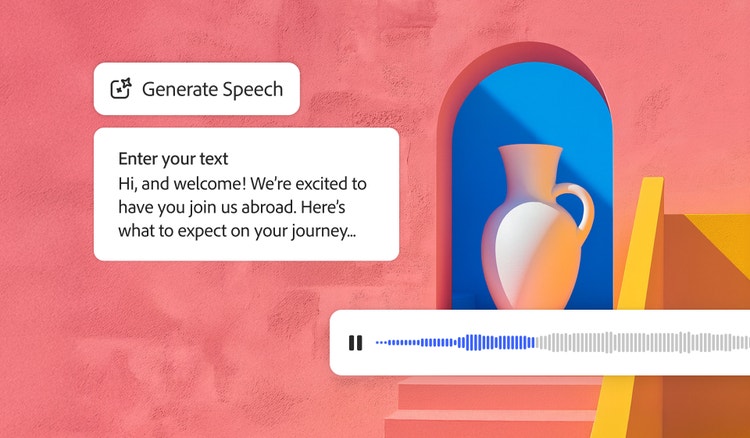
Quickly turn text into natural-sounding speech for videos, podcasts, and eLearning. Add realistic, high-quality voices in 20+ languages with customizable emotion, pacing, and emphasis with AI text to speech.

Generate Soundtrack analyzes your video to match your story and compose custom, emotionally rich music for every platform. Go from ideas to tracks instantly with Firefly’s AI music generator — licensed to use anywhere.

Imagine any sound effect and create it with Generate Sound Effects. Describe the effect, upload reference audio, or act it out into your mic — then easily add your high-quality effect to any video.

Create a studio-grade video featuring an engaging, lifelike avatar with Text to Avatar. It’s fast, easy, and always safe for commercial use. Perfect for business, education, or social media content.

