
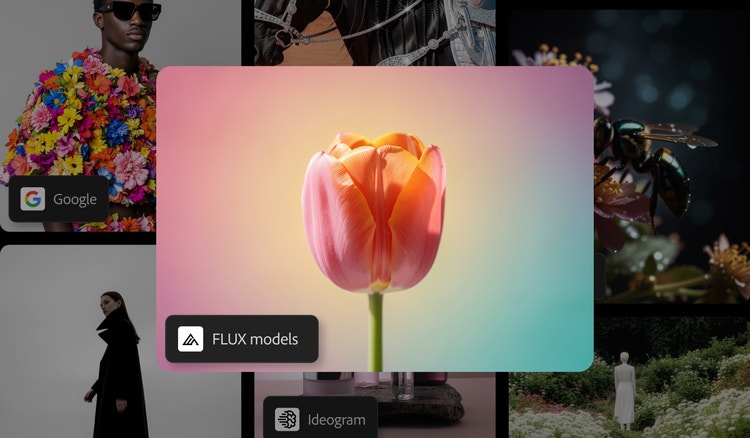
Create images with FLUX1.1 and FLUX.1 Kontext in Firefly.
Generate sharp, consistent images fast with FLUX1.1 in Firefly. Take your AI photo editing further with FLUX.1 Kontext, built for speed, quality, and precise results.
https://main--cc--adobecom.aem.page/cc-shared/assets/img/product-icons/svg/firefly-80.svg
Adobe Firefly
https://main--cc--adobecom.aem.page/cc-shared/assets/img/product-icons/svg/firefly-80.svg
Adobe Firefly
The next evolution of creative AI is here for all your ideas, with image, video, audio, and vector tools.
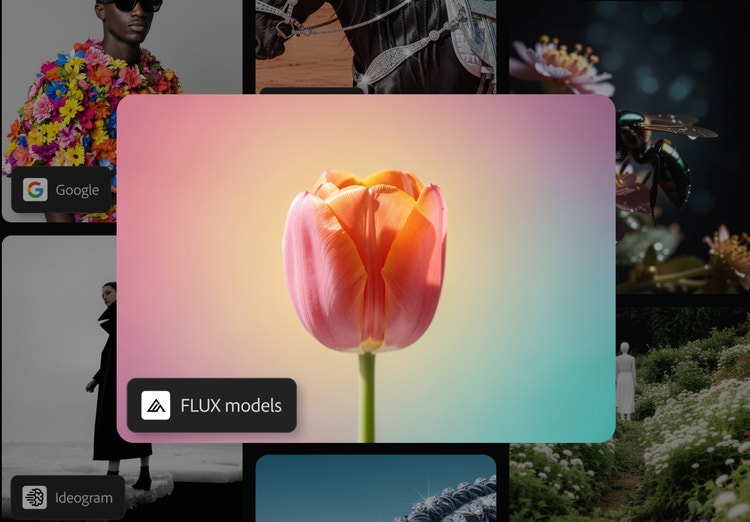
Create fast and stay on brand with FLUX1.1.
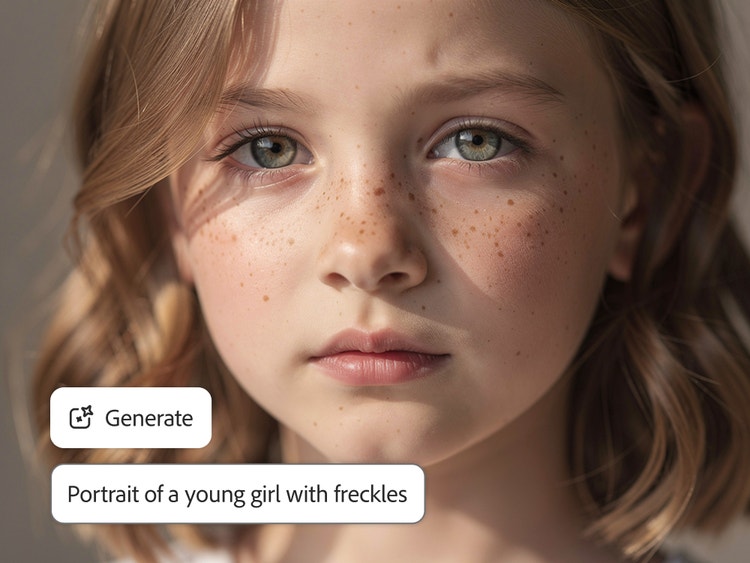
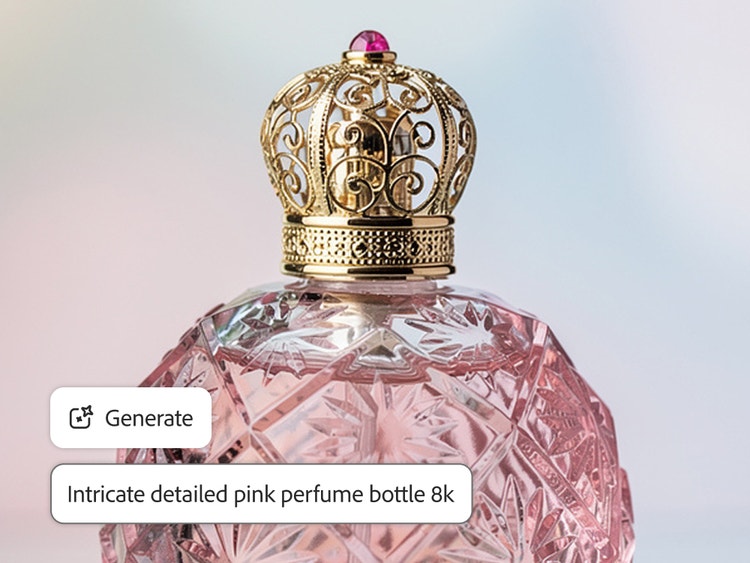
Turn prompts into polished visuals with FLUX1.1, a third-party model in Firefly. Steer composition and style for crisp, consistent results across variations. Sketch your ideas in Firefly Boards, then switch to Text to Image to generate on-brand options, refine, and remix.
Spend more time iterating and less time fixing with FLUX.1 Kontext.
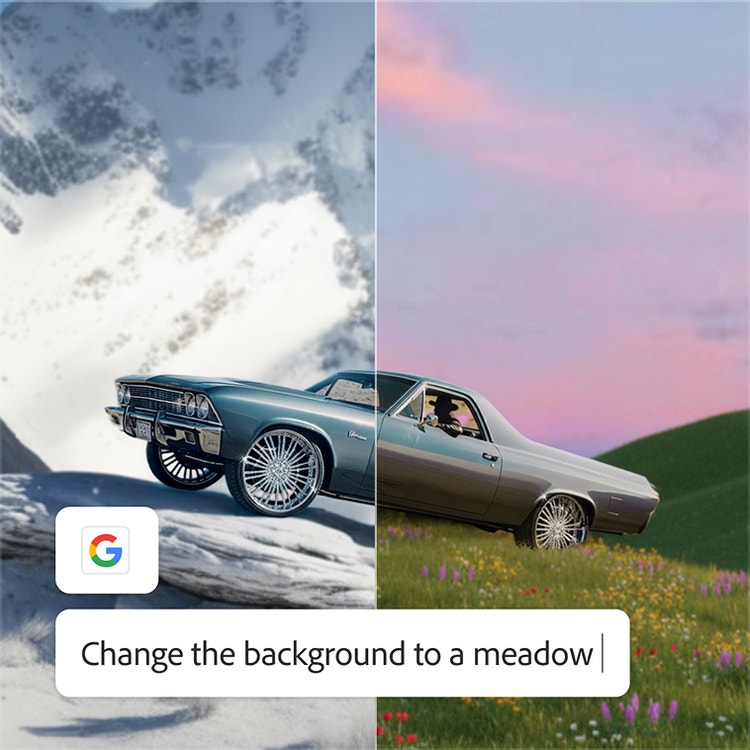
Generate ideas quickly so you can test, compare, and iterate without breaking your flow. FLUX.1 Kontext keeps outputs coherent across prompts and styles for crisp detail and consistent quality. From concepting to campaign visuals, FLUX.1 Kontext adapts to your tasks, so small prompt tweaks reliably move you closer to the look you want.
Unlock what your team can create in Firefly with FLUX1.1 and FLUX.1 Kontext.
Bring your most creative ideas to life faster with FLUX1.1 and FLUX.1 Kontext. Whether you’re designing, teaching, or marketing, your team can turn prompts into polished, on-brand results fast.It’s perfect for:
- Designers: Spin up polished visual directions and on-brand variants for quick feedback.
- Marketers: Produce channel-ready campaign imagery fast.
- Educators and students: Illustrate lessons and projects with clear, controllable visuals.
Across roles, FLUX1.1 and FLUX.1 Kontext keep results consistent as you refine prompts, swap styles, and explore alternatives.
How to generate images with FLUX in Firefly.
Follow these quick steps to create and edit images in Firefly with FLUX models.
- Open Adobe Firefly.
Select Text to Image or Image to Image to get started. - Open the Model dropdown menu.
In the General Settings panel, click the Model dropdown menu. - Select a FLUX model.
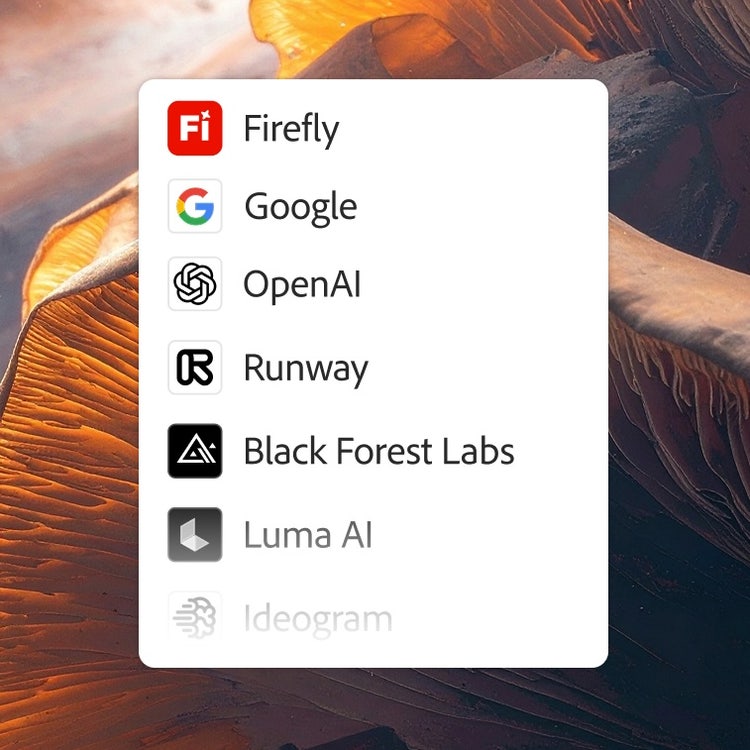
In the Partner Models section, pick the version of FLUX you want to use. - Enter your prompt.
Describe the image you want to generate in the prompt field. - Generate your image.
Click Generate to create your image using the Flux model you selected. - Download.
Download the image to your device.
Discover even more features.
Image to image Generate with Nano Banana Generate with Luma AI video generator Photoshop Generative Fill Image to video
Questions? We have answers.
Is FLUX1.1 available to Firefly users?
Can I use FLUX1.1 for commercial projects?
How can I access FLUX1.1 in Firefly?
- In Text to Image and Image to Image in Firefly, you’ll find FLUX1.1 listed as an option under the Model dropdown menu. You’ll be able to select one of several FLUX models.
- In Firefly Boards, you’ll find FLUX1.1 listed as an option in the Model dropdown menu in the prompt bar.