
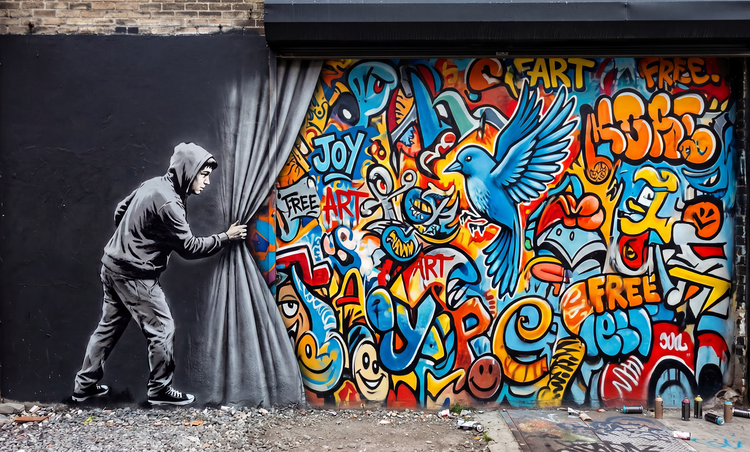
Choose your graffiti generation tools.
With Generate Image AI and your text prompt, you can turn a word or phrase into graffiti art in whatever style you choose. Or start with a reference image and use Image to Image to match its style.

Transform your ideas into vibrant street-style art with Firefly. Customize quickly and easily, and use anywhere.
Alert Text
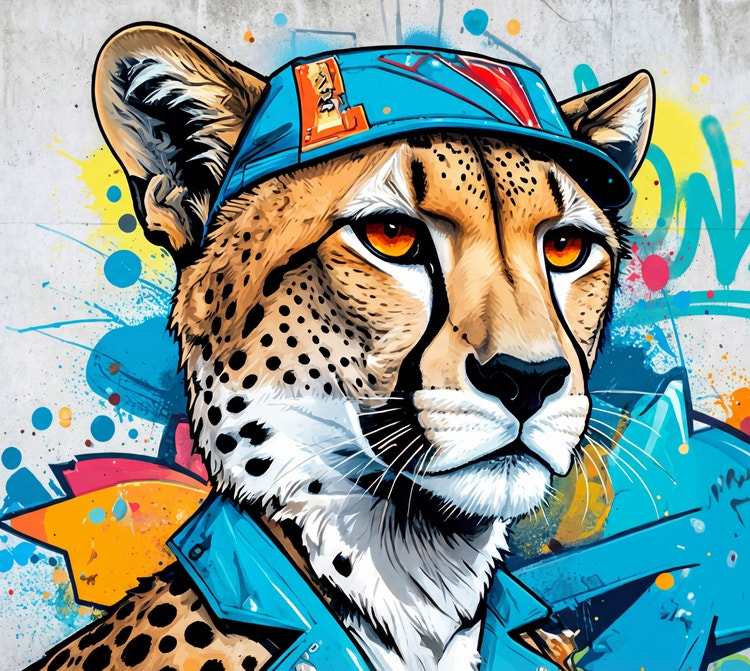
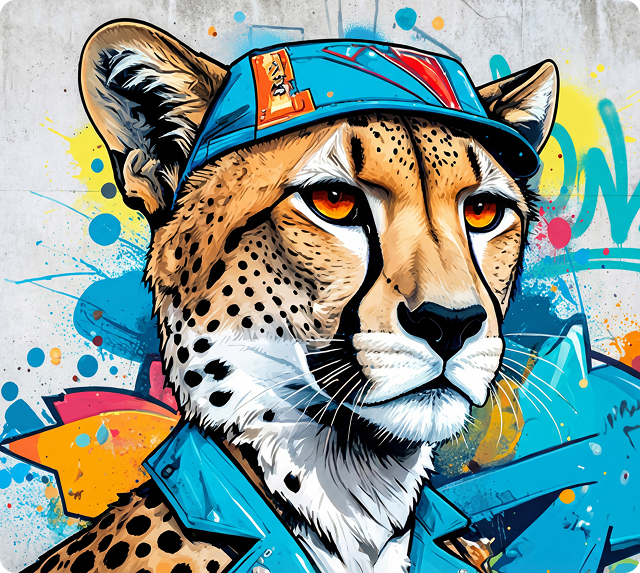
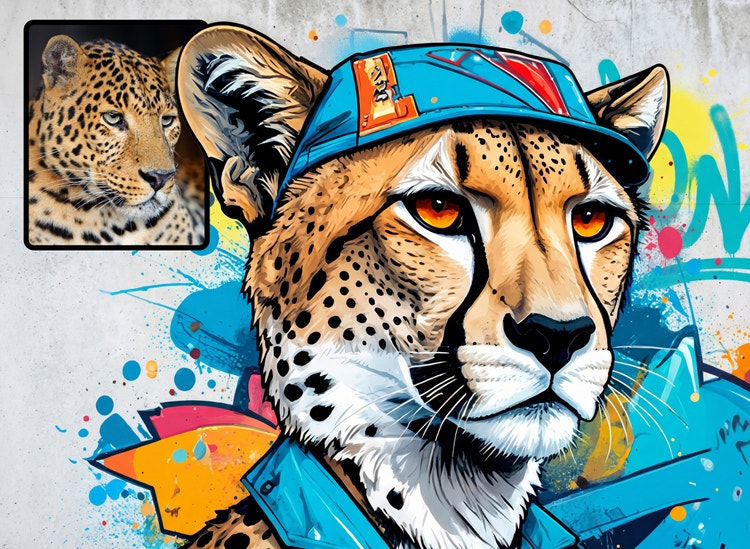
With Text to Image generative AI and your text prompt, you can turn a word or phrase into graffiti art in whatever style you choose. Or start with a reference image and use Image to Image to match its style for free.
With Generate Image AI and your text prompt, you can turn a word or phrase into graffiti art in whatever style you choose. Or start with a reference image and use Image to Image to match its style.
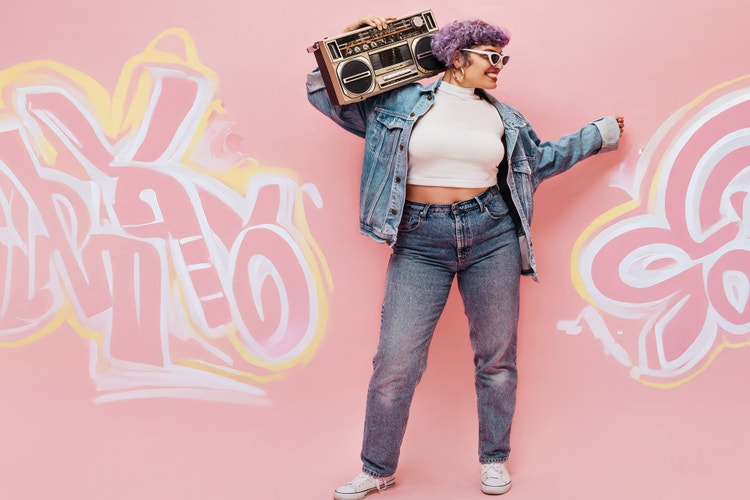
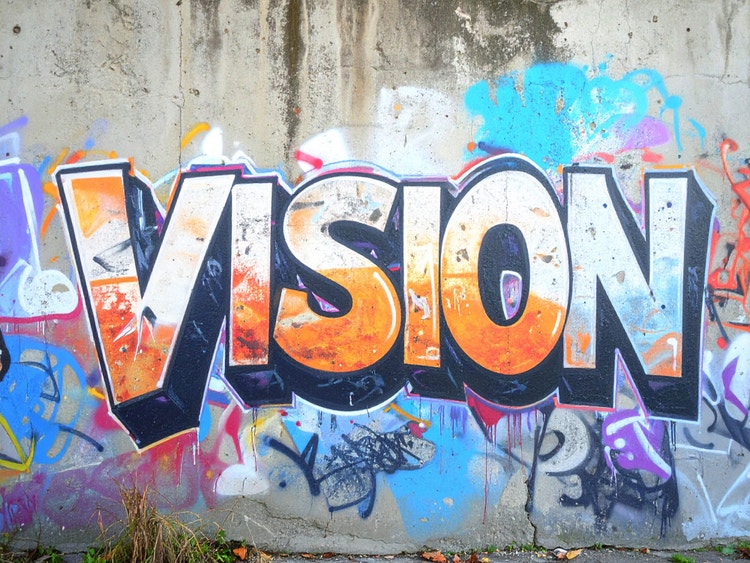
You don’t need to be a pro with spray paint to create stunning street art. With the Adobe Firefly graffiti generator, simply enter a text prompt to generate graffiti designs from scratch, or upload a reference image to transform existing visuals into graffiti-style street art.
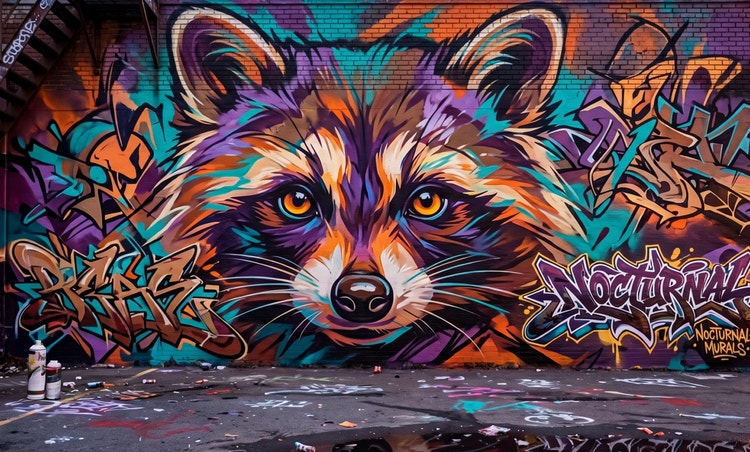
Choose from a wide range of graffiti styles to shape the look of your design. Create bold graffiti text using 3D lettering, experiment with expressive wildstyle tags, or explore more abstract street art treatments by adjusting the style, colors, and shadow. With simple prompt changes or reference images, you can generate a variety of graffiti fonts, text, and styles in just a few clicks.
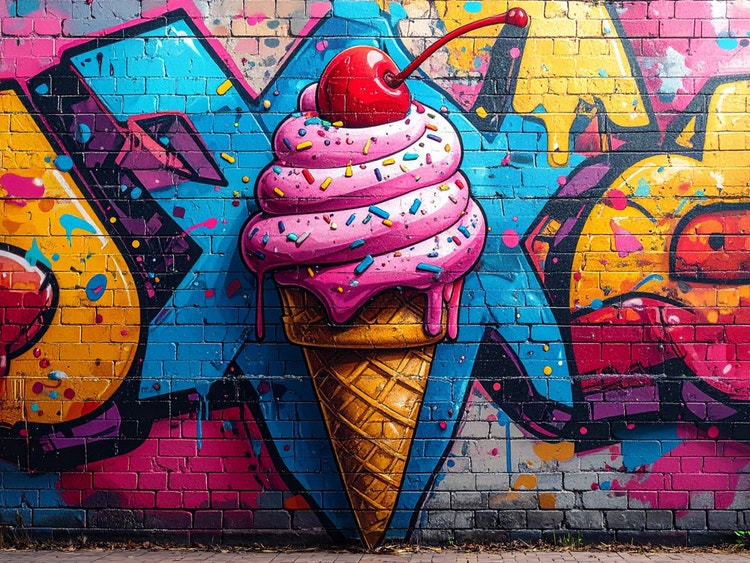
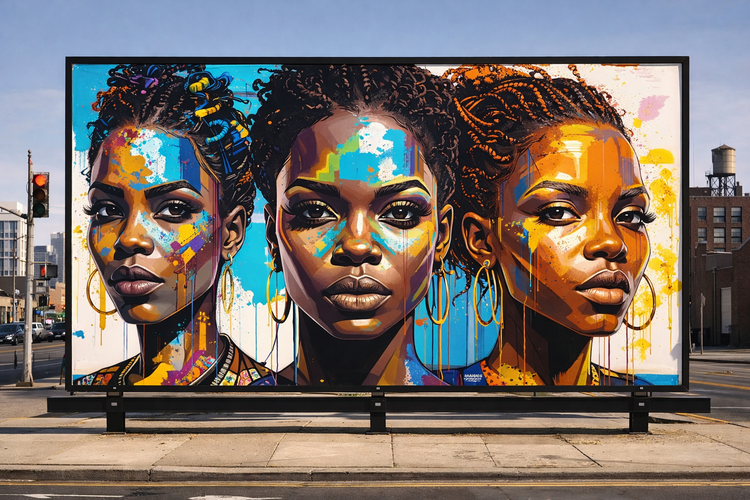
Download your favorite images and share them on social media or use them to add bold imagery to posters, presentations, and reports.
Create graffiti designs quickly while maintaining a consistent look across your work. The Adobe Firefly graffiti generator helps designers and marketers generate bold street art for digital designs, social posts, and campaigns — then adapt them for print, apparel, product concepts, and more.
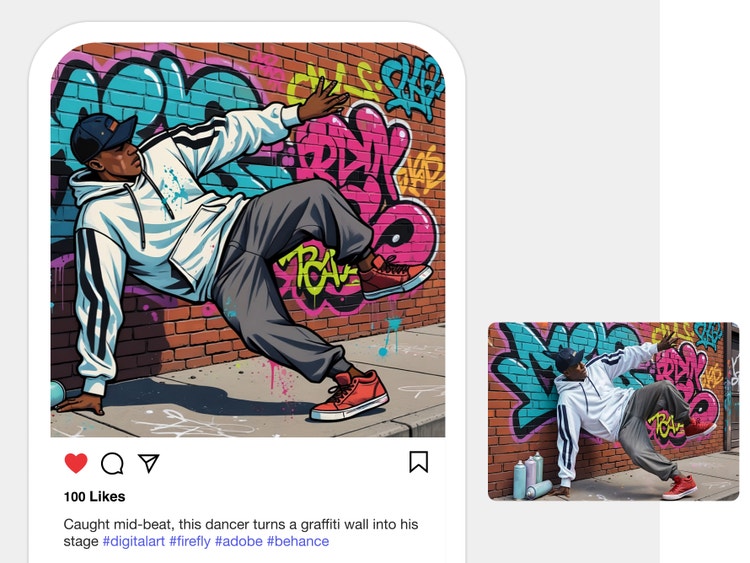
Go to the Image section of the web app and select Generate Image.
Type a description of what you want to see in the prompt field. Start with five words or more, including the word “graffiti.” More descriptive words produce better results.
Add a reference image to guide the structure and composition of your graffiti art. Go to the panel on the left, and select Upload Image in the Reference section.
Click Generate and watch as Adobe Firefly-powered results quickly appear. To edit the image later save the image to a Creative Cloud library or download it.
Edit your newly generated images further in Adobe Express and turn them into eye-catching social posts, videos, flyers, and more.
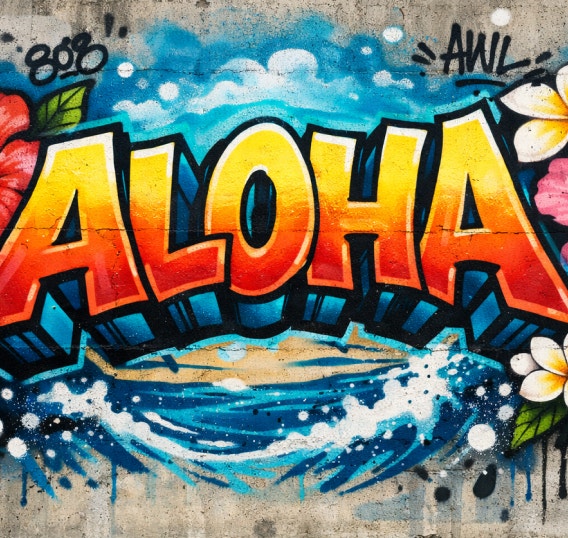
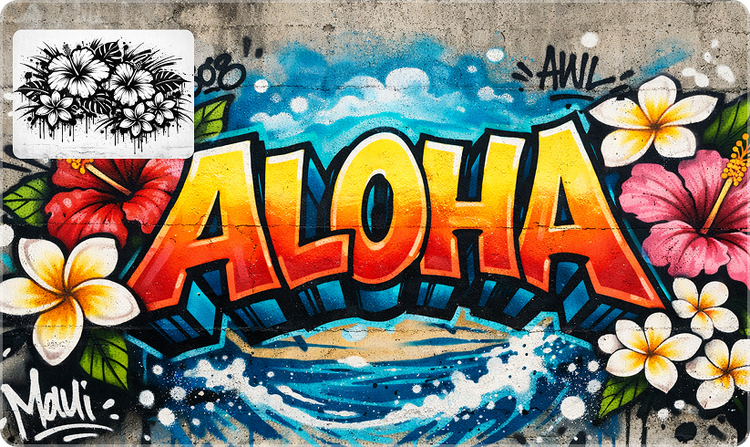
Firefly makes it possible to generate custom AI graffiti art with a wide range of styles using simple prompts, reference images, and intuitive editing controls.
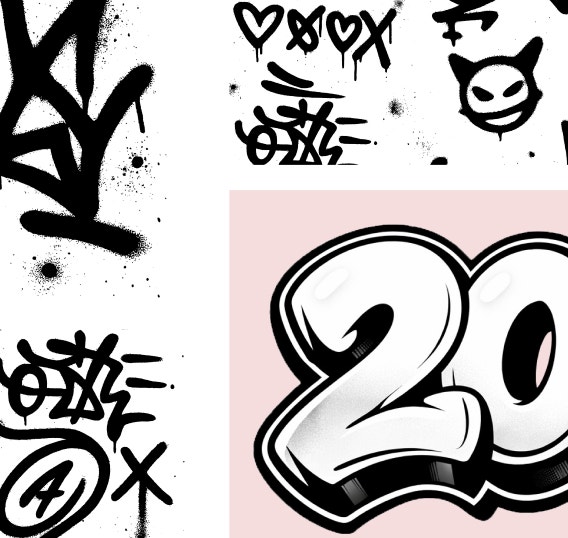
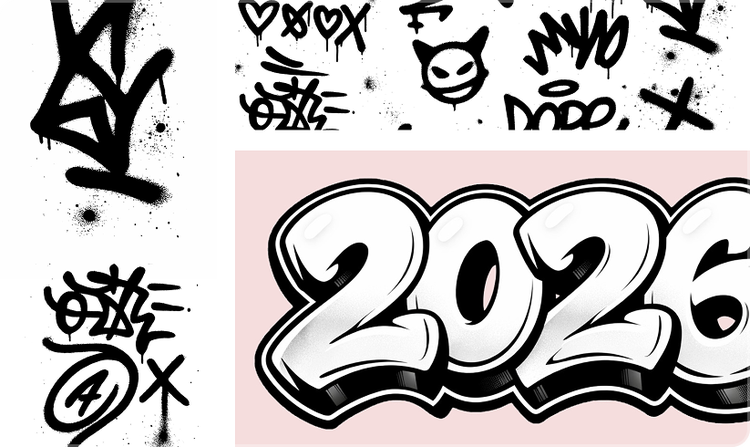
With Firefly image generation, you can easily create multiple designs and edit graffiti designs in stages. Quickly explore different styles like tags, wildstyle, and stencils, and refine details as you go.
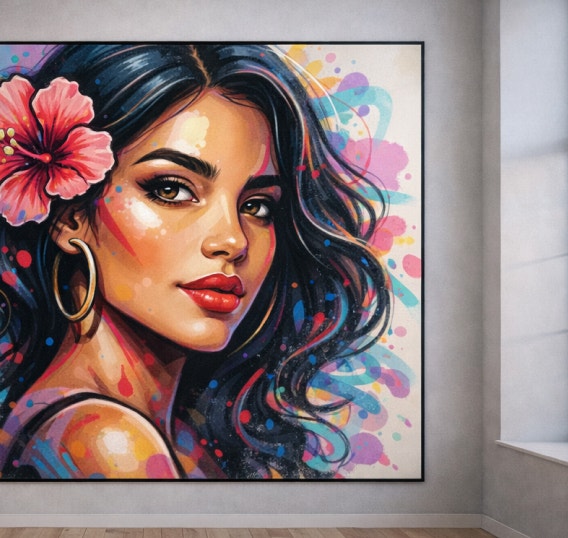
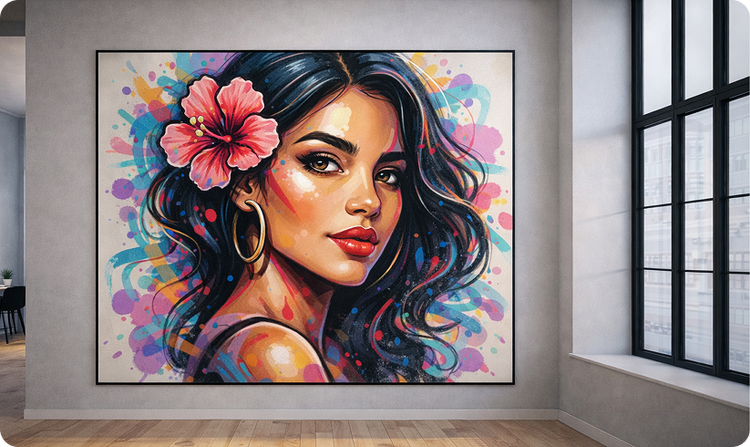
The Firefly graffiti generator produces clean, high-resolution results that you can use in a variety of places, like murals, streetwear, or in interior design.
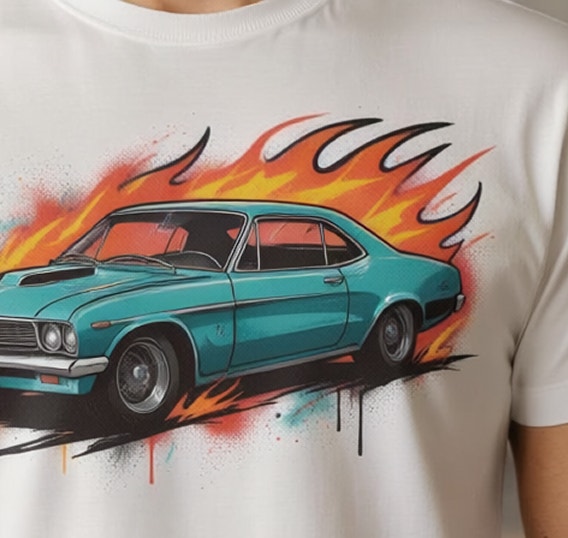
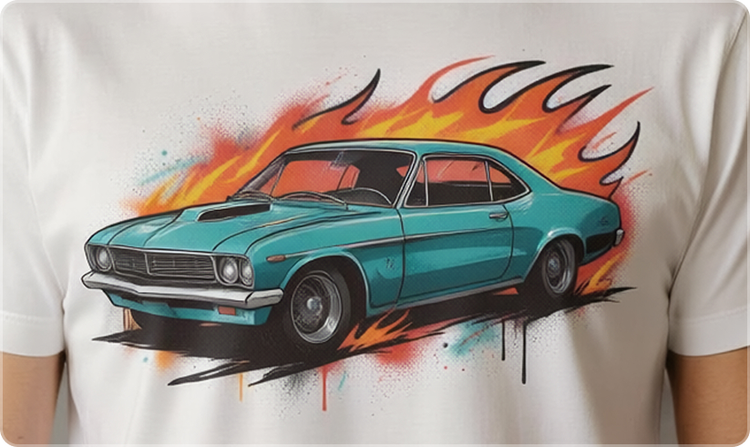
Content generated with Firefly models is commercially safe, so designs can be used confidently for professional, client-facing, or creative projects.
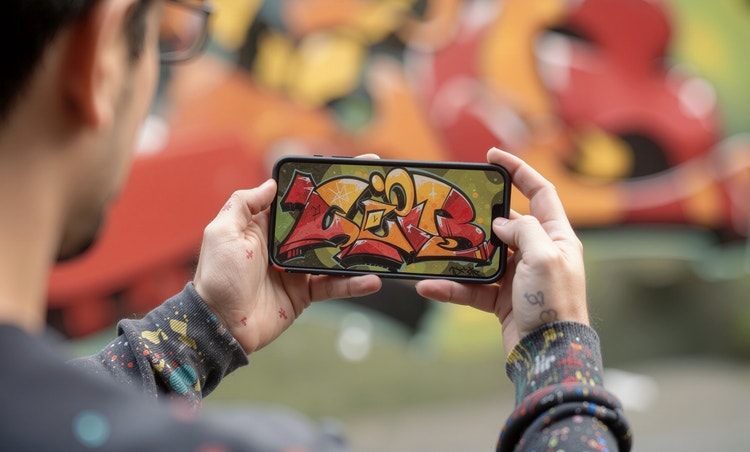
Yes, you can download your graffiti art created with Adobe Firefly. There are several methods to save and manage your generated images:
Adobe Firefly gives you access to a range of external AI models that help you create sharper, more stylistic graffiti art. Models like Gemini, GPT Image, FLUX, Ideogram, and Imagen support text-to-image and vector workflows, giving you strong prompt control, clear lines, and high-resolution output that helps refine lettering and character style.
For motion-based graffiti ideas, models like Veo, Ray3, Sora 2, Runway, and Pika can generate smooth video sequences that show evolving tags, character poses, or mural concepts coming to life. Because these models sit inside Adobe Firefly, you can choose the one that best fits the style, texture, and movement you want in your graffiti.
The best prompts for AI aren't always obvious. These tips get you to your destination in record time.

Learn how to write effective prompts for generative AI to get amazing results for graphic design.

Generative AI includes technologies like large language models (LLMs) and multimodal models that blend text, images, and more that let users creatively transform everything from design to video. Learn more about generative AI — how it works, what it’s trained on, and how it’s reshaping creative workflows.
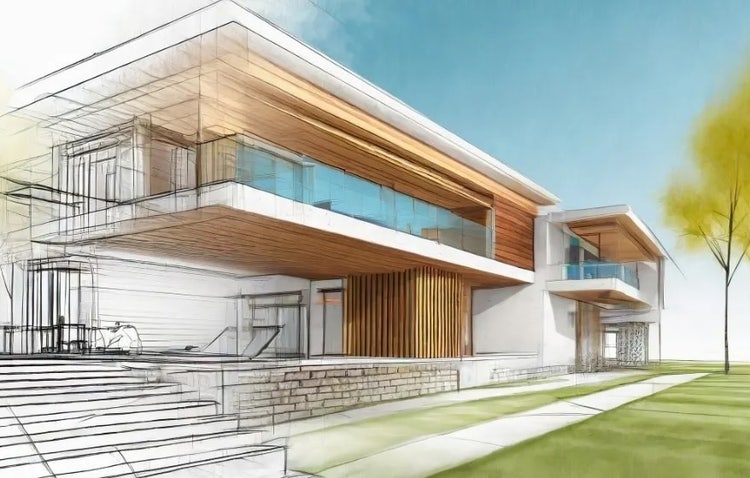
From monuments to museums, houses to hospitals, architecture plays a fundamental role in everyday life. Generative AI can help architects create more functional and innovative environments, faster and more efficiently than ever.


