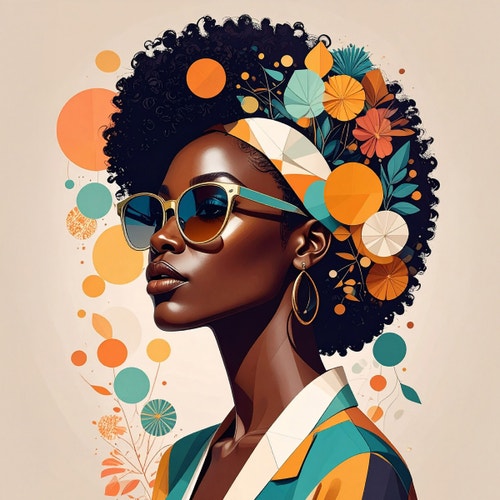
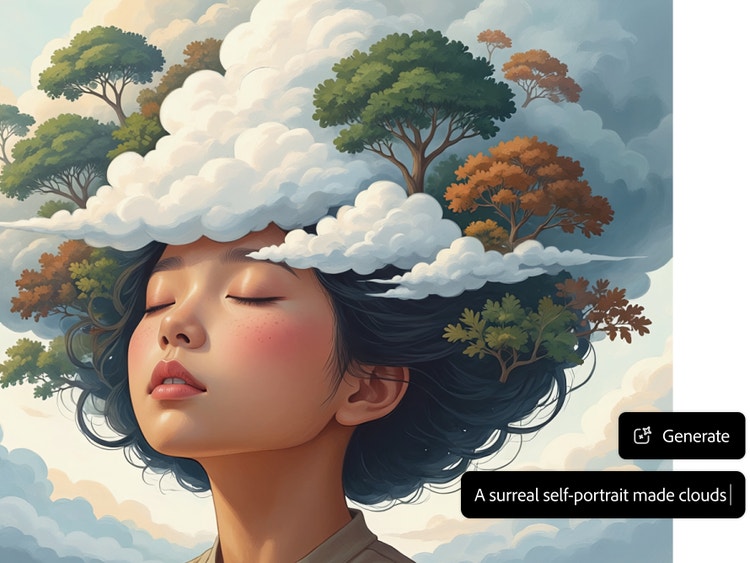
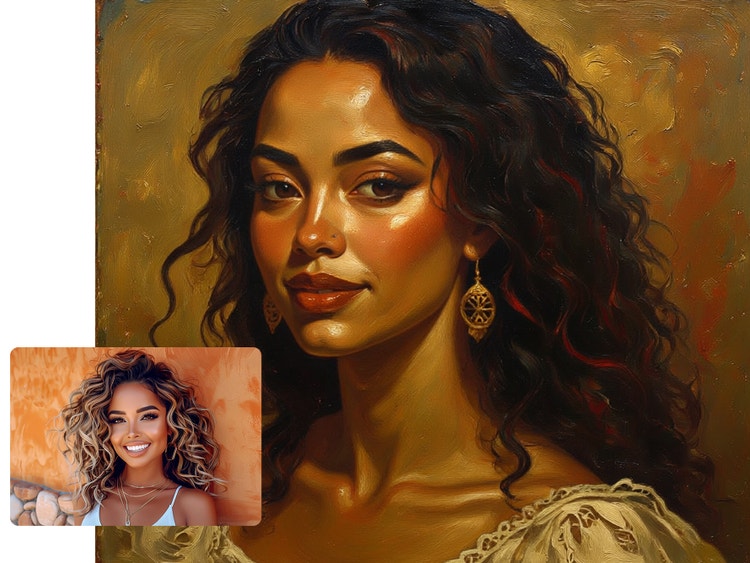
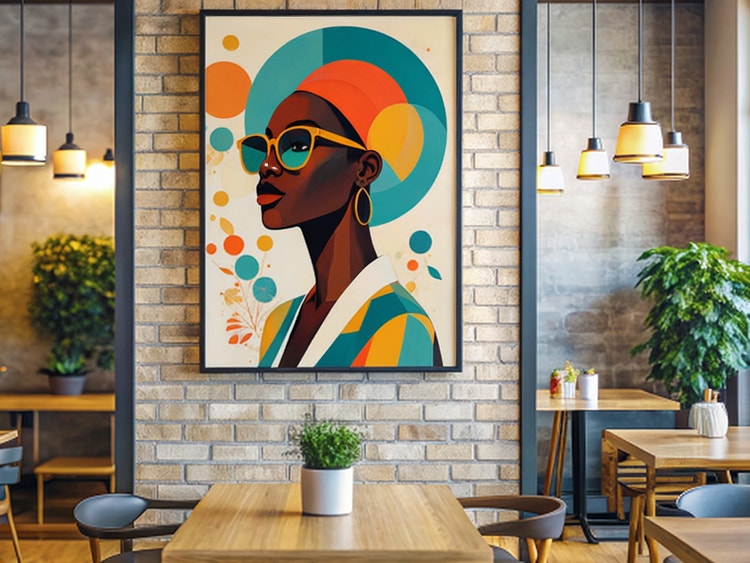
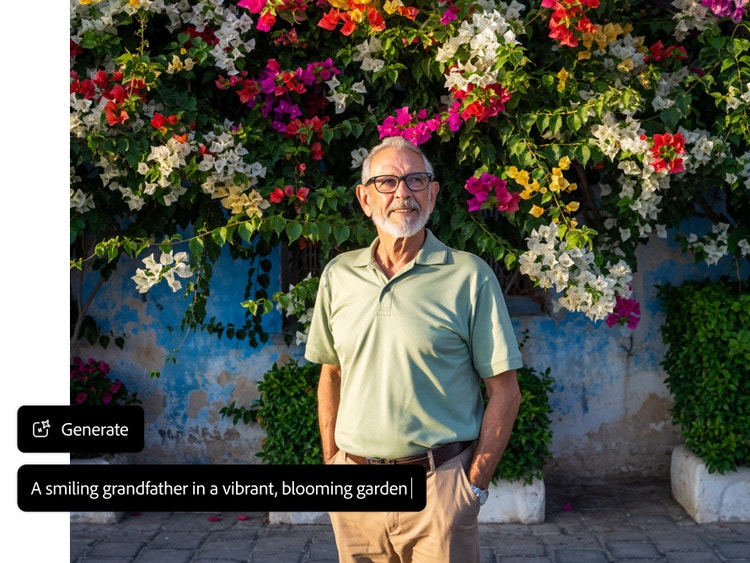
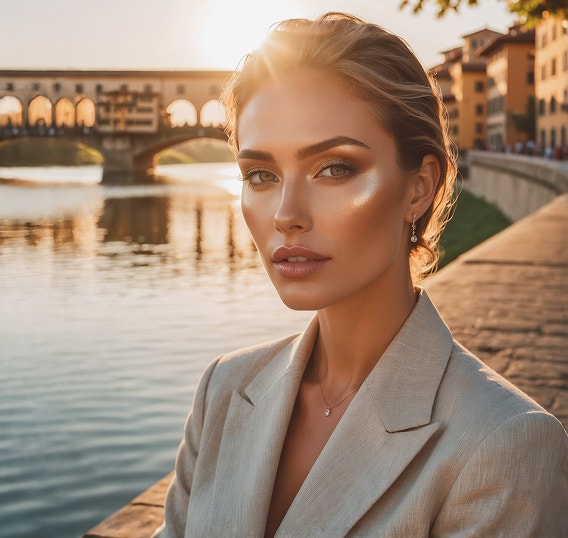
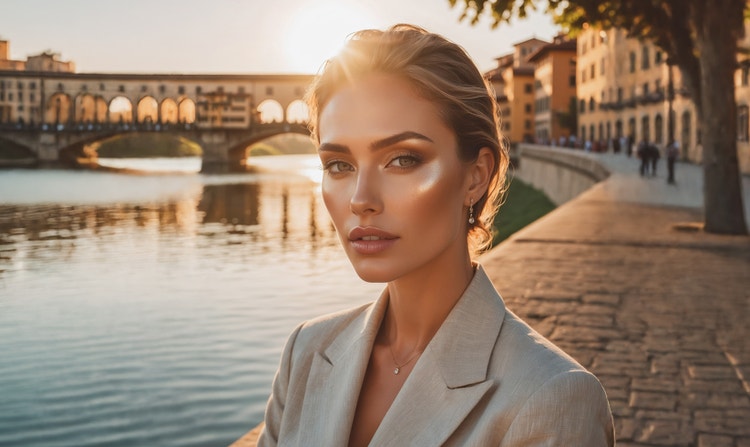
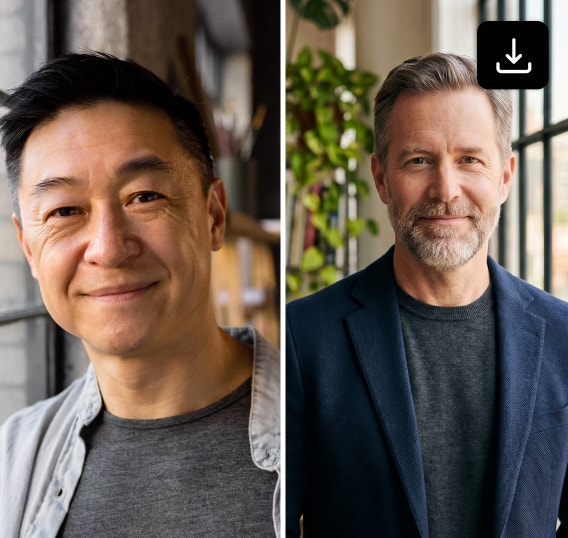
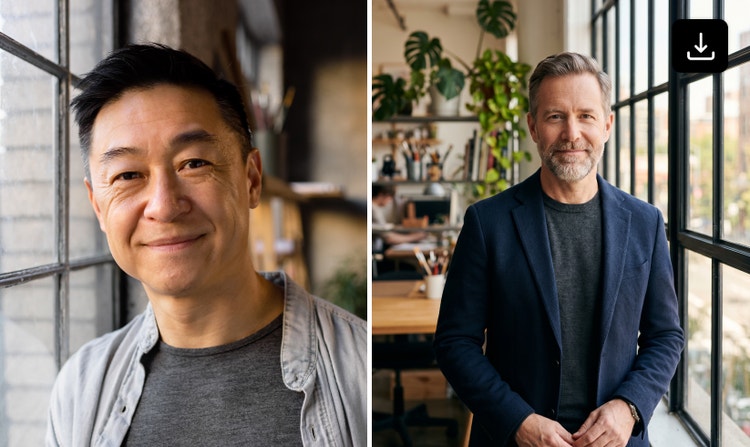
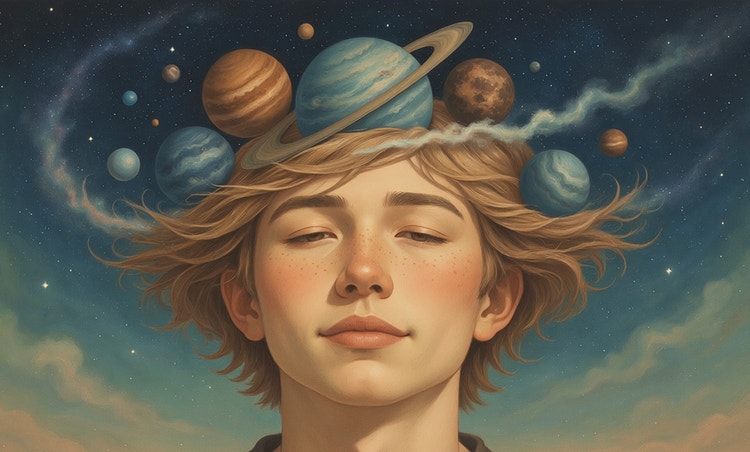
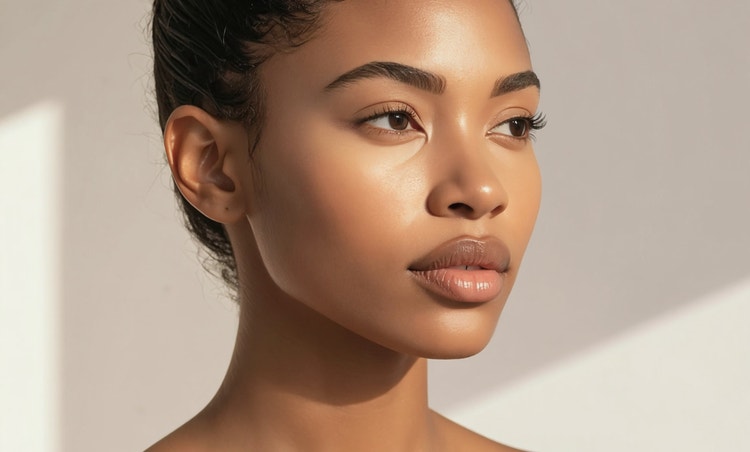
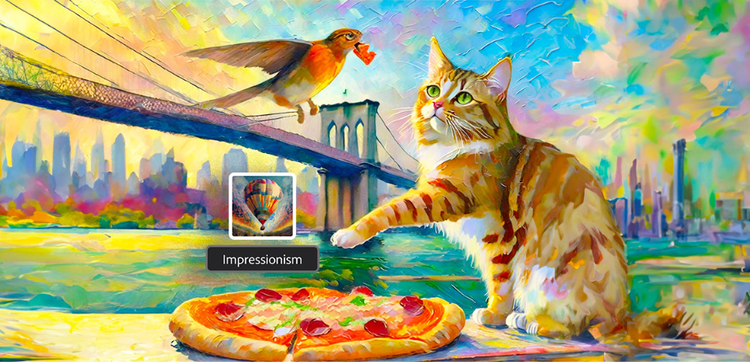
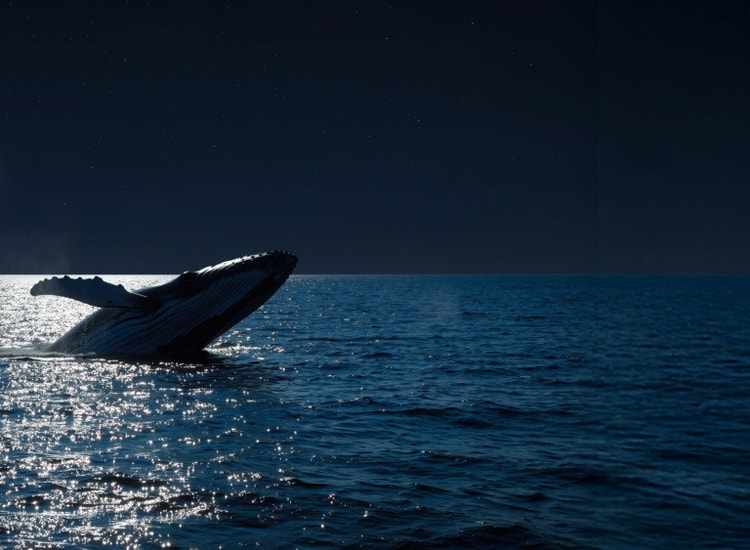
You can transform an existing image or prompt into an artistic portrait using the Generate Image feature in the Adobe Firefly web app. A well-crafted prompt should describe the subject, style, and mood of the image you want to generate.
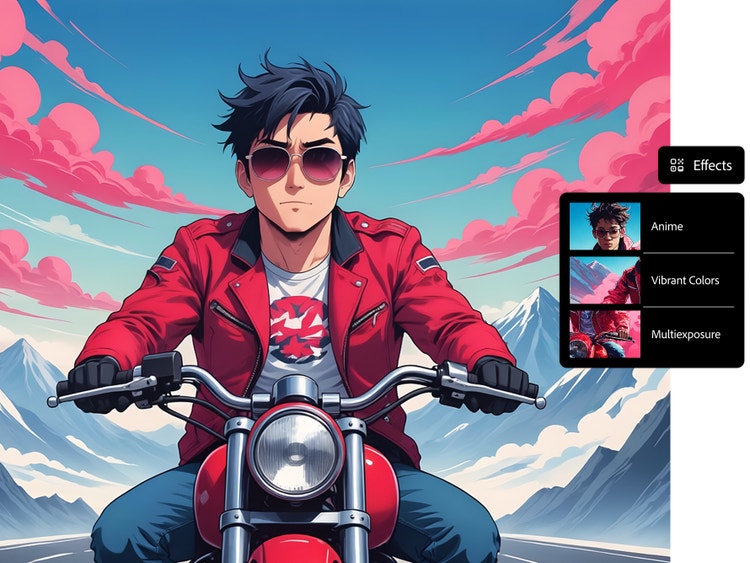
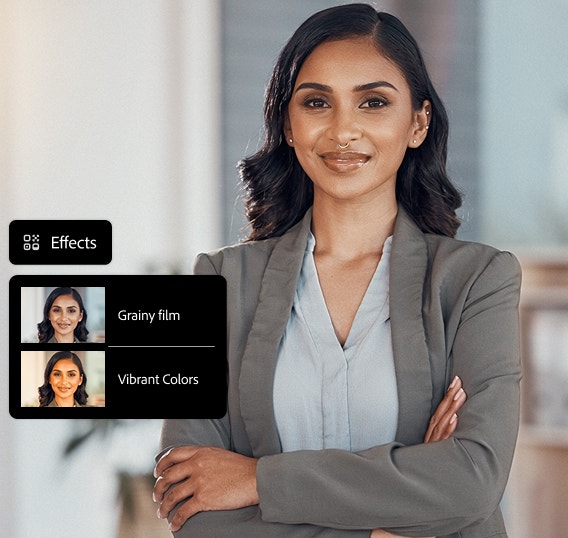
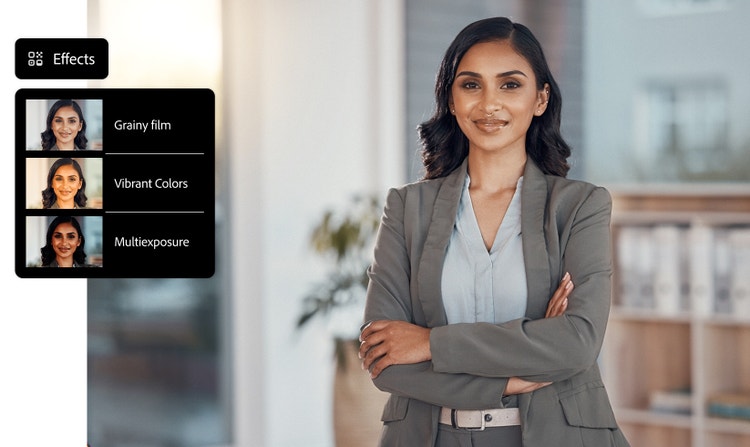
When creating a portrait with Adobe Firefly, you can choose from a wide variety of looks from the Effects section. These effects influence everything from brushwork and lighting to mood. Some Effects include Fantasy, Anime, Oil Paint, and Grainy Film. Play with different effects and combinations of effects to get different looks.
Yes, you can use the Generate Image feature to create portraits for commercial use, provided you use the Adobe Firefly model and adhere to
Adobe guidelines and the content is produced using the commercially released version of Adobe Firefly. All Adobe Firefly models are designed to be safe for commercial use, as they are trained on Adobe Stock, licensed content, and public domain materials.
Adobe Firefly is designed with user privacy and data security in mind. Adobe does not use your personal content to train Adobe Firefly generative AI models. The models are trained on a dataset of licensed content, such as Adobe Stock, and public domain content where copyright has expired. You retain ownership of your content. Adobe does not assume any ownership of your work. Generated images are stored in your Creative Cloud storage and are subject to your allocated storage space.
Adobe Firefly currently supports downloading generated images in JPEG and PNG formats. These formats are available when using the Generate Image feature, and the maximum resolution for downloaded images is 2000x2000 pixels.
Adobe Firefly includes several AI models that help you create clear, detailed portraits in a range of styles. Models like Gemini 3, GPT Image, FLUX, Ideogram, and Imagen support text-to-image and vector workflows, giving you strong control over facial features, lighting, texture, and overall aesthetic. Since these models sit directly inside Adobe Firefly, you can choose the one that best matches the portrait look you want to create.
Start by clearly defining your subject, including their action, emotion, and overall mood. Next, describe the art form — such as photography, oil painting, or illustration — and specify the composition, including framing and camera angle. Finally, refine the portrait’s realism and atmosphere by calling out lighting details, like golden hour or studio lighting, along with a clear color scheme. By giving AI tools these specific instructions, you enable it to generate a precise, high-quality photo that closely matches your creative vision.
When using Adobe Firefly Image 4 or Adobe Firefly Image 4 Ultra to generate images, you can turn on the Enhance Prompt feature to improve your prompts automatically. This feature refines your prompt in the background by making it more detailed and descriptive, which contributes to generating richer and more diverse images.
Yes, you can use the Adobe Firefly AI portrait generator for free with an Adobe account. If you have a free account, you’ll get free daily generations to create custom AI portraits from text prompts or reference images. Learn more about
using Adobe Firefly for free. Paid Adobe Firefly plans are available for higher-volume use and access to more partner models.
For desktop, Adobe Firefly supports major browsers including Chrome, Edge, Firefox (version 113 or later), and Safari (version 17.4 or later) and requires a minimum of 4GB of memory on Windows 10, macOS 12, or ChromeOS, with JavaScript enabled. On mobile, the app is available for iOS 17.4 and Android 9.0 Pie or later.
The best AI portrait generator combines photorealistic image generation with precise creative control, allowing you to shape details, iterate quickly, and maintain consistency across projects. It should be fast, flexible, and easy to use at any skill level. Adobe Firefly delivers these capabilities in a streamlined experience designed for responsible, commercially safe image generation.
A portrait is a photo, painting, or drawing of a person. A headshot is a photo of the person’s face, usually from the neck or shoulders up. Headshots are often used in official or professional contexts. An avatar is any image that represents a user online, or a talking AI character.