Introducing Nano Banana 2 - Gemini image editor in Firefly.
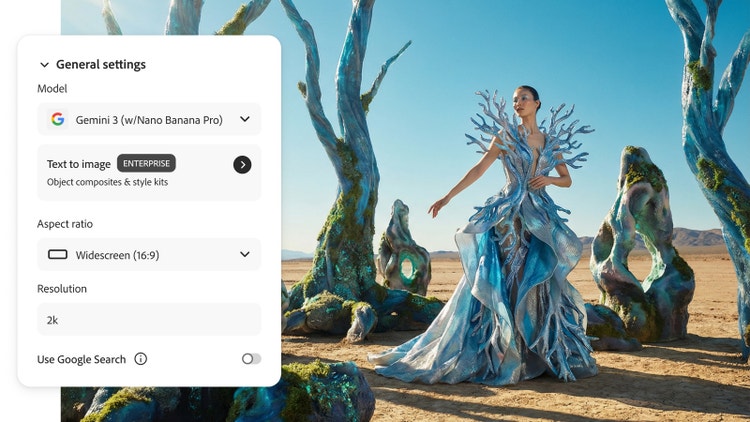
Unlock next-level creative power with the latest model, Gemini 3.1 (with Nano Banana Pro) now integrated in the Firefly app. Now it’s easier than ever to produce stunning visuals, streamline workflows, and bring your ideas to life faster.
Nano Banana is an AI image model available in Firefly, transforming the way creators bring ideas to life. Using simple, conversational prompts, anyone can generate stunning images or upload their own photos and make precise edits without ever leaving the Adobe workspace. From refining product photography and advertising assets to building AI generated characters for immersive storytelling, Nano Banana helps creators edit images with a faster, more intuitive workflow.
style
static links
style
Grid width 8
Create and edit stunning images with Nano Banana in Firefly.
Together, Nano Banana and Adobe Firefly empower creators to quickly generate images from simple text prompts and perform powerful edits — all within a seamless creative workflow. The Nano Banana AI image editor excels at conversational prompting, maintaining character consistency across multiple images, preserving scenes while making targeted changes, and handling complex edits.
Create with Nano Banana 2 and Nano Banana Pro without leaving your favorite apps.
With the new Gemini 3.1 (with Nano Banana 2) model, you can generate crystal-clear, accurate text directly in your images, opening up new possibilities for product mockups, posters, and educational content.
Use prompts and Nano Banana Pro to generate accurate infographics.
Create images that reflect the world around you. Draw on the expansive knowledge base of Google Search and use Gemini 3 (with Nano Banana Pro) to generate fact-based images, diagrams, and maps based on real-world data and events.
Use Gemini 3 (with Nano Banana Pro) in your Photoshop workflows.
We’ve added new feature integrations in Photoshop to expand creative choice, deliver higher resolution, and generate more relevant results. With Nano Banana Pro and other models integrated in Generative Fill, you can generate multiple options, refine your images with precise and powerful tools in Photoshop, and explore new possibilities without breaking your flow.
Discover new creative possibilities with third-party models in Firefly.
Beyond its integration with Nano Banana, Adobe Firefly supports a growing set of third-party AI models. These include FLUX.2, FLUX1.1 and FLUX.1 Kontext, Luma AI Ray3, GPT Image by OpenAI, and ElevenLabs. With multiple models available in one place, Firefly gives you the flexibility to work with an image editor that best fits your needs without interrupting your workflow.
style
No spacing
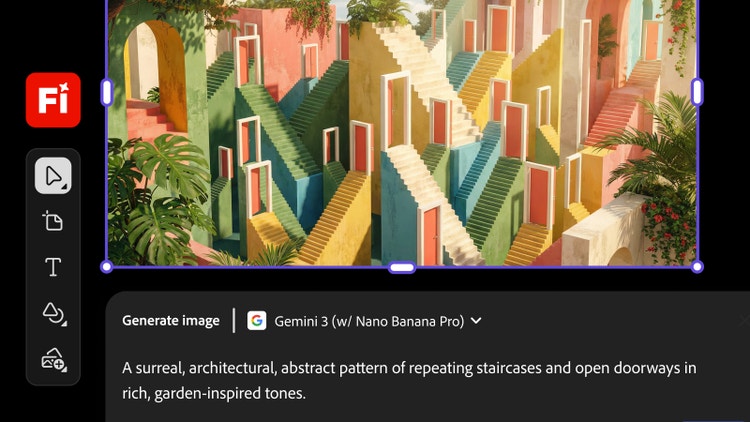
How to use Google Gemini 3 (with Nano Banana Pro) in Firefly Generate Image.
Follow these quick steps to create and edit content in Firefly with Nano Banana Pro.
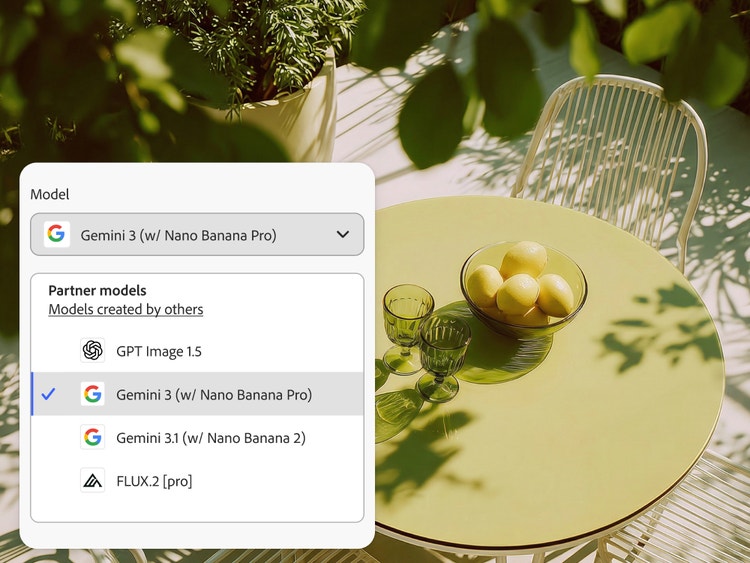
Pick the model in the Model dropdown menu. Select Gemini 3 (with Nano Banana Pro).
Start with an image. If you already have an image or photo, upload it in the prompt bar. If you don’t have an image, write a short prompt to generate one.
Edit and refine with prompts. Add your instructions in the prompt bar. Describe what to add, remove, or modify in your image or photo.
Review variations and download. Click Generate to create your image using the Gemini model you selected.
Download. Choose a result to download or generate more variations.
background
#F8F8F8
style
Grid width 8, l-spacing-bottom
Why use Nano Banana in Firefly for AI image editing?
Streamlined workflows: Upload, generate, edit, and refine images with a variety of AI models available in one seamless workflow.
High-quality results: Create polished, detailed AI-generated visuals while preserving consistency across edits and iterations.
Built for speed: Make precise changes and explore variations quickly using conversational prompts that accelerate creative output.
Firefly brings Nano Banana into a unified creative environment, making it easy to move from upload to refinement without switching tools or breaking focus. By working with multiple AI image editing models in one place, creators can experiment, iterate, and choose the approach that best fits their needs as projects evolve. The result is a faster, more fluid workflow that supports high-quality output.
Yes. Gemini 3 (with Nano Banana Pro) and Gemini 3.1 (with Nano Banana 2) are available in the Firefly Generate Image module and Firefly Boards.
Gemini 3.1 (with Nano Banana 2) enables AI-powered image editing and generation for casual creation. Gemini 3 (with Nano Banana Pro) moves beyond casual creation and into a new era of professional-grade, functional design. With Gemini 3 (with Nano Banana Pro), you can create infographics, diagrams, and watermarks, use multiple reference images, maintain subject consistency across different camera angles, and ground your images in real-world data using Google Search.
Gemini 3 (with Nano Banana Pro) is available in Firefly Generate Image, Firefly Prompt to Edit, Firefly Boards, and Generative Fill in Photoshop. To access it in Firefly, click on the Model dropdown and select Gemini 3 (with Nano Banana Pro). In Photoshop, make a selection with the Selection Brush and open the Generative Fill workflow in the Contextual Task Bar. Then click the Model Picker button to see Gemini 3 (with Nano Banana Pro) and other model options.
Yes. While Gemini-powered image models are available in the Gemini app, Firefly integrates Nano Banana directly into the Adobe workspace for seamless creative workflows. You can access it through the Generate Image module and Firefly Boards. Select Gemini 3.1 (with Nano Banana 2) from the Model dropdown menu or select Gemini 3 (with Nano Banana Pro) for professional-grade, functional design.
Yes, Nano Banana family of models are available to free Adobe Firefly users through a daily allotment of free generations. Learn more about using Adobe Firefly for free. Access to Nano Banana Pro and additional generations is available with a paid Adobe Firefly plan.
Adobe provides access to information on the partner models you can use in Adobe apps, but it is the responsibility of the creator to decide whether partner models are appropriate for their projects, taking into consideration factors such as the focus of the model, how it was trained, and whether or not it is safe for commercial use.
In the Generate Image module in Firefly, you’ll find Gemini 3.1 (with Nano Banana 2) listed as an option under the Model dropdown menu.
In Firefly Boards, you’ll find it listed as an option in the Model dropdown menu in the prompt bar.
In Photoshop, make a selection and open the Generative Fill workflow in the Contextual Task Bar. Then click the Model Picker button to see the Gemini models and other options.
Adobe Firefly integrates several trusted partner models to enhance image, video, and audio generation. These include Gemini 3.1 (with Nano Banana 2), FLUX 1.1 and FLUX.1 Kontext by Black Forest Labs, Luma AI Ray 3, GPT Image by OpenAI, and ElevenLabs. Together, they bring advanced creative power and professional-quality results to Firefly.
Beyond daily generation or generative credit limits, Nano Banana may have functional or compatibility restrictions depending on the specific Adobe Firefly feature or Adobe app you’re using.
Nano Banana, available as a third-party model in Firefly, stands out among AI image editors for its ability to preserve detail and consistency across multi-step edits, integrate smoothly with other tools, and generate high-quality images quickly. For general image creation that prioritizes realism, artistic style, and commercial viability, the native Firefly model is a strong choice. Nano Banana is best suited for precise edits, refining images with natural-language prompts, and scenarios where accurate text within an image is important.
Share this article
title
Nano Banana Image Editing: Transform Any Image with Firefly.
ContentType
Article
tags
Firefly, Partner models, Gemini 2.5 Flash Image, Photoshop, Generative Fill
description
Use Nano Banana 2 and Nano Banana Pro in Adobe Firefly. Create and edit images with Gemini's AI-powered tools.
cardImage
cardImageAltText
Firefly x Gemini 2.5 Flash Image split visual (no product mnemonics)
Adobe Firefly
The next evolution of creative AI is here for all your ideas, with image, video, audio, and vector tools.
You can control how Adobe websites use cookies and similar technologies by making choices below. But note that if you disable cookies and similar technologies entirely, Adobe websites may not function properly.
Cookies are small text files stored by your web browser when you use websites. There are also other technologies that can be used for similar purposes like HTML5 Local Storage and local shared objects, web beacons, and embedded scripts. These technologies help us do things like remembering you and your preferences when you return to our sites, measure how you use the website, conduct market research, and gather information about the ads you see and interact with.
You can make choices in the menu below about what cookies and other technologies you want us to use on Adobe sites when you visit them from this browser. You can always change those choices later by clicking on the Cookie Preferences link at the bottom of the page.
If enabled:
We can improve your experience by tailoring the site and the content to things we think might be of interest
We can better keep track of your preferences — like what language you prefer to use
We will better understand your likely interests so we can provide you more relevant Adobe ads and content on non-Adobe websites and in non-Adobe apps
It will help us improve the performance of our website and those of our partners who use the Adobe Experience Cloud
If disabled:
We won’t be able to remember you from session to session so the experience may not be tailored to your interests
You’ll still have access to the content of the site but certain features that depend on cookies may not function
You’ll still see ads, they just may not be as relevant to you
General information
You can control how Adobe websites use cookies and similar technologies by making choices below. But note that if you disable cookies and similar technologies entirely, Adobe websites may not function properly.
Cookies are small text files stored by your web browser when you use websites. There are also other technologies that can be used for similar purposes like HTML5 Local Storage, web beacons, and embedded scripts. These technologies help us do things like remembering you and your preferences when you return to our sites, measure how you use the website, conduct market research, and gather information about the ads you see and interact with.
You can make choices in the menu below about what cookies and other technologies you want us to use on Adobe sites when you visit them from this browser. You can always change those choices later by clicking on the Cookie Preferences link at the bottom of the page.
If enabled:
We can improve your experience by tailoring the site and the content to things we think might be of interest
We can better keep track of your preferences — like what language you prefer to use
We will better understand your likely interests so we can provide you more relevant Adobe ads and content on non-Adobe websites and in non-Adobe apps
It will help us improve the performance of our website and those of our partners who use the Adobe Experience Cloud
If disabled:
We won’t be able to remember you from session to session so the experience may not be tailored to your interests
We’ll still count your use of our site and services
You’ll still have access to the content of the site but certain features that depend on cookies may not function
You’ll still see ads, they just may not be as relevant to you
Operate the site and core servicesOperate site and measure engagement
Always active
These cookies are required, and they are used to enable the site and related services core functionality. Without them the site could not operate, so they cannot be disabled.
These cookies enable the site and related services’ core functionality and collect statistics about user engagement, such as counting active use to help us understand trends. These cookies cannot be disabled.
Measure performance
These cookies are used to analyze site usage to measure and improve performance. Without them Adobe cannot know what content is most valued and how often unique visitors return to the site, making it hard to improve information we offer to you.
These cookies are used to analyze site usage to measure and improve performance. Without them Adobe cannot know what content is most valued, making it hard to improve information we offer to you.
Extend functionality
These cookies are used to enhance the functionality of Adobe sites such as remembering your settings and preferences to deliver a personalized experience; for example, your username, your repeated visits, preferred language, your country, or any other saved preference.
Personalize advertising
These cookies are used to enable Adobe and our partners to serve ads more relevant to your interests. Without them you will still see ads, but they might not be as relevant to you.