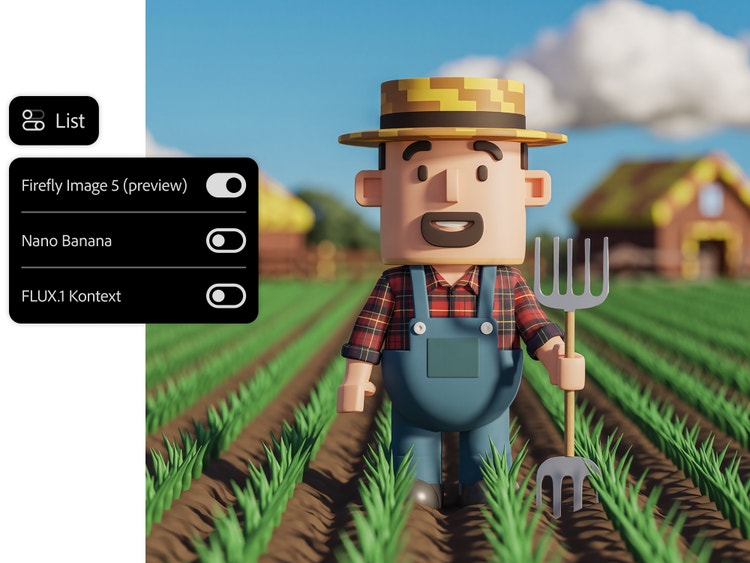
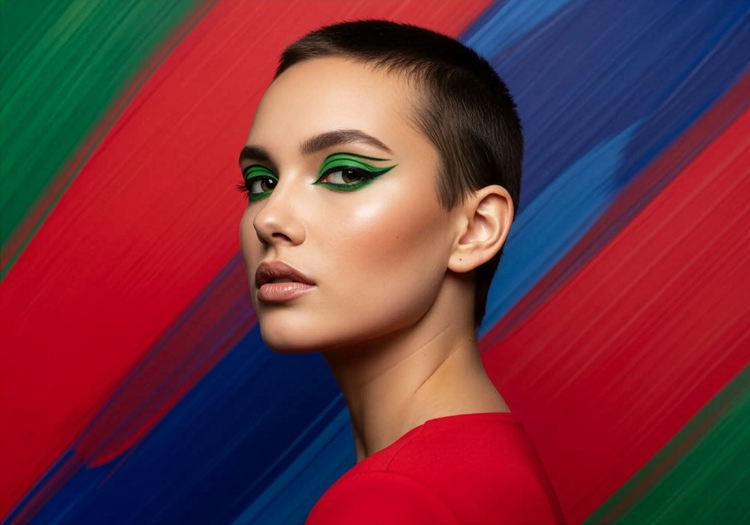
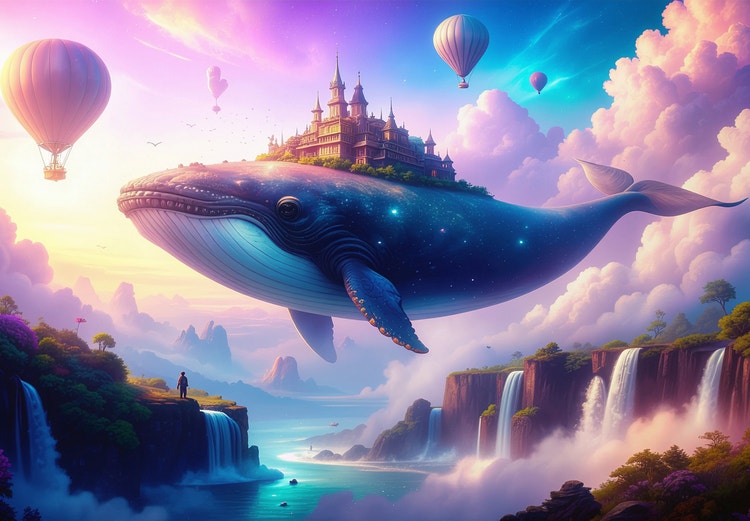
The Adobe Firefly Generate Image and Generate Video features transform detailed text prompts into images or videos by interpreting the words and phrases included in a description such as, “a cartoon dog riding a skateboard.” It identifies the subject, action, style, and object or setting within the phrase. Including descriptive words such as “cartoon” helps to inform the outcome, producing results such as exaggerated proportions and bold lines. Additional inputs, such as adjusting the settings or uploading a reference image, further inform your cartoonized artwork.
While Adobe Firefly does not transform pre-existing images into cartoons like a filter, you can use a reference image to guide the outcome of your generated image, creating cartoon versions of selfies and other photos. You can use a prompt to create cartoon images of scenes and environments, characters, objects, and more.
With the Adobe Firefly AI cartoon generator, you can simply upload a photo, add a text prompt that describes the cartoon style you’d like to see — like comic book, anime, illustrated, or painted — and click Generate to get your photo to cartoon content.
Yes, you can create a cartoon from text only using the Generate Image or Generate Video feature. These features allow you to generate cartoon-style images or videos entirely from written descriptions; you do not need to upload an image. Simply write a description of the image you want to create, and the Adobe Firefly web app will generate cartoon-style images based on that prompt.
Yes, you can use the Generate Image and Generate Video features to create cartoons for commercial use, provided you adhere to Adobe guidelines and the content is produced using the commercially released version of Adobe Firefly. All Adobe Firefly tools are designed to be safe for commercial use, as they are trained on Adobe Stock, licensed content, and public domain materials. Check out Adobe AI ethics principles to learn more.
Currently, videos created by Generate Video are up to twelve seconds in duration and up to 4K in resolution. You can download your videos as an MP4 file.
Yes, Adobe Firefly includes a free tier that gives you free daily generations to cartoonize images using core Generate Image and Generate Video features. Learn more about
using Adobe Firefly for free. To learn more about available plans, credit usage, and premium features, visit the
plans page.
You can improve prompts by adding clear style cues, colors, mood, and character details. Including animation-style terms or artistic references helps Adobe Firefly understand your intent and generate more polished cartoon visuals.
When using Adobe Firefly Image 4 or Adobe Firefly Image 4 Ultra to generate images, you can turn on the Enhance Prompt feature to improve your prompts automatically. This feature refines your prompt in the background by making it more detailed and descriptive, which contributes to generating richer and more diverse images.
Yes, there are a few practical constraints to keep in mind:
Image resolution: You can download generated images at up to 2000×2000 pixels, as noted in Adobe Firefly technical requirements.
Style options: Styles are controlled through built-in effects, reference images, and adjustable sliders such as Visual Intensity and Strength. However, the final look will vary depending on the model you choose and how you structure your prompt.
Processing time: Generation speed can also vary based on the complexity of your prompt and the model you select. For example, Fast Mode versus higher-detail models.
Adobe Firefly gives you unlimited creative power to cartoonize images or generate cartoons from scratch for a wide range of projects. Designers can quickly explore character concepts, storyboards, and brand-mascot ideas. Marketers can produce eye-catching campaign assets, social content, and custom characters for brand storytelling. Educators and students can create classroom visuals, presentation graphics, and engaging 3D cartoons for lessons or assignments.
The best AI cartoon generator delivers accurate photo-to-cartoon transformations, customizable styles, high-resolution downloads, and results suitable for personal or commercial use. Adobe Firefly meets these criteria by allowing you to upload a photo, apply diverse cartoon styles, generate consistent variations, and download professional-quality images. The Adobe Firefly model is also commercially safe, making it a strong choice for creators, marketers, and businesses producing branded or client-ready content.