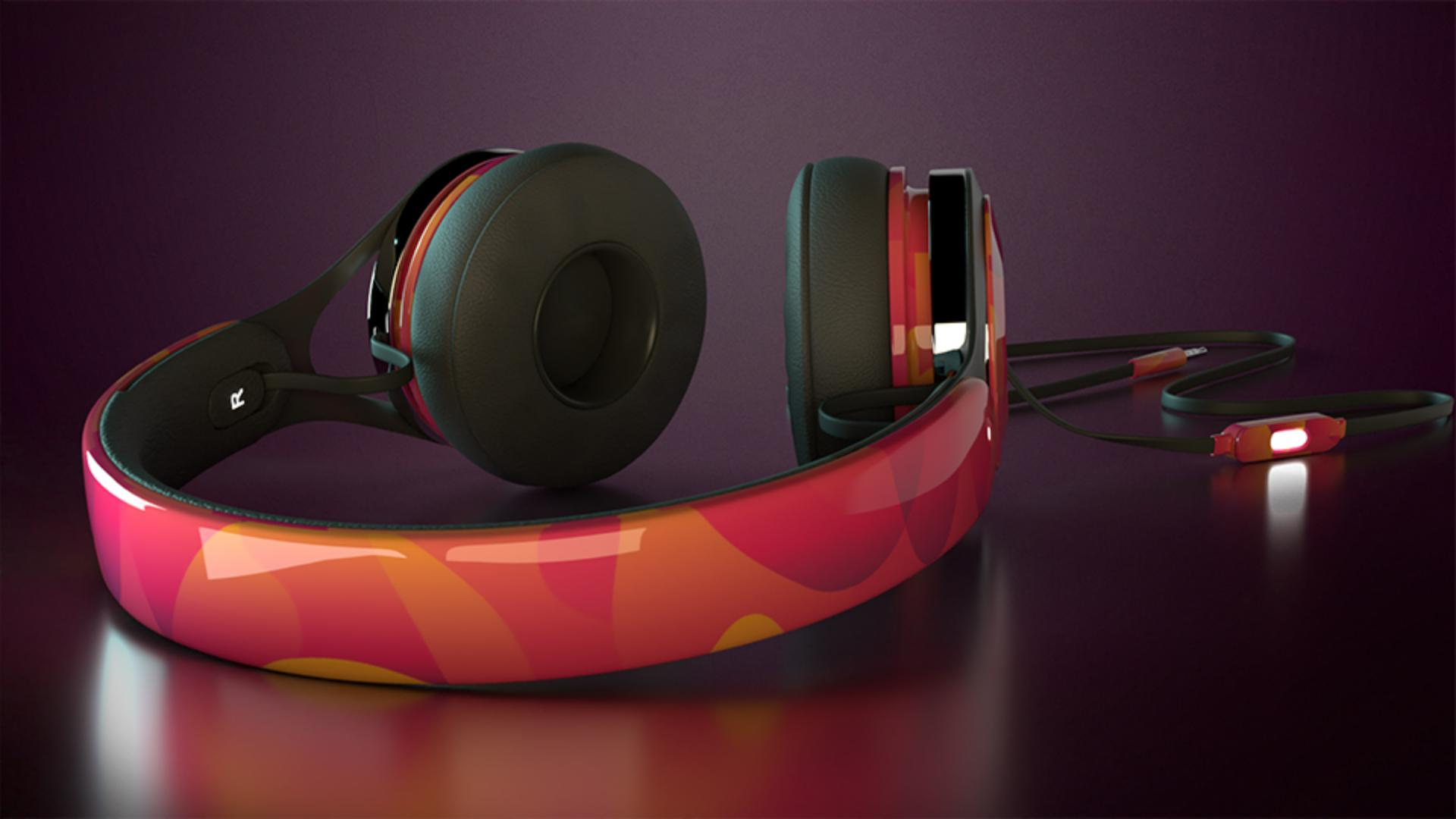
In this video, we'll look at how you can edit the environment to quickly customize the shadows, highlights and reflections in your scene.
Start by selecting the Environment in the Scene panel.
Each Dimension document contains an environment and the environment can't be deleted.
The environment defines the Background color, the Lighting and the Ground Plane.
Changes to the environment are global and affect all objects in the scene.
First, you can change the Background color.
Click on the swatch next to Background to open the Color Picker then select the color.
You can also use images like gradients, patterns and photographs.
To add an image as a background, drag the image to the Background swatch.
Before working on lighting, shadows and reflections, enable the Render Preview mode of the canvas.
This will let you see advanced rendering effects in real time.
You can control the reflections and shadow effects of the ground plane, which is a special object that acts as the floor of the scene.
Select the Environment in the Scene panel.
Adjust Shadow Opacity to control the strength of shadows on the ground.
Adjust Reflection Opacity and Reflection Roughness to control whether the ground shows reflections, the strength of the reflections and whether they are smooth or blurry.
Lighting in Dimension is physically based, meaning it acts just like the real world.
The viewing angle of your camera will affect how materials and lighting looks.
So, it's important to adjust lighting from the perspective you want to output.
Light will also have different impacts on different materials.
There are three types of lights in Dimension.
The first type of lights are Environment Lights, which are 360-degree spherical panoramic images that wrap around the scene and project light inwards from every pixel.
These images can be very complex like forests, mountains, studios, and other environments that are often captured with 360-degree cameras.
They provide high detail reflections and lighting and are excellent as standalone lighting presets.
To use an Environment Light, simply drag and drop it into the canvas.
The Environment Light will display as its own object in the Scene panel.
Adjust the Environment Light Properties like Intensity and Rotation to control the overall effect of the light.
The second type of lights are Directional Lights.
Directional Lights can be used to build your own custom environment, or it can be used additively with an Environment Light.
To use a Directional Light, simply drag and drop it into the canvas.
To position a Directional Light, adjust its Height and Rotation properties.
You can also change the Intensity of each light, the Color and some shape settings such as Size.
Larger lights will provide more spread highlights with softer shadows, while smaller lights will provide small highlights and harder shadows.
To adjust the light directly on an object, click on the Point Light at Surface action to toggle it on.
You can click and drag to move the light across the surface in real time.
When you're satisfied with the light position, click on the Point Light at Surface action again to toggle it off or use the Escape key.
For circle and square lights, you can control the shape more specifically by adjusting their shape settings.
In addition to the core Directional Lights, there is also a preset for a three-point light setup, which will create a classic key, fill and back lighting setup based on your current camera angle.
Adding a three-point lighting preset will remove existing Directional Lights.
The final type of light is actually a glowing material.
You can make any surface glow, emitting light into the scene.
Glowing objects are different from Environment and Directional Lights in that they're part of the 3D scene and their position will affect how far the light will reach.
We hope this video has been helpful in learning about the types of light in Dimension and how you can combine them to create beautiful 3D scenes.
We can't wait to see what you make.



