Introduction
My name is James Bonanno, and I am a professional Video Editor, Travel Filmmaker, and Content Creator.
Now I shoot a wide range of work, from travel films to talking head videos, Instagram Reels, and specifically these tutorials, and I rely heavily on the Transcription and Captioning window inside of Premiere Pro when I'm making these videos.
Now, the introduction to this feature has been a game changer in my workflow.
I'm able to quickly transcribe my footage and create captions very seamlessly to reach more people on multiple platforms.
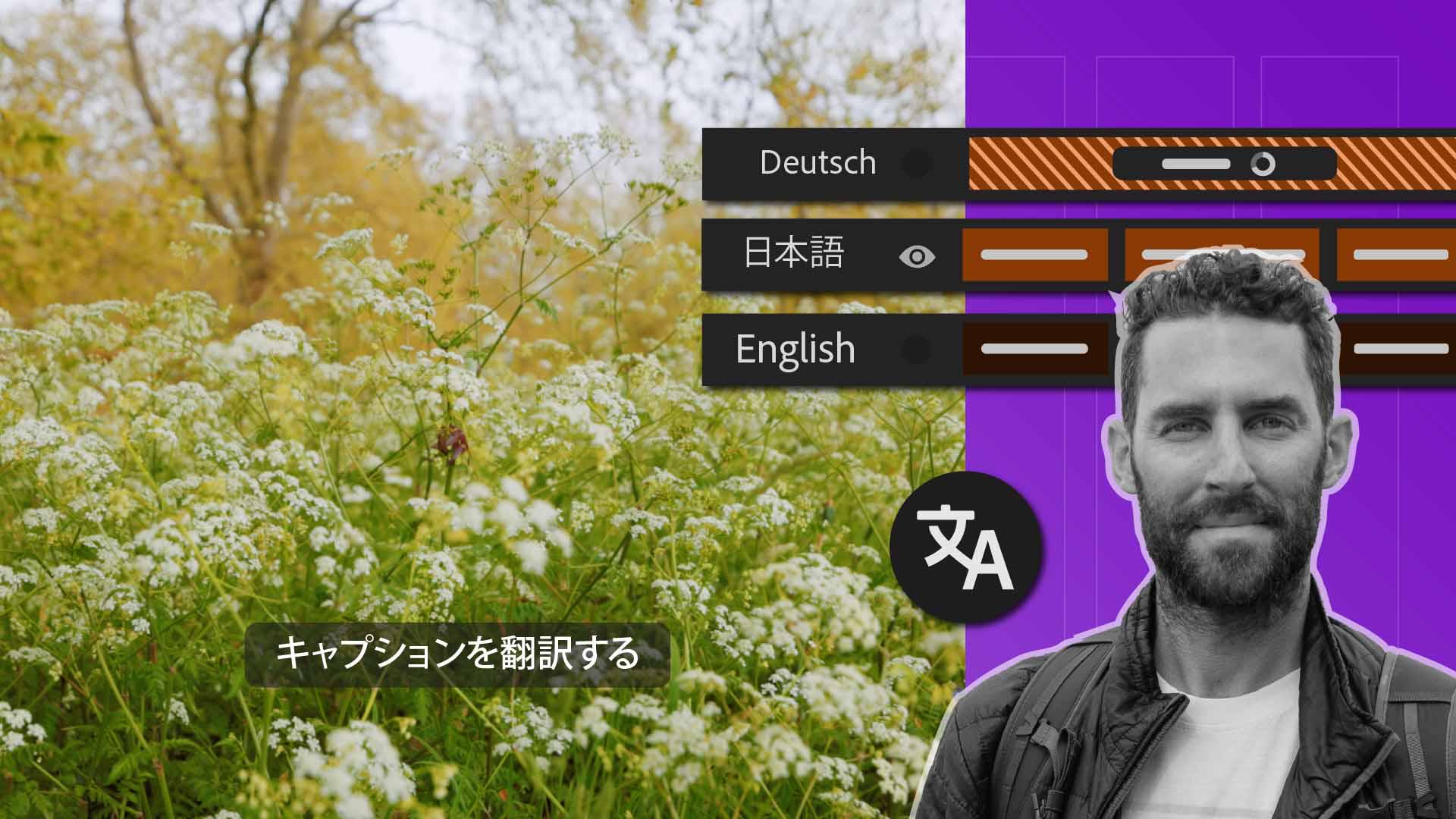
And now I'm even more excited to share that these captions will be able to be translated into multiple languages, giving me more reach on a global scale when I publish my videos.
So, let's hop into Premiere Pro and show you how this all works.
Creating captions from automatic transcription
So, we're inside Premiere Pro, and the first thing we're going to do is navigate into your Workspace over to the Text-Based Editing window.
And now you can see I have Auto Transcriptions turned on.
So, what we want to do is go up to our Captions window and Create captions from transcript.
This is where we can add our own Style, we can change the Lines of text.
I'm going to usually drag this down to somewhere about 20, and then we're going to Create our captions.
They are now created line by line like they have been in the past.
Now we can actually take these captions one step further that we couldn't do previously.
Translating captions into multiple languages
Right next to the Edit active text button is a new button called Translate your captions to multiple languages.
So, if I click this and I open this up, this is a new window where we can Format and change the Source Language.
I can actually Target a couple of different languages for the sake of this video.
Let's go Italian, Indonesian, Filipino and Dutch.
Then we can toggle down Advanced Preferences.
We can make those Lines Single as well.
I'm going to change this to 20 as well.
So, the style that I'm adding for these translations is going to be very similar to the captions that I have in English right here.
And then you'll notice that this does feature some cloud processing, so it might take a little bit of time to actually, process these captions, and then we're going to hit Translate.
Now one of the coolest parts of this new feature is that every single one of these languages
Managing multiple caption tracks
is now on its own captions track.
I can just turn these on and off to view each one of the languages more efficiently.
It's a great way to just toggle between them, so that we know what we're actually working with.
And in the past, you were only allowed to have one captions track, which in this context would make this impossible to do.
All of our captions are here on the right-hand side, and our transcription is not destructive.
And it's still lives inside of the Transcription window.
This is the part where you'd want to check for accuracy and make sure that everything actually looks good.
I do not speak Dutch or these other languages, so it's important that someone checks these transcriptions for accuracy before actually exporting.
But this is a huge step in the process of making my videos more global and being able to reach a larger international audience.
Now, like we've been able to do with captions before
Styling captions and saving caption styles
we can come in here and change the Style.
So, we have our Properties window here.
I can come in and change my Font like I have in the past.
I like to have All Caps on my captions, and let's maybe change the Size to be a little bit bigger.
We have the placement, all of our Align tools here.
I like to put this a little bit higher, depending on if I'm doing like a vertical caption or not.
So, we can change that.
We can adjust the Background like we've done in the past.
So, we have our Background right here, we can adjust the Size of that background.
Maybe we want to bring that up.
We can change the Color.
All the things that you used to be able to do in the Captions window, you can still do on each one of these tracks.
And now if I want to save this as a style, I can either create a style here and let's just call this Captions_Style.
And now if we play this all back, every single one of those captions in a different language are now blanket-added to all of our captions.
Now, if I want to do that same thing and add those same styles to each one of these captions, all I have to do is go up to Track Style and go to Captions_Style.
And it has changed every one of those tracks globally.
And I can do that for every single one of those translations.
So, let's recap what we just learned.
Recap and best practices for global captions
Any clips with dialog in them are automatically going to be transcribed when you import them into Premiere Pro.
You can now create captions in multiple languages, and you can show and hide them and stack those captions on top of each other, which you could not do previously.
Now make sure before you export your video, you're checking those captions for any accuracy because there are so many languages and set and change the style to whatever the desired look is for your videos.
This is just one more feature inside of Premiere Pro to make your videos stand out and reach a global audience.
That is automatic transcription magic.