Introduction
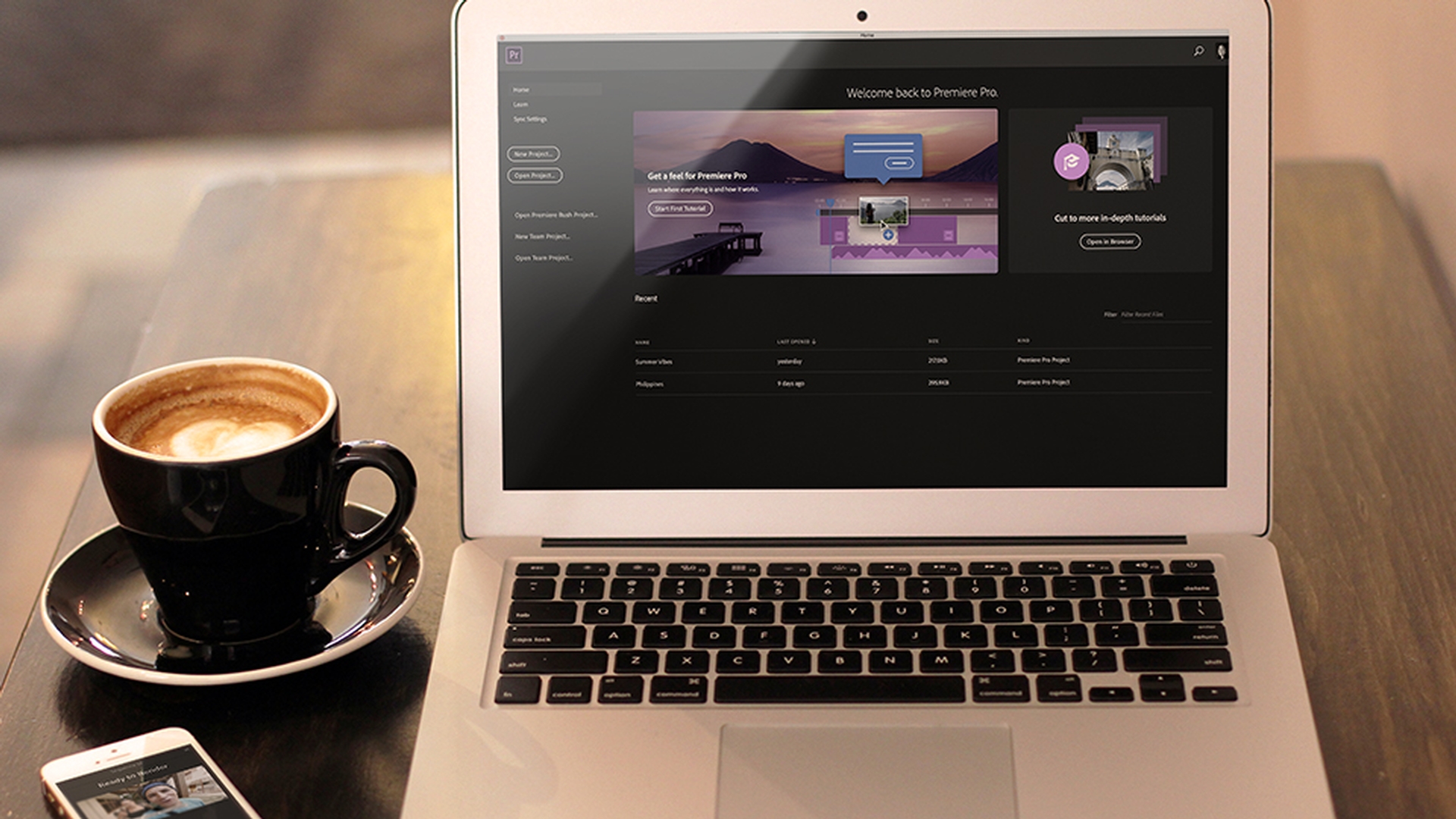
So, now that you know how to edit and share videos with Rush, now I want to show you how you can open and take your projects further using Premiere Pro CC.
So that way, you can harness the power of pro editing functionality.
So, how does this work?
Preparing a Rush project for Premiere Pro
Well, first, you need to create your project in Rush whether on mobile, tablet or desktop, and once you have started a project, just make sure that your project sync remains on for that project.
And so, by default, your project sync is always turned on, but if you turn it off, you will not see the project available to open up in Premiere Pro CC.
Opening a Premiere Rush project in Premiere Pro
So, now let's go ahead and open up Premiere Pro CC, and here from the Start screen, you need to click on Open Premiere Rush Project...
Then you'll see all of your current and synced Rush projects in this screen.
And if for some reason you aren't seeing the projects that you expect to see, just make sure that your computer is connected to the internet and also triple check to make sure that your project has syncing turned on.
So then, just identify the Rush project that you want to open and just click on it to open it up.
So, this new project will automatically be saved in your Documents folder and all of the media files connected with the original Rush project will remain in the original location.
So, now that we're inside of Premiere Pro CC,
Enhancing edits with advanced Premiere Pro tools
you can begin editing your project further.
So, for example, here in Premiere Pro CC, you can easily create speed ramps to your videos, so if you ever watched videos that have really cool slow-motion, you use time remapping to do that.
To do this, let's just right click on the clip to enable Time Remapping keyframes, and then what we can do is we can use the Pen tool to draw a ramp.
And what we can do is we can bring the second dot down over time, so we can create a ramp that goes from normal speed to slow speed.
So, let's just play this back, and now you can see it goes from normal speed at 100% and then we dropped it down to go to slow-motion.
Another tool that you can use to really take your edit further in Premiere Pro CC, is using adjustment layers.
So, from the Project panel, you can create an Adjustment Layer,
Using adjustment layers for advanced color correction
and you can drop this on top of all of your video clips, and then you can apply some advanced color correction and filters from the Lumetri Color panel here in Premiere Pro CC, and everything that you apply to this adjustment layer will be applied to all the clips beneath the adjustment layer.
Understanding limitations and workflow between Rush and Premiere Pro
So, opening up the Rush project in Premiere Pro CC is just a one-way path.
Edits will not be synced and reflected across the two applications.
And currently you cannot open up Premiere Pro projects inside of Rush.
So, that's all there is to the workflow between Rush and Premiere Pro CC and it gives you the flexibility to create fast and awesome video projects in Rush on mobile or desktop.
And now you know that you always have the option to open it up and take it further with Premiere Pro CC.