This part’s easy: make a square. That means you’ll create your artboard to a 1:1 ratio; ours is 1080px x 1080px.
2
The fun part: make a pattern!
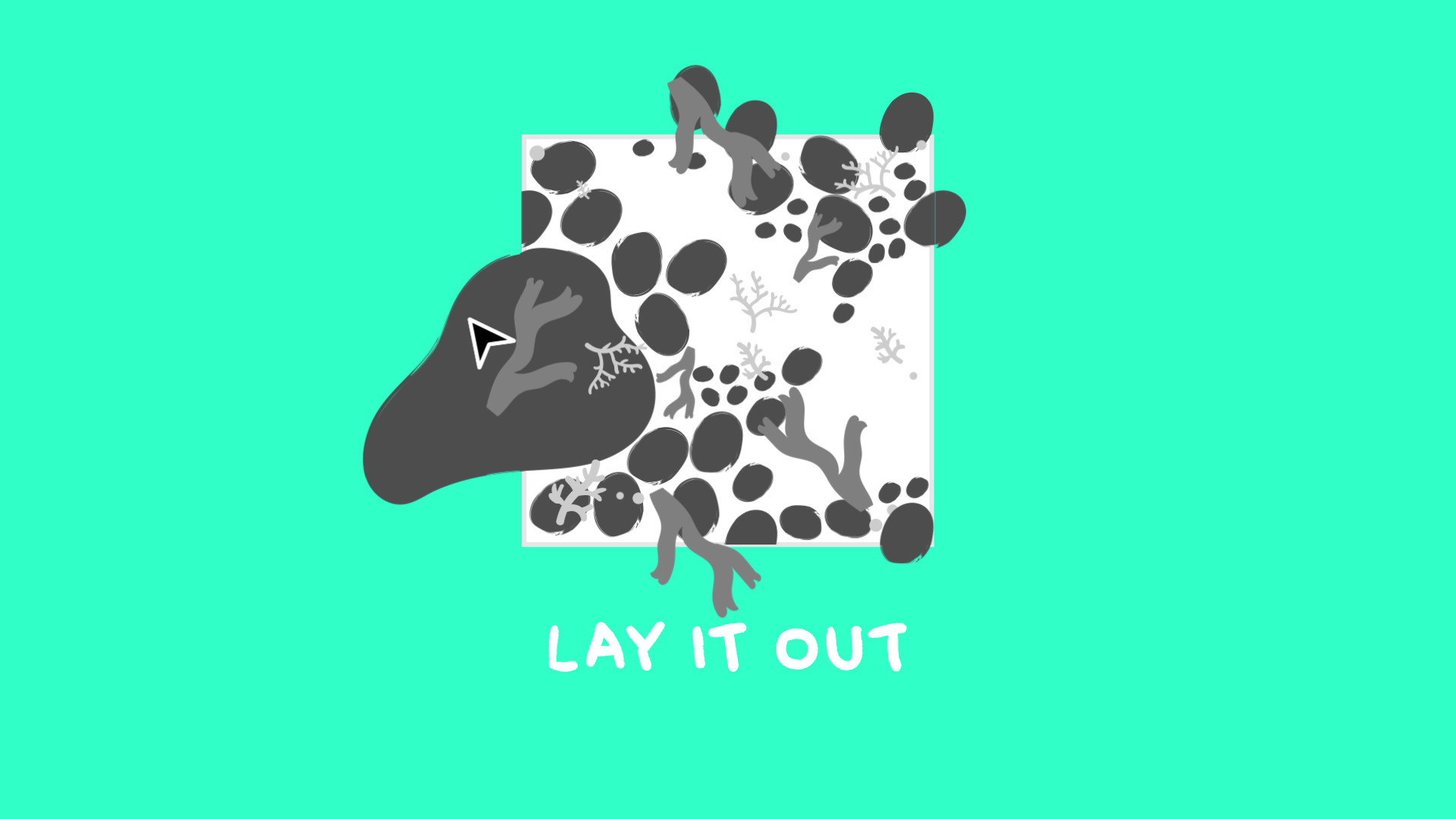
Use the pen tool to create shapes. Then, move them outside the bounds of the artboard.

3
Layout time
Seamless patterns need seamless edges. It’s like laying tile; you should be able to add a duplicate of your shape on any side and have it look seamless.
Now you can start laying out your pattern. For now, let’s keep it neat and tidy; don’t place anything over the bounds of the edges.
4
Okay, okay. Get those edges under control.
Start to design your edges by making them all match. To keep things organized, start on one side and design both top and bottom.
Make sure the left and right sides line up so that when you repeat your pattern it’s totally seamless.
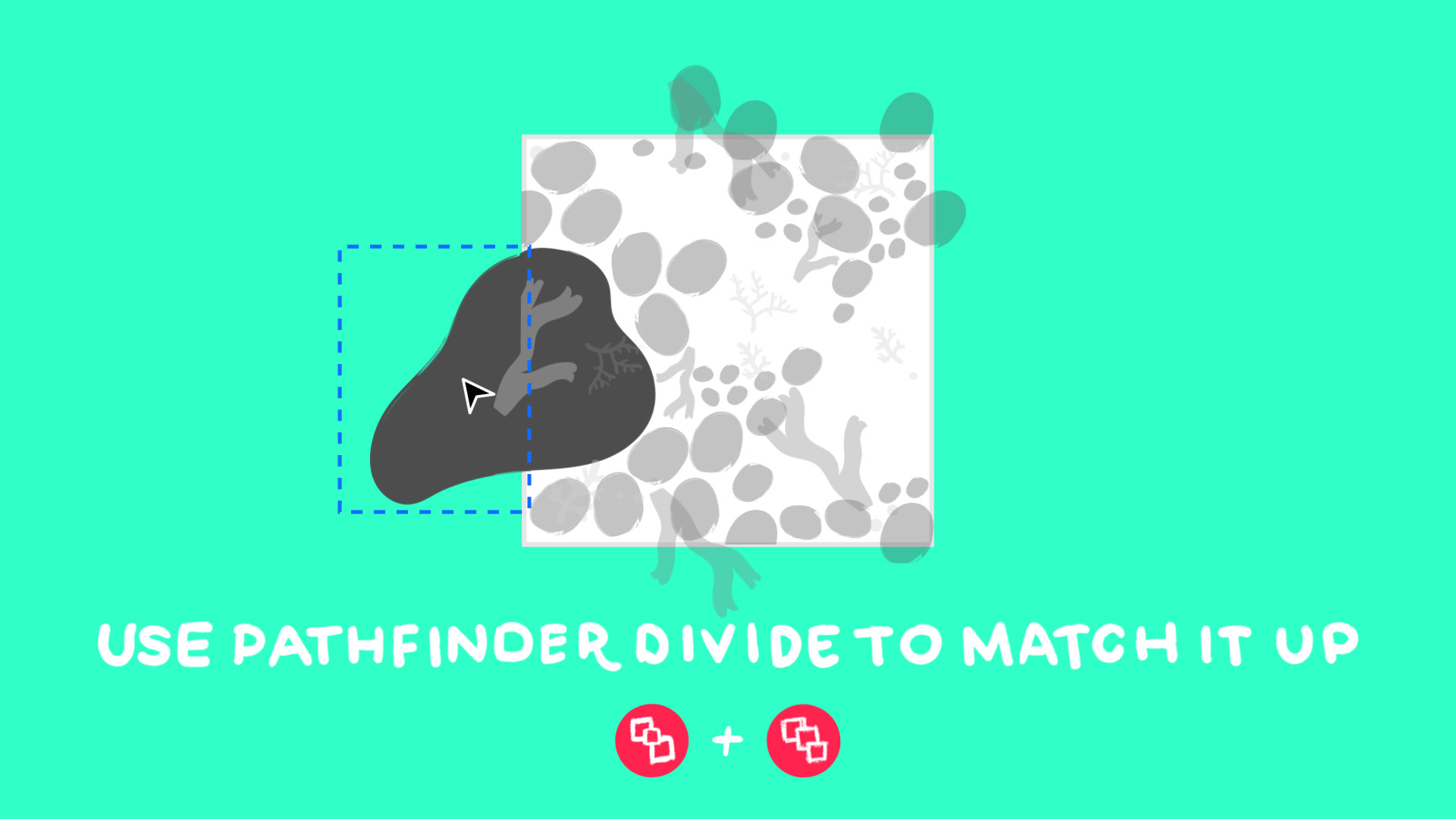
Next use Pathfinder (Window > Pathfinder) and the Pathfinder Divide tool (Window > Pathfinder > Pathfinder Divide) to divide your shape in half.
Pro tip:
To create a successful pathfinder, create another shape on top of the part of the shape you are trying to separate. Example: on the left edge, take the left half of your shape (the one on the outside of the artboard) and create a square over it that lines up perfectly with the edge of the artboard.
Click the divide tool to separate it.
Ungroup it.
Transform the position by holding shift to keep the same x-coordinate and move it to the right edge of your shape.
Don’t want to do it that way? You can also use the position coordinates and clipping masks.
Don’t freak out, you’ll need to do some math here. If you want to move something left to right: shift over your shape the exact number of pixels of the x-axis width.
If you want to move something up and down: shift your shape over the exact number of pixels of the y-axis height.
You did it, you math-ed! Once you have everything laid out and matched up, use a square (with no fill or stroke!) over your art board.
Now select everything on your artboard and beyond the bounds. Make sure the clipping mask is on top.
Right click “Create a Clipping Mask” or use the shortcut command + 7 to create a clipping mask.
5
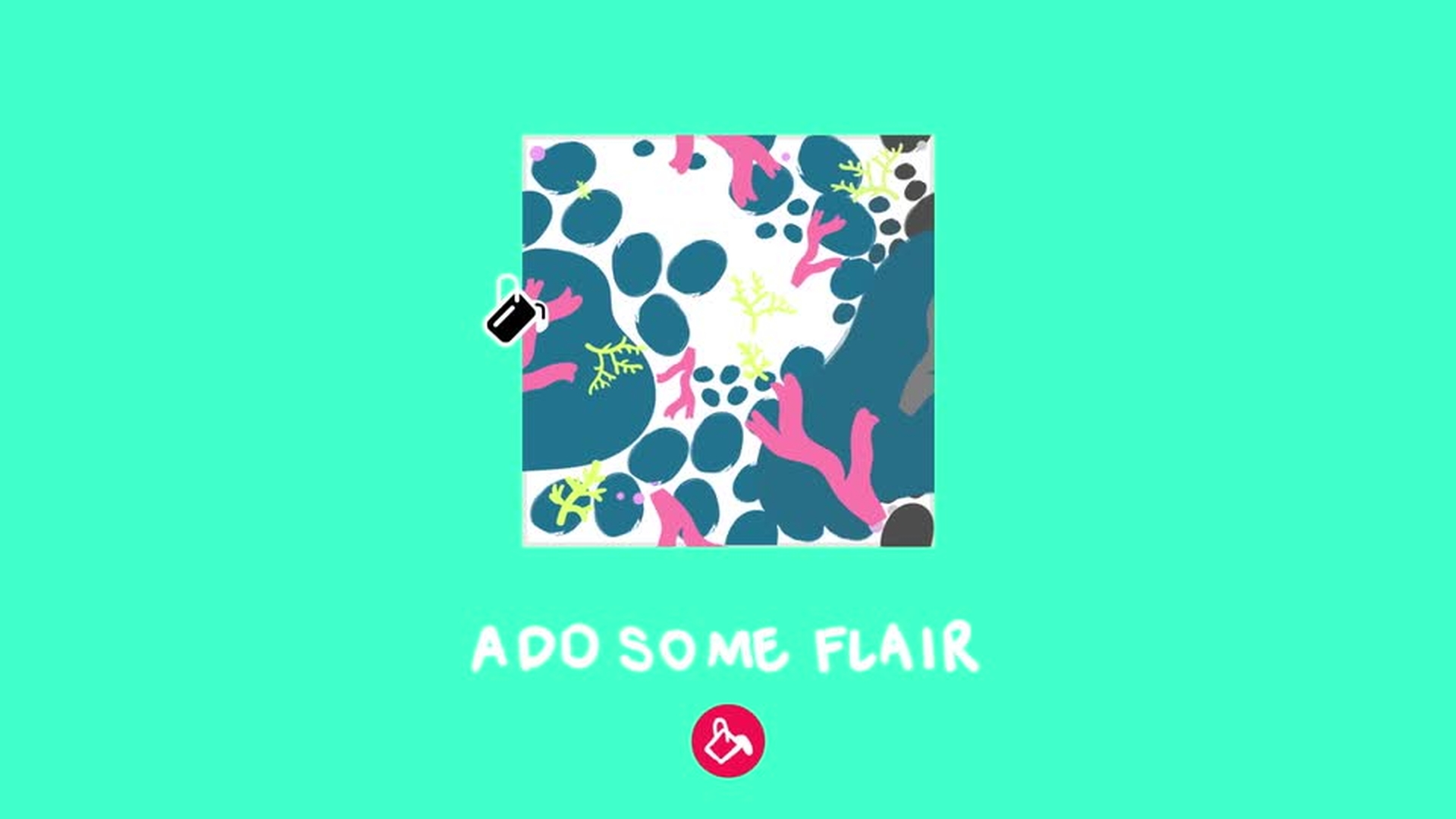
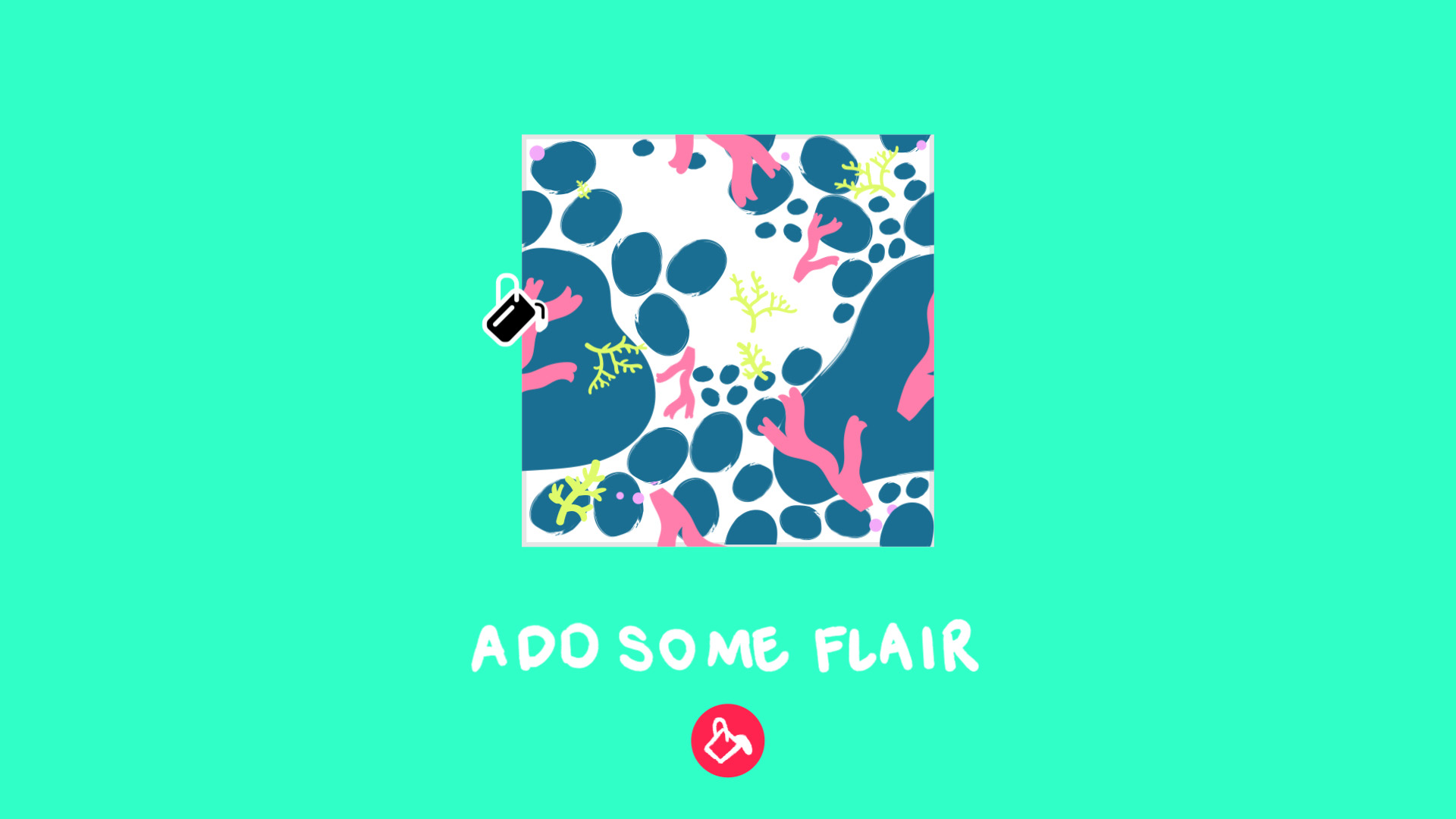
The easy part: add color!
Select 1. Your clipping mask or 2. Your grouped artwork. Then go to Object Window > Recolor Artwork > Edit Colors.
Pro tip: you can even use predetermined color coordinations from the Theme panel in the lower right hand corner. Just don’t get lost in all the options. Or do.
6
The pattern you’ve been waiting for
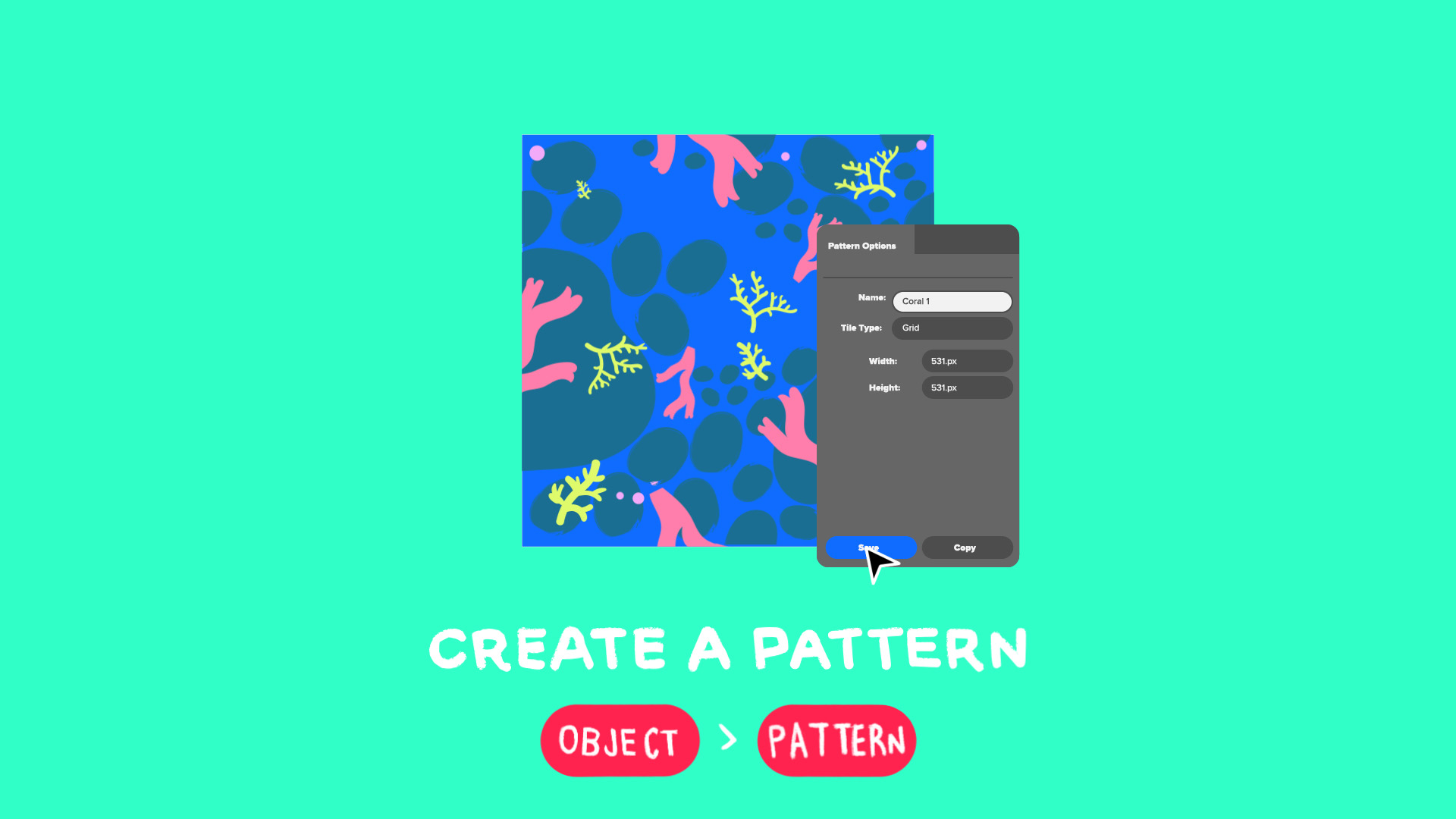
Select your artwork, go to the Object drop down menu, select Pattern > Make
A pop up menu will appear. Choose the grid option.
Double check to make sure the pattern’s height and width match the original dimensions of your artboard.
Name your swatch! Save! Celebrate!
7
Show the world what you’ve made
Your pattern will now appear as a swatch in your colors and swatches menu. You can place it in any object or image you want for the rest of forever.

You can control how Adobe websites use cookies and similar technologies by making choices below. But note that if you disable cookies and similar technologies entirely, Adobe websites may not function properly.
Cookies are small text files stored by your web browser when you use websites. There are also other technologies that can be used for similar purposes like HTML5 Local Storage and local shared objects, web beacons, and embedded scripts. These technologies help us do things like remembering you and your preferences when you return to our sites, measure how you use the website, conduct market research, and gather information about the ads you see and interact with.
You can make choices in the menu below about what cookies and other technologies you want us to use on Adobe sites when you visit them from this browser. You can always change those choices later by clicking on the Cookie Preferences link at the bottom of the page.
If enabled:
We can improve your experience by tailoring the site and the content to things we think might be of interest
We can better keep track of your preferences — like what language you prefer to use
We will better understand your likely interests so we can provide you more relevant Adobe ads and content on non-Adobe websites and in non-Adobe apps
It will help us improve the performance of our website and those of our partners who use the Adobe Experience Cloud
If disabled:
We won’t be able to remember you from session to session so the experience may not be tailored to your interests
You’ll still have access to the content of the site but certain features that depend on cookies may not function
You’ll still see ads, they just may not be as relevant to you
General information
You can control how Adobe websites use cookies and similar technologies by making choices below. But note that if you disable cookies and similar technologies entirely, Adobe websites may not function properly.
Cookies are small text files stored by your web browser when you use websites. There are also other technologies that can be used for similar purposes like HTML5 Local Storage, web beacons, and embedded scripts. These technologies help us do things like remembering you and your preferences when you return to our sites, measure how you use the website, conduct market research, and gather information about the ads you see and interact with.
You can make choices in the menu below about what cookies and other technologies you want us to use on Adobe sites when you visit them from this browser. You can always change those choices later by clicking on the Cookie Preferences link at the bottom of the page.
If enabled:
We can improve your experience by tailoring the site and the content to things we think might be of interest
We can better keep track of your preferences — like what language you prefer to use
We will better understand your likely interests so we can provide you more relevant Adobe ads and content on non-Adobe websites and in non-Adobe apps
It will help us improve the performance of our website and those of our partners who use the Adobe Experience Cloud
If disabled:
We won’t be able to remember you from session to session so the experience may not be tailored to your interests
We’ll still count your use of our site and services
You’ll still have access to the content of the site but certain features that depend on cookies may not function
You’ll still see ads, they just may not be as relevant to you
Operate the site and core servicesOperate site and measure engagement
Always active
These cookies are required, and they are used to enable the site and related services core functionality. Without them the site could not operate, so they cannot be disabled.
These cookies enable the site and related services’ core functionality and collect statistics about user engagement, such as counting active use to help us understand trends. These cookies cannot be disabled.
Measure performance
These cookies are used to analyze site usage to measure and improve performance. Without them Adobe cannot know what content is most valued and how often unique visitors return to the site, making it hard to improve information we offer to you.
These cookies are used to analyze site usage to measure and improve performance. Without them Adobe cannot know what content is most valued, making it hard to improve information we offer to you.
Extend functionality
These cookies are used to enhance the functionality of Adobe sites such as remembering your settings and preferences to deliver a personalized experience; for example, your username, your repeated visits, preferred language, your country, or any other saved preference.
Personalize advertising
These cookies are used to enable Adobe and our partners to serve ads more relevant to your interests. Without them you will still see ads, but they might not be as relevant to you.
Personalize advertising
These cookies are used to enable Adobe and our partners to serve ads more relevant to your interests. Without them you will still see ads, but they might not be as relevant to you.