
Acrobat
How to convert Google Docs to PDF: Step-by-step guide.
Whether you are finalising a proposal, sending a resume, or archiving a report, converting your Google Docs to PDF ensures your content stays consistent and professional. This guide shows you how to convert Google Docs to PDF using different methods and how to reverse the process or make final edits with Adobe Acrobat.

Published by Adobe Acrobat India on 4 November 2025
Converting a Google Doc to a PDF allows you to share, archive, or print your file in a format that maintains your original layout. Whether you are finalising a report, sending a resume, or preparing a client proposal, converting your Google Doc to a PDF ensures your content displays consistently across all devices.
This guide walks you through the most common ways to convert a Google Doc to a PDF, including desktop, mobile, and browser-based methods. You will also find steps for reversing the process, as well as tips for editing your final PDF if needed.
How to convert Google Docs to PDF.
The easiest way to convert Google Docs to PDF is by downloading it directly in PDF format. Here are the steps:
- Open your Google Docs file or create a new document.
- Go to File > Download > PDF.
- Find the PDF file in your desktop Downloads folder.
- Save the PDF in the folder of your choice.
This method is ideal for creating an offline version or attaching the PDF to an email manually.
Other methods to convert Google Docs to PDF.
Convert Google Doc to PDF via email.
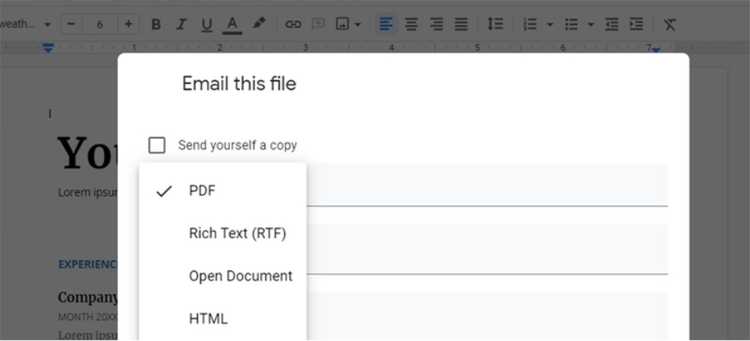
Besides saving the file as a PDF, you can also convert a Google Doc to PDF by emailing it from Google Docs, which generates the PDF and sends it in one step, useful for client communication and document approvals.
- Open your Google Docs file or create a new document.
- Select File, then choose Email > Email this file.
- Select PDF from the drop down menu.
- Enter the recipient’s email in the address bar. If you want to access the PDF file yourself, make sure to enter your email address.
- Add a subject and message if needed.
- Click Send.
This is a practical option when you want to share the document as a PDF without saving it to your device first.
Save a Google Doc as PDF in your browser.
If you need control over printing options such as page margins and paper size, you can use the browser print settings to convert your Google Doc to PDF with most major browsers.
- Open your document in Google Docs.
- Select File > Print.
- In the Destination menu, choose Save as PDF.
- Click Save and select a location on your device.
This method is useful when you want more control over print options, including margins, paper size and orientation, such as when preparing a report that needs to follow specific formatting or submission guidelines.
Try our online tools to edit your PDF after conversion.
https://www.adobe.com/dc-shared/assets/images/features/verb-icons/2-icon-add-comments.svg Edit PDF
Easily update text, images, and links in your PDF.
--- #b6b6b6
https://www.adobe.com/dc-shared/assets/images/features/verb-icons/6-icon-delete-pages.svg Delete PDF pages
Remove unwanted pages in seconds.
--- #b6b6b6
https://www.adobe.com/dc-shared/assets/images/features/verb-icons/2-icon-compress-pdf.svg Compress PDF
Reduce file size without losing quality.
--- #b6b6b6
https://main--dc--adobecom.aem.live/acrobat/features/media_1a53839eaed67357c18c4dba2e0eaef2e4477d5d1.svg PDF converter
Convert files to and from PDF effortlessly.
--- #b6b6b6
Editing your PDF after conversion.
After saving your Google Doc as a PDF, you may want to make additional edits or enhancements. Adobe Acrobat provides a range of tools for editing PDFs with precision and flexibility, without returning to your original file.
- Edit PDF: Add or modify text and images
- Reorder, insert or delete pages
- Highlight content or add comments for collaboration
- Compress the PDF to reduce file size
- Convert the PDF to other formats if further editing or formatting is needed
These features allow you to refine the final document without having to return to your original Google Doc, which is especially useful when making final edits to proposals or contracts before sending them off for review or requesting signature.
How to convert a PDF back to Google Docs.
If you need to edit a PDF in Google Docs, you can upload and convert the file using Google Drive.
- Upload the PDF to your Google Drive.
- Right-click on the file and choose Open with > Google Docs.
- The file will open as an editable Google Doc, using Optical Character Recognition (OCR) to extract the text.
This method works best with text-based PDFs. For more complex formatting, consider converting the PDF to Word format using Adobe Acrobat’s Convert PDF tool, then importing it to Google Docs.
Looking to convert your Word file to PDF instead? Try our free, online Word to PDF converter. Enjoy unlimited free use of this tool, no sign-in/up required.
Benefits of saving Google Docs as PDF.
There are several advantages to converting your document to PDF format:
- Consistent formatting: PDFs preserve your layout across different devices and operating systems.
- Secure sharing: PDF files can be password-protected and offer restrictions for editing or copying.
- Professional presentation: PDFs are widely used for official communications, contracts and business documentation.
- Offline access: Once downloaded, PDFs are accessible even without an internet connection.
- Cross-platform compatibility: PDFs can be viewed on virtually any device, whether desktop or mobile.