Acrobat
The ultimate guide to converting PDF to Word with OCR technology.
Discover how to convert PDF to Word with OCR using Adobe Acrobat and make scanned PDFs fully editable in just a few clicks.


Acrobat
Discover how to convert PDF to Word with OCR using Adobe Acrobat and make scanned PDFs fully editable in just a few clicks.
Published by Adobe Acrobat India on 22 August 2024
Last updated on 2 September 2025
This guide introduces OCR (Optical Character Recognition) technology, a smart solution to convert scanned PDFs into editable documents. With Adobe Acrobat, you can transform your scanned PDFs into text-rich, editable formats using OCR.
No more retyping – say hello to boosted productivity! This article will teach you how to convert PDF to Word with OCR using Adobe tools, so your scanned content becomes editable and reusable.
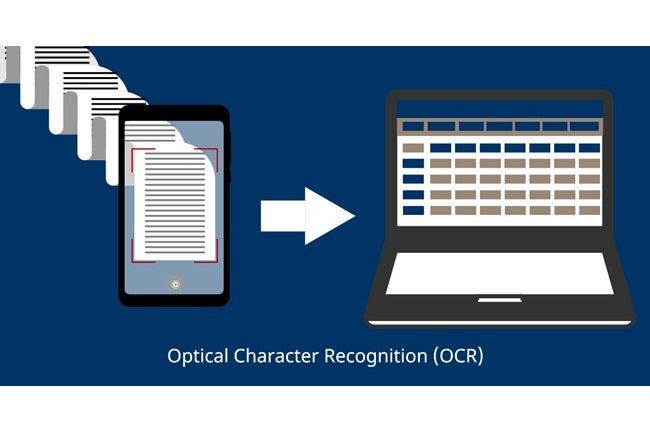
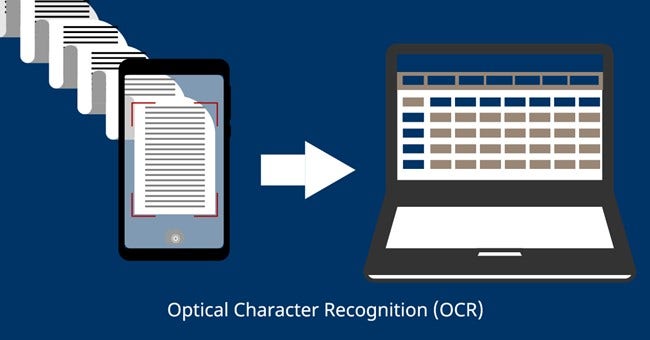
Have you ever looked at a scanned document and wished you could edit it as easily as a Word file? Well, you can! That's where OCR (Optical Character Recognition) technology comes in. Often called text recognition, OCR serves as a digital link between printed or image-based documents and editable formats.
OCR software detects characters in scanned images, text photos, or PDFs. The PDF to Word Convert OCR tool acts like a magnifying glass for your computer, carefully identifying individual letters in the image. These letters are then combined to form words and sentences, recreating editable text from the scanned image.
Today, efficient document management is no longer a luxury but a necessity. However, converting scanned PDFs into editable Word files is a common challenge for many professionals and businesses. Let's explore how OCR technology can convert PDFs into Word documents.
OCR eliminates the need for tedious manual retyping and reduces formatting errors. It scans text from scanned PDFs and converts it into editable Word content, ensuring accurate and consistent output. An effective OCR PDF to Word converter improves precision, especially for documents with structured layouts.
Manually converting a large PDF into an editable Word file can be time-consuming. A PDF to Word converter with OCR streamlines the process, turning scanned images into editable text within seconds, making it ideal for professionals dealing with high volumes of paperwork.
Maintaining the original formatting of the PDF is important, especially for complex files such as contracts and invoices. OCR PDF to Word conversion retains layout, fonts, and formatting, delivering an editable Word file that mirrors the original PDF as closely as possible.
Traditional PDFs are great for preserving document integrity, but they can't edit text. This is a challenge in today's paperless world. Adobe Acrobat's OCR PDF to Word tool bridges this gap by unlocking scanned content without altering the file’s structure. The Optical Character Recognition (OCR) technology in Adobe Acrobat allows you to effortlessly convert PDF to Word with OCR, streamlining your workflow and making information modification seamless.
OCR technology is widely used across industries to convert scanned documents into editable Word files. Here are some common use cases:
Using PDF to Word OCR tools saves time, reduces manual data entry, and improves document accessibility.