Acrobat
AI for homework using Adobe Acrobat Student Spaces and AI Assistant.
Explore how AI tools for homework can support students with answering questions, summarising content, assisting with assignment writing and boosting independent learning.
Acrobat
Explore how AI tools for homework can support students with answering questions, summarising content, assisting with assignment writing and boosting independent learning.

Published by Adobe Acrobat India on 15 July 2025
Last updated on 10 July 2026
JUMP TO SECTION
How can students use Adobe Acrobat Student Spaces for homework and revision?
What study materials can students use in Student Spaces?
What kinds of questions and prompts work best in Student Spaces?
How can students study smarter with Student Spaces?
What are the advantages of using Student Spaces for homework and revision?
How can students organise and review study material in Student Spaces?
How can students fact-check AI responses in Student Spaces?
How can Student Spaces support assignment writing and study preparation?
How can parents and teachers support AI use in Student Spaces?
What’s next for Student Spaces and AI-powered learning in Acrobat?
AI tools are changing the way students approach homework, revision, and research. Adobe Acrobat Student Spaces is designed to help school students, college learners, and exam aspirants study more effectively using AI-powered learning features within their PDFs. Instead of turning to separate websites or installing multiple apps, students can simply upload their learning materials into Acrobat and begin interacting with them. Acrobat AI Assistant can summarise documents, answer questions, and help students create revision-friendly study resources directly from PDFs.
For example, a student revising a biology unit can upload their textbook PDF and ask: “Summarise the process of photosynthesis” or “What are the three types of muscle tissue?” and the AI will deliver answers directly from the text.
Using Student Spaces in Adobe Acrobat is simple and doesn’t require switching platforms or logging into other tools. Students can use AI-powered study features and Acrobat AI Assistant in one place for homework, revision, and assignment preparation. Here’s how students can get started:
This makes studying more interactive and personalised.
Students can use a wide range of materials within Student Spaces in Adobe Acrobat to support homework, revision, and exam preparation:
Within Student Spaces, Acrobat AI Assistant can read and interpret searchable text-based content to help students study more effectively. Students can use the OCR PDF tool in Acrobat to turn files into searchable and readable PDFs.
To get the most value from Student Spaces and Acrobat AI Assistant, students can use clear, focused prompts to better understand homework, revision topics, and study materials. Here are a few examples:
Prompts should be as specific as possible. If a student is working on a case study, they might ask: “What is the company’s main challenge?” or “What recommendations are given in this report?” Students can also use Student Spaces features to turn learning materials into revision-friendly study guides, quizzes, and flashcards for more effective exam preparation.
Adobe Acrobat’s Student Spaces helps students turn homework materials and study notes into interactive learning resources. Using Acrobat AI Assistant alongside revision tools in Student Spaces, students can study more effectively, improve memory retention, and prepare for exams in one connected workspace.
Students can use Student Spaces features to:
Student Spaces supports students looking for AI tools for homework, revision support, assignment preparation, and smarter study workflows in one connected learning experience.
Many homework support tools require students to upload their content to unfamiliar platforms. With Adobe Acrobat Student Spaces, students can keep study materials, revision notes, and AI-powered learning support in one secure and familiar place. Benefits include:
This all-in-one approach helps students stay organised, study more efficiently, and manage homework and revision with greater confidence.
Once students have engaged with their content using Student Spaces and Acrobat AI Assistant, Acrobat offers multiple ways to organise, review, and enhance study materials for homework, revision, and exam preparation:
These tools help students consolidate learning in a way that feels organised, personalised, and easier to manage across homework, coursework, revision, and exam preparation.
While Student Spaces and Acrobat AI Assistant draw answers directly from study materials and PDFs, it’s still important for students to evaluate those responses critically:
Fact-checking encourages independent thinking and ensures students understand their materials.
Edit PDFs with minimal effort from anywhere, on any device. With Acrobat, you have instant access to the essential PDF tools you need — across desktop, mobile devices and the web. See how easy it is to edit, create, share, organise and e-sign PDFs on the go.

Yes, but with guidelines. Student Spaces and Acrobat AI Assistant can support the writing process by helping students organise ideas, review source material, and prepare assignments more effectively:
However, it’s essential that students write their own answers. AI should support learning and critical thinking, not replace original work.
Student Spaces and Acrobat AI Assistant offer new ways to personalise learning and support homework, revision, and study preparation. Here’s how parents and teachers can help students use these tools responsibly:
Using AI tools together can help students build stronger digital study habits and more responsible learning practices.
Adobe continues to evolve Student Spaces and Acrobat AI Assistant to support real-life learning needs such as studying, revision, collaboration, and exam preparation. Future developments may include:
Adobe is also expanding access to productivity and AI-powered creativity tools for students across India through accredited higher education institutions. This initiative supports the development of AI, digital creativity, and career-ready skills for the next generation of students and creators.



Student Spaces is a smarter way to study. Turn notes into podcasts, use AI assistant as a tutor and learn with your study group. Free for students.
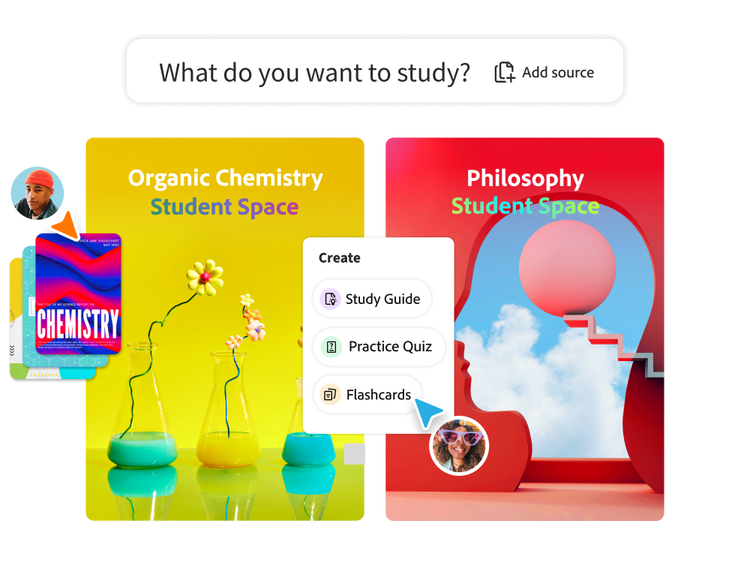
Start by uploading class notes, homework PDFs, or study materials into Student Spaces and using Acrobat AI Assistant to explore the content.
Student Spaces helps students turn study materials into interactive revision resources directly within Acrobat.
Yes. Students can use Acrobat AI Assistant and Student Spaces to generate quizzes from notes, chapters, and PDFs for revision support.
Yes. Students can organise notes, summaries, and study materials in Acrobat before converting content into presentation-ready formats.
Yes. Students can use the OCR PDF tool in Acrobat to convert scanned study materials into searchable text before using Student Spaces and Acrobat AI Assistant.
Yes. Student Spaces and Acrobat AI Assistant work within Adobe’s secure ecosystem to help students study and review materials safely.
Yes. Students can access Student Spaces and Acrobat AI Assistant through Acrobat’s mobile experience for studying on the go.
Yes. Acrobat makes it easy for students to share PDFs, collaborate on study materials, and review notes together.
Yes. Students preparing for competitive exams (such as JEE, NEET, UPSC, etc.) can use Student Spaces to organise notes, create revision resources, and review study materials more effectively.
Yes. Student Spaces is free for students for a limited time with fair-use limits on standard study tools.
Yes. Students can access Student Spaces with a free Adobe account and use selected study tools within fair-use limits.