
#1e1e1e

DESIGN

Complete beginner’s guide to digital art creation for online sales.

Bring your digital art ideas to life and turn them into products you can sell, all with Adobe tools. Whether you’re creating prints, merch, or downloadable art packs, Photoshop and Illustrator give you full control to draw, design, and export your work for any format. Built-in tools help beginners go from rough sketch to shop-ready artwork, even on mobile.

This guide shows how to make digital art that’s clean, scalable, and ready to sell, whether you’re illustrating characters, designing typography, or exploring abstract styles.
Explore Photoshop

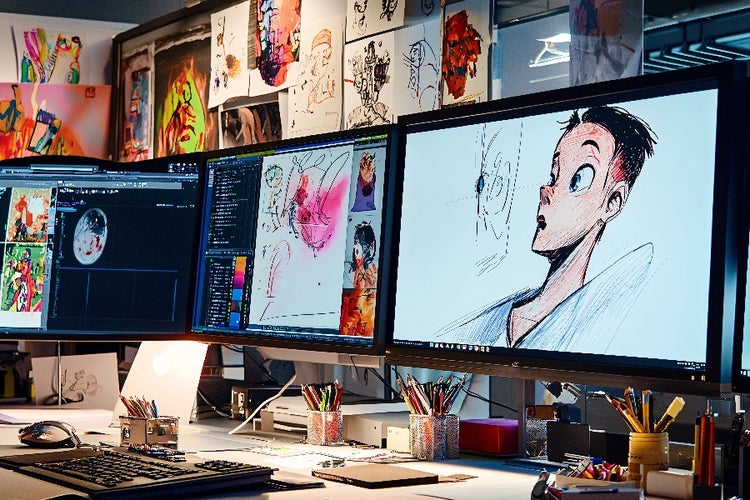
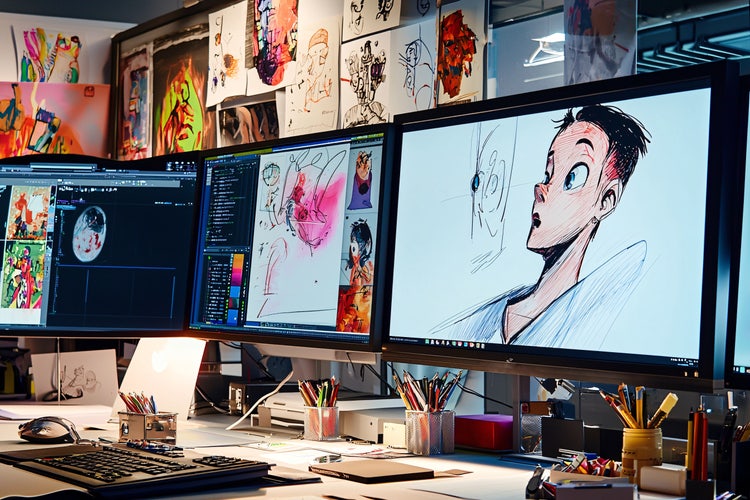
Vibrant digital art studio with dynamic digital art and animation displays.

Digital art creation made simple.

You do not need a full studio setup to start creating. With Adobe Creative Cloud apps, you can build professional-quality digital illustrations using built-in brushes, vector tools, and layer control whether you are on a laptop or a mobile device.

If you are a student experimenting with digital drawing tools, pens & tablets or a creator planning your first product drop, Photoshop and Illustrator help you sketch, refine, and export your work for online sales in just a few steps, using features like custom brushes to make your mark with Photoshop brushes and add unique character to every design.

Create high-quality digital art for online sales.

Photoshop and Illustrator make digital art creation more accessible with tools that help you work cleaner and faster.

  • Brush tools:
    Use Photoshop’s built-in brushes or load your own to sketch and colour. Try textured brushes for traditional media effects or smooth vector brushes for clean lines ideal for printing.
  • Layers and groups:
    Separate your background, outlines, colours, and text to stay organised. This makes it easy to adjust individual parts of your artwork without affecting the whole.
  • Vector tools:
    Use Illustrator’s Pen, Shape, and Pathfinder tools to create scalable designs. These are perfect for stickers, t-shirts, or logos that need to stay sharp at any size.
  • Export for print or web:
    Save your work in formats suitable for e-commerce. Export PNGs with transparency for merch mock-ups, or high-res PDFs and JPEGs for print.

Whether you are designing one piece or an entire collection, these tools help you make digital art that is flexible and shop ready.

#F5F5F5

Tips for digital illustration beginners.

Make the most of your time by building good habits early.
  1. Start with a sketch.
    Block out your idea using a basic round brush. You can clean it up later. The goal is to get the idea down quickly.
  2. Use references.
    Drop photos or past work into a lower layer to guide proportions, poses, or perspective.
  3. Keep your file tidy.
    Name your layers and group related parts like linework or colour base. You will save time and avoid mistakes later.
  4. Work at a large canvas size.
    Start big so your final art prints clean. 300 DPI at A3 size gives you flexibility to scale down for smaller products.
  5. Save your brushes and colours.
    Use Libraries to store your favourite tools so your next piece looks and feels consistent.

{{nbsp}}

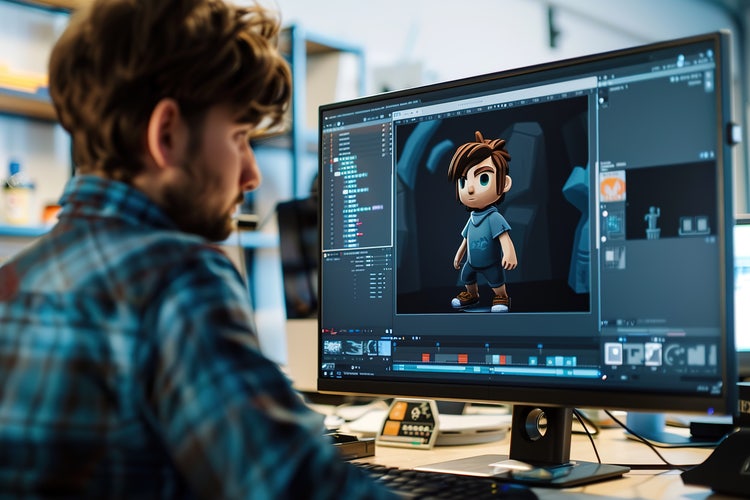
Digital artist working on 3D character design at a computer.

How to make digital art on phone using Adobe Creative Cloud apps.

  • Photoshop on iPad:
    Sketch with touch or Apple Pencil. Use layers, masks, and blend modes just like on desktop. Sync your files with Creative Cloud to finish them later a computer.
  • Illustrator on iPad:
    Create vector art with precision. Use the Pen tool, Curvature tool, and brushes to draw clean lines and scalable elements for digital illustration or print.
  • Adobe Fresco:
    Combine raster and vector brushes in a natural drawing experience. This is perfect for digital art for beginners who want to explore different styles.
#F5F5F5

Why creators across India use Photoshop and Illustrator for digital art creation.

From freelancers in Mumbai to student illustrators in Hyderabad, Adobe Creative Cloud apps help artists:

  • Create sharp, professional work for physical and digital products
  • Stay consistent across prints, social posts, and online listings
  • Work from home, cafés, or campuses even offline
  • Learn and improve with built-in tutorials and templates
  • Manage colours, fonts, and brushes with synced Libraries

Whether you are creating to express yourself or to launch a business, these tools support you from idea to income.

Success story: Amrit Pal Singh’s toy face journey.

Visual artist and illustrator Amrit Pal Singh has built a global following with his playful Toy Face and Toy Maker collections. Expanding his creative universe into limited-edition merchandise, Amrit shows how a streamlined Creative Cloud workflow makes the process simple.

In this video, he uses the Pen Tool in Illustrator to recreate his characters, then moves to Photoshop to mock up designs for production, from dieline design to final packaging. It is a perfect example of how Illustrator and Photoshop work seamlessly together to take digital art from concept to sellable product.

{{nbsp}}

https://www.youtube.com/watch?v=wvto3bjOYJw

#F5F5F5

Expand your editing workflow with other Creative Cloud apps.

Want to take your designs further? These apps work alongside Photoshop and Illustrator:

  • Adobe Lightroom: Edit and polish reference images or photography you include in your designs
  • Adobe Express: Quickly mock up product photos, sale graphics, or promo posts
  • Adobe Firefly: Use AI prompts to test backgrounds, textures, or visual variations
  • Adobe Acrobat: Package your digital art as PDFs to share or sell as downloadable
  • Creative Cloud Libraries: Keep your favourite brushes, colours, and type all in one place

With Creative Cloud Pro, you also get access to an expanded library of fonts, stock assets, and collaboration features that make scaling your digital art workflow even easier.

Together these tools help you go from concept to customer with pricing plans that fit freelancers, hobbyists, and full-time creators.

https://www.adobe.com/in/cc-shared/fragments/creativecloud/all-apps/ccpro-testimonials

Frequently asked questions.

How do I choose the right file format for different product types?
To choose the right file format for different product types, start by understanding where your digital art will be used. PNG is best for digital stickers, transparent backgrounds, or mockups on merchandise. JPEG works well for art prints and online listings where a small file size helps with fast loading. Use PDF for downloadable art packs or vector-based artwork like colouring pages. If you are working with platforms that require scalable files, exporting as SVG from Illustrator is ideal.
What platforms are best for selling digital art online from India?
When selling digital art online from India, consider platforms that support global reach and easy payouts. Etsy is popular for art prints and digital downloads. Gumroad and Payhip are good for selling directly to customers with minimal setup. For creators who want to add physical products like mugs or t-shirts, Printful and Redbubble connect easily with marketplaces. Always check if the platform supports the formats you export from Photoshop or Illustrator.
How can I speed up my workflow when creating multiple products?
To speed up your workflow when creating multiple products, use templates and reusable components. Set up canvas presets in Photoshop for common sizes like A3 or 1080x1080 pixels. Save brush sets, colour palettes, and text styles in Creative Cloud Libraries so you can reuse them without rebuilding. In Illustrator, use symbols for repeating elements like logos or borders so updates apply across your entire set. These habits help you create cohesive product collections faster.
What should I keep in mind when pricing digital downloads or printable art?
When pricing digital downloads or printable art, consider your time, skill level, and the type of licence you are offering. Higher prices can reflect exclusive use or bundles with editable files. For beginner creators, starting with low-cost items like single prints or templates builds visibility. Always check platform fees and factor those into your pricing. Offering tiered products or bundles also helps increase average order value.
Can I make digital art on phone and still sell it professionally?
Yes, you can make digital art on phone and still sell it professionally, especially with apps like Photoshop on iPad or Adobe Fresco. These apps support layered artwork, pressure-sensitive brushes, and export formats suitable for both print and digital. Make sure you work at a high resolution and save your files to Creative Cloud so you can access and refine them later desktop if needed. Many successful creators build their art businesses entirely from mobile workflows.

https://www.adobe.com/cc-shared/fragments/creativity-for-all/default

You may also like

Content as a Service v3 - file-type graphic design collection - Thursday 13 November 2025 at 15:32

https://main--cc--adobecom.aem.page/cc-shared/fragments/seo-articles/do-more-photoshop-color-blade