
Creativity for all
Photography, video, graphic design, illustration and so much more. Everything you need, wherever your imagination takes you.


DESIGN
A poster is more than just decoration. It is a chance to capture attention, tell a story, and showcase your creativity. This guide covers the key elements of poster design and walks you through practical steps in Adobe Photoshop, with tips to help you produce polished, professional work that is ready to impress in a portfolio or freelance application.
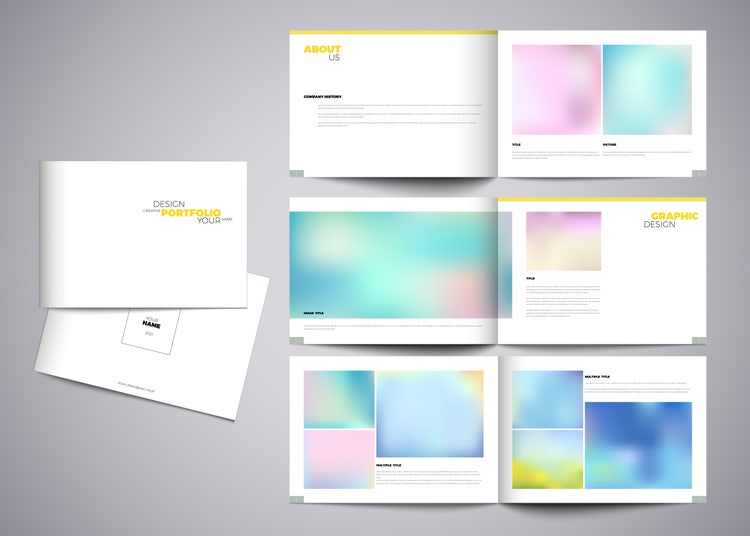
Poster design is one of the simplest ways to show creativity while making an impact. A well-designed poster is not just about sharing information, it communicates a clear message and leaves a lasting impression. For students applying to design schools or freelancers building a portfolio, posters are an excellent way to demonstrate style, technique, and originality.
While there are many ways to design a poster, some projects call for greater flexibility and precision. Adobe Photoshop is particularly useful as its combination of image editing, typography, and layout control makes it well suited for creating posters, providing the control to produce polished, professional designs that show off your abilities.
Strong posters are built on a few essential design elements. Paying attention to each one ensures your work is not only visually appealing but also effective in getting its message across.
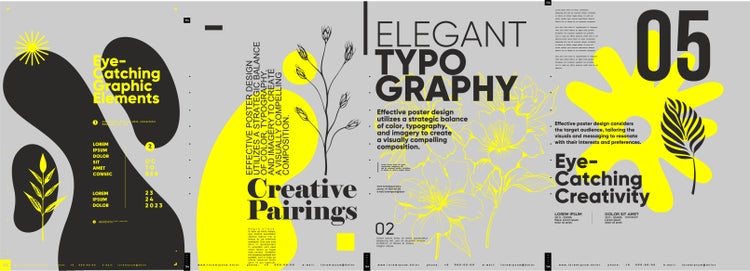
Typography shapes how words appear on a poster, from the choice of font to the size and weight of text. It plays a key role in directing the viewer’s attention, setting the tone, and making the design readable. A bold headline pulls people in, while smaller supporting text fills in the details. Good typography makes sure your message is clear at a glance and sets the right tone, whether you want the design to feel playful, serious, or somewhere in between.
Colour is one of the quickest ways to set mood and draw attention. The right palette brings harmony to the design, while contrast keeps text readable and highlights the most important points. A carefully chosen colour scheme can make your poster not only attractive but also memorable.
Images, whether photographs, illustrations, or graphics, are often what people notice first. High-quality, relevant visuals instantly signal what your poster is about and help create an emotional connection. Whether it is a striking photo or a simple illustration, the imagery you choose should add meaning and reinforce the overall message. Poor generic imagery, however, can make even a well-designed layout feel unprofessional.
Layout is the arrangement of all elements on the page. A clear, well-structured layout guides the viewer’s eye from headline to details, preventing clutter and confusion. Alignment, spacing, and balance are key here, ensuring the design looks intentional and easy to follow.
Hierarchy refers to the order in which information is presented visually. Not everything on a poster is equally important. Hierarchy is about showing viewers what to look at first, second, and third. For example, title and dates need to stand out more than background details. Establishing hierarchy through font size, colour, or placement ensures that viewers take in the most important information first.
White space, also known as negative space, is the area of a design left empty. Rather than being wasted, this space makes the poster easier to read by making the poster less cluttered and giving content room to breathe. It also helps draw attention to the most important elements, making the overall design look more professional.
Every poster should give viewers something to do, whether it is visiting a website, attending an event, or making a purchase. A clear call to action ensures the design has purpose and impact, transforming a poster from something people only admire into something they act upon.
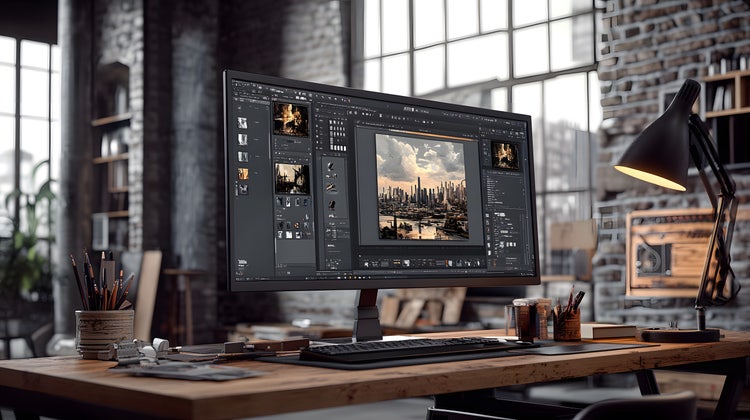
Every poster starts with a clear purpose. Decide whether you want to promote an event, raise awareness, or showcase your creative style, and think about who you are designing for. This will guide how much information needs to appear on the poster. Before opening Photoshop, sketch a quick layout on paper or digitally. This will make it easier to place your text and images once you begin your design.
Where your poster will appear determines how it should be set up.
When you create a new document in Photoshop, set the correct canvas dimensions straight away and choose CMYK for print or RGB for digital to ensure accurate colour output.
Keep your palette simple and consistent, with strong contrast between background and text. In Photoshop, define and save your chosen colours in the Swatches panel, then use the Eyedropper Tool to apply them consistently across text, shapes, and images.
Typography is key to making a poster readable and engaging. Use bold, larger fonts for headlines, slightly smaller text for subheadings, and a clean, simple style for the details. This creates a natural flow of information. The Type tool in Photoshop allows you to create separate text layers, while the Character and Paragraph panels give control over font size, spacing, and alignment.
High-quality images or graphics bring energy to your poster and help reinforce the message. Clear, well-chosen visuals create a professional finish and keep the design engaging. In Photoshop, place images as Smart Objects so they can be resized without losing quality, and use Layer Masks to blend or crop them seamlessly into your layout.
Icons are an effective way to simplify information and draw attention to details such as dates, times, or features. They make content easier to digest and add variety to the design. Vector-based icons can be imported into Photoshop and scaled freely, while the Properties panel lets you adjust their colours individually to match your colour scheme.
The most effective posters encourage people to take action, whether that is visiting a website, scanning a code, or turning up to an event. Keep the message short, visible, and easy to act on. In Photoshop, you can make your call to action stand out by pairing bold font type with a simple coloured shape, or by applying effects such as drop shadows for emphasis.
A good layout guides the viewer’s eye and avoids clutter. Balance text, images, and space so the design feels open and easy to follow. In Photoshop, turning on rulers and guides helps you align elements neatly, while snapping ensures consistent spacing. Checking the composition at different zoom levels can also reveal whether the poster feels balanced both up close and from a distance, especially if you are designing a print poster.
Before you finalise your design, check spelling, grammar, and spacing. You can zoom in within Photoshop to inspect details and zoom out to review the overall look gives you both perspectives. You can also save a draft and return to it later to highlight things you might miss the first time.
Once you have finalised your design, the final step is saving your poster in the correct format for its purpose.
Keeping a master Photoshop file ensures you can revisit and make changes without starting from scratch.
After exporting, consider sharing your poster online to reach your audience. You can upload it to portfolio websites such as Behance or Dribbble, share it on social media platforms like Instagram, LinkedIn, or Facebook, or use Creative Cloud libraries to collaborate with teammates. Sharing your work increases visibility and allows for valuable feedback from peers or clients.
A strong layout ensures your poster is clear, balanced, and easy to follow. Keep these practices in mind as you build your design:
While design trends may change, some fundamental rules can help a poster succeed:
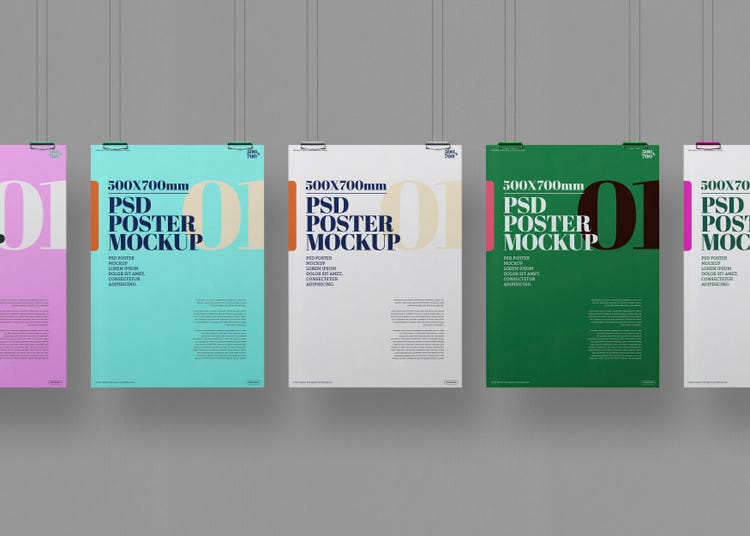
A poster is not just a finished design, it is also a chance to show your creative process and technical ability. When preparing work for a portfolio, focus on more than just the final outcome:
Photoshop remains the industry standard for poster design thanks to its versatility, precision, and integration with Adobe Creative Cloud. Here are some reasons why it is particularly powerful for both professional and portfolio work:
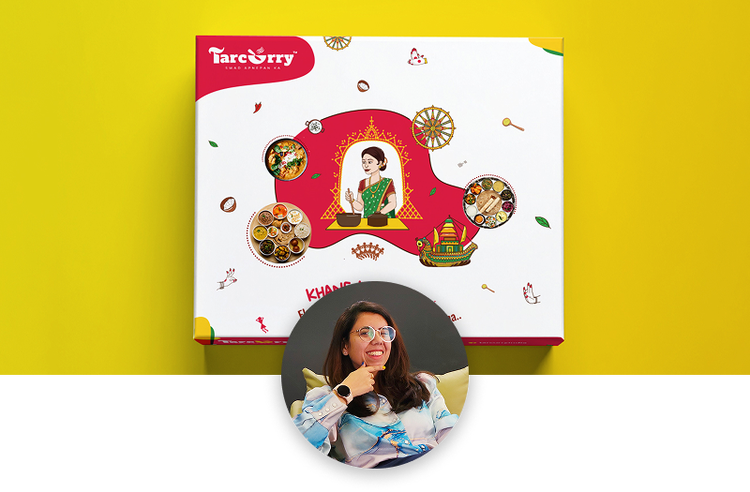
“I work across multiple apps for my branding projects. With Illustrator and Photoshop, I can move seamlessly between the two, without hampering my productivity.”
Nisha Droch, Designer & Co-founder, Creative Hatti
Photography, video, graphic design, illustration and so much more. Everything you need, wherever your imagination takes you.
Based on your location, we think you may prefer the United States website, where you'll get regional content, offerings, and pricing.



