How to create an infographic: A practical guide to designing infographics for projects and presentations.
Learn how to combine layout, text, and visuals to turn information into a clear, engaging infographic.
What is an infographic?
An infographic is a visual representation of information that helps explain ideas clearly and quickly. It combines text, data and design elements to make complex information easier to understand at a glance.
In learning contexts, infographics help organise information so it is easier to understand and remember.
- Infographics are useful for presenting large amounts of information in a simplified format.
- They can include charts, graphs, icons and illustrations to support key messages.
- Infographics are often used to repurpose text-heavy content into more engaging visuals.
- The primary purpose of an infographic is to inform, explain or educate an audience.
- Clear visual structure can help improve engagement and information recall.
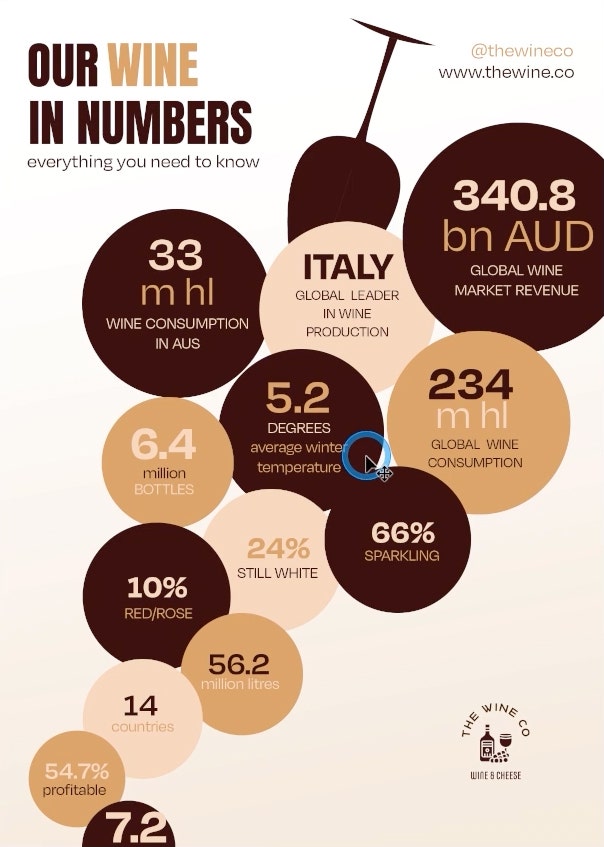
Types of infographics explained with examples.
Infographics can be used in different ways depending on the kind of information you want to present and the purpose of your assignment or project.
Common infographic types and uses.
- Statistical infographics: Used to present data, numbers or survey results clearly, for example exam results, population data or research findings.
- Informational infographics: Helpful for explaining a topic or concept, such as a science process, historical event or key facts from a chapter.
- Timeline infographics: Ideal for showing events in order, such as historical timelines, project milestones or the development of an idea.
- Comparison infographics: Useful when comparing two or more subjects, for example different theories, products or outcomes in coursework.
- Process infographics: Designed to explain steps in a sequence, such as a workflow, experiment method or learning process.
Simple infographic examples for learning.
- A timeline infographic explaining key events in Indian history.
- A comparison infographic analysing two literary characters or scientific theories.
- A statistical infographic presenting survey data for a school or college project.
- An infographic summarising key points from a textbook chapter or lecture, using icons and short text blocks to highlight important ideas.
Benefits of using Adobe Photoshop for creating infographics.
Adobe Photoshop provides flexible design features that help turn information into clear, visually engaging infographics suitable for learning, presentations and projects.
- Accessible design tools make it easier to design layouts that communicate information clearly, even for beginners.
- Customisable templates help you get started quickly while still allowing creative control.
- Colour and visual adjustment tools, such as the colour wheel, help create balanced designs that are easy to follow.
- Asset creation and capture features, including Adobe Capture, support building custom colour palettes and visual elements.
- Flexible export options allow you to convert your JPEG to PDF for easy sharing, printing or submission.
If you’re just getting started, learning how to use Photoshop can help you take full advantage of these infographic design features.
How to create clear and effective infographics?
- Plan your infographic layout with a sketch.
- Add images from Creative Cloud Library.
- Insert and format text clearly.
- Refine the design with final visual adjustments.
- Export your infographic for screen or print.
Step 1: Plan your infographic layout with a sketch.
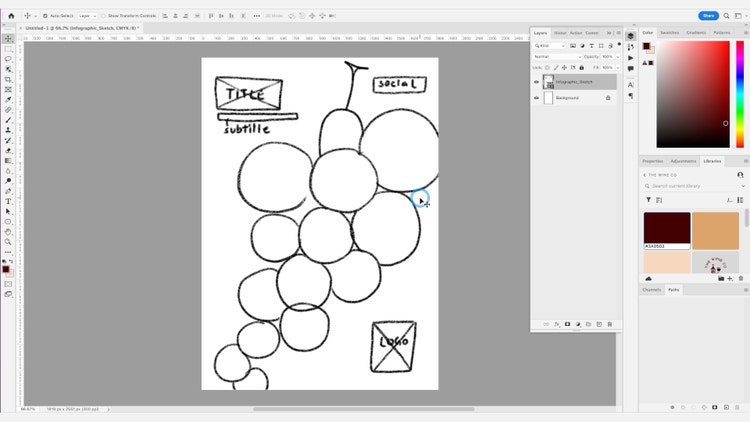
The sketch of an infographic provides a basic layout structure for your design. It helps you organise information visually before adding detailed content. Think about the visual language of your design and brand and use it as a key reference to shape your infographic. It is also important to map out the goal of your infographic, such as explaining a concept, comparing information or presenting data clearly.
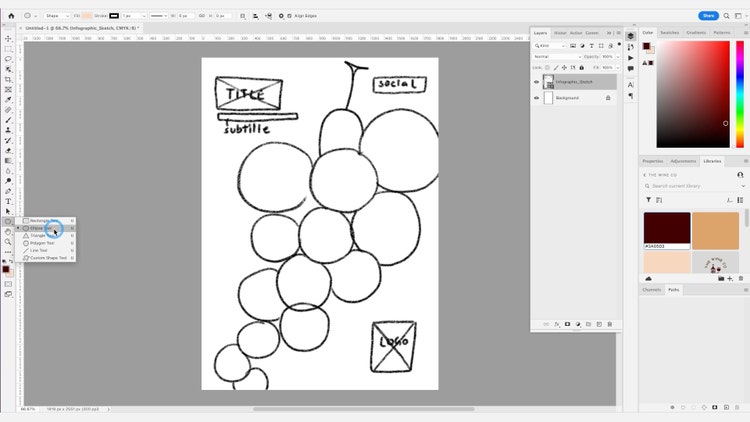
Your infographic can be identified not only by its data, but also by its design. Visual elements like shapes help guide the viewer’s attention to key information and structure the layout.
• To add a shape or design to your infographic, click and hold on the Shape tool in the toolbar to show the various shape options, such as Rectangle, Ellipse, Triangle or Customised Shape. Select the tool for the shape you would like to include in your design.
• To duplicate a shape, hold Alt on a PC or Option on a Mac and drag the shape into place. Experiment with spacing, alignment and repetition until your sketch clearly reflects the information you want to communicate.
Step 2: Add images from Creative Cloud Library.
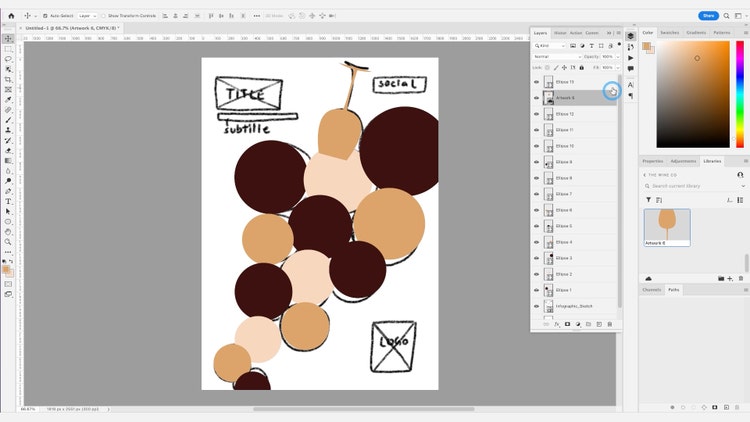
When you’ve created an outline of your infographic design, it’s important to include relevant visual assets that support your topic or message. If you have created branded assets like a company logo previously in Adobe Photoshop or in Adobe Illustrator, you can find these saved in your Creative Cloud Library and can insert them into your infographic to keep the design consistent and maintain brand awareness.
Using assets from Creative Cloud Library helps you reuse images, colours and graphics across projects, making your infographic easier to manage and update.
Step 3: Insert and format text clearly.
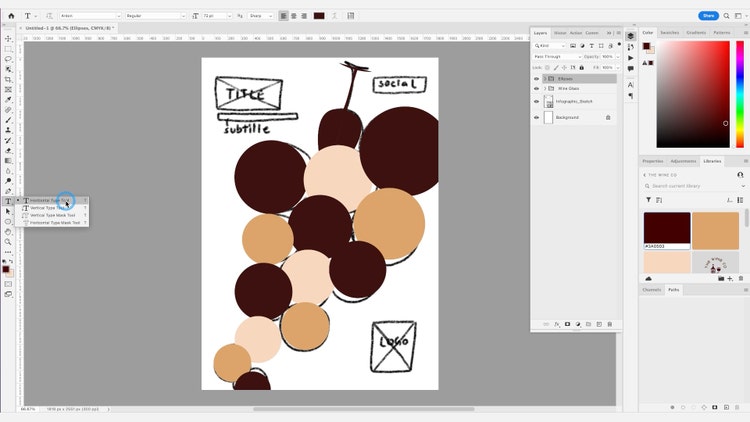
If you have designed other marketing collateral already, such as a promotional flyer or product mockup, you may already have identified and used a certain font family. Using the same font helps maintain consistency and improves readability across your infographic.
To add type objects and text, go to the horizontal Type Tool and click the canvas where you want to enter the text. Double click the pre-filled text and enter the text you want to add. To add more text layers, select the existing text, hold Option if you’re on a Mac or Alt key on a PC and drag down below to create a duplicate.
Font size and style play an important role in how easily information can be read. It is important that the font style you choose does not go below 9pt to ensure legibility for print. Selecting a simple font will ensure your infographic is easy to read.
Step 4: Refine the design with final visual adjustments.
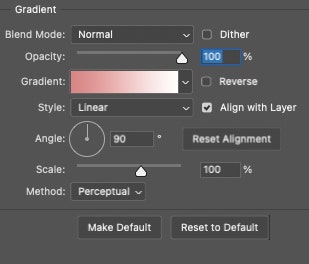
To finalise your infographic with a professional-looking finish, make small visual adjustments that improve depth and balance, such as adding a subtle gradient. To do so, add a new adjustment layer from the Layers panel and then click the gradient layer.
You can edit the gradient colours and style from Linear to Radial, Diamond etc. and even change the angle and direction of the gradient. A simple linear gradient often works best, as it adds visual interest without distracting from the information.
Step 5: Export your infographic for screen or print.
Once your design is complete, the final step is to export your infographic in a format suited to how it will be shared or submitted.
Exporting for screen use.
To export your graphic for screens, go to File > Export > Quick Export as PNG and browse to where you want to save the file. This format works well for digital sharing, presentations and online submissions.
Exporting for print.
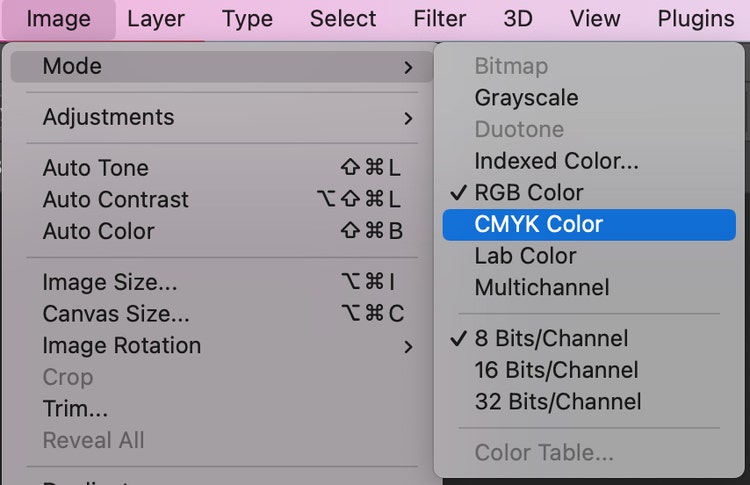
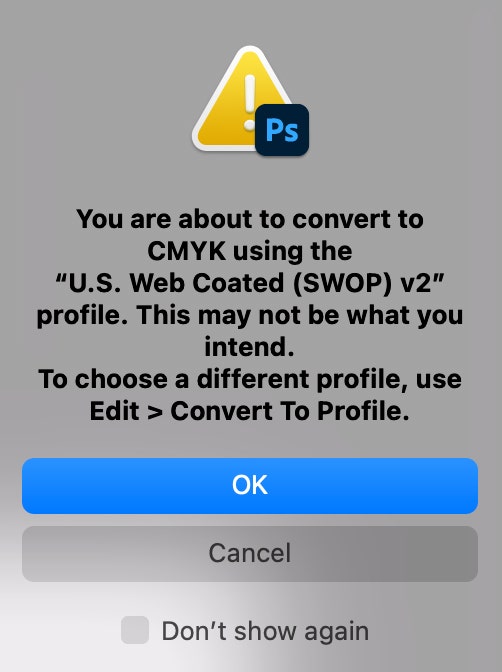
To export for print, firstly ensure to change the colour mode of the document to CMYK, go to Image > Mode > Select CMYK Colour. Dialogue boxes will pop up to indicate that some appearances may change when doing so. Make sure to group everything before and convert it to a smart object to ensure settings are preserved.
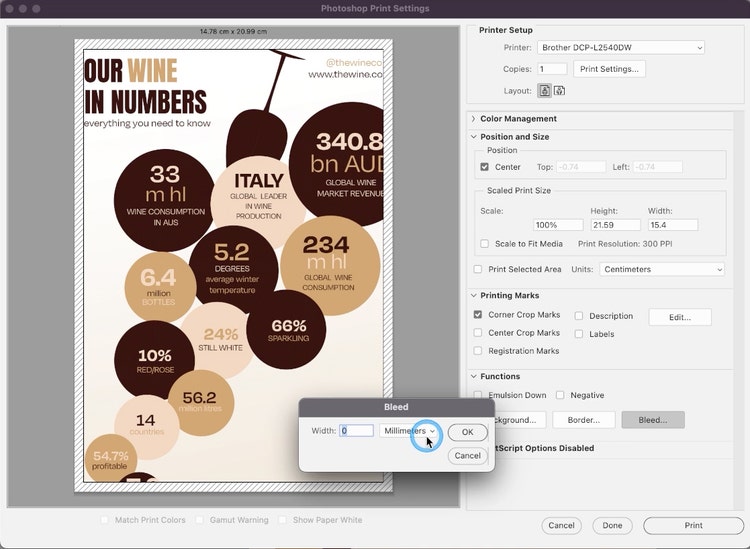
Once selected, go to File > Print > and set the settings for corner crop marks and set Bleed to 3 mm. Click Print or Save as PDF for future use. After exporting, review your file to ensure text, colours and spacing appear as intended.
Learn how to export files in Photoshop
You are now ready to create infographics for projects, presentations or personal use. With Adobe Photoshop, you can combine text, images and colour to present information clearly and creatively.
Create more with Adobe Photoshop.
With Adobe Photoshop, the options of what you can create for your business or brand are endless. Seamlessly create marketing collateral in a flash or discover how to create a promotional flyer to add to your brand’s repertoire.