PHOTOGRAPHY
What is the exposure triangle in photography? A beginner’s guide to better shots.
The exposure triangle is a core photography concept that describes how three camera settings: aperture, shutter speed, and ISO, work together to control a photo’s brightness. Whether you’re capturing the busyness of a bustling street scene, the golden rays of sunset, the many colours of a lively Indian festival, or the sweet moments of a wedding, getting the light perfectly can spell the difference between good shots and bad ones.
This blog breaks down how the exposure triangle works, what each setting does, and how you can use Photoshop to fix exposure mistakes, so you can take and edit photos like a pro.
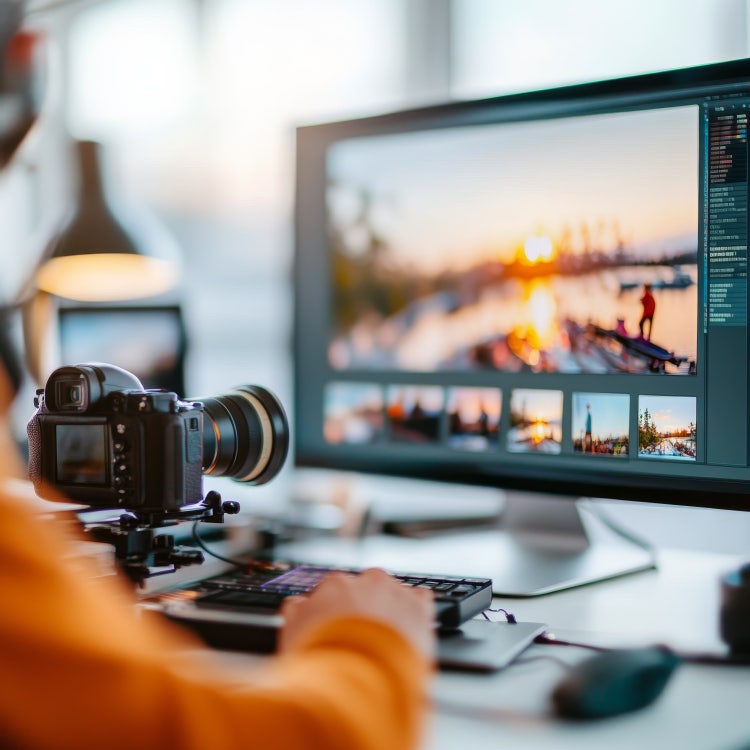
The three elements of the exposure triangle.
The exposure triangle comprises three camera settings: aperture, shutter speed, and ISO. Each element affects your photos in a specific way, and when you adjust one side, it influences the other two. This is why understanding how they work together is fundamental in gaining complete control of your camera and snaps.
Let’s dive into each side of the exposure triangle.
Aperture: for controlling depth and light.
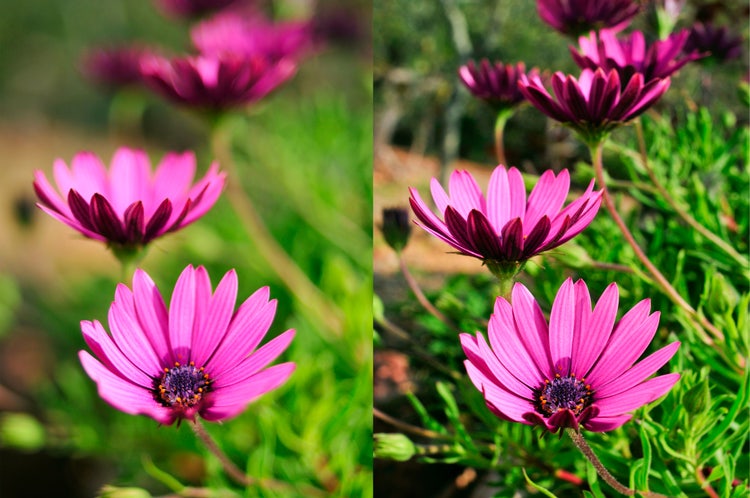
Aperture refers to the size of the opening in your camera lens. It is measured in f-stops, such as f/1.8, f/4, f/16, and so on. This adjustable opening controls the amount of light entering your camera lens. A lower number (for example, f/0.7) translates to a wider opening, meaning it collects more light. The higher the number you choose, the less light you allow to enter.
Aperture also controls the depth of field (DoF), which is the area in a photograph that appears sharp and in focus. A shallow DoF results in a photo wherein the background is blurry, while a narrow DoF has the majority of the frame in focus.
Thus, when you opt for a larger aperture setting, you can expect brighter photos with reduced details in the background.
Shutter speed: for freezing or blurring motion.
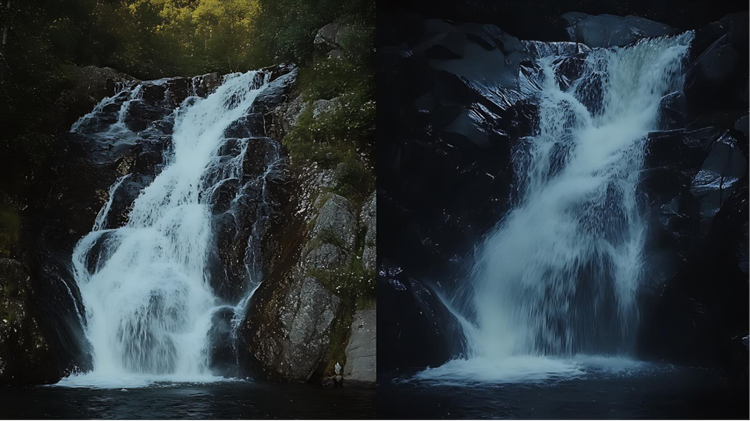
Shutter speed determines how long your camera’s shutter stays open. This affects exposure because the longer the shutter stays open, the more light enters your camera.
This setting is measured in seconds and fractions of seconds. A slower shutter speed results in illuminated photos that have the motion blur effect, which is great for capturing water movements, traffic lights, and moving crowds.
Alternatively, a faster shutter speed gets you low-lit photos that freeze action, which is ideal for photographing sports, animals, and dances.
ISO: for brightness and image grain.
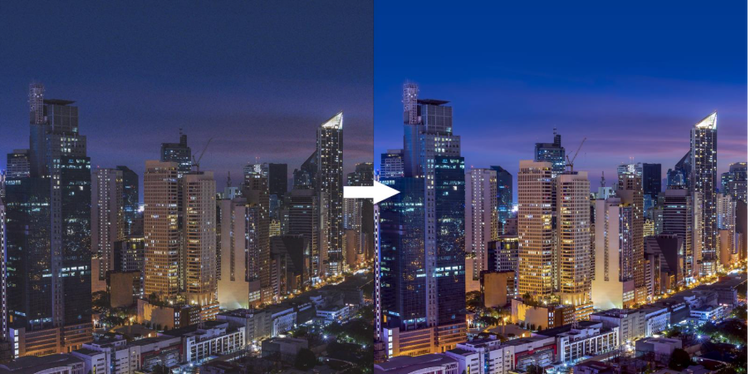
ISO measures your camera’s sensitivity to light. Simply put, the higher the number of the ISO, the more light is absorbed. Increasing the ISO results in brighter images, even without adjusting the aperture or shutter speed.
Low ISO (around 100-200) is ideal for daylight photography with ample natural light. High ISO (1,000 and up) is useful for low light conditions and shooting at night.
However, increasing ISO also introduces noise/grain into the image. The key is to use just enough ISO to brighten the shot without losing quality.
What is the purpose of the exposure triangle in photography?
The exposure triangle exists to help photographers understand the relationship between light, camera settings, and creative control. Its purpose isn’t just to achieve correct brightness: it’s to help you balance three interdependent settings (aperture, shutter speed, and ISO) to produce images that match your artistic intent.
Each corner of the triangle influences exposure in a different way, but all three must work together in harmony. For instance, if you want to freeze motion, you increase the shutter speed. Since this action allows less light to enter, you need to balance it by widening the aperture or raising the ISO.
Mastering this exposure triangle is crucial to creating a strong foundation in photography. It’s these basics that can guide you to becoming a professional photographer with full control of your craft.
How to adjust exposure in Photoshop.
Sometimes, it can’t be helped when your photos don’t turn out the way you want them to. When that happens, you can always rely on some post-processing magic. With Adobe Photoshop, for instance, you can easily fix exposure and manipulate light to achieve better photos. There are different ways to do this:
Create an exposure adjustment layer.
- Open your image in Photoshop.
- Go to Adjustments and choose Exposure.
- In the Exposure window, drag the slider to the left or right to adjust the exposure.
Create a brightness and contrast layer.
- Open your image in Photoshop.
- Go to Layer > New Adjustment Layer > Brightness/Contrast.
- In the Brightness/Contrast window, drag the slider to the left to darken the photo and to the right to lighten it.
Use Adobe Camera Raw.
- Open your image in Photoshop.
- Click on the layer and then Convert to Smart Object.
- Go to Filter > Adobe Camera Raw Filter.
- Use the panels for Exposure, Contrast, Highlights, Shadows, Whites, and Blacks to adjust the image.
Photography tips for beginners.
It’s normal to feel lost when starting out on your photography journey. With practice, you’ll start learning how each camera setting affects the final image and know exactly how to fix it later if needed. Here are some tips you can use to help you:
- Shoot in Manual mode: It allows you to fully control the aperture, shutter speed, and ISO settings of your camera as opposed to opting for Auto Mode.
- Use the Histogram: It indicates if the photo is too dark (underexposed) or too bright (overexposed).
- Shoot in RAW format: It gives greater flexibility for post-processing and better effectiveness for corrections.
- Use a tripod for stability: Slow shutter speeds, camera shakes, and inaccurate focus can lead to blurred photos.
- Use Adobe Creative Cloud apps: You can combine Lightroom for quick adjustments and Photoshop for detailed retouching and photo manipulation.
For more photography tips, check out our article to master the essentials of photography.
Frequently asked questions.
What is the difference between exposure and brightness in photography?
How do I know if my photo is overexposed or underexposed?
How does exposure affect colour and contrast?
What is the difference between RAW and JPEG in terms of exposure?
How can I use Lightroom to adjust exposure settings?
You may also like
Content as a Service v3 - file-type photo collection - Friday 5 December 2025 at 13:22
caas:business-unit/creative-cloud,
caas:products/photoshop,
caas:content-type/article,
caas:product-categories/photo,
caas:topic/creativity-design,
caas:topic/digital-imaging