Photography
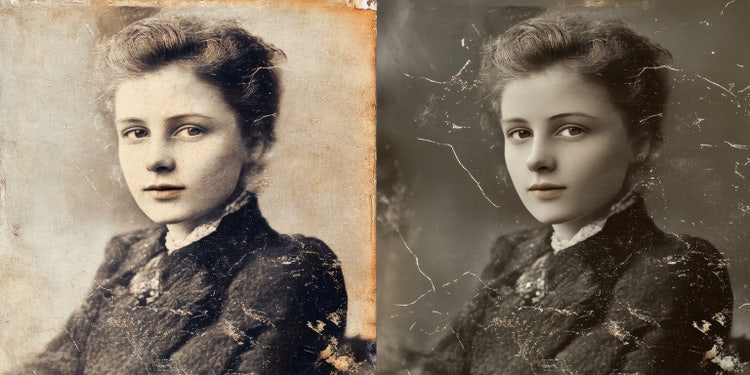
Bring your old photos back to life with these restoration tips.
Learn how to restore old photos and preserve precious memories with simple techniques and powerful photo restoration tools.
A guide to photo restoration.
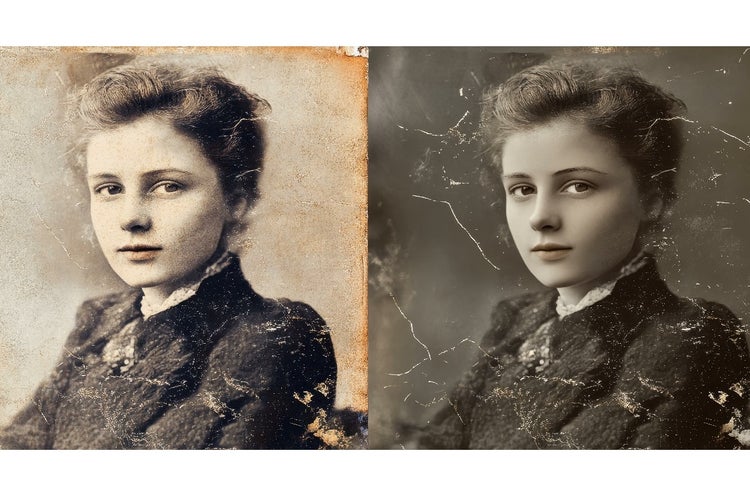
Old photo restoration is more than just improving image quality; it’s about preserving memories and ensuring that family history is kept alive for future generations. Restoring old photos can breathe new life into damaged old photos, allowing you to share and celebrate your past with loved ones. Whether you are working on a single treasured image or digitising an entire archive, learning how to restore old photos helps safeguard those precious moments from further deterioration. You can achieve this using industry-leading tools like Adobe Photoshop, which offers the precision and flexibility needed for high-quality restorations.
How to restore a photo: Key steps to begin.
Before diving into digital photo restoration software, it’s important to prepare your old photos properly:
- Clean the photo gently: Use a soft brush or microfibre cloth to remove dust and debris from your damaged old photo. Avoid using water or cleaning solutions.
- Scan at high resolution: Scan your photo at a minimum of 600 DPI to capture as much detail as possible. This will give you greater flexibility during the restoration process.
- Save multiple copies: Always work on a duplicate image to preserve the original scan. This way, you can experiment with different photo restoration techniques without the risk of losing your progress.
Once your photo is scanned, understanding the different image file types like TIFF, JPG, and PNG can help you choose the best format for restoration and long-term storage.
Digital tools to restore old photos.
Once you have your scanned image, photo restoration software can help you repair damage and enhance photo quality. Here are some popular tools and their strengths:
- Adobe Photoshop: Known for its advanced editing capabilities, Photoshop photo restoration tools like the Spot Healing Brush, Clone Stamp, and Patch tool are perfect for fixing tears, scratches, and stains.
- Adobe Lightroom: Ideal for adjusting exposure, contrast, and sharpness to improve faded or dull images.
If you are unsure which program suits your needs, check out this Lightroom vs Photoshop comparison to see how each tool excels at different aspects of photo editing and restoration.
How to restore old photos in Photoshop: Detailed techniques.
For those using Photoshop, here are some photo restoration Photoshop techniques to repair and enhance images:
- Spot Healing brush: Quickly remove small scratches, dust, and stains by painting over imperfections. Photoshop restore old photo tools like this are user-friendly and highly effective.
- Clone Stamp tool: Duplicate sections of the image to cover up larger areas of damage. This is particularly useful for repairing missing parts of your photo.
- Patch tool: Select a damaged area and blend it with a cleaner section of the image. This is ideal for fixing tears and large blemishes.
- Content-Aware Fill: Automatically fill in missing or damaged areas using the surrounding pixels. This can be a time-saving technique when restoring large portions of a damaged old photo.
Need help removing unwanted objects or damage from your images? Learn how to remove objects in Photoshop using tools like Content-Aware Fill and the Clone Stamp for seamless repairs.
Enhancing old photos: Improving colour and contrast.
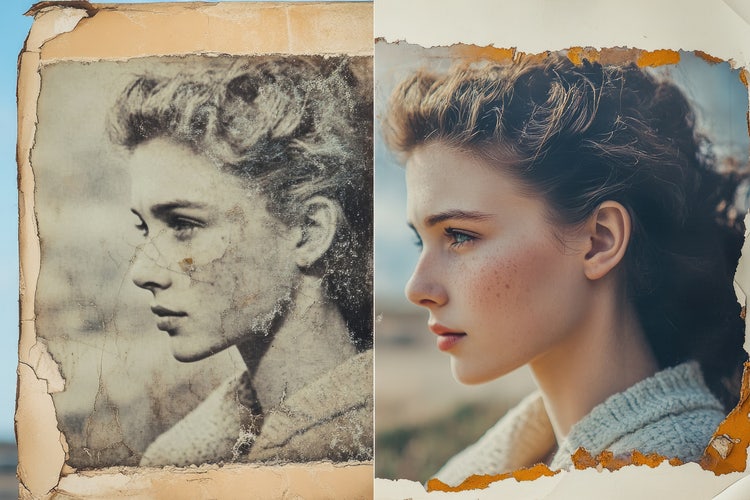
Restoring old photos is not only about repairing damage but also enhancing the overall appearance of an image. Here’s how to enhance old photos effectively:
- Adjust brightness and contrast: Use Levels or Curves adjustments in Photoshop to correct faded tones and bring out hidden details.
- Correct colour balance: Apply Colour Balance or Hue/Saturation adjustments to restore accurate skin tones and vibrant colours.
- Sharpen the image: Use the Unsharp Mask filter to enhance photo clarity without introducing noise.
- Reduce noise: If your scan contains grain or digital noise, the Reduce Noise filter can smooth out imperfections while maintaining details.
To achieve precision when correcting brightness or enhancing colour, explore Photoshop’s adjustment tools for mastering brightness, contrast, and colour balance during your edits.
How to restore old pictures with advanced Photoshop techniques.
For more complex restorations, advanced Photoshop photo restoration techniques can help you achieve professional results:
- Layer masks: Apply edits to specific parts of your image without affecting the entire photo. This allows for precise corrections.
- Frequency separation: Separate texture and colour layers to retouch skin tones and smooth out blemishes in portrait photos.
- Blending modes: Experiment with blending modes like Multiply to darken faded images or Soft Light to enhance contrast subtly.
When working with layers and masks, understanding Photoshop layers basics can help you work non-destructively and gain more control over your edits.
Preserving restored photos for the future.
After restoring old photos, it’s essential to protect your newly restored images:
- Save in multiple formats: Save a high-resolution version in TIFF for maximum quality and a JPG version for easy sharing.
- Back up your files: Store copies on external drives and cloud services to prevent data loss.
- Print on archival paper: High-quality paper and ink ensure your restored photos last for generations without fading.