
Content as a Service v3 - file-type graphic design collection - Monday 7 July 2025 at 18:12


The human brain constantly seeks narrative. If you create a montage (a sequence of different images), your audience will infer a relationship between the images. In the 1910s, Soviet filmmaker Lev Kuleshov demonstrated this phenomenon by juxtaposing the image of a man with three other, alternating images: a bowl of soup, a child in a coffin and a woman on a divan. Kuleshov’s audience thought the man’s expression changed with each juxtaposition — first hungry, then sad, then romantic — but the footage of the man was always the same. “The Kuleshov Effect,” as it came to be known, demonstrates the power an editor can wield.
For anyone learning how to edit video, this example shows how meaning is created through sequencing rather than individual shots. One of the most important video editing basics is understanding that editing decisions shape emotion, pacing and story clarity. Whether you are creating films, educational videos or social media content, strong editing helps transform raw footage into a compelling narrative.
Oscar-winning editor Walter Murch, known for Apocalypse Now and The English Patient, came up with six rules for cutting film. When you begin film editing, these six rules can help guide your editing decisions:
1. Emotion: How do you want the audience to feel? Emotion is the primary reason for any cut, because viewers remember how a scene makes them feel more than how it is constructed.
2. Story: Are you advancing the story in a meaningful way? Each edit should move the narrative forward or reveal new information.
3. Rhythm: Does your timing feel right? The duration of shots influences pacing and audience engagement.
4. Eye trace: Where is the viewer’s focus on the screen? It shouldn’t have to travel too far from one shot to the next. This helps maintain visual continuity between cuts.
5. 2D plane of screen: Can the audience keep track of the spatial orientation of the on-screen characters and objects? Consistent screen direction prevents confusion.
6. 3D space: Is the cut true to established spatial relationships? Maintaining spatial logic helps scenes feel believable.
Note: Experienced filmmakers learn these rules first and then understand when and how to break them intentionally to serve the story.

Once you understand the rules of film editing, the next step is learning how to edit video through a practical workflow. These steps reflect common video editing basics used by beginners and professionals alike.
1. Organise your footage and project files.
Whatever video-editing software you use, whether you’re on a Mac or a Windows machine, organisation is the key to success. “If you don't set up your project and your media in an organised way, it will kill you in the long run,” says feature film editor Maurissa Horwitz. Make sure that you label video files, audio files and even still images clearly and keep them on the same drive for easy access. Also make note of the video file formats of the footage you’re using and record any issues that might come up when converting from one format to another.
Remember: Good organisation is one of the most important video editing basics, because it makes the editing process faster and prevents mistakes later in the project.
2. Review all recorded footage.
This is the first step in the editing process. Writer and filmmaker David Andrew Stoler says there’s gold to be found in the unlikely of places: “Watch every single thing from the beginning to the end, because you never know. Even after the director calls for a cut, you want to watch everything. Some of the most beautiful expressions you’re going to get from the actors are after the cut.”
Remember: Watching all recorded material helps you identify unexpected moments that can improve storytelling when you edit video.
3. Build a rough cut timeline.
Drag and drop all of your video footage into a timeline and make sure your frame size and frame rates are consistent. Begin a new timeline and drag and drop the best takes into what will become your assembly cut. Then copy that timeline and begin to make the hard choices, choosing your best video clips to form a rough cut — a loose version of the story you want to tell. (Remember to frequently save your work in the cloud and on a hard-drive and to note the date and time of each version.)
Remember: This stage is where you begin to make video edits that shape the structure of the story. Focus on selecting the strongest shots rather than perfect timing.
4. Refine audio, colour and visual elements.
This is where your rough cut starts to resemble a cohesive work. Adjust the sound and colour, make sure the dialogue is audible and add music, titles or graphics in this phase.
Remember: Refinement is where technical video editing decisions, such as sound balance and colour consistency, begin to improve the overall quality of the project.
5. Adjust pacing and timing.
Pacing can make or break a film. A slow scene can ratchet up tension or bore the audience to tears. A fast scene can raise the audience’s heart rates or just give them headaches. Some editors cut scenes several different ways before they find the right pacing, so don’t be disheartened if you have to recut a few times. Remember that a drama can be slower, lingering on the characters — their expressions and body language — but if you’re making a comedy, speed is especially important.
Once you’ve got a final cut that you’re happy with, you can focus on finalising sound, colour and special effects.
Remember: Revisiting edits multiple times is a normal part of learning how to master video editing, especially when adjusting pacing and emotional impact.
6. Finalise sound, colour and effects.
Once you’ve got a final cut that you’re happy with, you can focus on finalising sound, colour and special effects.
Remember: Subtle finishing touches often make a bigger difference than dramatic effects in the final edit.

All the rules of editing video apply to social media. If you’re editing and sharing Facebook, Instagram or YouTube videos, keep in mind the screen size of a typical smartphone and the shortened attention span of someone looking at their phone.
Don’t waste time. You’ve got only about two or three seconds to hook your viewer. “Movement is really helpful. If you’re doing a 30-second sizzle (a short promotional video) for a music video, it should have fast cuts and interesting transitions,” audio and video editor Lo Boutillette says. It’s important to show some highlights but not give everything away — you want people to click to see more.
When learning how to edit a video for social media, adapt your editing style to the platform where the video will be published.
Video filters are useful tools to add a final flourish to your work and give it a professional look. Filters can do subtle things like deepen colours or manage brightness or they can completely change the look of a video by applying a retro VHS or black-and-white filter. Likewise, effects like warp stabilisation, cropping or noise reduction apply subtle changes that can improve the overall quality of your footage.
Filters are typically used near the end of the video editing process to create visual consistency and enhance mood without changing the underlying footage.
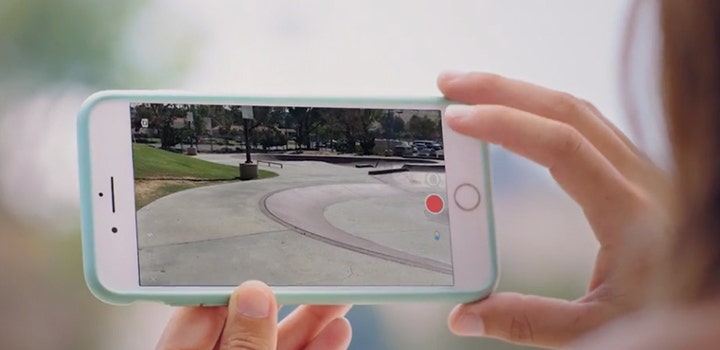
Likewise, effects like warp stabilisation, cropping or noise reduction apply subtle changes that can improve the overall quality of your footage.
Unlike filters, video effects often solve technical problems in footage, such as camera shake, framing issues or visual noise.
“These have to be fast, bright and they don’t need to make any sense at all. Don’t sit anywhere for too long,” agrees Stoler, who has edited teasers and sizzle reels for social media. He suggests getting right to the punchline. Don’t even bother with the set-up and don’t linger on the reaction.
Whatever the project, take your time while you edit video. When you get stuck or you find you’ve lost all perspective, show your work to someone you trust. What will keep the audience interested? How will you reward them for the time they’re giving you? No matter the audience, they'll respond to cuts that move the story forward and make logical and emotional sense.
Once you understand video editing basics and workflow, choosing the right tools can help you edit more efficiently and bring your creative ideas to life.
Adobe offers several video editing applications designed for different stages of the editing process, from quick social media videos to professional productions.
Adobe Premiere is a video editing application used to assemble footage, refine pacing and produce finished videos for film, web and social media.
Features include:
Adobe After Effects is an animation and visual effects application used to create motion graphics, titles and composited visuals.
Features include:
Adobe Express is a content creation application designed for quick video editing and social media publishing.
Features include:
Contributors
(Lead Editor at Pixar Animation Studios)
(Experienced journalist and filmmaker)
3) Lo Boutillette
(Creative Producer)

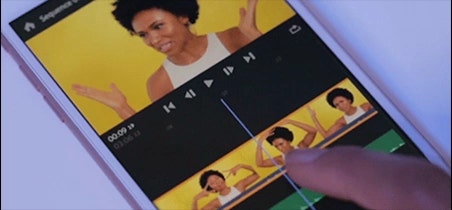


Visualise shots and effects ahead of the shoot, generate assets missed in production to complement your edit and eliminate tedious tasks to stay focused on your creative ideas.
Based on your location, we think you may prefer the United States website, where you'll get regional content, offerings, and pricing.


